
Candoo How to Use YouTube on an Android
How to use Youtube on an Android Tablet or Android phone
Table of Contents
- How to Search on YouTube
- How to Use YouTube Explore
- How to Play a Video
- How to Use the YouTube Navigation Menu
- How to Use YouTube Subscriptions
- How to Upload a Video
How to Search on YouTube
Step 1
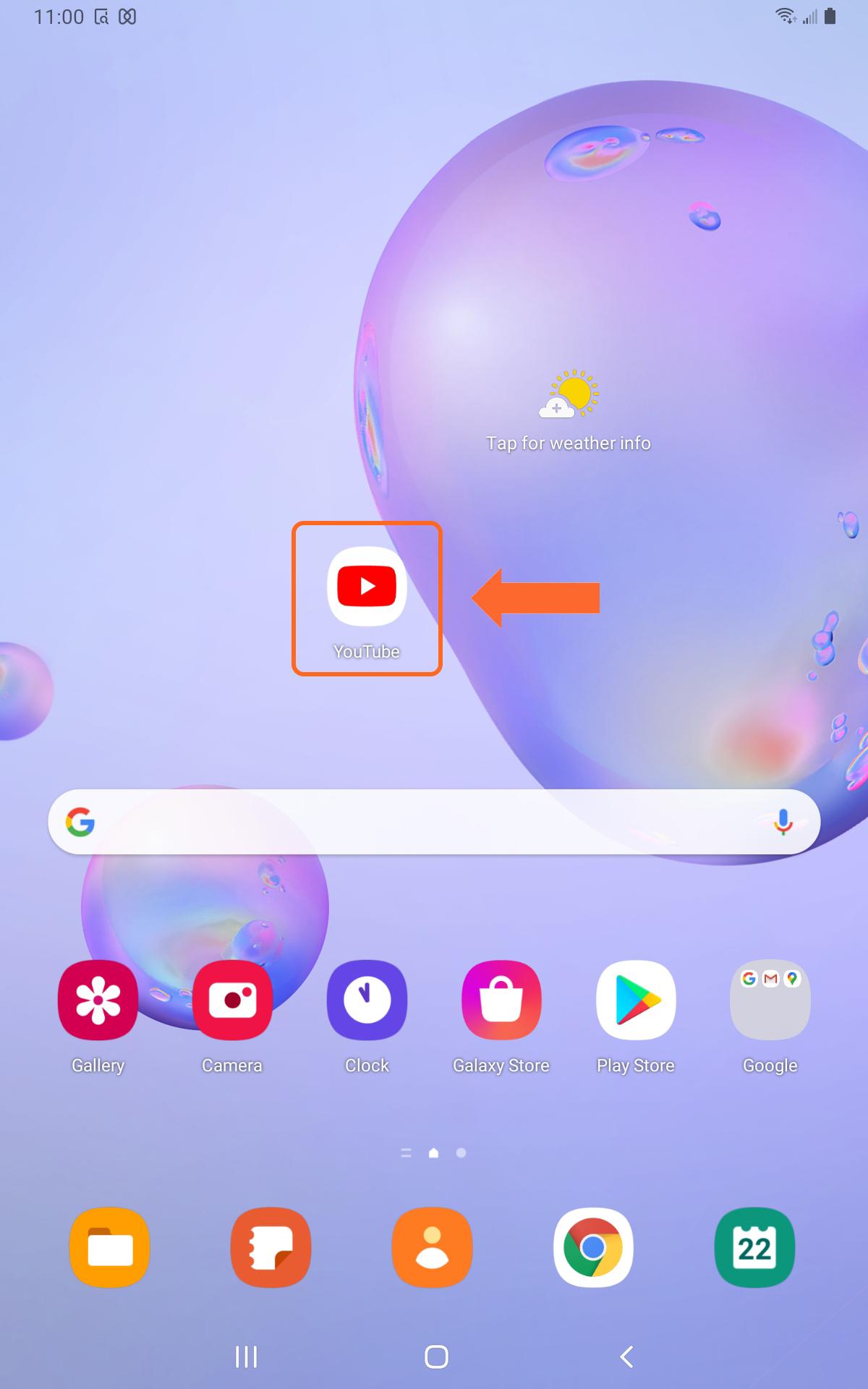
Tap on the YouTube icon on your tablet’s home page.
Step 2
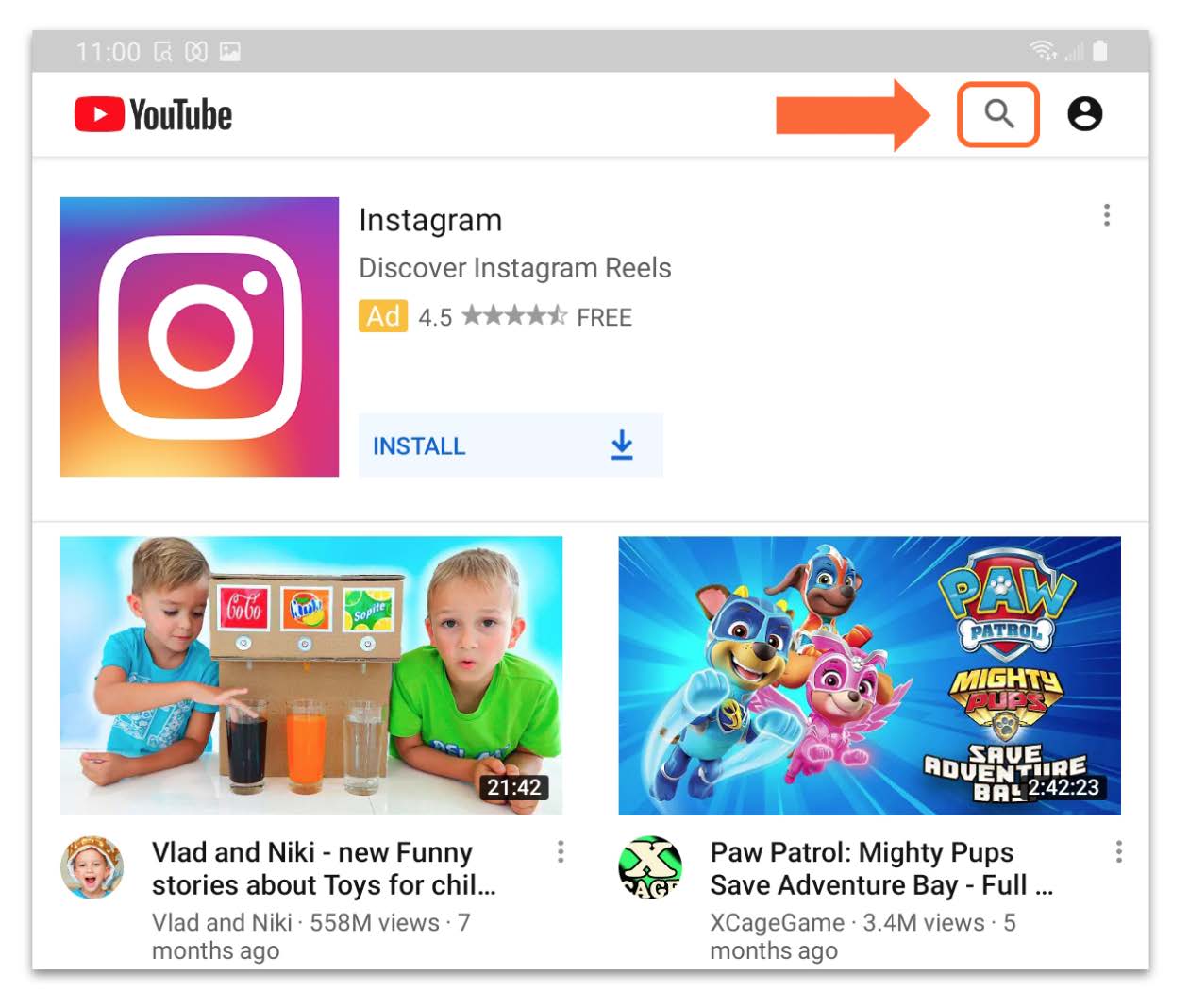
In the tap right corner, tap on the magnifying glass.
Step 3
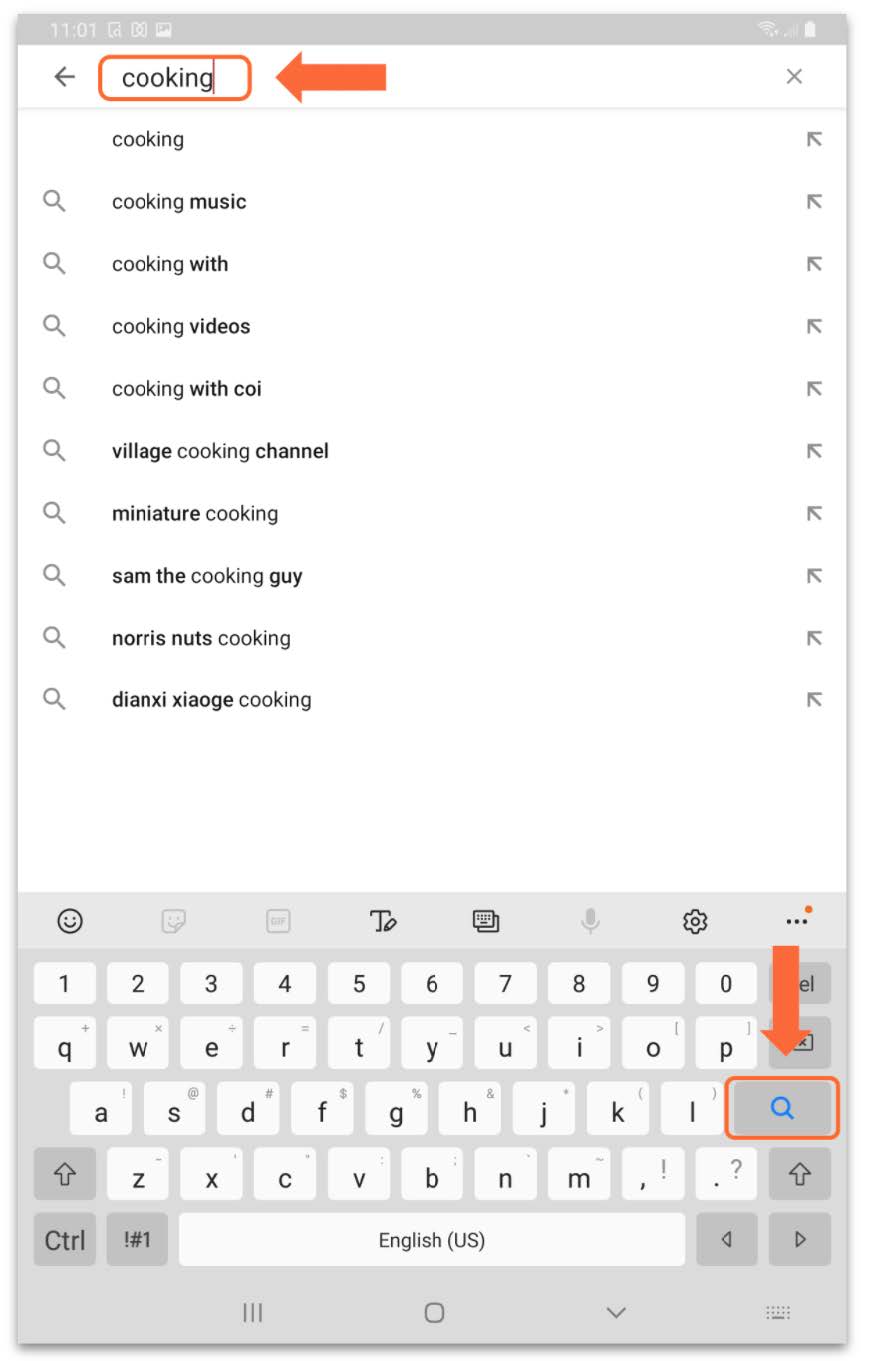
Tap in the white search bar at the top of your screen. Your keyboard will appear and begin typing what you are looking for. When you are done typing, tap on the blue magnifying glass on your keyboard.
Step 4
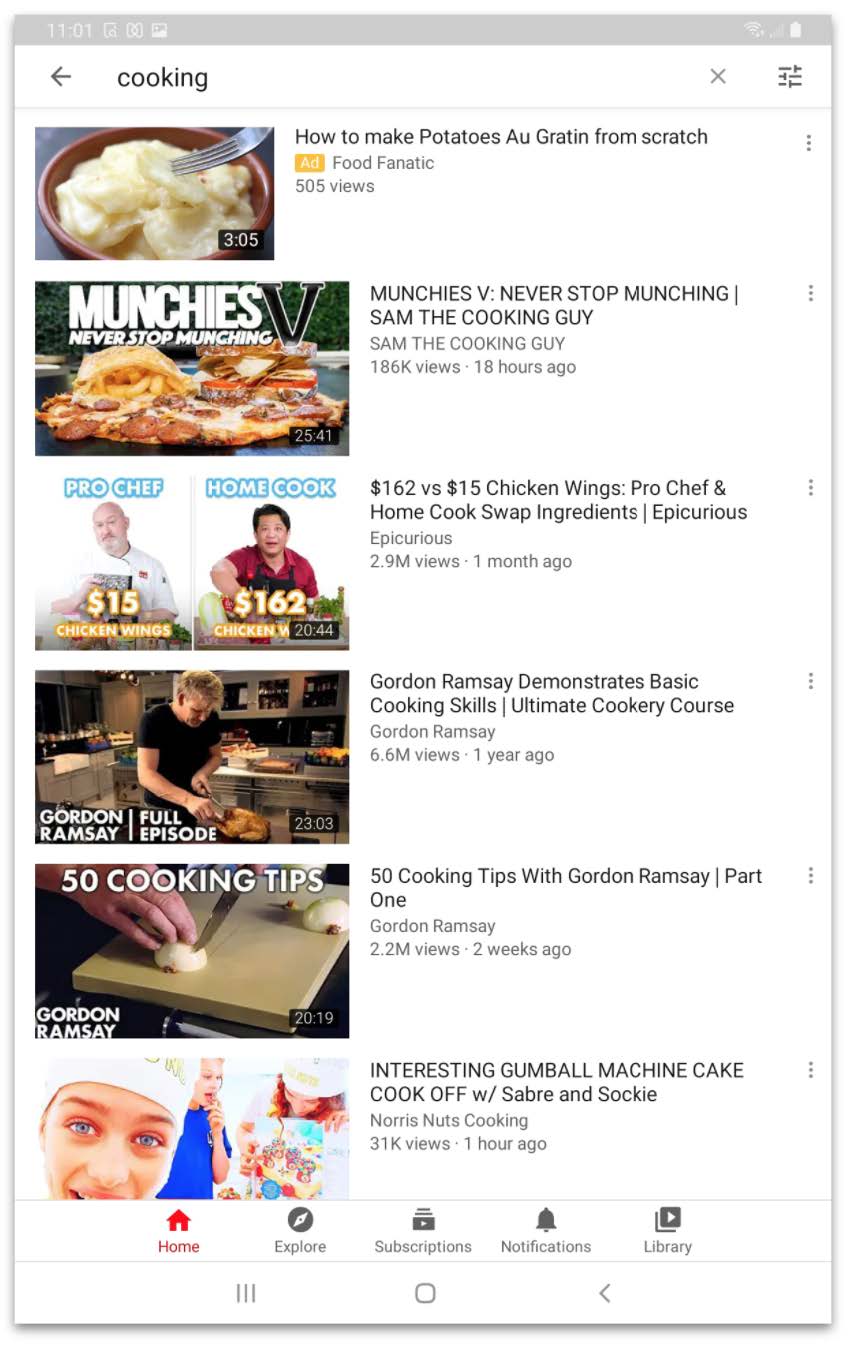
This will bring you to a page that shows all videos related to what you searched. If there’s a video you want to watch, tap on it.
How to Use YouTube Explore
Step 1
On the YouTube navigation menu, tap on “Explore”.
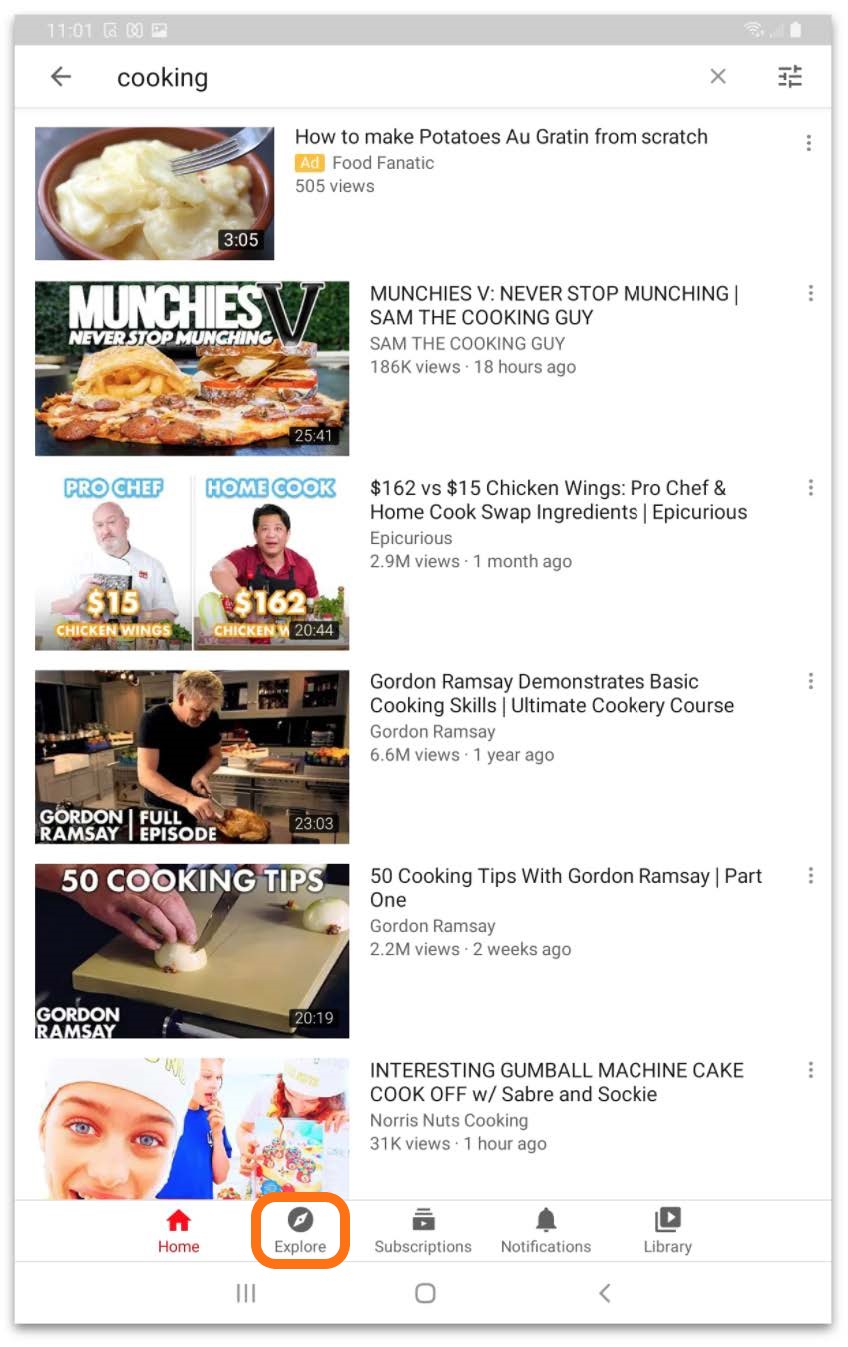
Step 2
This will take you to screen where you can pick from different categories like the image below. Tap on the category you want to explore.
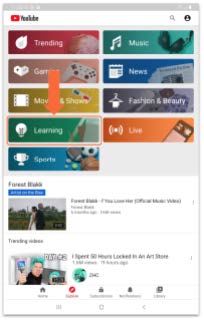
Step 3
This will bring you to a page where you can search for videos in the area of interest/category you selected. The image below shows you what the page may look like.
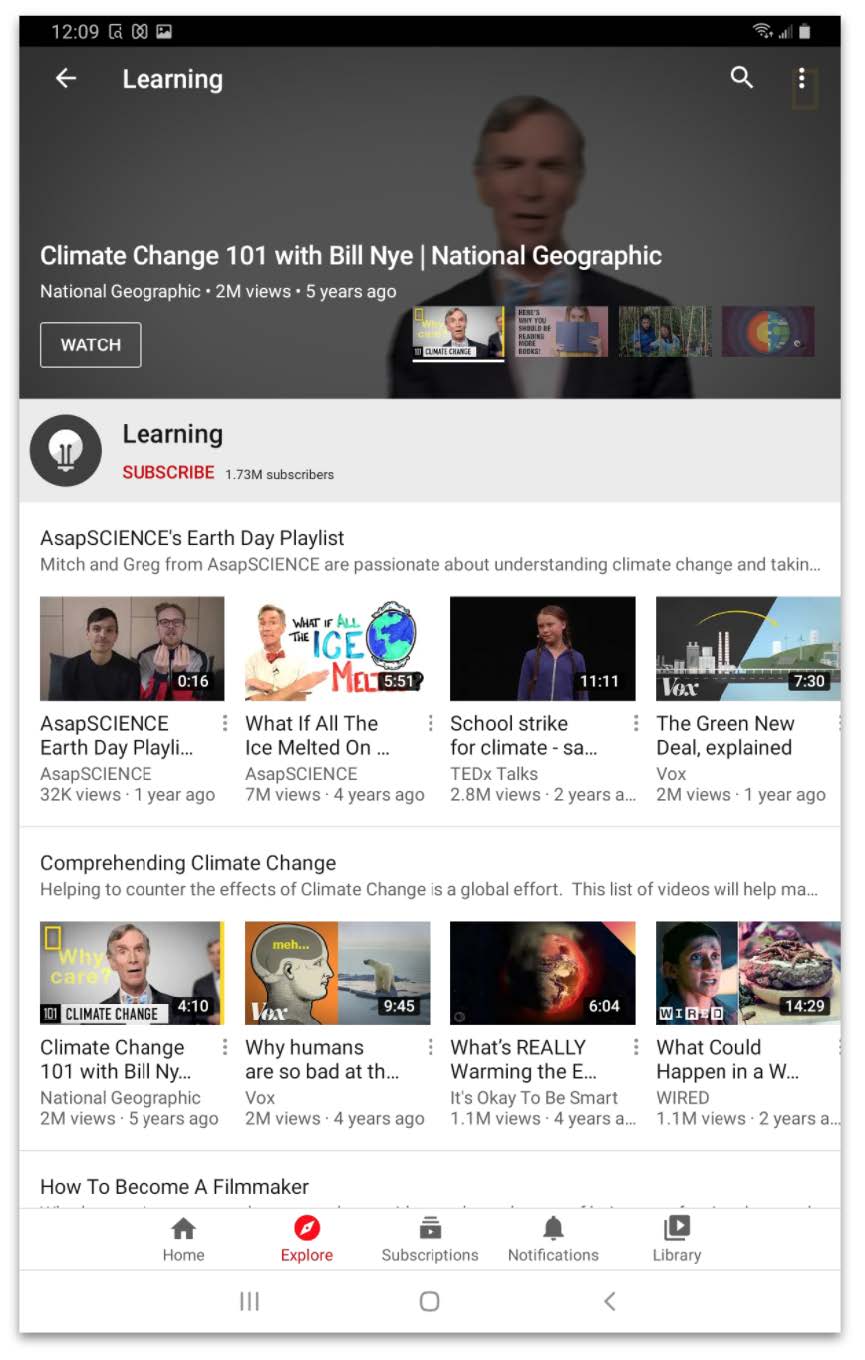
How to Play a Video
Step 1
Once you find a video you want to watch, tap on it.
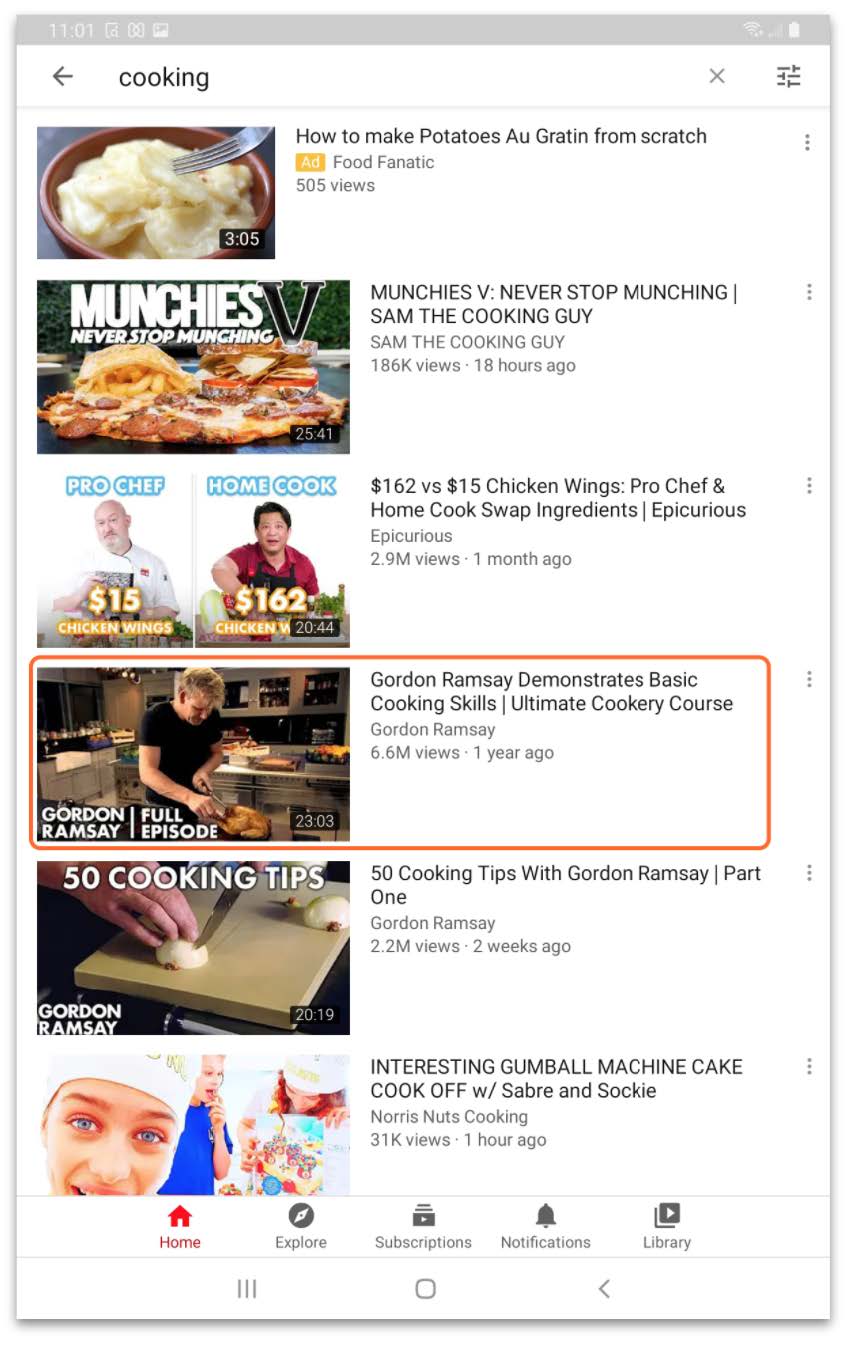
Step 2
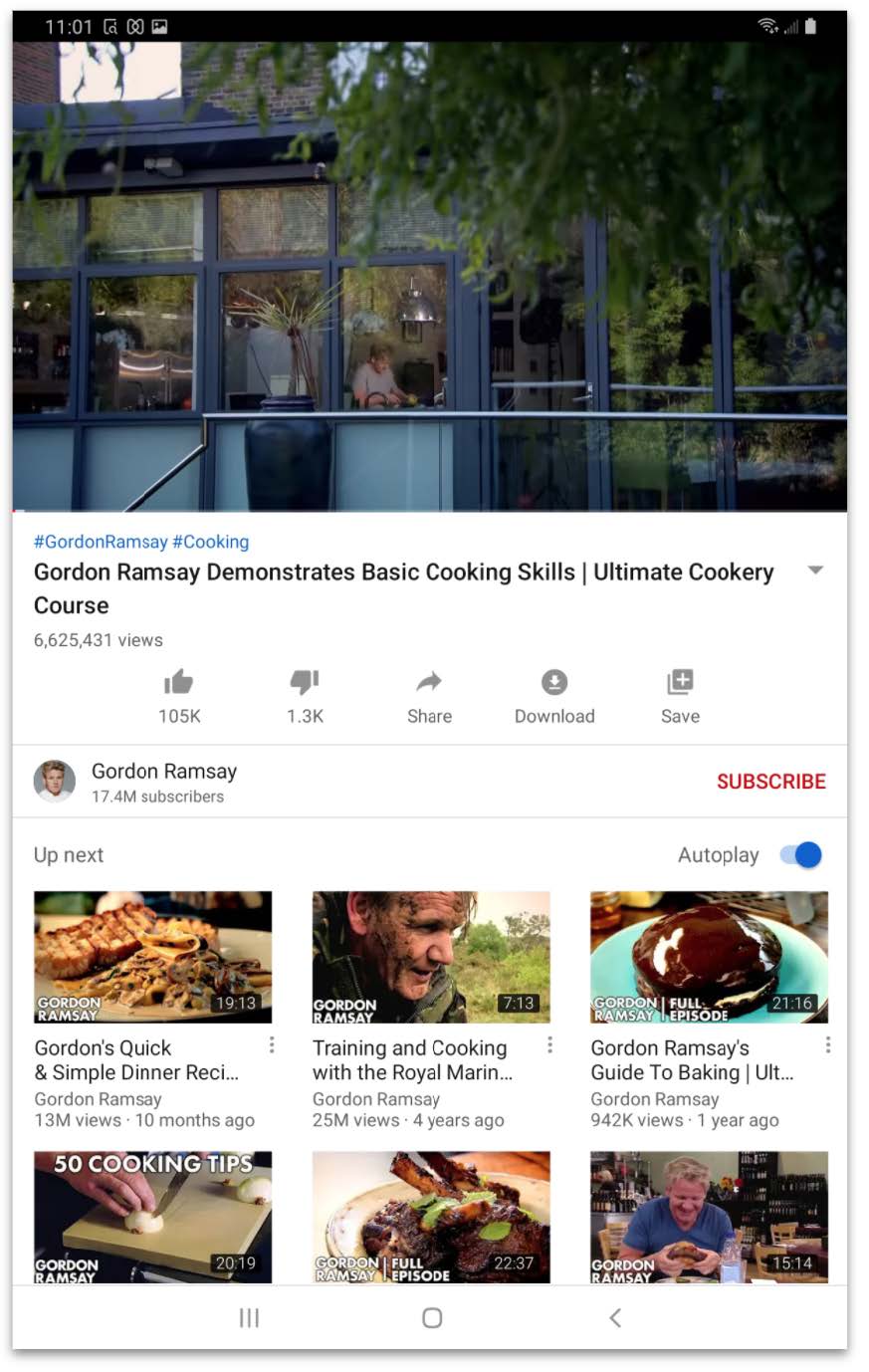
It will bring you to a screen like this and the video will begin playing.
Step 3
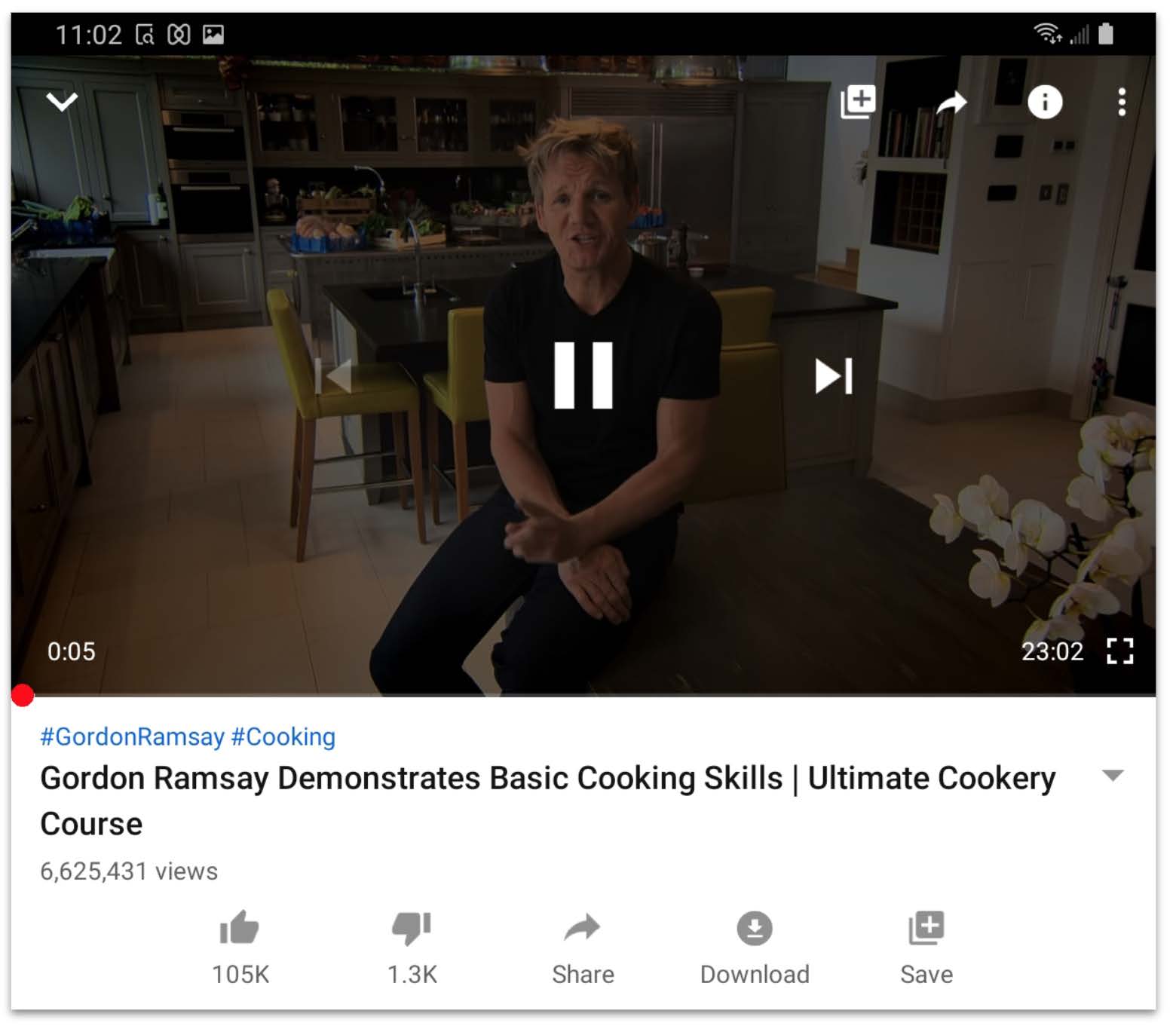
To pause the video tap on the video and you will see the pause symbol appear. Tap the pause symbol and the video will pause.
Step 4
To make the video full screen, tap on the square in the bottom right corner of the video. Once in full screen press the same button to go back.

Step 4
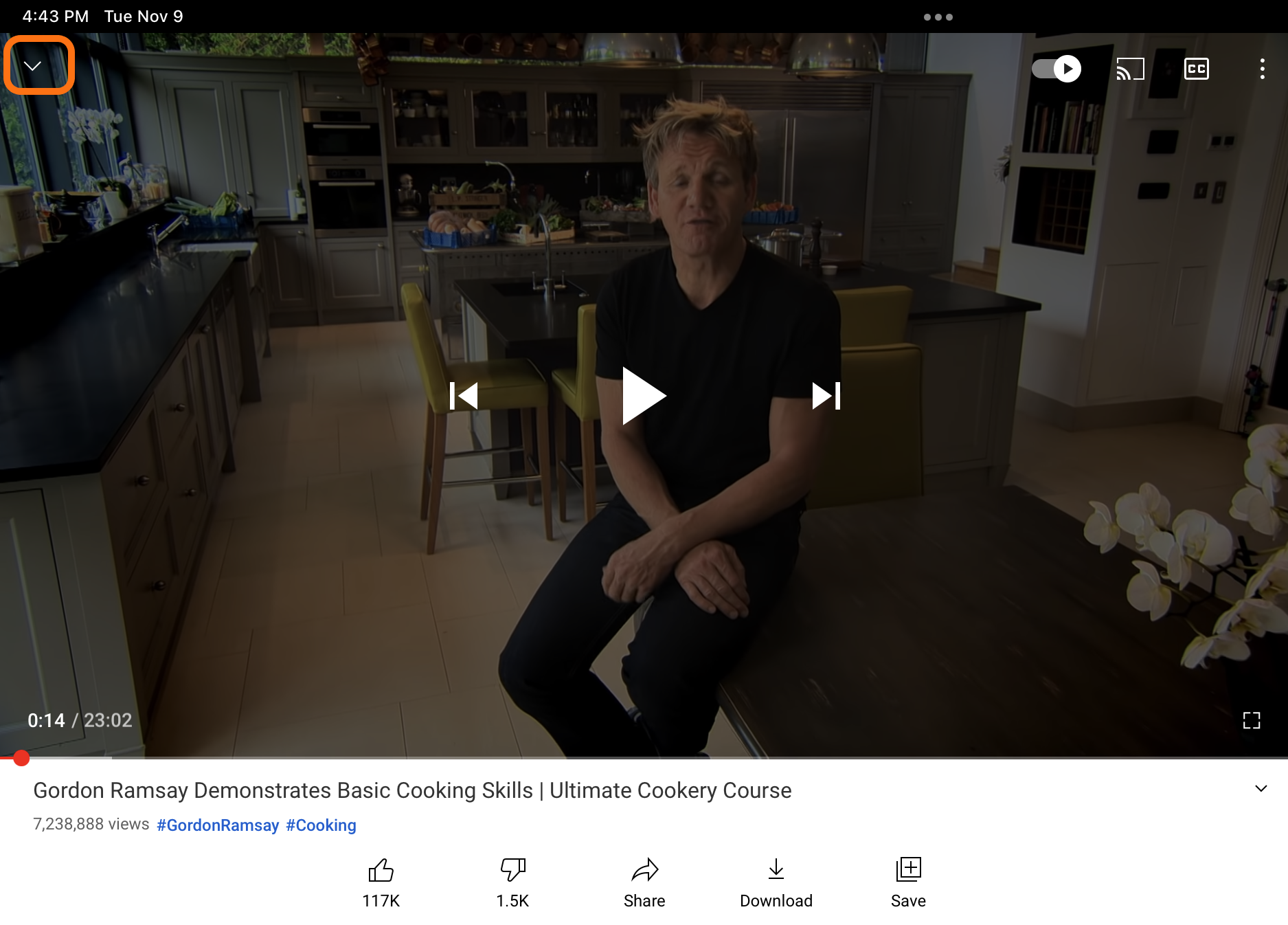
Press the Arrow on the top left corner of the screen to exit the current video.
How to Use the YouTube Navigation Menu
Step 1
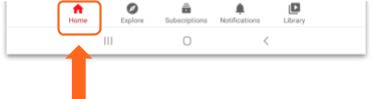
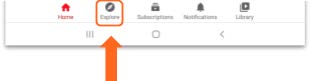
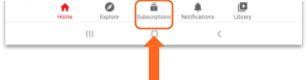
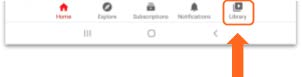
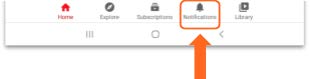
At the bottom of the YouTube home screen you will see the navigation menu.
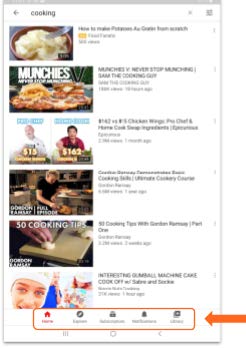
The “Home” button is what you see when you open YouTube. If you ever want to return to this screen, tap the “Home”.
The “Explore” button shows you videos that are popular on YouTube. You can search through to find videos that are interesting to you.
The “Subscription” button shows you the latest videos from any channel that you have subscribed to.
The “Library” button is where you can find things you have searched for, videos you have saved and other saved or recent information.
The “Notification” button allows you to view all the alerts you have received..
How to Use YouTube Subscriptions
By using YouTube Subscriptions, you can be alerted and notified when an account uploads and releases new content. It also allows you to easily see content from your favorite channels.
Step 1
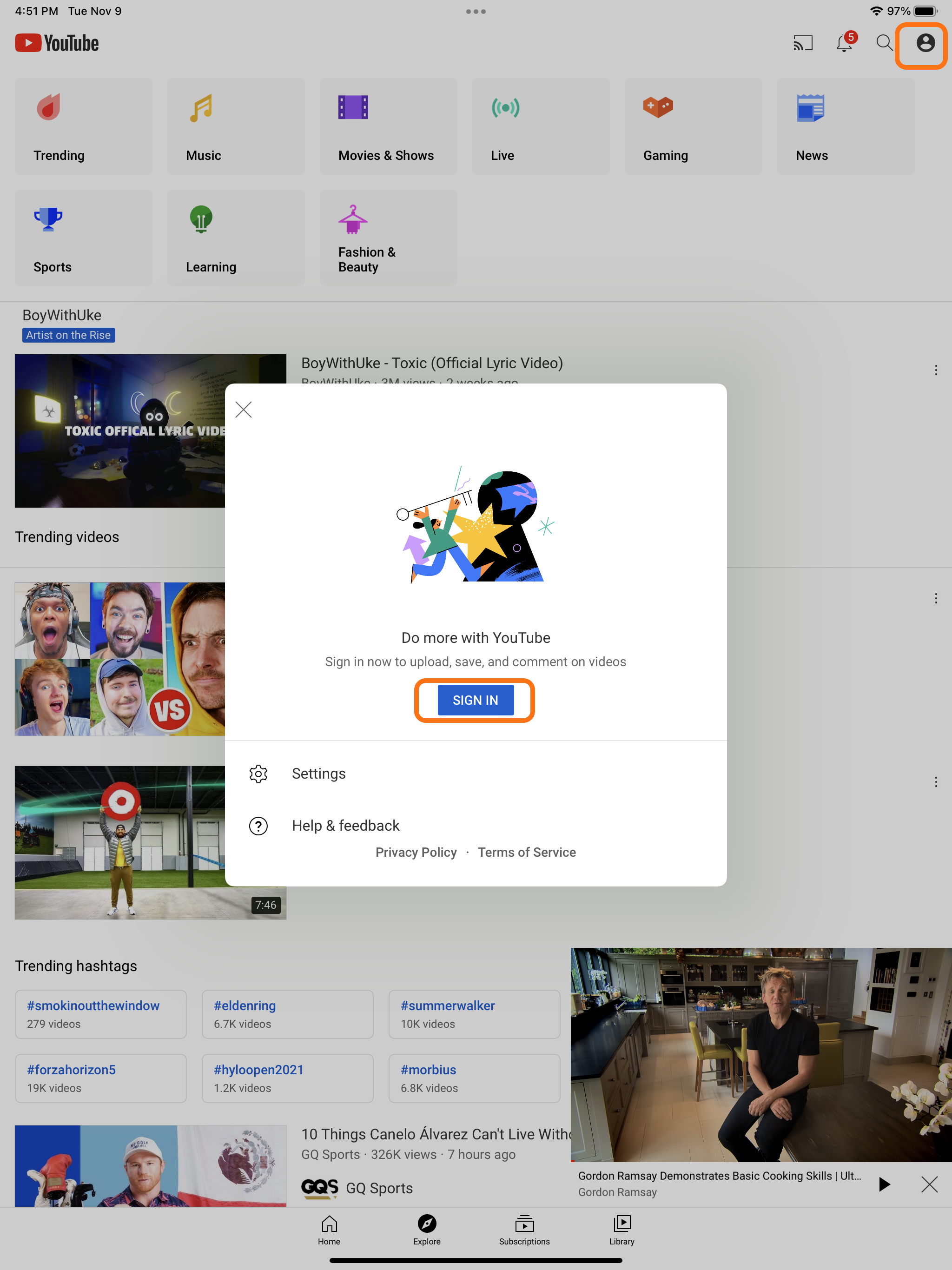
Sign into your YouTube account by clicking on the person icon in the top right corner of your screen and tap “Sign In”.
Step 2
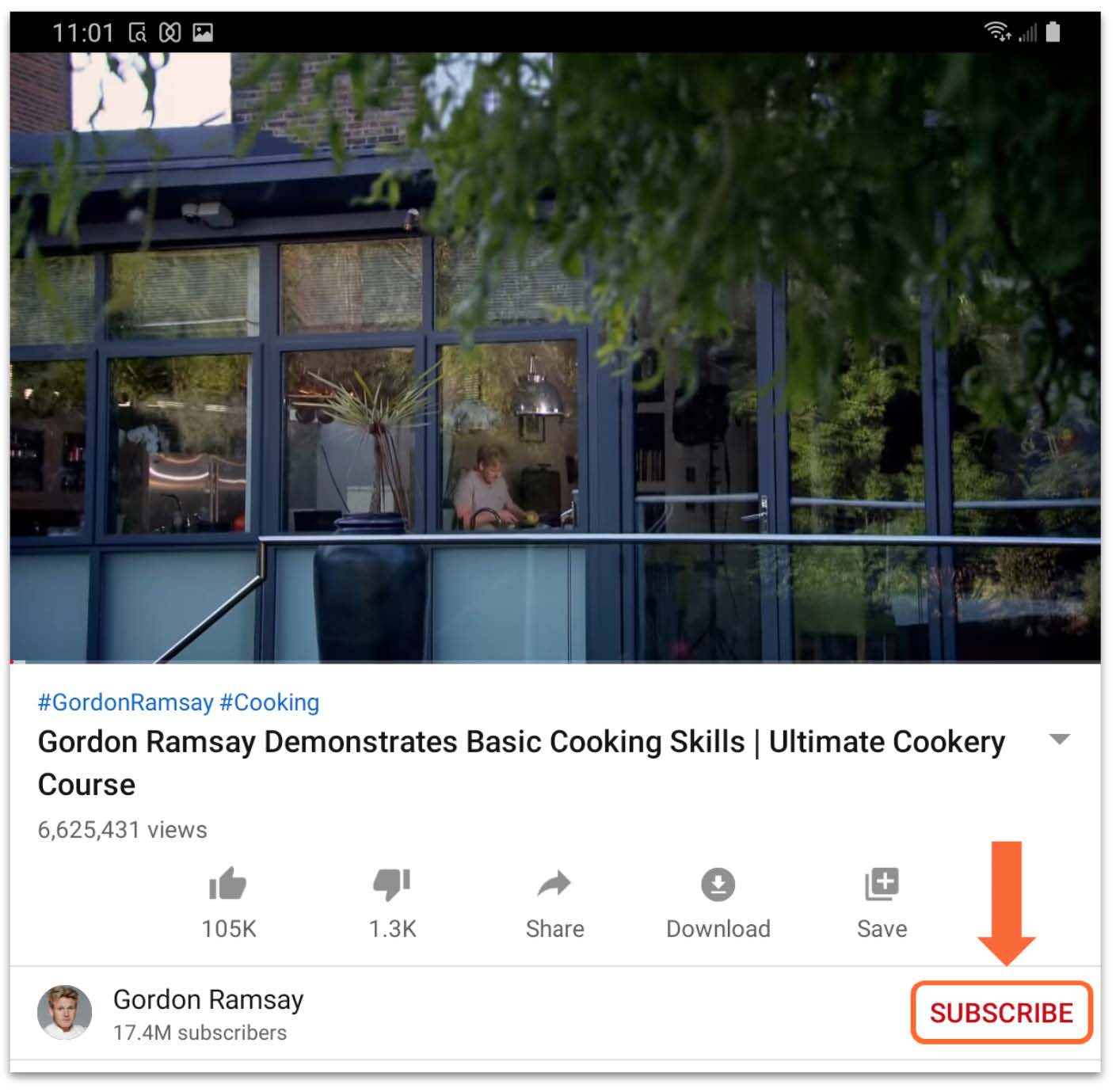
If there is a video or channel that you would like to follow and get the latest updates, tap the red “Subscribe” button in the bottom right corner.
Step 3
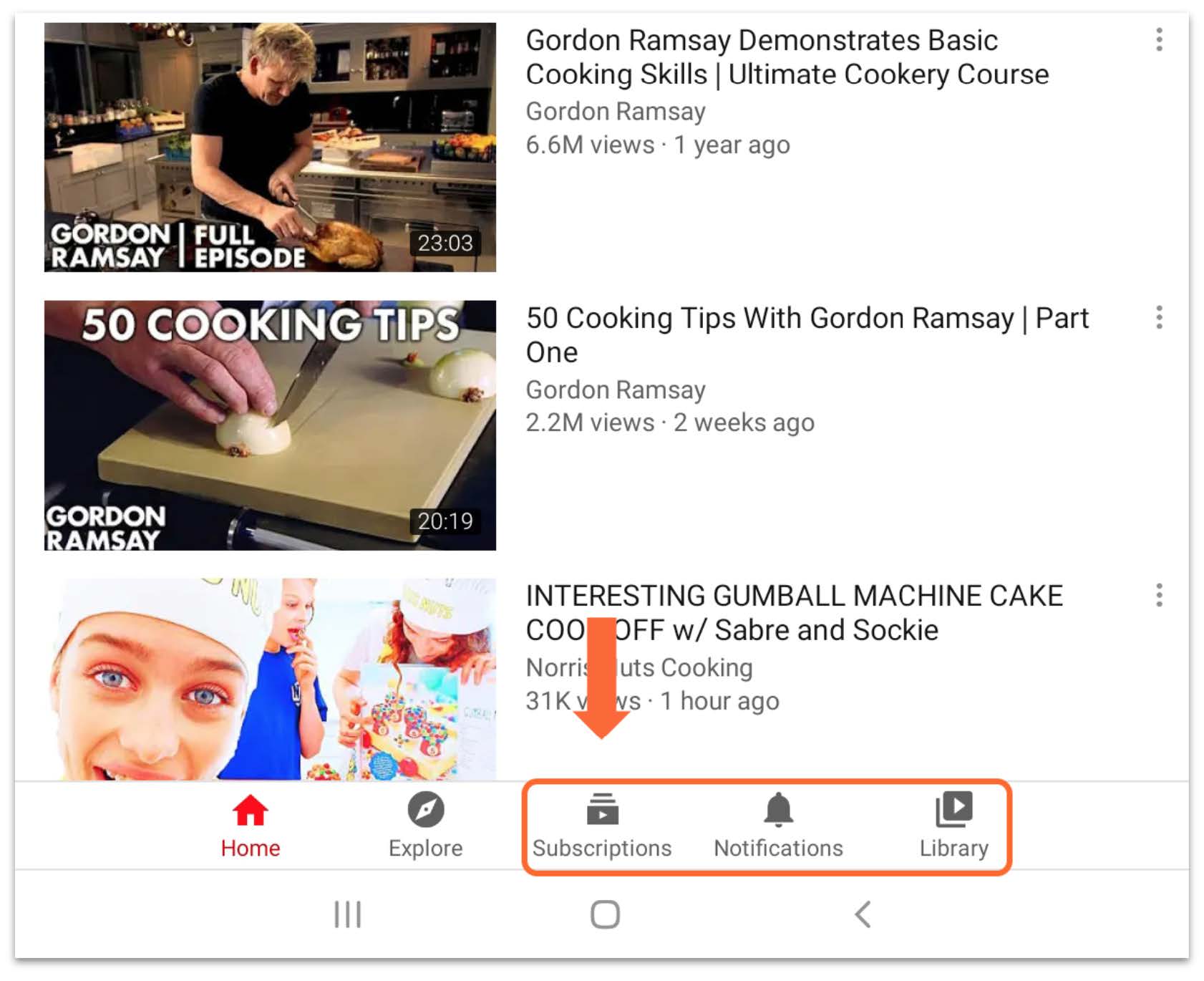
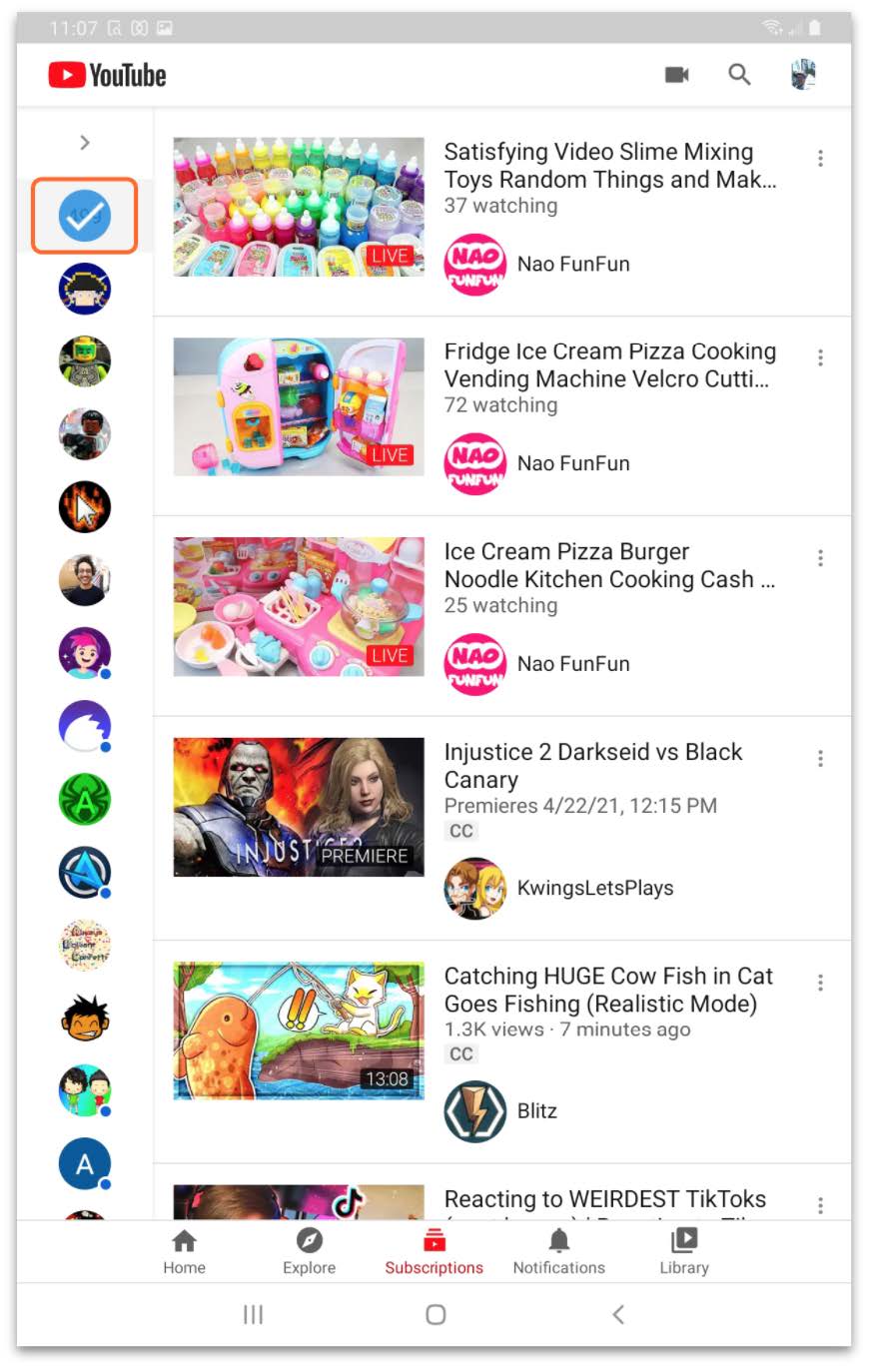
To view all the YouTube channels you have subscribed to, tap on “Subscription” in the bottom navigation menu.
Step 4
This will bring you to a page where you can view all recent videos from your favorite YouTube channels.
How to Upload a Video
To upload a video, you need to be signed into your YouTube account.
Step 1
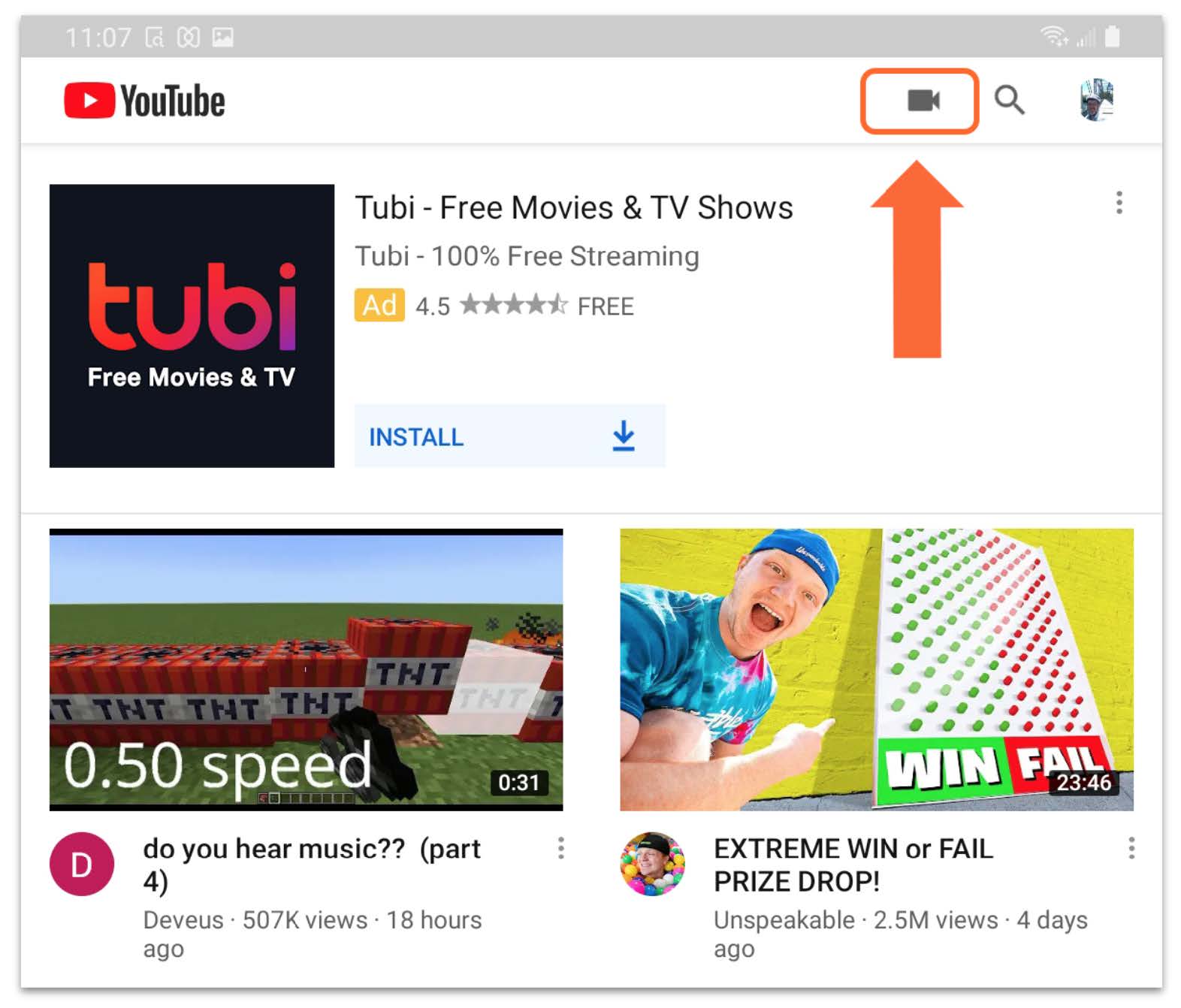
Once you are signed into your account, tap on the “video” icon in the top right corner.
Step 2
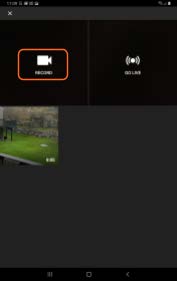
Tap on “Record” to record your own video.
If you need help or have any questions, call us at
646-758-6606 or email support@candootech.com
To download a copy of this guide click below:
Comments
0 comments
Please sign in to leave a comment.