
Candoo How to Zoom (iOS)
The most common way to join a Zoom meeting that you have been invited to is through a link in an email sent by the host of the meeting.
A link in an email will look like this:
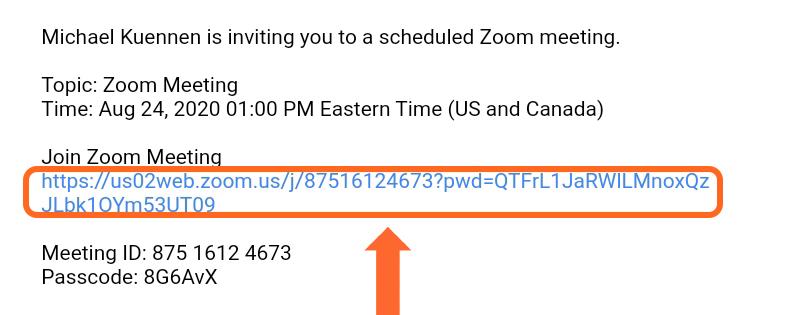
All you have to do is tap on the blue link and the Zoom application will automatically open on your tablet.
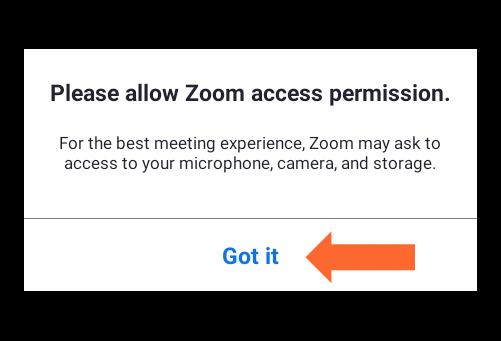
The first time you use Zoom, you may be asked to give the Zoom application access to your microphone and camera. This is what those screens will look like. Tap “Got it” and “Allow” to give Zoom the permissions it needs to run on your tablet. Again, you will probably only see these screens the first time you use Zoom on your device.
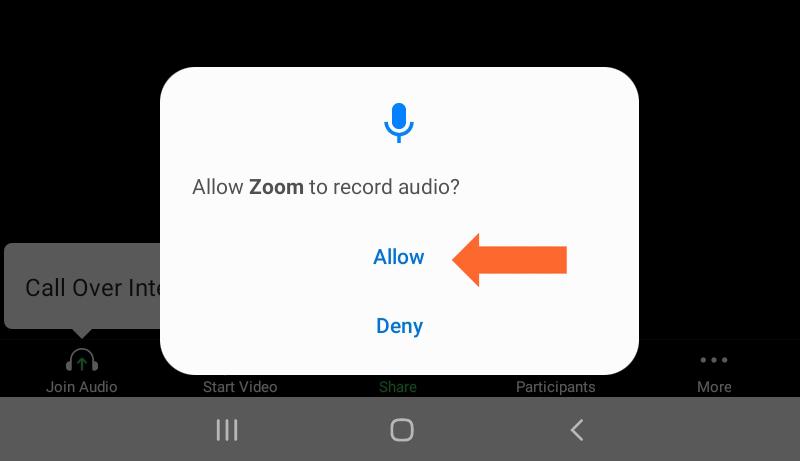
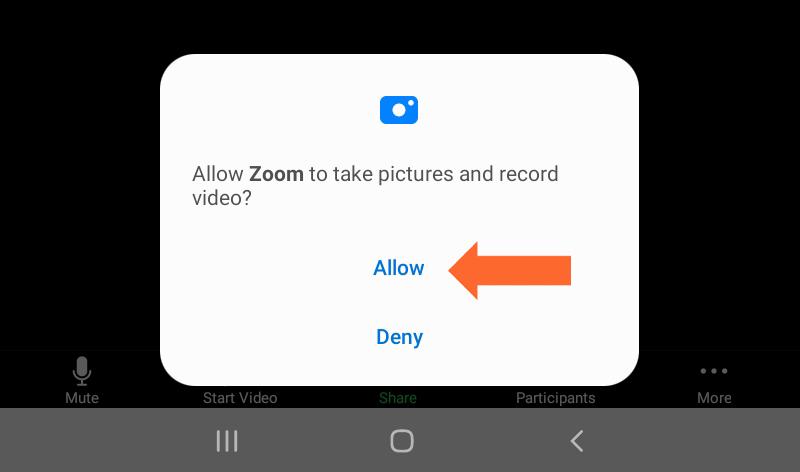
When you first join a meeting in Zoom you will need to Join Audio so that others in the meeting can hear you. Tap the blue “Call using Internet Audio” button to enable you to talk to the other participants. Then tap the “Start Video” button at the top so the others can see you. Your video feed will appear in the window at the bottom.
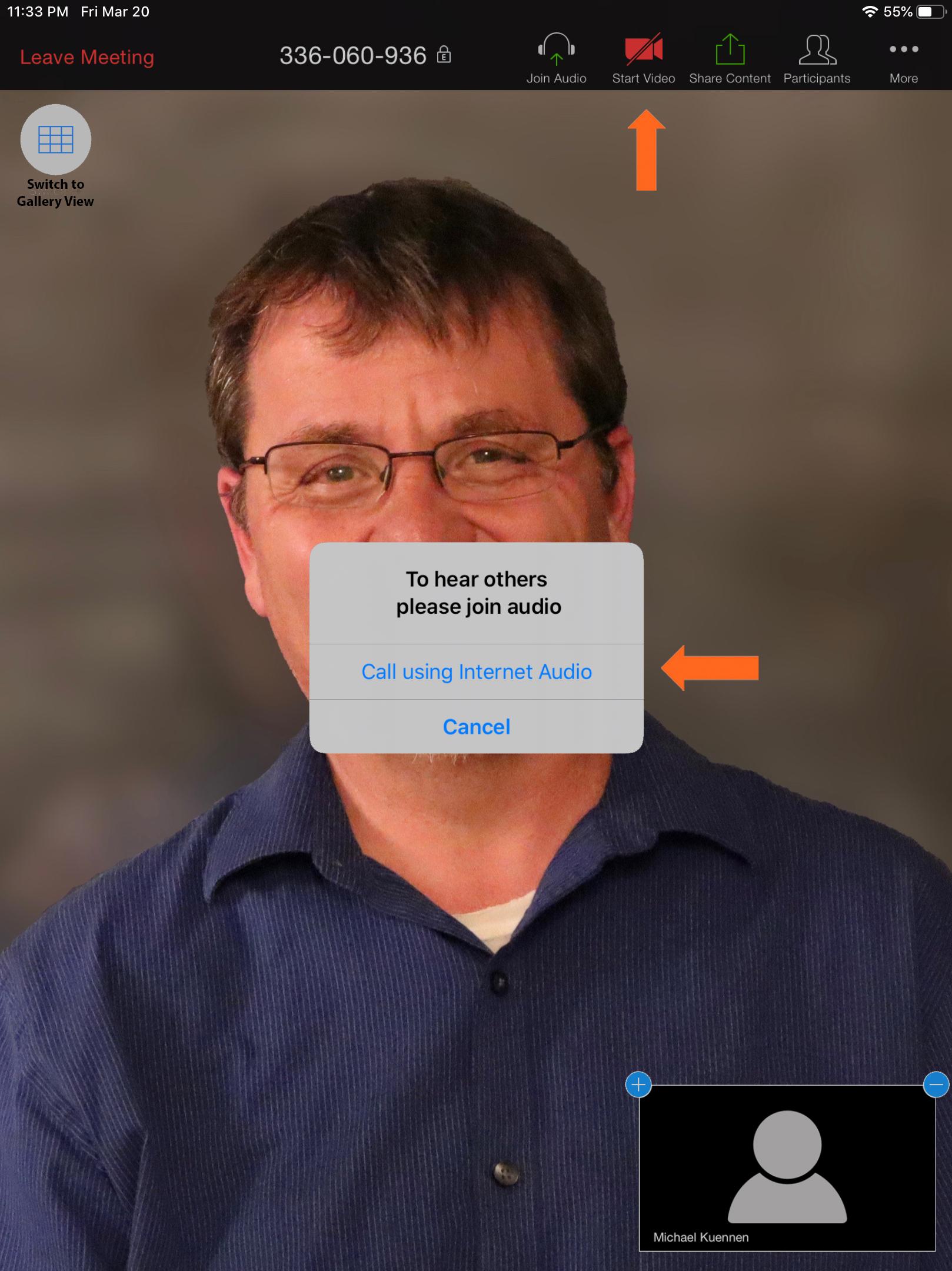
You will know that your video has started when you see your picture on the bottom right corner of your screen.
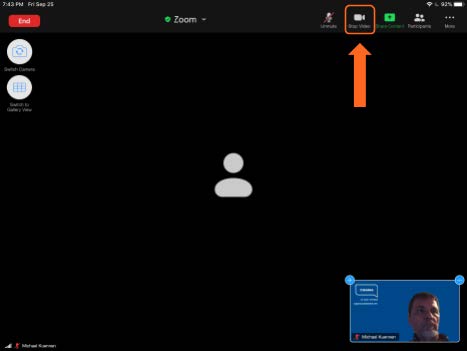
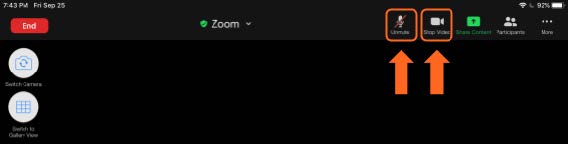
Notice that the menu bar at the top of the screen will disappear after about 5 seconds. You can make it reappear by tapping anywhere on your screen. You can mute your audio and start and stop your video by tapping the “Mute” and “Stop Video” buttons in the menu bar.
Next, let’s look at the “More” button.
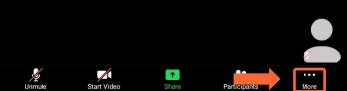
Tapping the “More” button will bring up this menu. Notice the row of Emoji’s at the top of the menu. In Zoon, these are called “Reactions”.
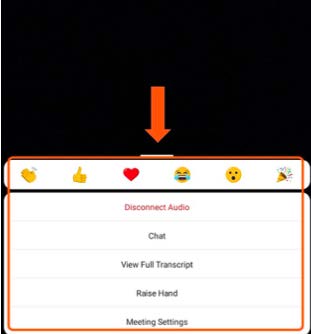
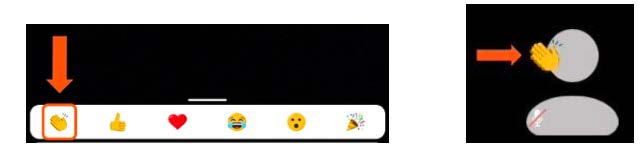
Reactions give us a way to nonverbally react to something someone says in a meeting. For example, if we like something that somebody says, we can tap on the “Clapping Hands” emoji. You will see that the “Clapping Hands” will appear next to our picture. It will stay there for around 5 seconds and then disappear on its own.
Another useful thing in the “More” menu is “Raise Hand”. This is useful if you are taking a course on Zoom. You can raise your hand just like you would in a regular classroom.
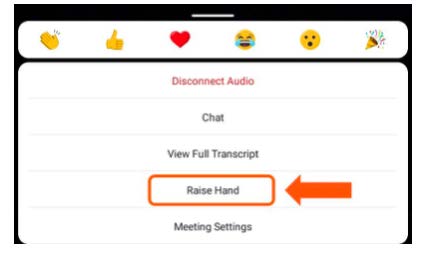
When you tap the “Raise Hand” button, a blue hand will appear in the instructors window indicating that you would like to ask a question.
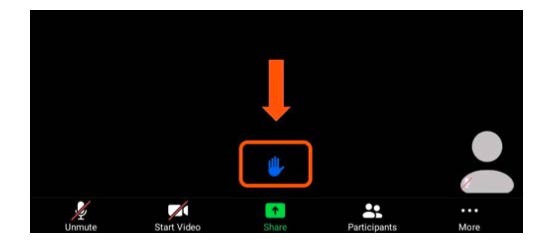
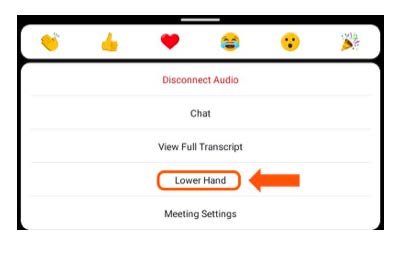
Your hand will remain raised until either you lower it by tapping “Lower Hand” in the “More” menu or the instructor lowers it for you when they call on you.
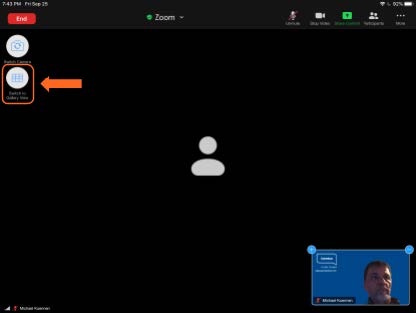
If there are more than two people in your meeting, you can switch your view to Gallery View. There will be an icon with boxes in the top left corner, tap it to switch to Gallery view. If you don’t see it, tap your screen and it will appear.
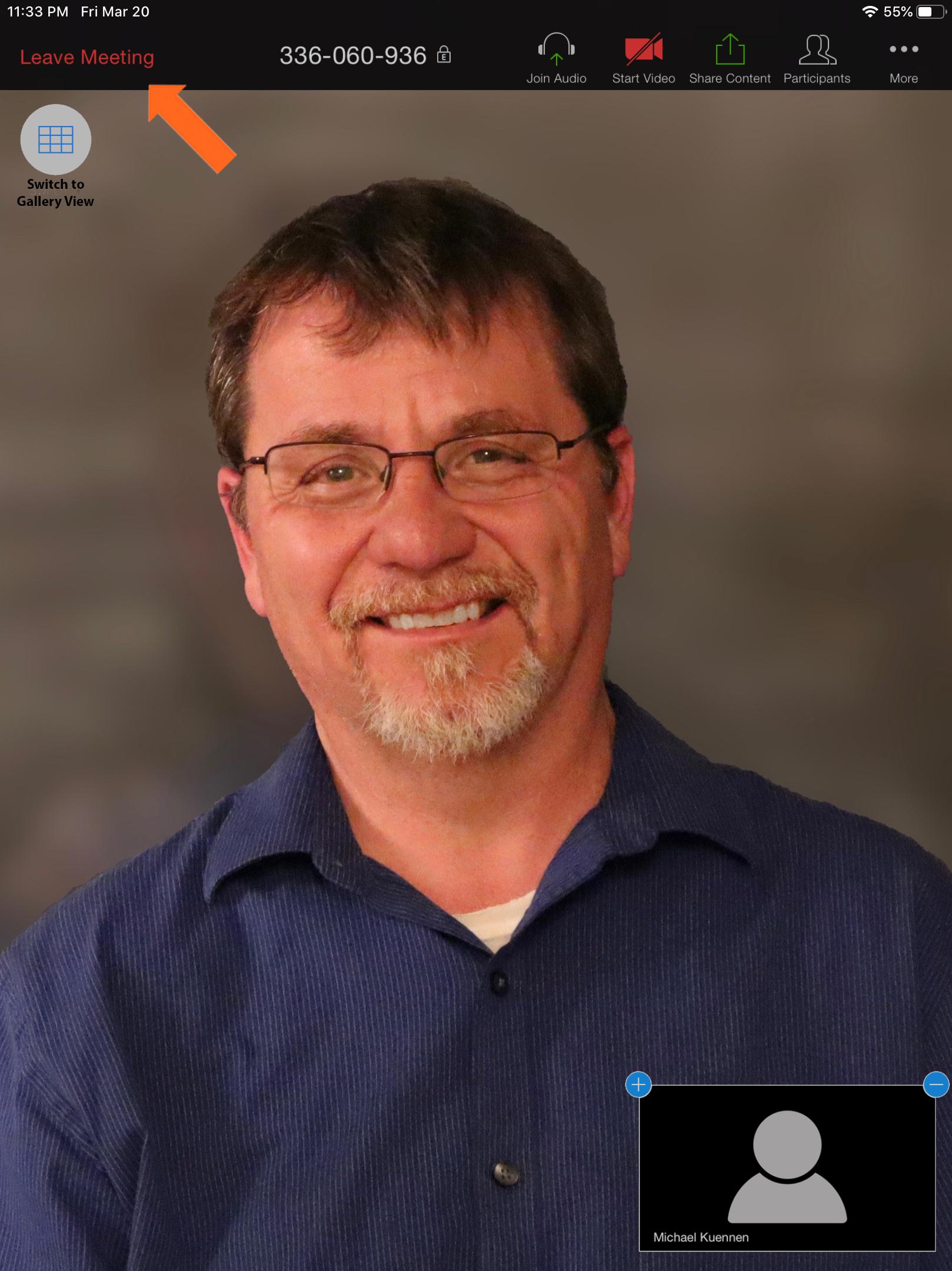
To leave the meeting, tap the red “Leave Meeting” button at the top. If you don’t see the control panel, tap the screen and it will appear.
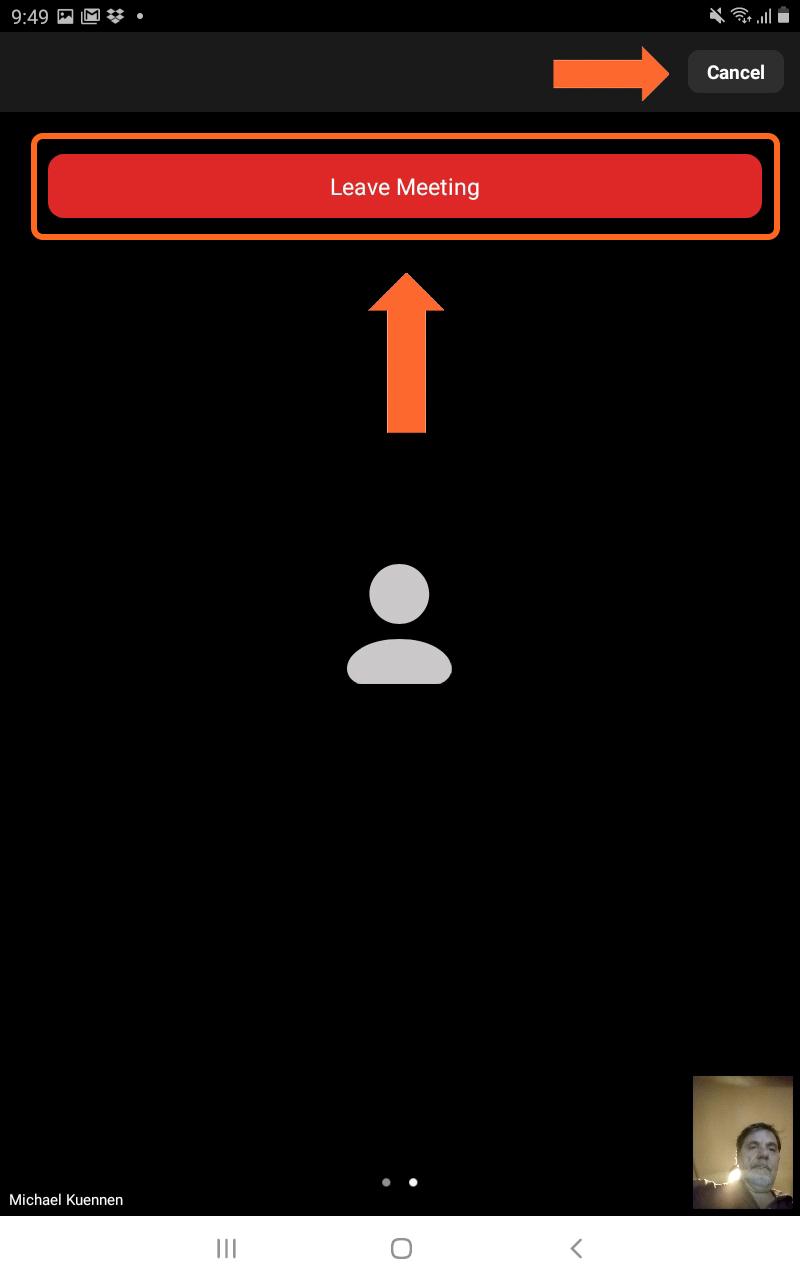
You will then be asked to confirm that you want to leave the meeting. Tap “Leave Meeting” to confirm. You may also tap “Cancel” to continue taking part in the meeting.
If you need help or have any questions, call us at
646-758-6606 or email support@candootech.com
To download a copy of this guide click below:
Comments
0 comments
Please sign in to leave a comment.