
Candoo How to Use WhatsApp on Android
Step 1
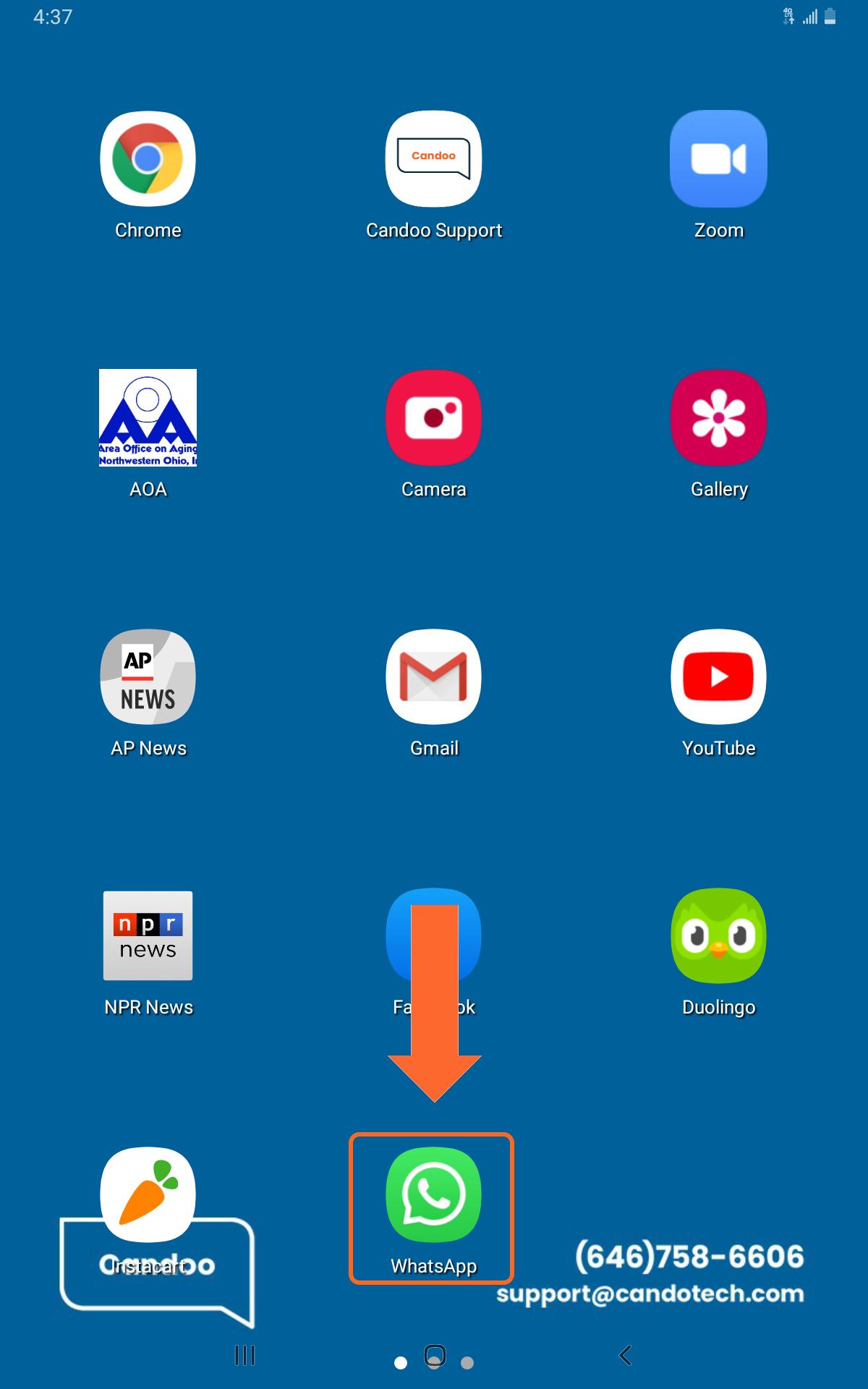
Tap on the “WhatsApp” icon on your Android device.
Step 2
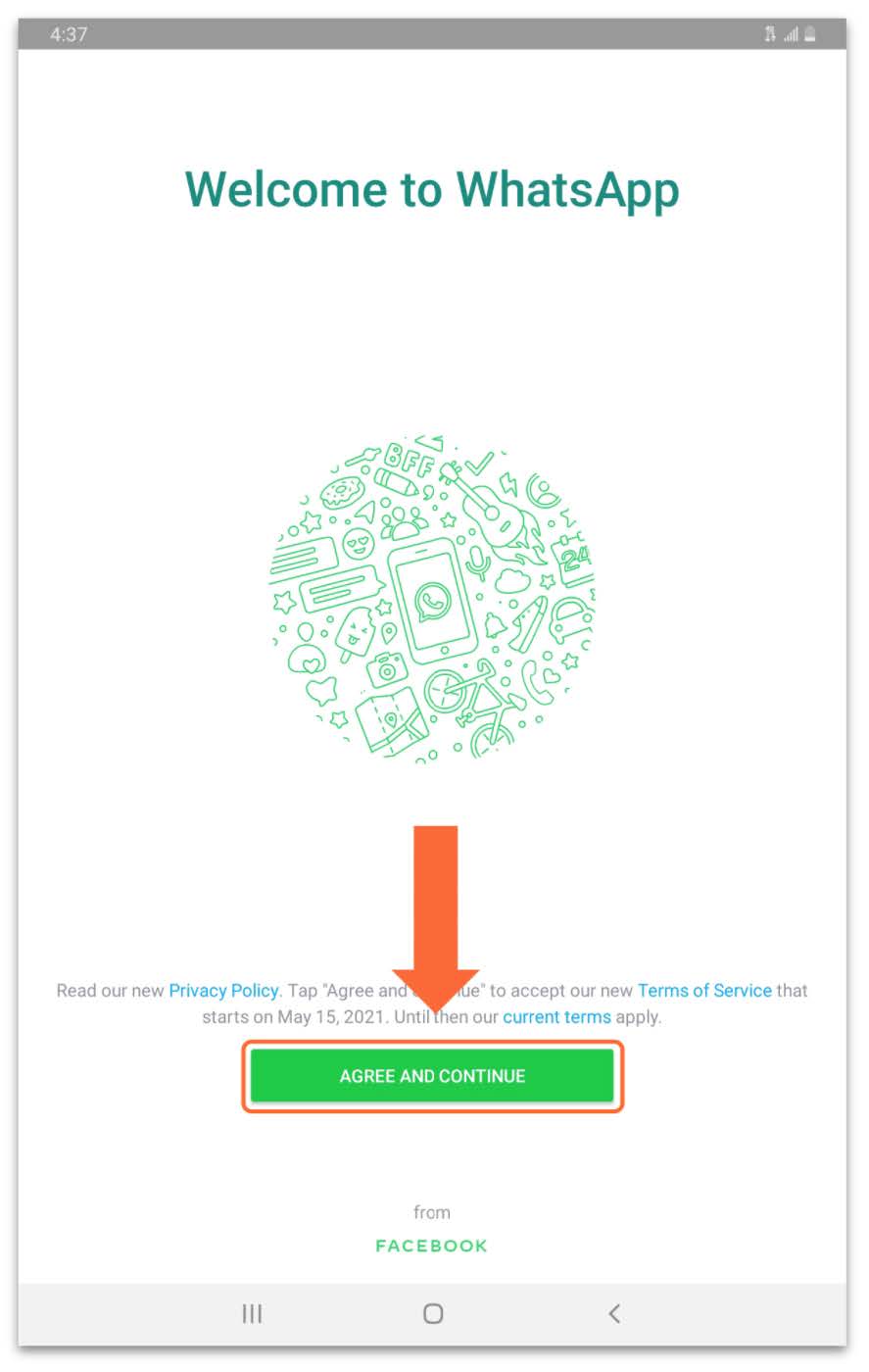
Tap on “Agree and Continue” to accept the WhatsApp terms and conditions.
Step 3
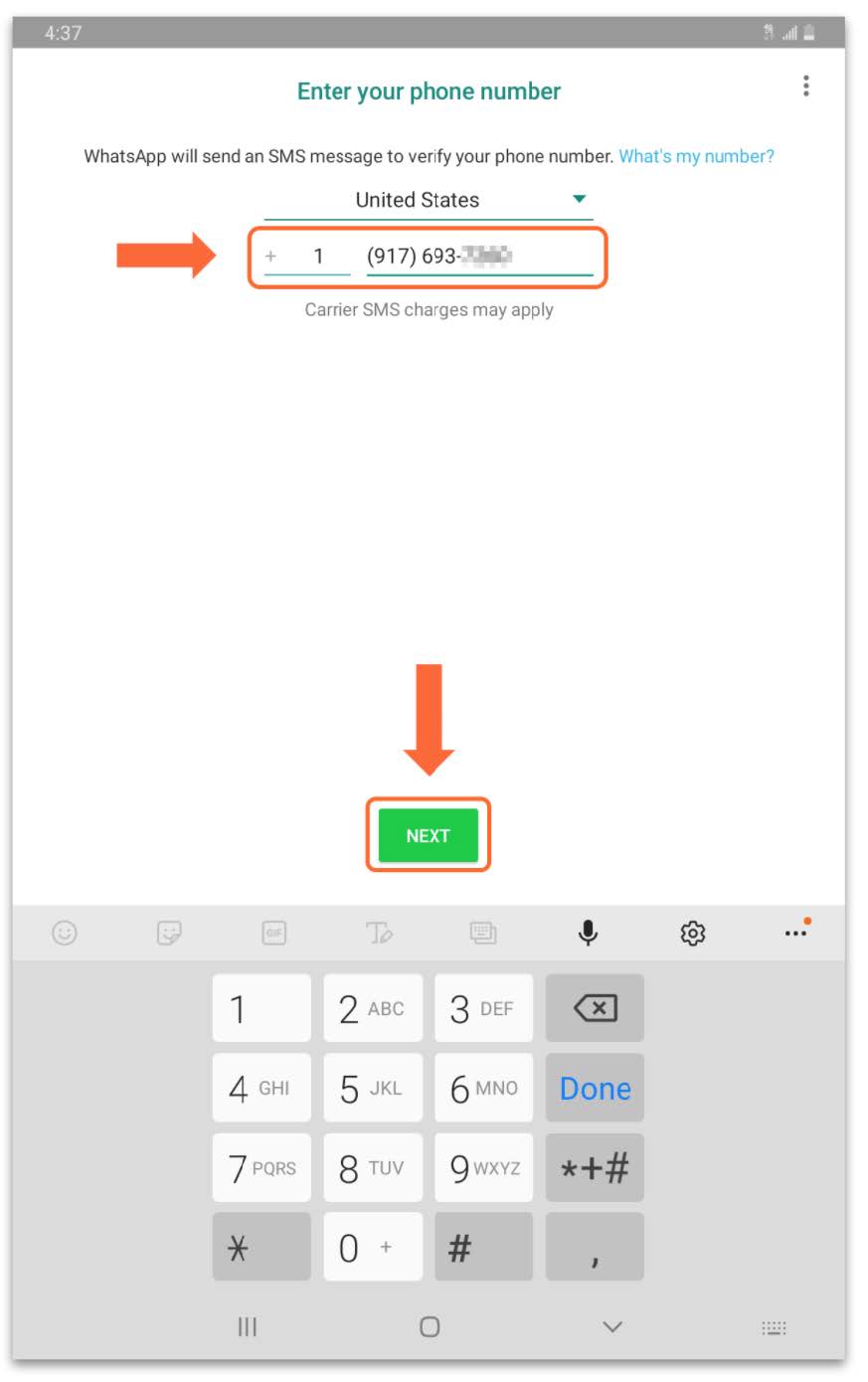
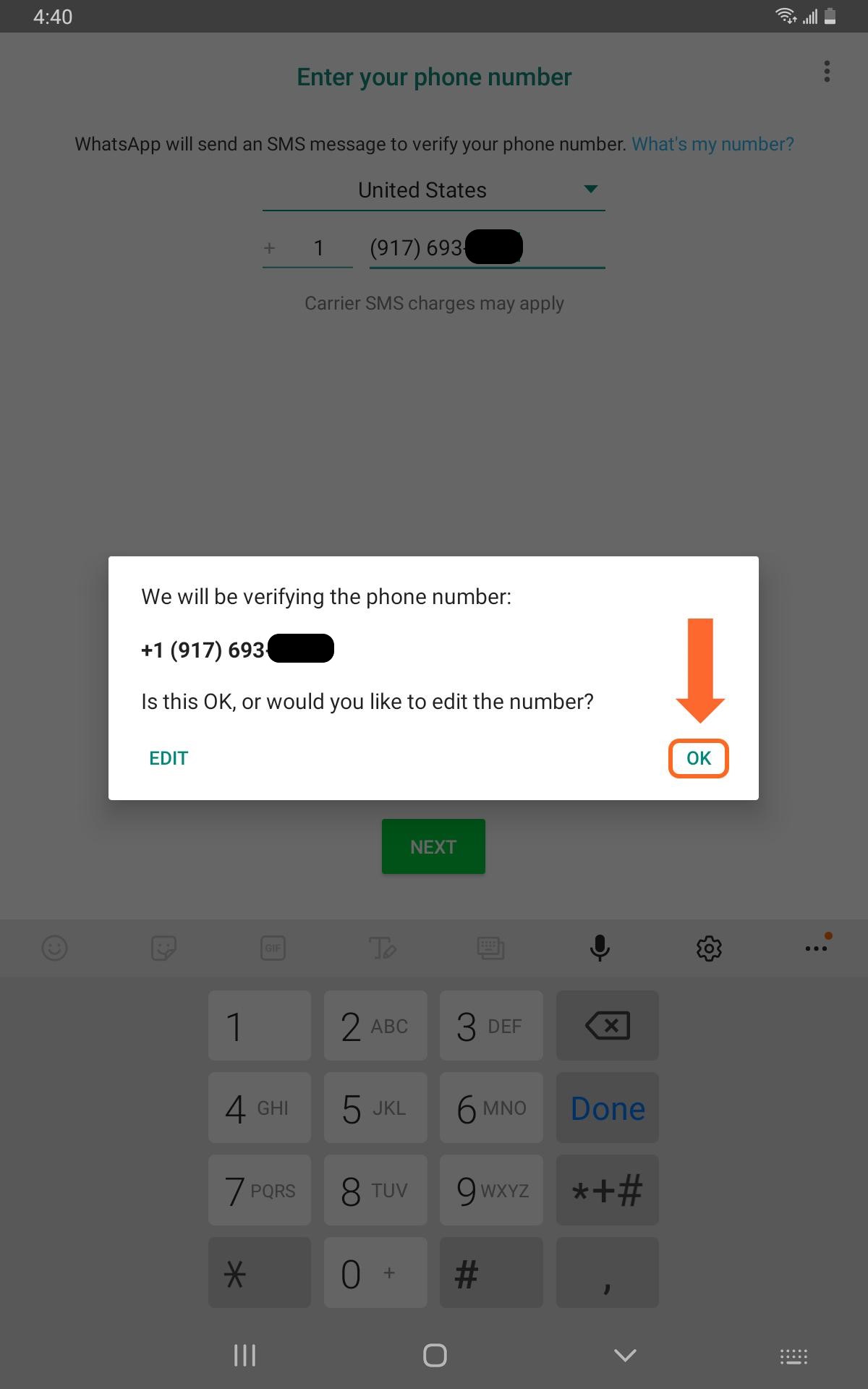
Enter your phone number and tap “Next”. You will then be asked to verify that you entered your number correctly. If so, tap “OK”. WhatsApp will then send a text message with a confirmation code for you to enter to verify that the phone number belongs to you.
Step 4
Enter the verification code that WhatsApp texted to you.
Step 5
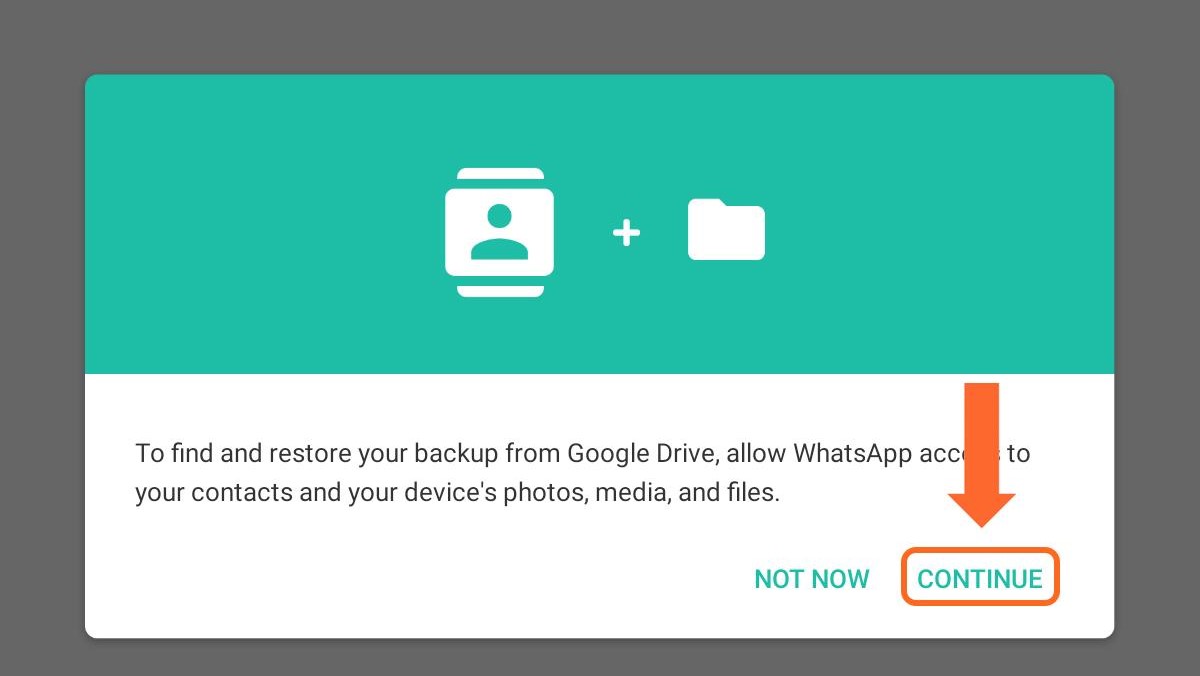
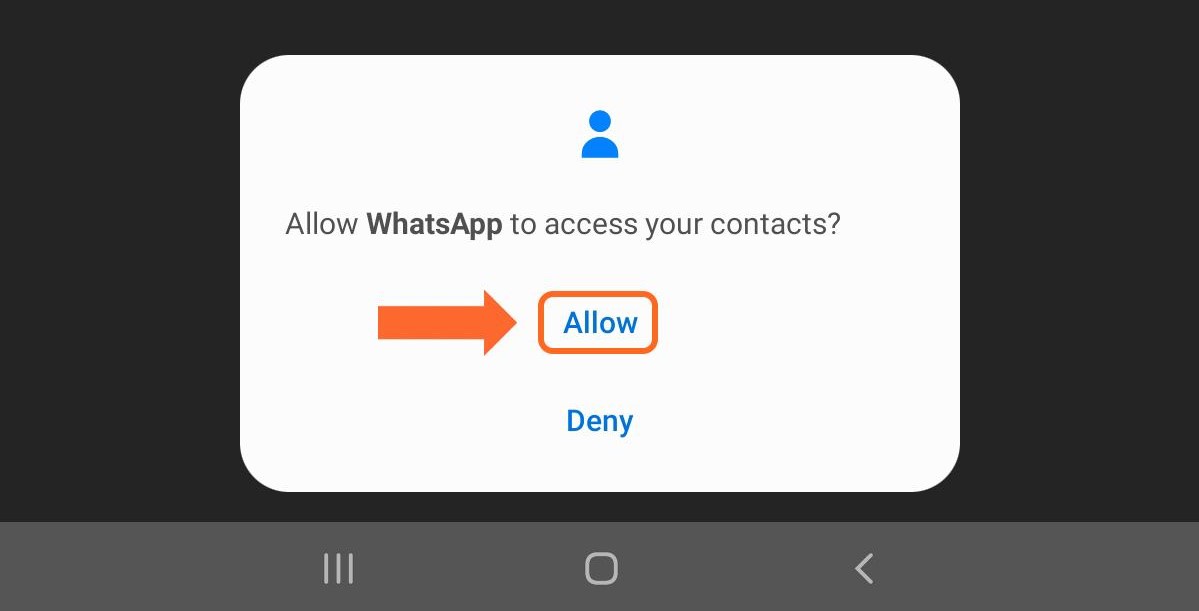
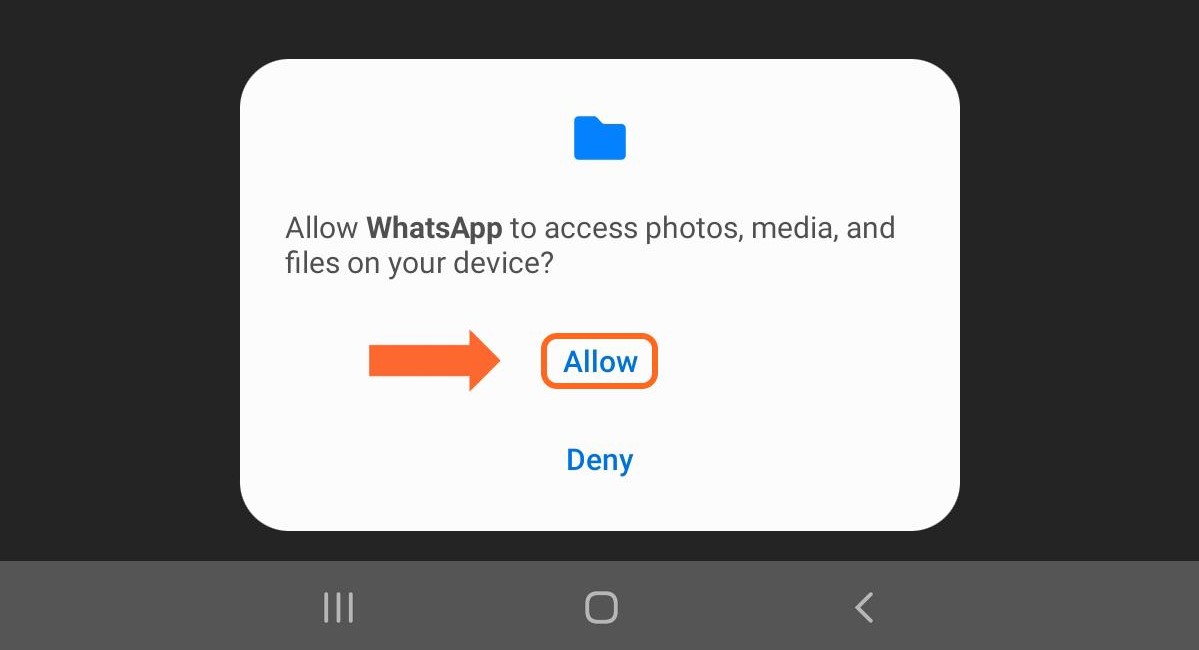
Next you will need to allow WhatsApp access to your contacts and photos on your device. Tap “Continue” and then “Allow” on the next two screens. WhatsApp needs this access in order to work properly.
Step 6
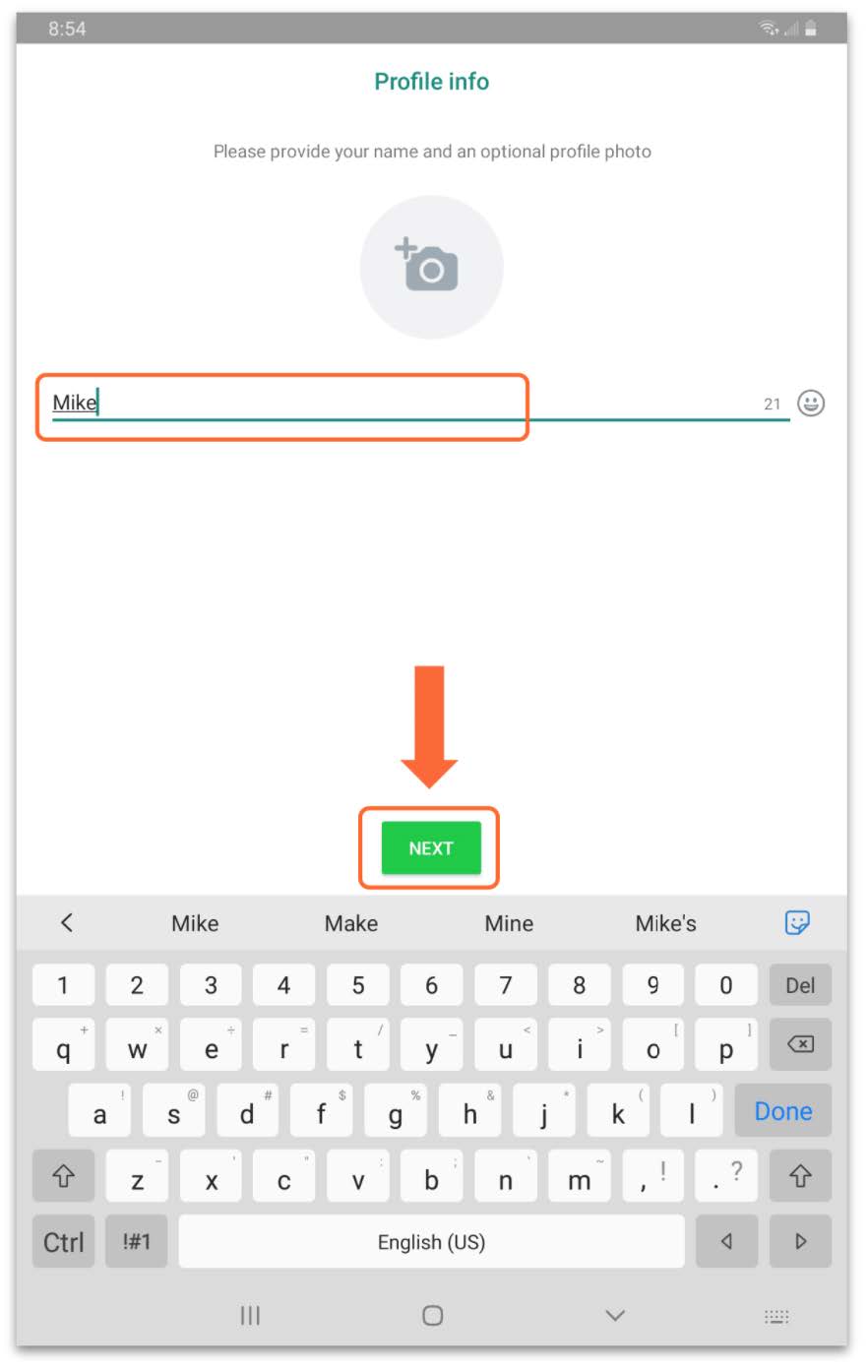
Enter Your Name and then tap “Next”. You can also add a profile photo by tapping on the Camera icon if you like.
Step 7
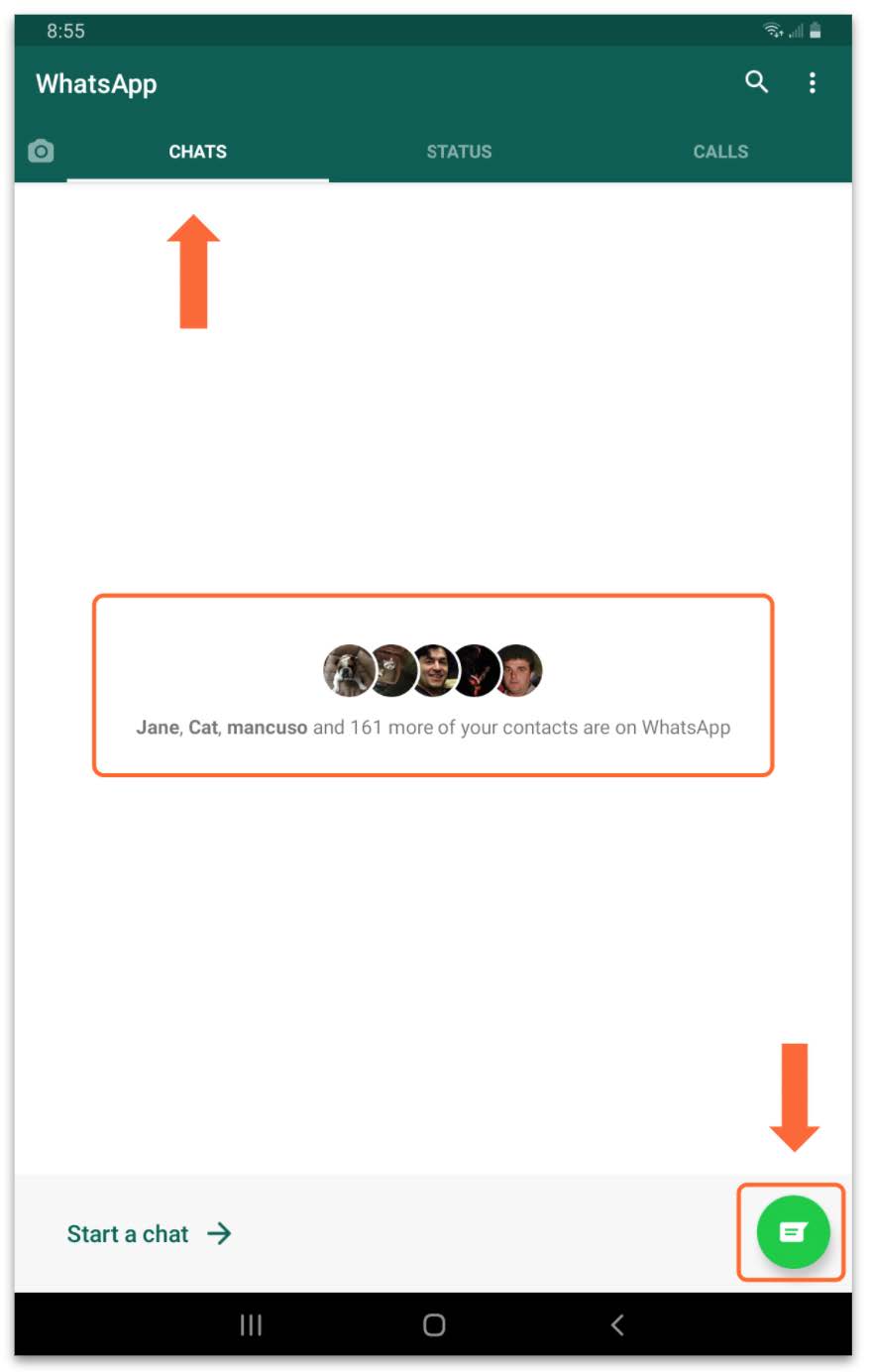
You will now see the WhatsApp main page. WhatsApp searches your contacts to find who else is also on WhatsApp. We are currently on the “Chats” tab as you can see indicated by the orange arrow in the upper left corner. To start a new “Chat”, tap the green icon in the bottom right corner.
Step 8
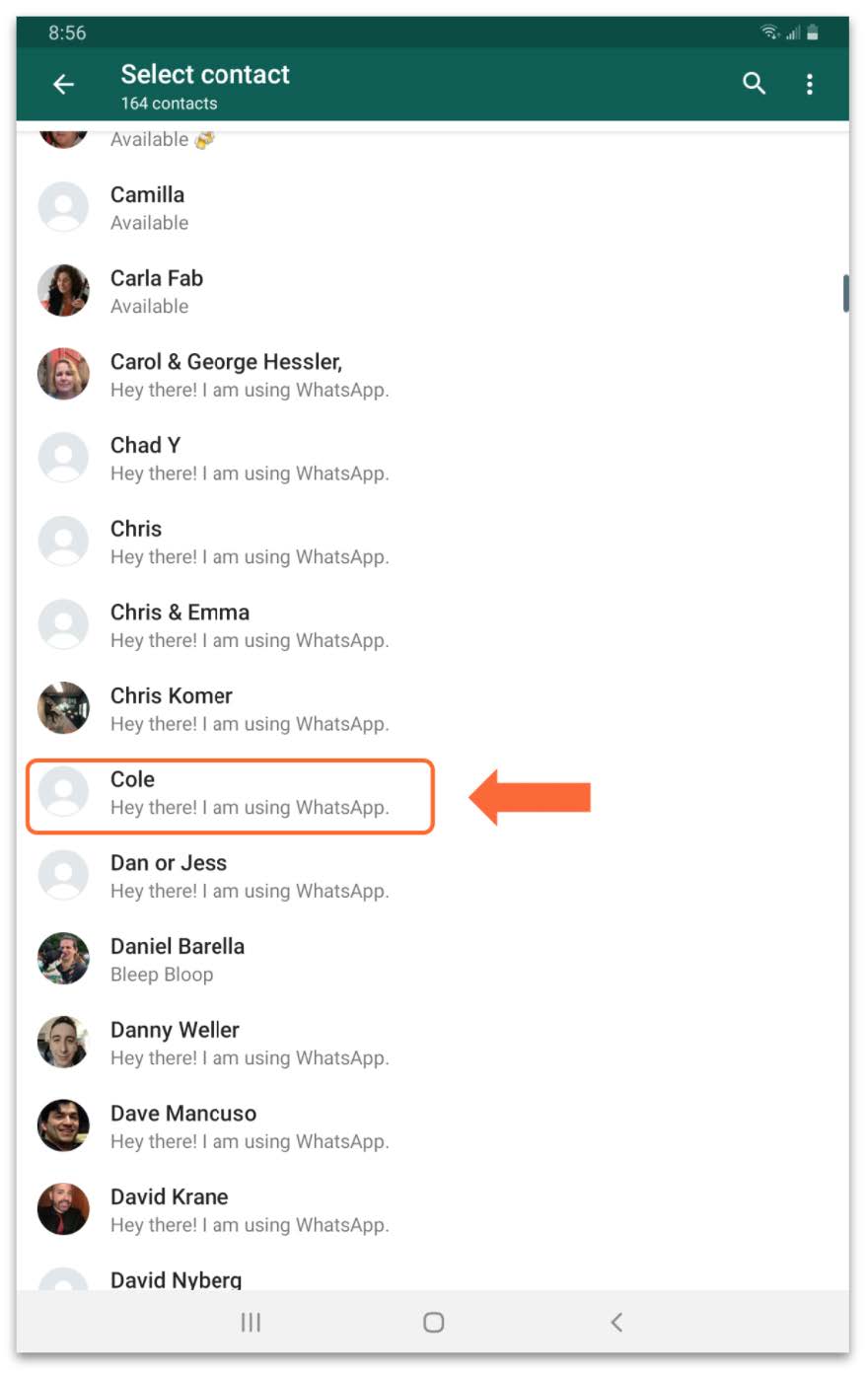
Tap on the name of the person you would like to chat with.
Step 9
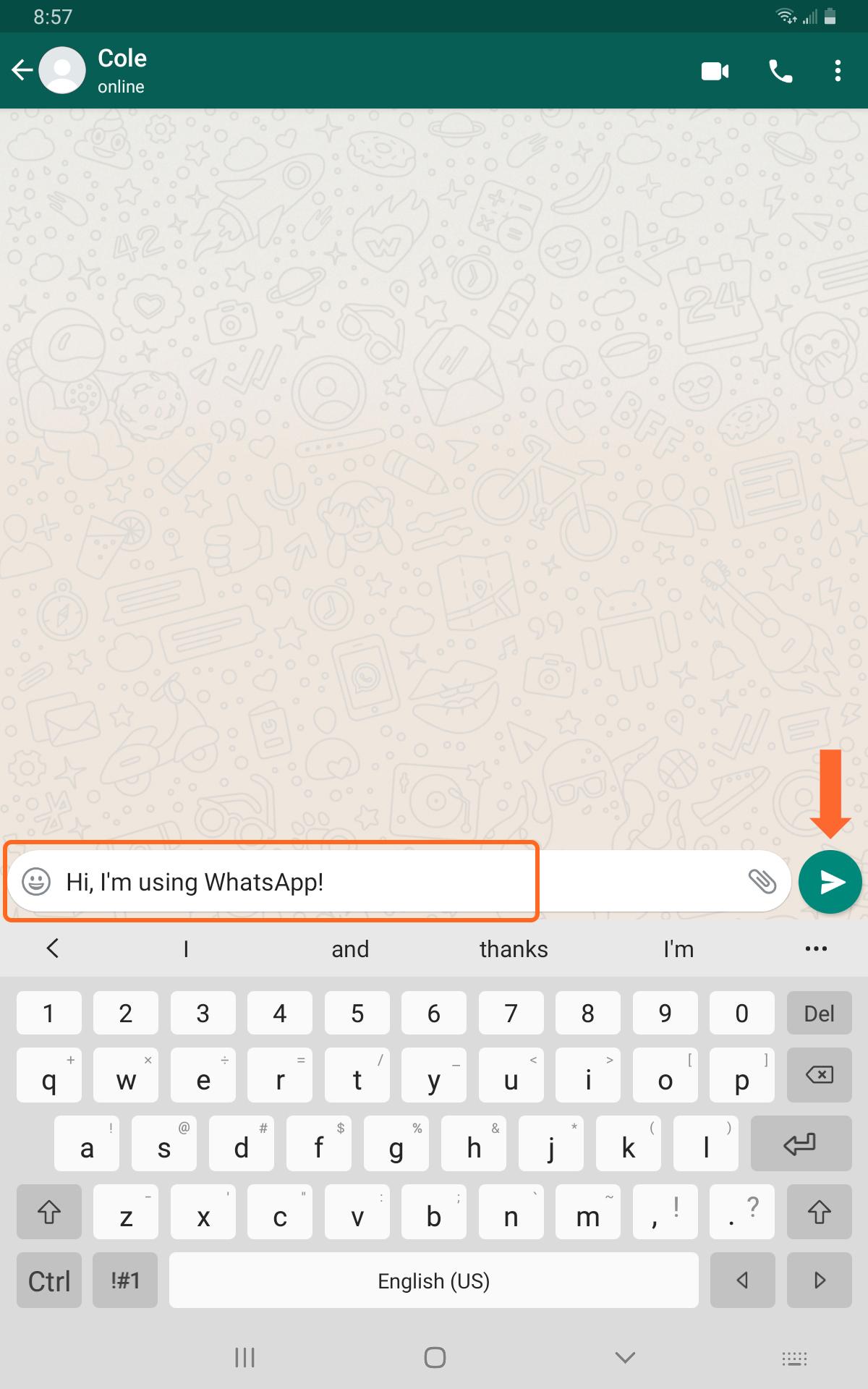
Type in your message and then tap the green icon to send your message.
Step 10
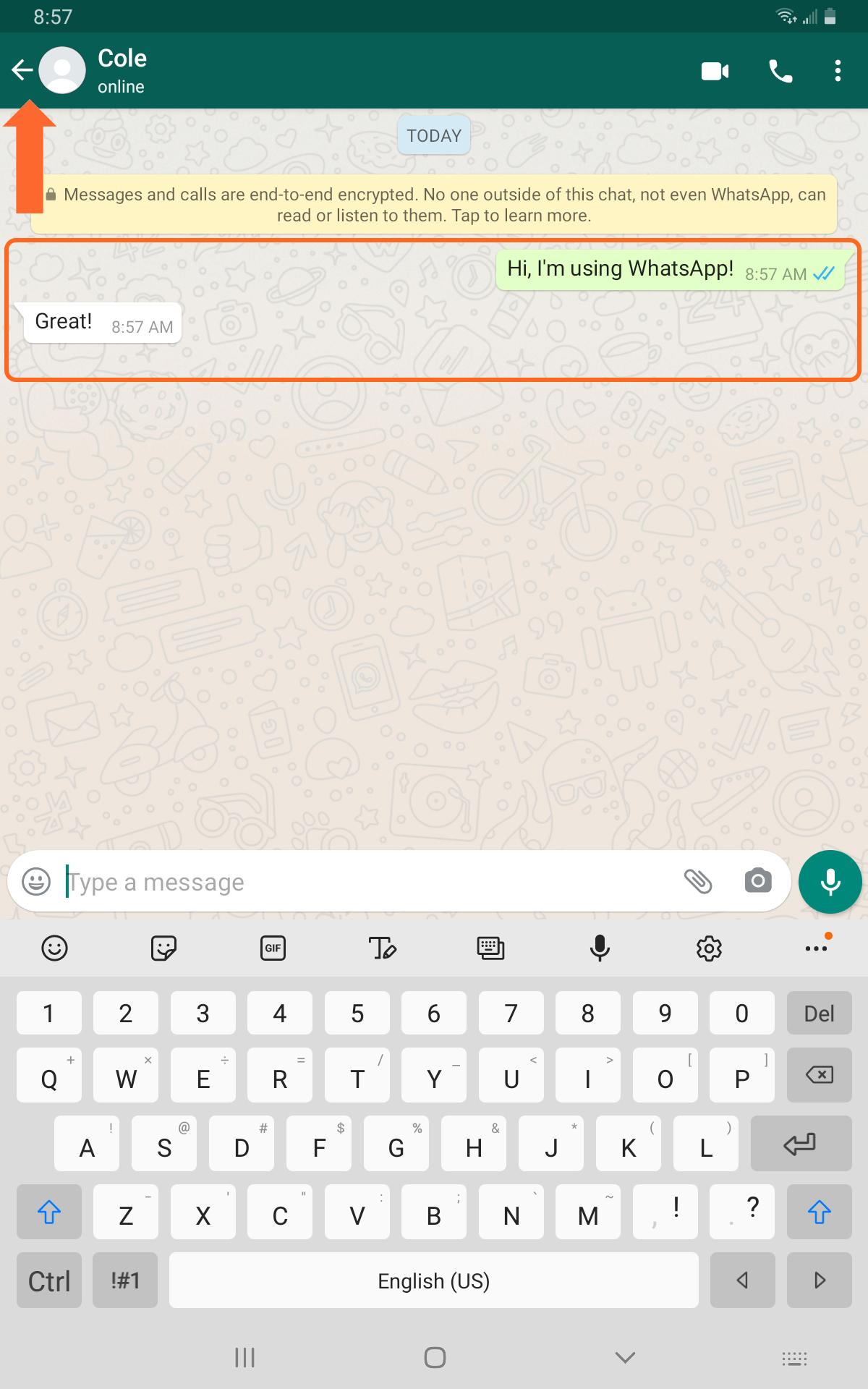
You will see your message appear on the right side. If you contact replies, it will appear on the left. To return to the main page, tap the “Left Arrow” in the upper left corner.
Step 11
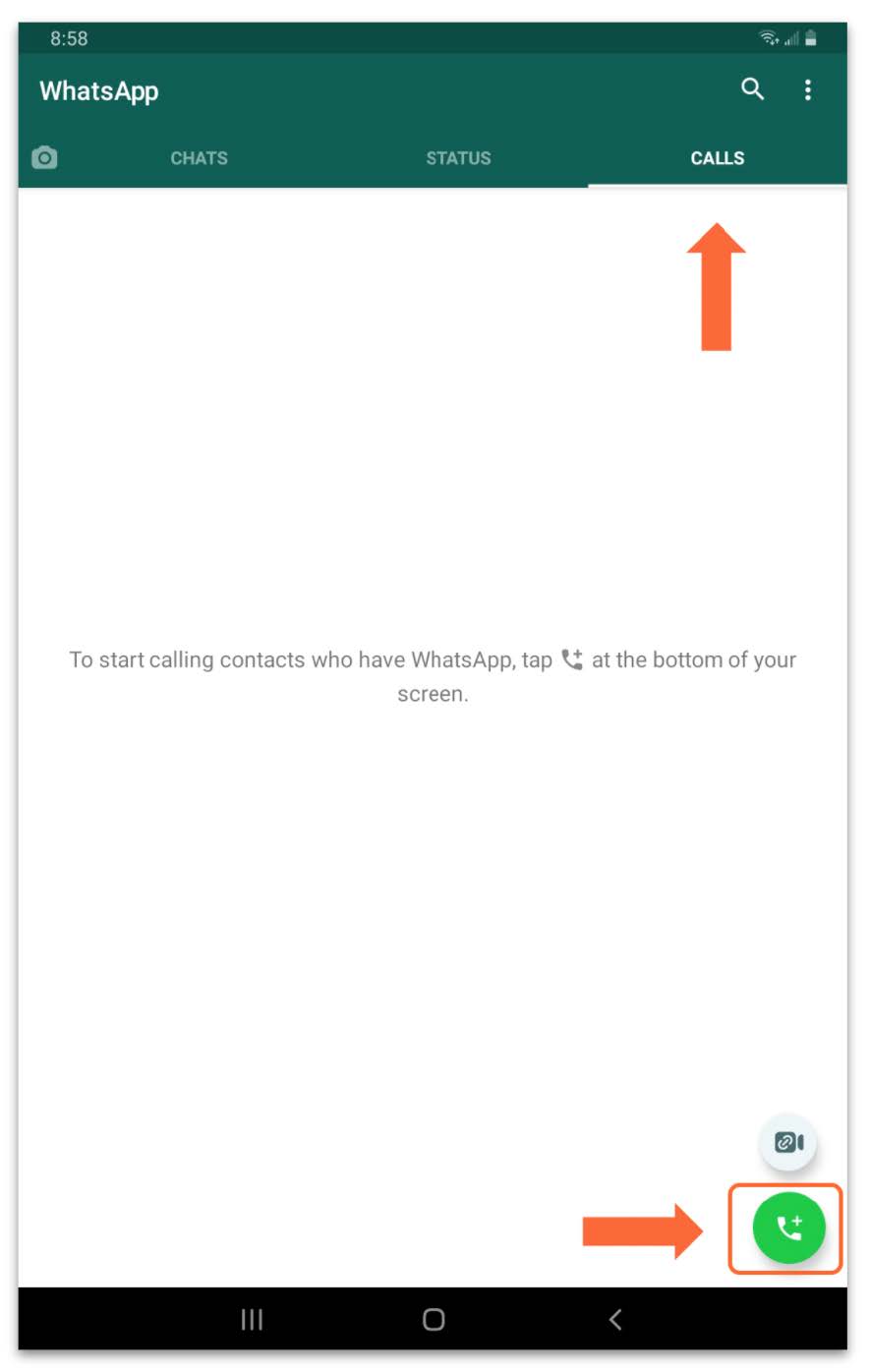
To make a voice call, Tap on “Calls” in the upper right corner and then tap the green phone icon on the bottom right.
Step 12
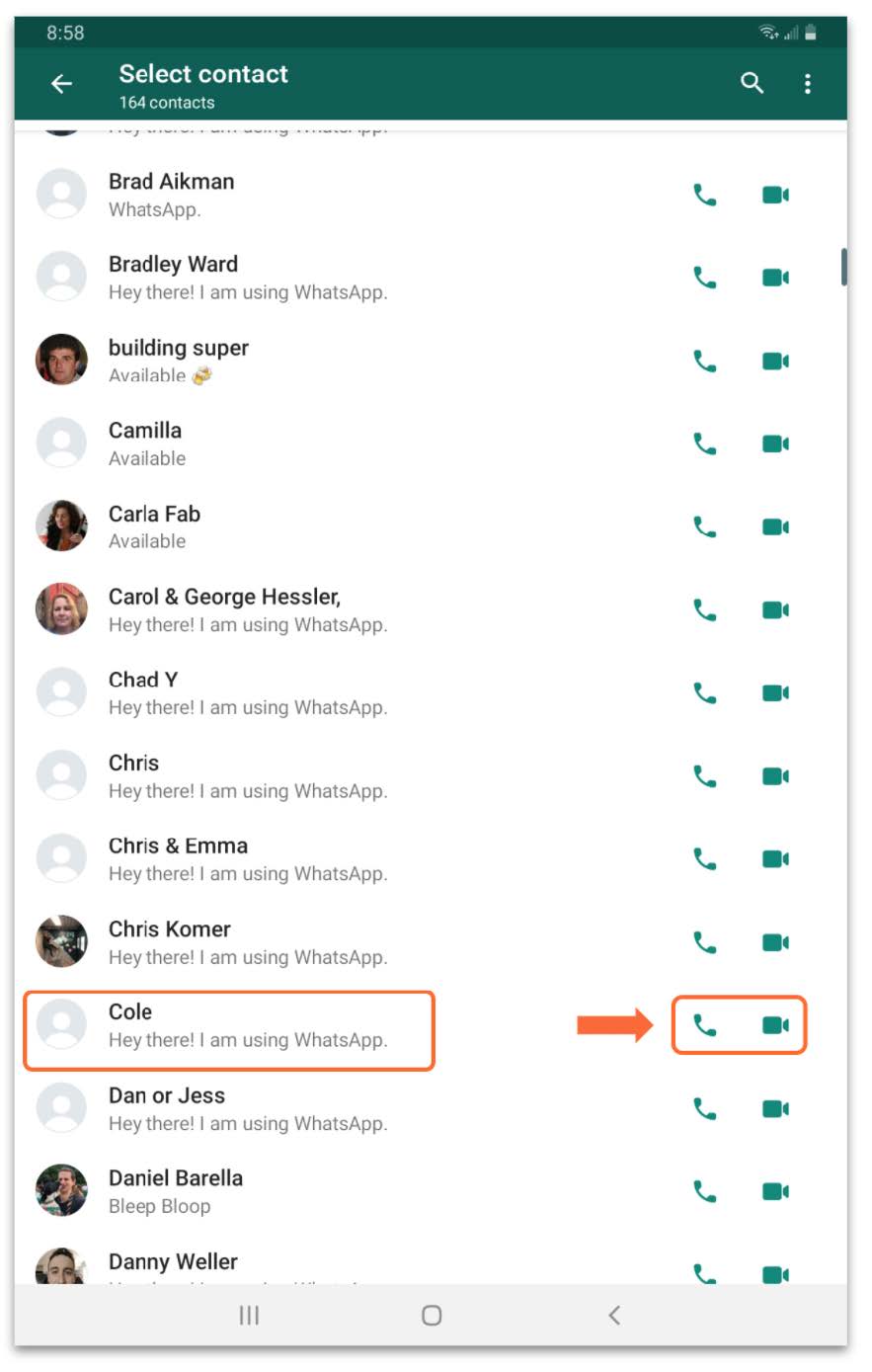
To start a call, tap on the “Phone” icon across from the contact you wish to speak with. You can tap the “Video” icon if you wish to make a Video call.
Step 13
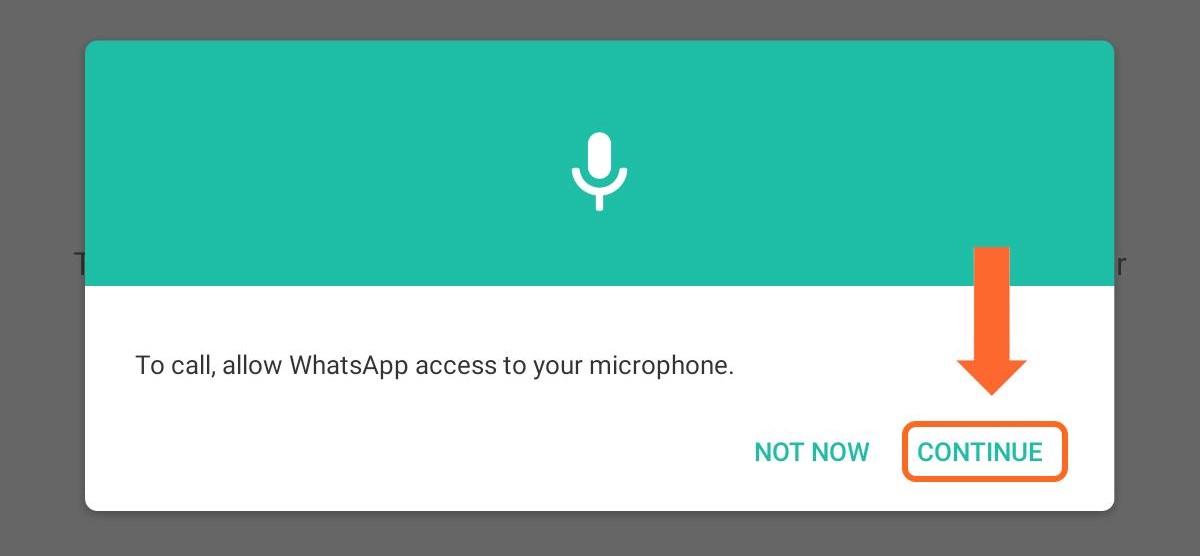
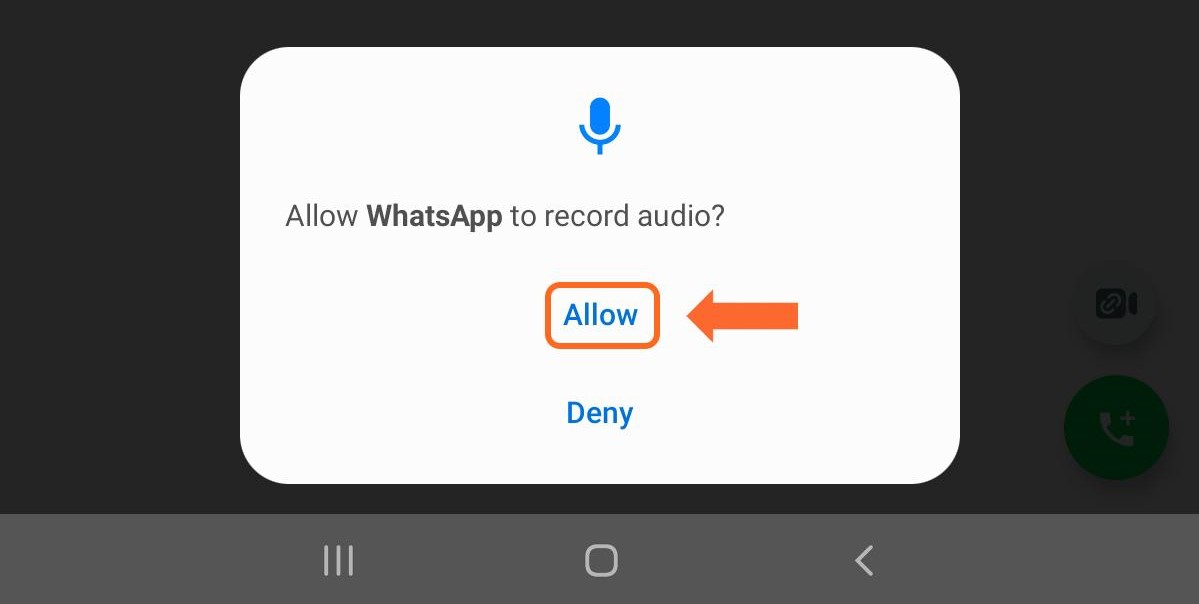
The first time you make a voice call you will have to give WhatsApp permission to use the microphone and record audio. If you are making a Video call, you will also be prompted to give WhatsApp permission to use the camera.
Step 14
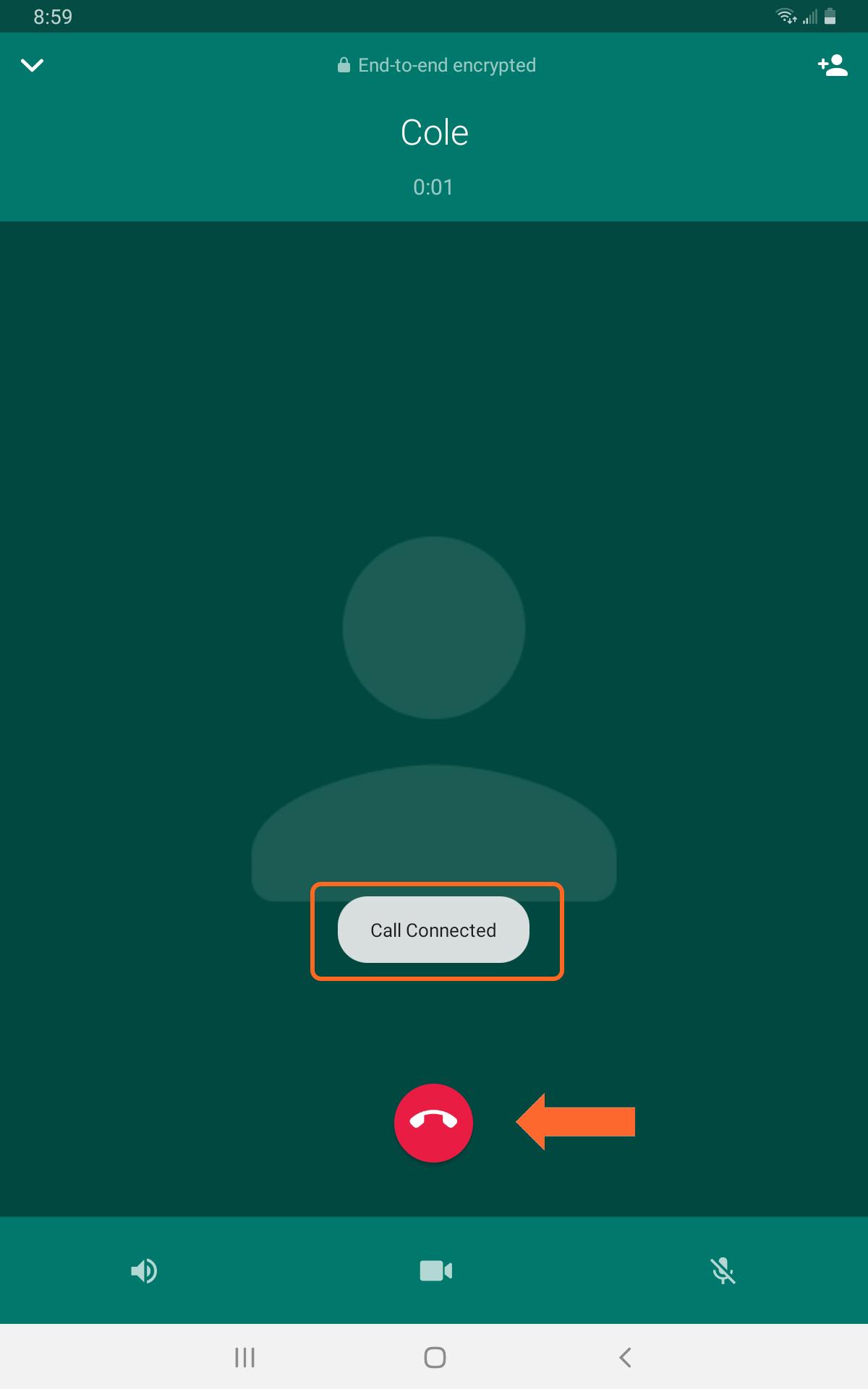
When your contact answers you will see the “Call Connected” message. To end the call, tap the Red Phone icon.
If you need help or have any questions, call us at
646-758-6606 or email support@candootech.com
To download a copy of this guide click below:
Comments
0 comments
Please sign in to leave a comment.