
Candoo How to Android Tablet Guide, Part 2
Table of Contents
- How to Add Apps to your Home Screen
- How to Move Apps on your Home Screen
- How to Delete Apps on your Home Screen
- How to Install Apps from the Play Store
- How to Search the Internet with Google
- How to Use the Camera
How to Add Apps to your Home Screen
Step 1
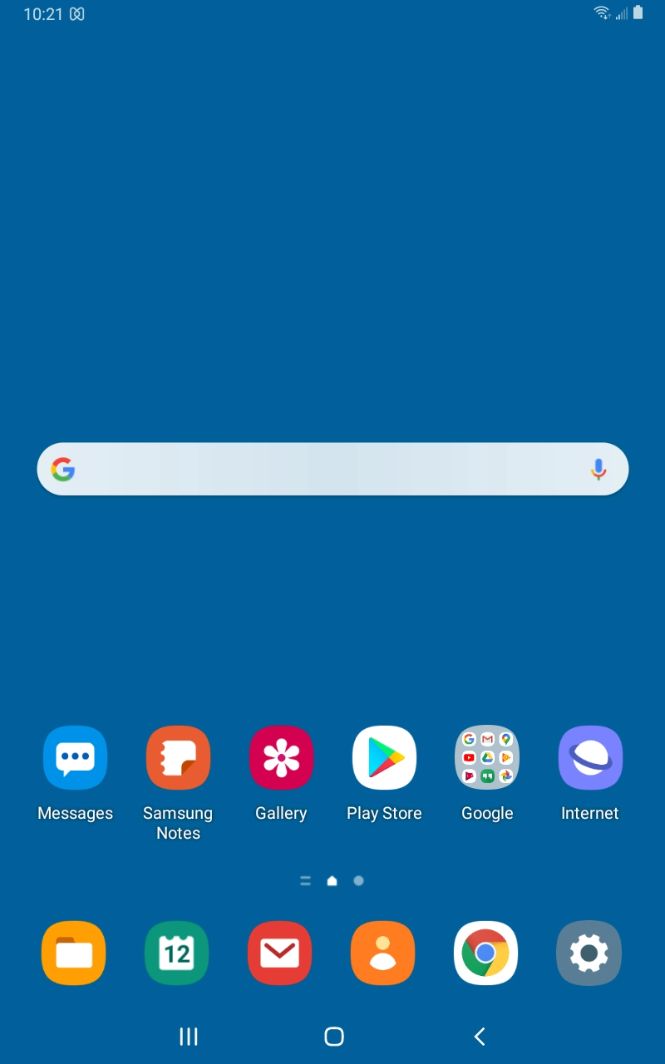
Make sure that your tablet is powered on and you see the home screen. If your tablet is off, turn on your tablet. If you need assistance powering on your tablet, refer to page 2 on the “Android Tablet Guide, Part 1” for instructions for how to turn on your device.
Step 2
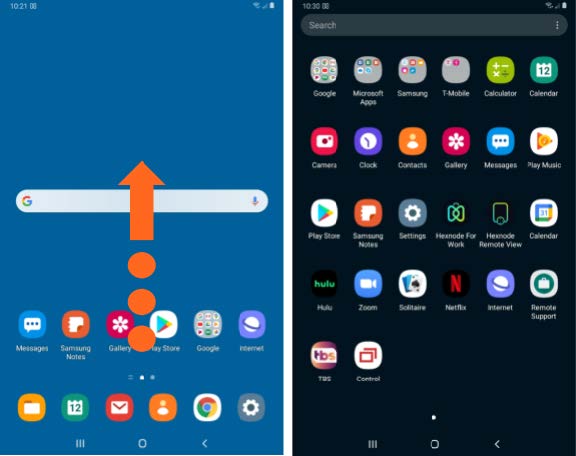
Swipe up on the home screen to open the app Finder.
Step 3
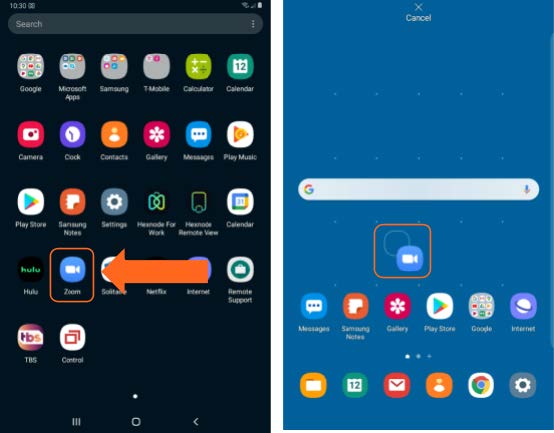
Tap and hold on to the app that you want to place on your home screen. Continue holding the app until your home screen appears — without lifting your finger, drag the app wherever you’d like it go on your home screen, then lift your finger and the app will stay.
How to Move Apps on your Home Screen
Step 1
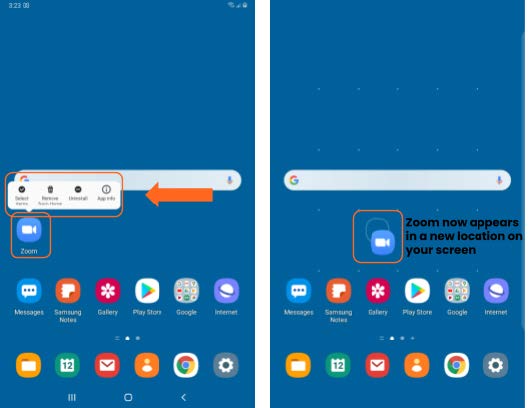
Tap and hold on the app icon you’d like to move until you see a white rectangle appear above the app icon. Without lifting your finger, drag the app to the new location, then lift your finger.
How to Delete Apps on your Home Screen
Step 1
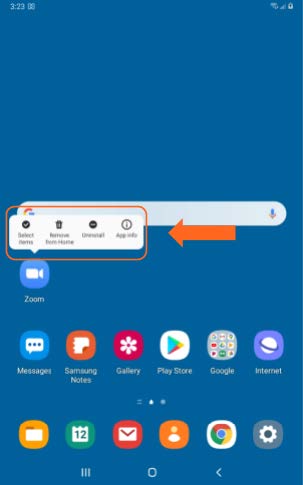
Tap and hold on the app icon you’d like to remove until you see a white rectangle appear above the app.
Step 2
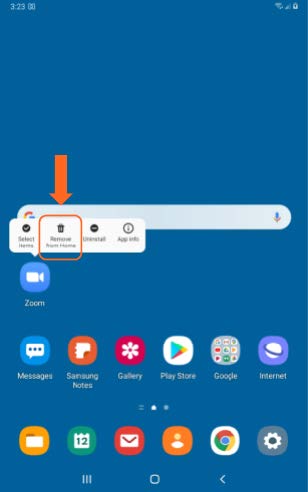
Tap “Remove from Home” to remove the app from your home screen.
How to Install Apps from the Play Store
Step 1
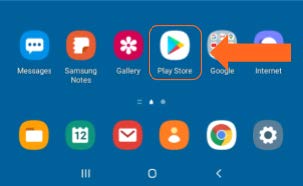
Open the “Play Store” by tapping on the app icon pictured below. If the Play Store is not present on your home screen, refer to Step 2 on 'Add an App to your Home Screen' to swipe up to view all apps on your home screen.
Step 2
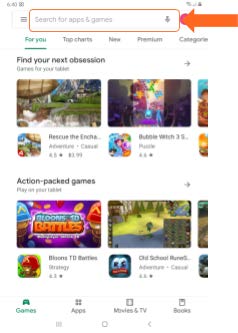
Tap on the search bar at the top of the screen, where it says “Search for apps & games”.
Step 3
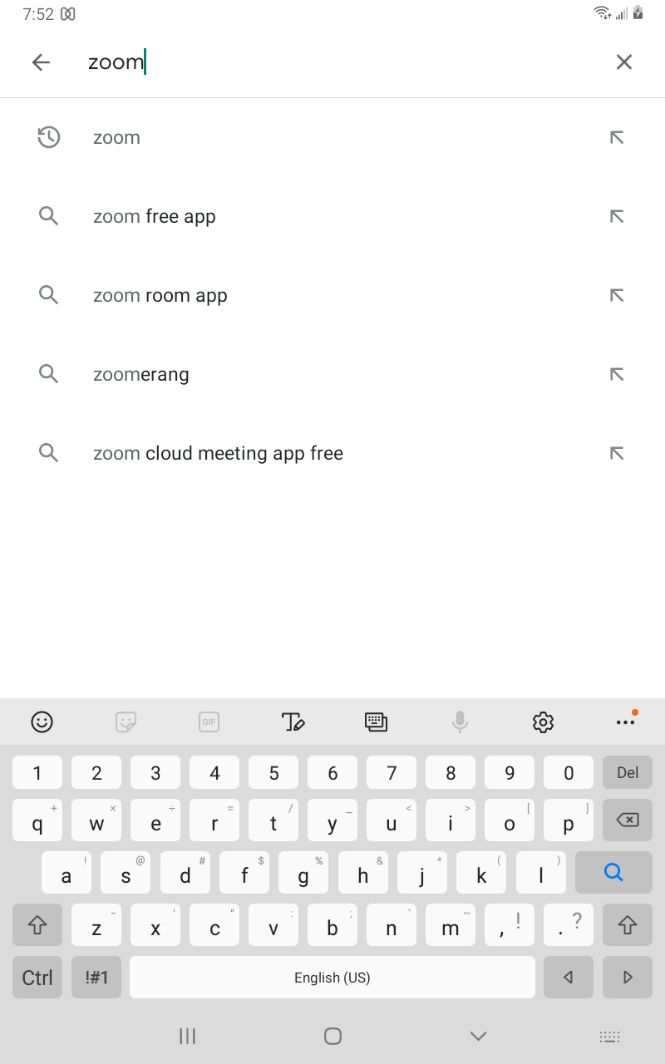
Type in the name of an app you’d like to download, or enter a keyword such as “food delivery”. In the example below, we will search for “Zoom”.
Step 4
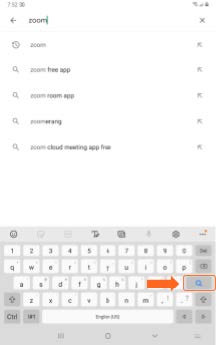
Tap on the magnifying glass on the keyboard to submit your search.
Step 5
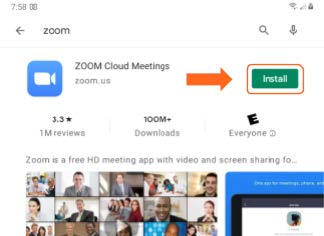
Tap on “Install” next to the app you’d like to install.
How to Search the Internet with Google
Step 1
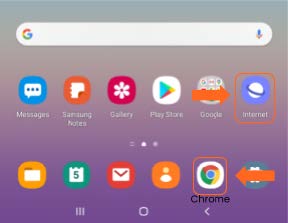
On your home screen, tap on either “Internet” or “Google Chrome”.
Step 2
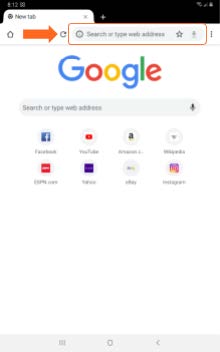
Tap on the search/address bar at the top of the top of the screen.
Step 3
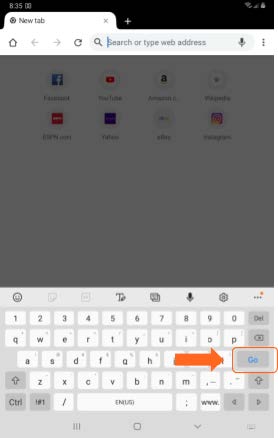
The keyboard will appear. Type in your search term, then press “Go” on the keyboard.
Step 4
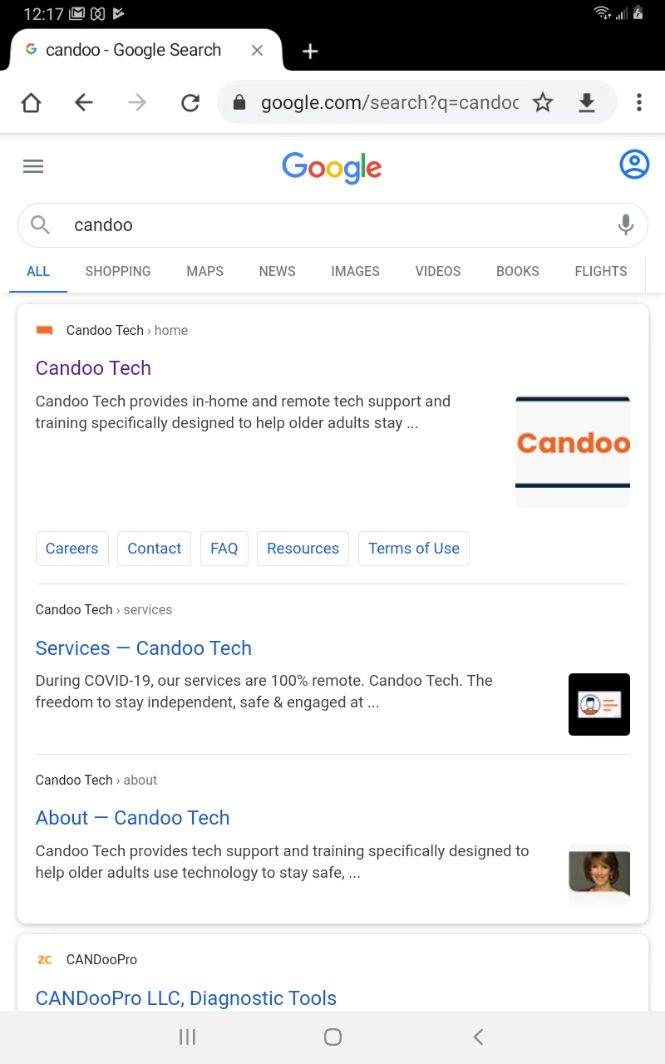
Your search results will appear on the screen. Tap on the search result that interests you to visit the corresponding webpage. In the example below, we searched for “Candoo”.
How to Use the Camera
To Turn on your Camera, open the Camera app. The Camera app will likely look like the below image. If you don’t see it on your screen, swipe on the home screen to find the Camera app. Please note that your Camera app may look different than the below image.

To Take a Photo, point the camera at your subject. Then press the shutter button to take the photo.
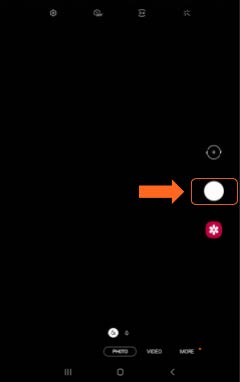
To Switch between the Front and Rear Camera, press the button indicated below. This will switch the direction of your camera. It will either face you or away from you.
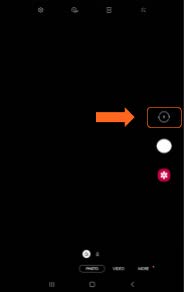
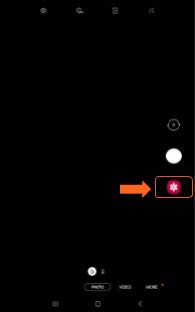
To View Photos you’ve Taken, press the button indicated below to view all your photos.
If you need help or have any questions, call us at
646-758-6606 or email support@candootech.com
To download a copy of this guide click below:
Comments
0 comments
Please sign in to leave a comment.