
Candoo How to Use Apple Mail Guide
What is Apple Mail?
Apple Mail is Apple’s email service that hosts all your email accounts in one location. It is only available on Apple devices such as the Mac, iPad, and iPhone. You can add all your existing accounts—such as iCloud (Apple ID), Exchange, Google (Gmail), school, work, or other—in Mail.
Table of Contents
- How to set up an email account with Apple Mail
- How to set up an email account on an iPhone or iPad
- How to compose an email on a Mac
- How to compose an email on an iPhone or iPad
- How to format text
- How to view and save attachments
- How to delete an email
- How to delete multiple emails
How to set up an email account with Apple Mail
Step 1
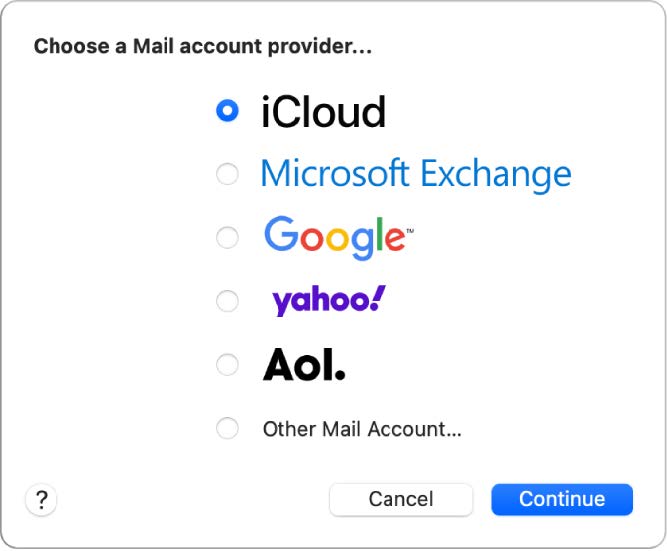
After opening the Mail app - Select your account provider or Other Mail Account.
Step 2
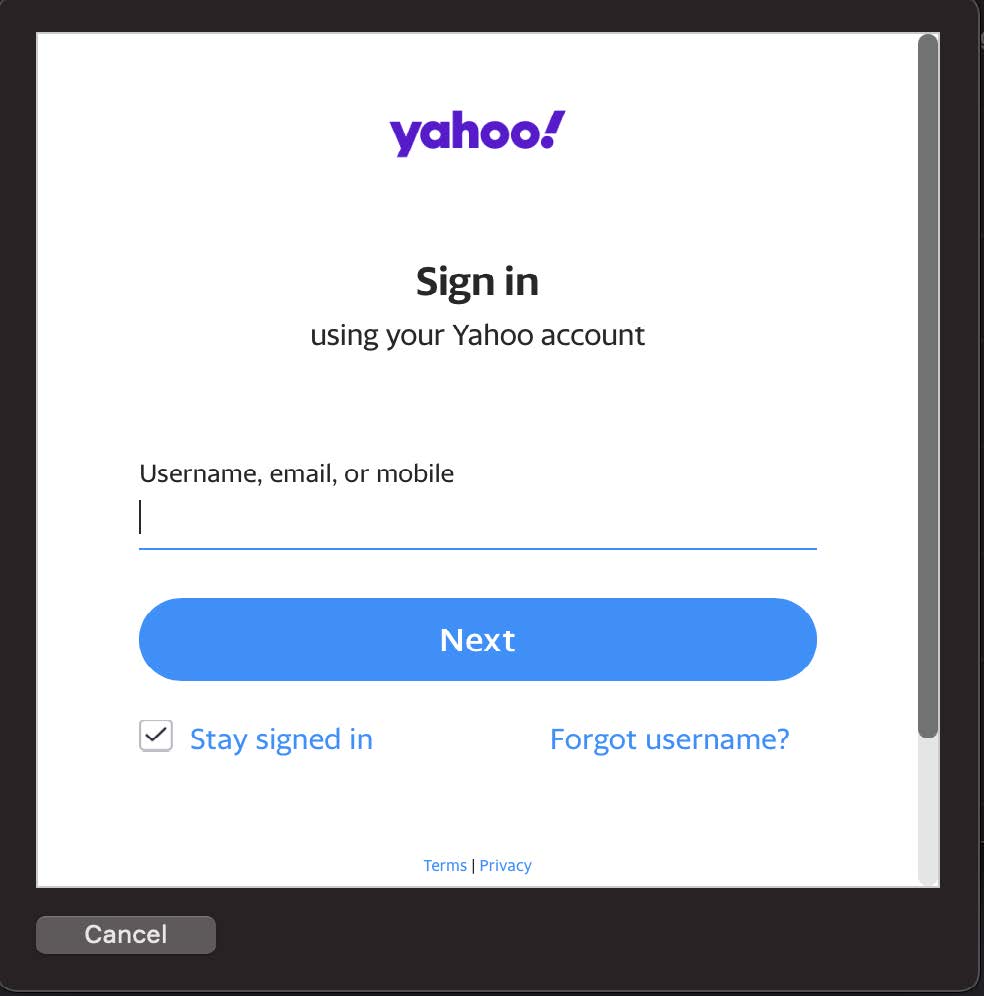
Enter your account information (email address and password)
Step 3
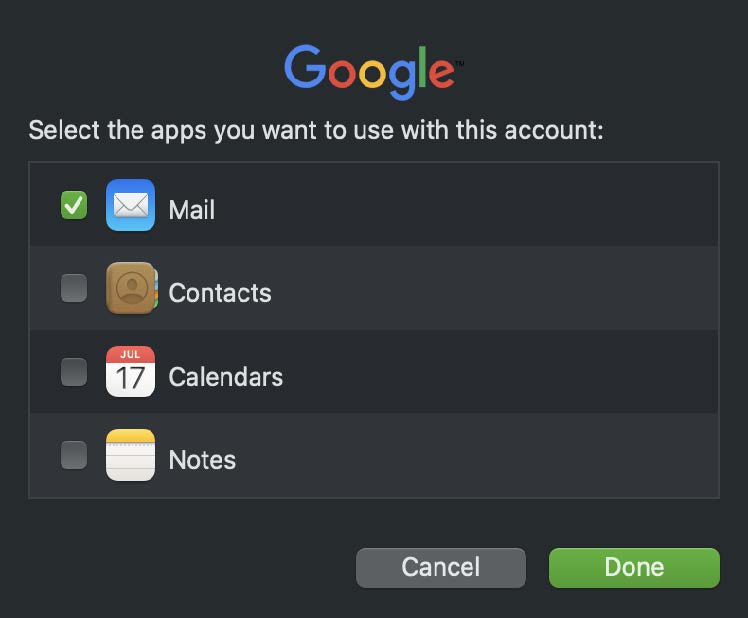
Select the apps you want to use with that account - such as Mail, Contacts, Calendar, Reminders, Notes. This will allow information saved from those apps to merge and sync with your email provider.
How to set up an email account on an iPhone or iPad
Step 1
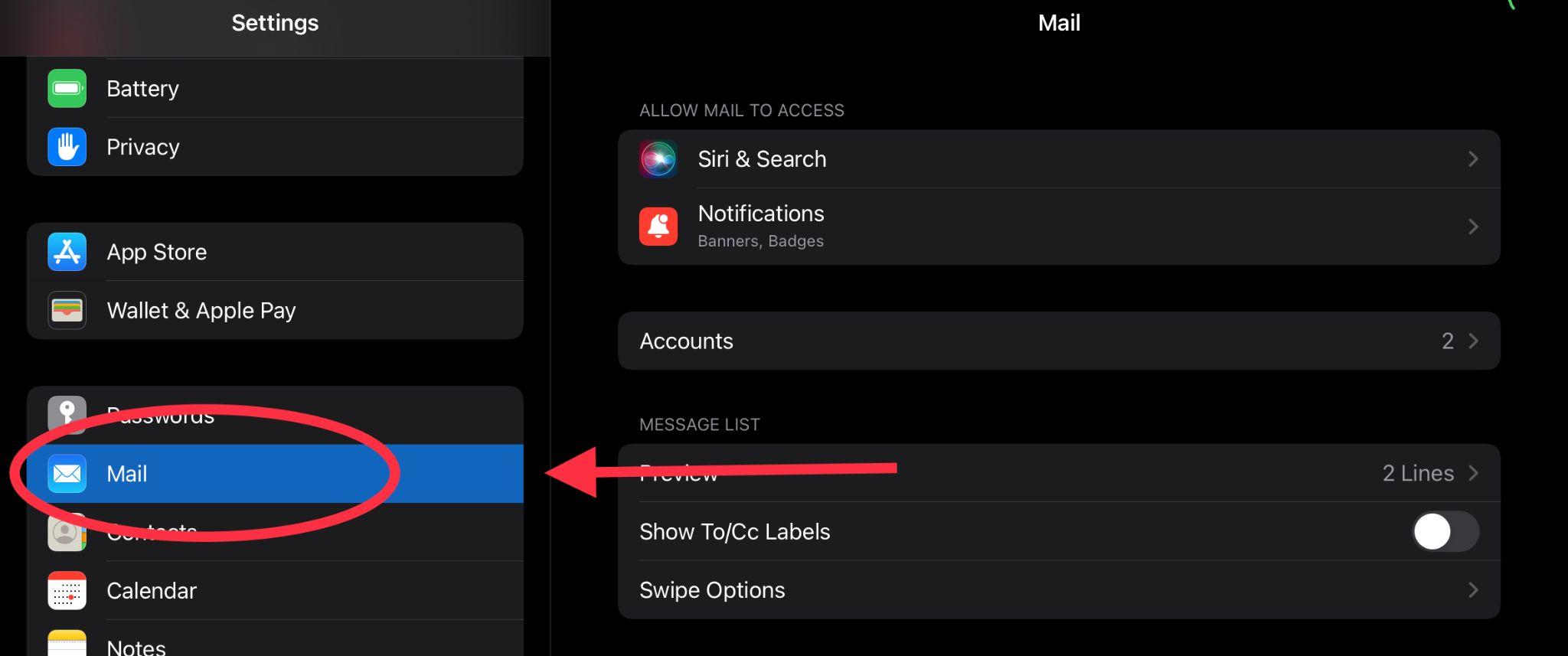
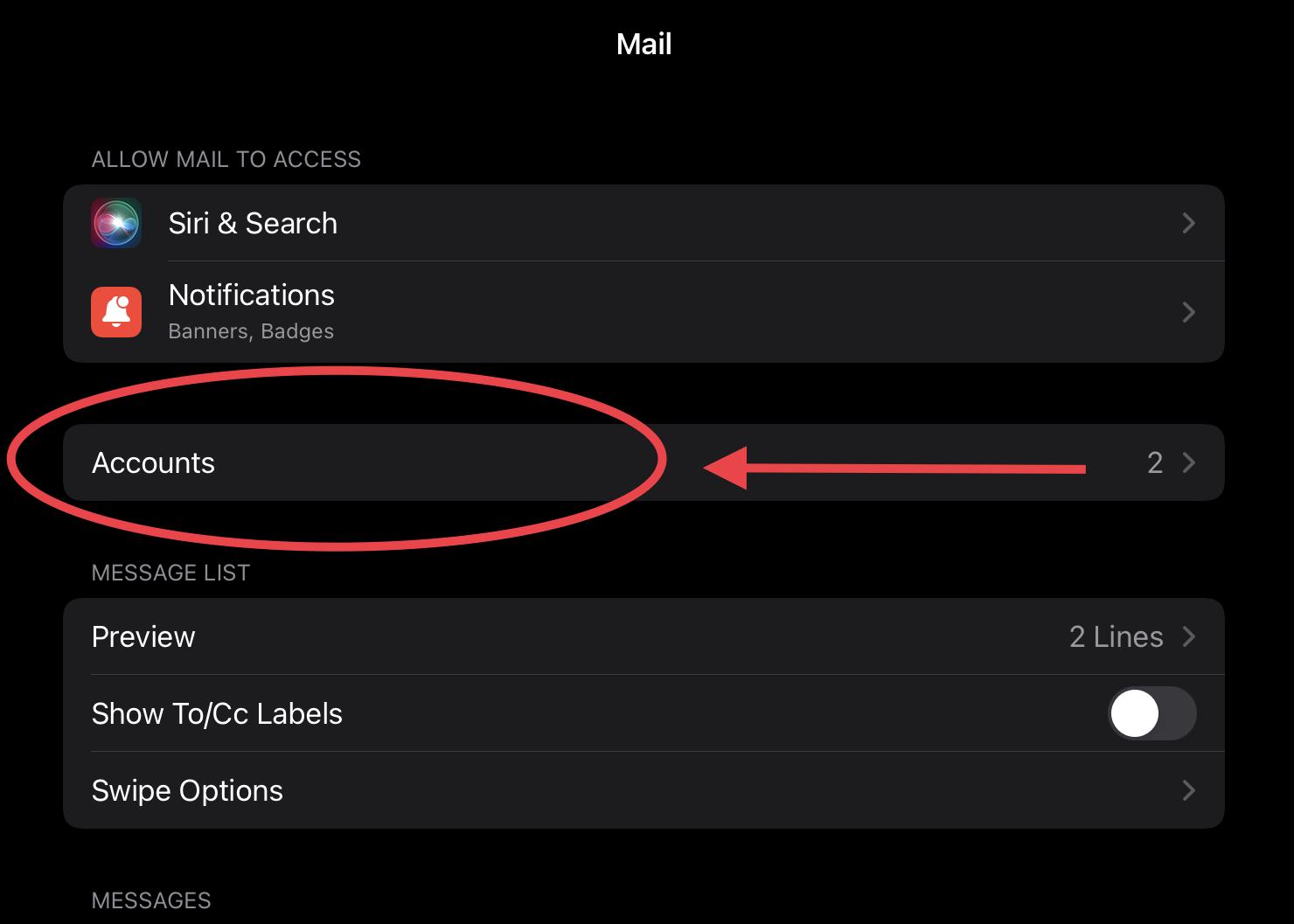
Go to the Settings App on your device and choose the Mail category on the left-hand side
Step 2
Tap Accounts
Step 3
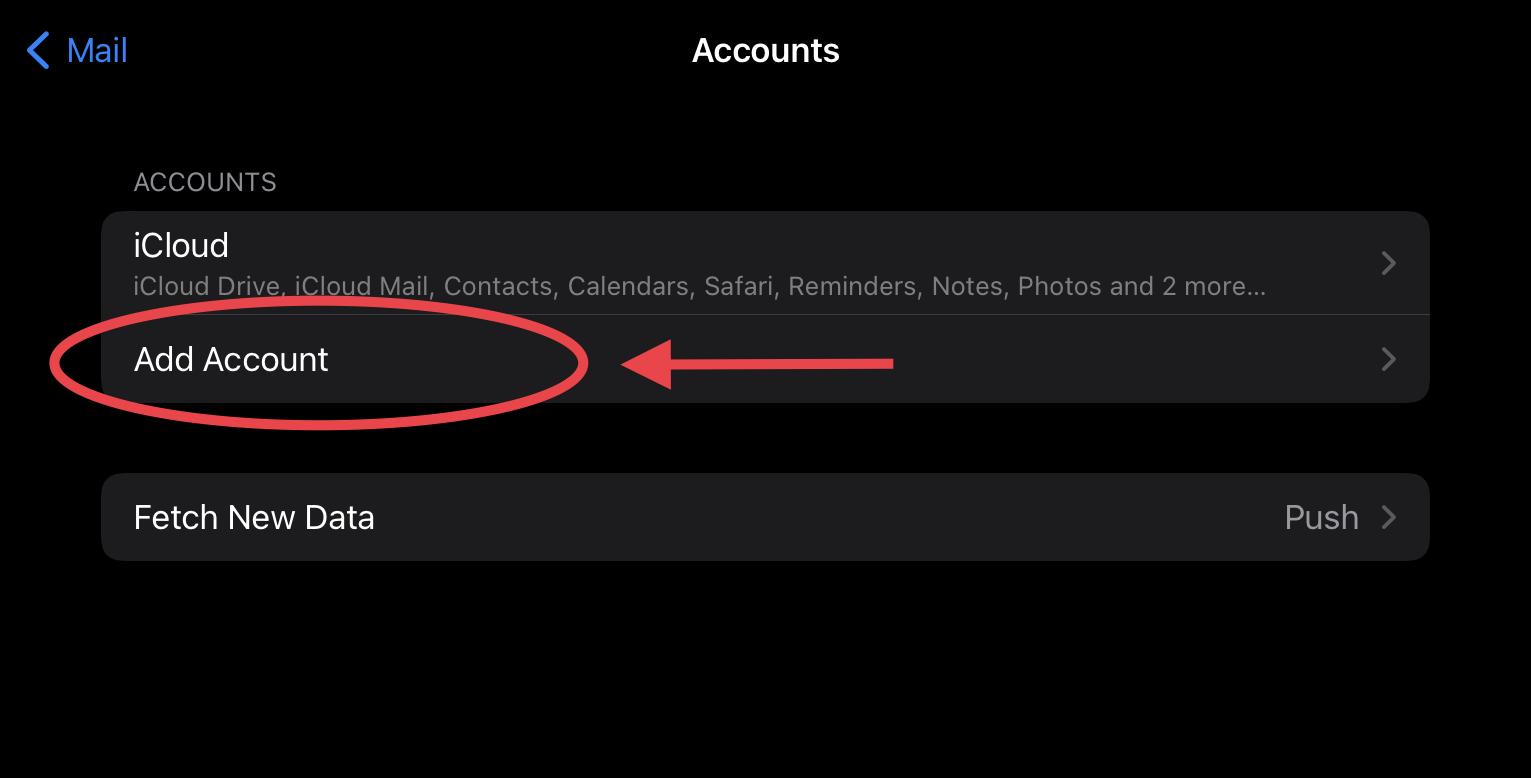
Tap Add Accounts
Step 4
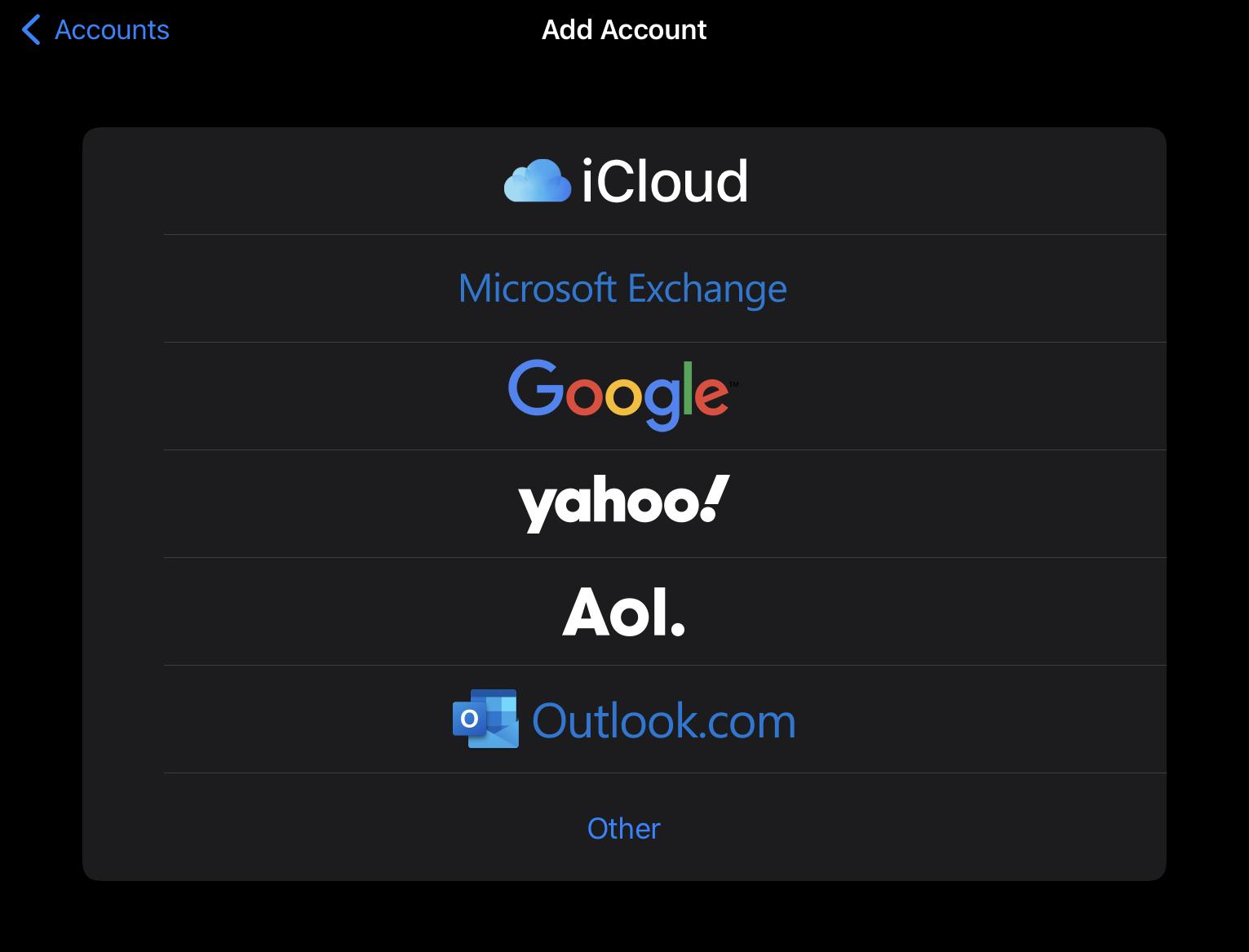
Select your email provider or Choose Other
Step 5
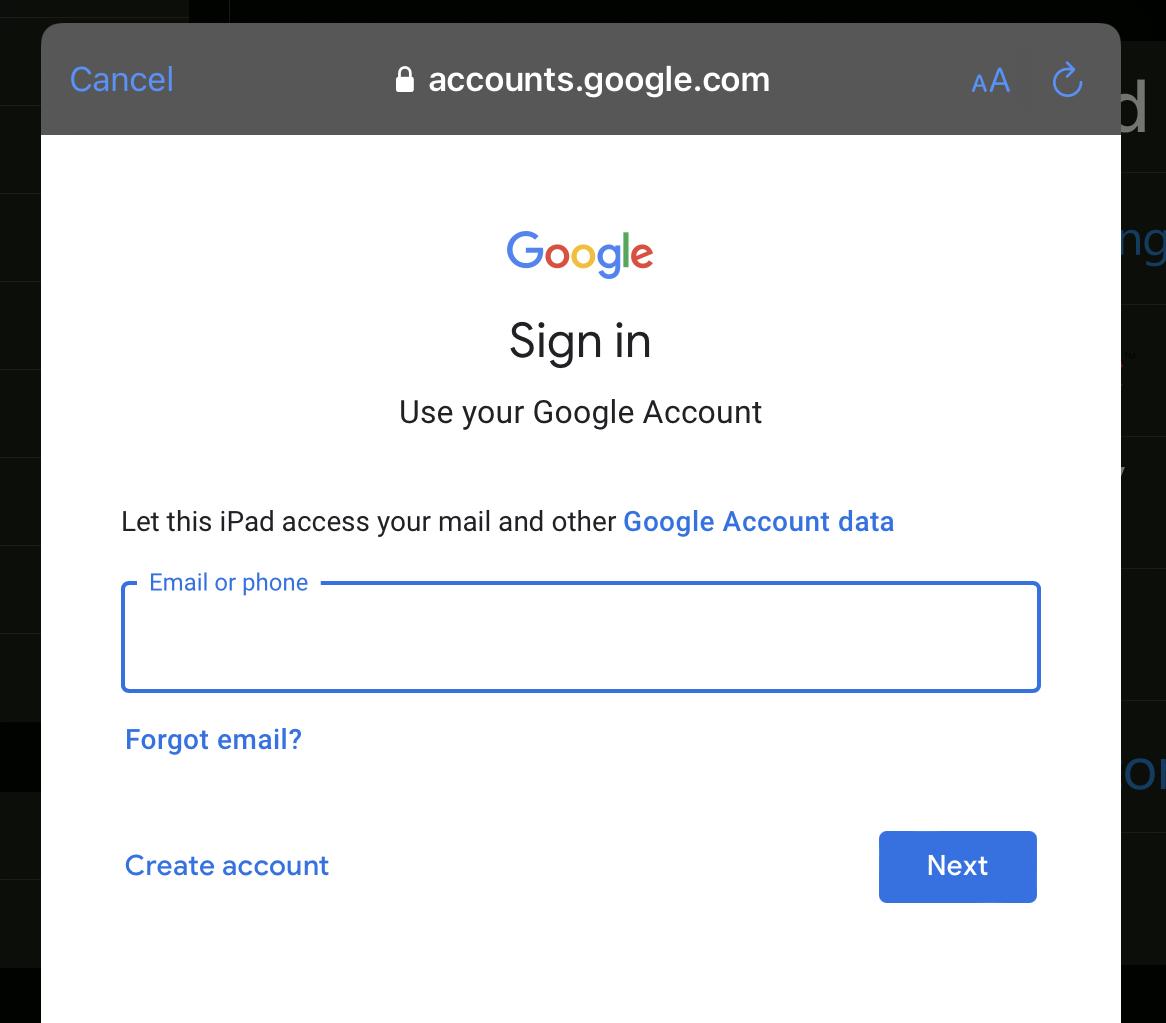
Enter your email address and password. Click the Next button.
Step 6
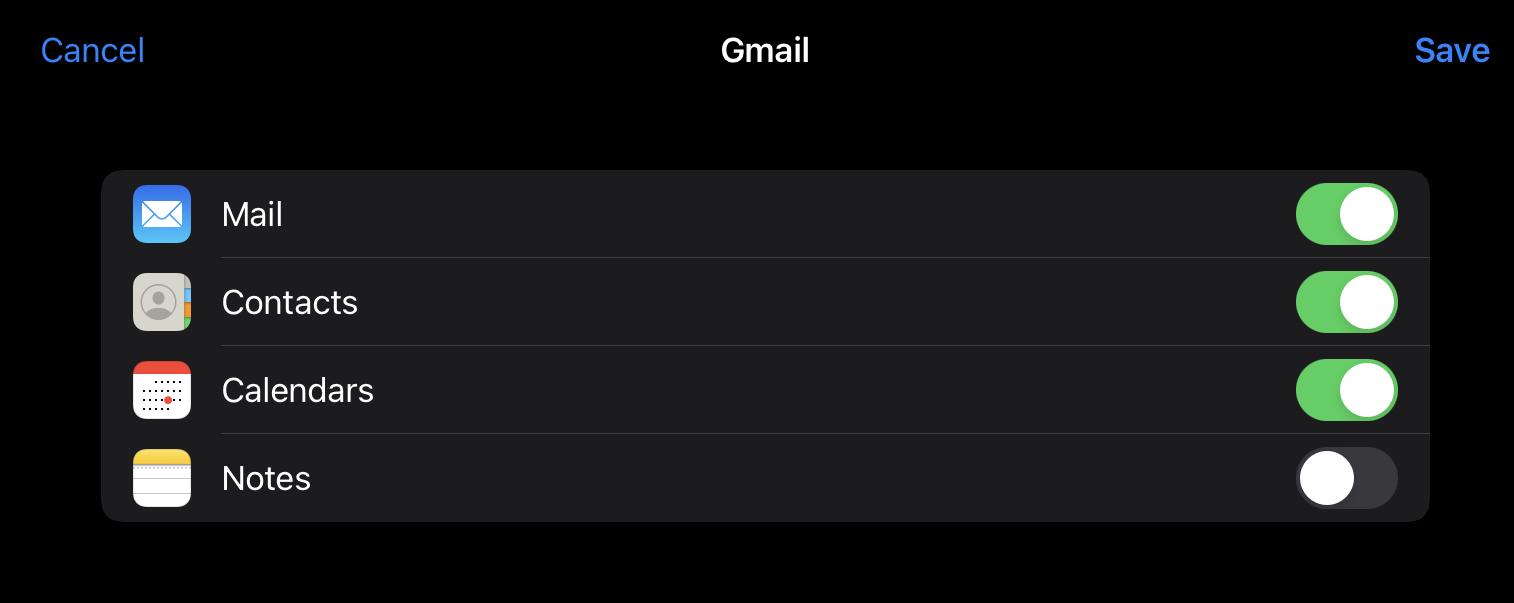
Tap on the right-hand side button to Toggle On (green) which apps you want to be merged with your email account. If you see Next, tap Next and wait for Mail to verify your account.
If you see Save, tap Save.
How to compose an email on a Mac
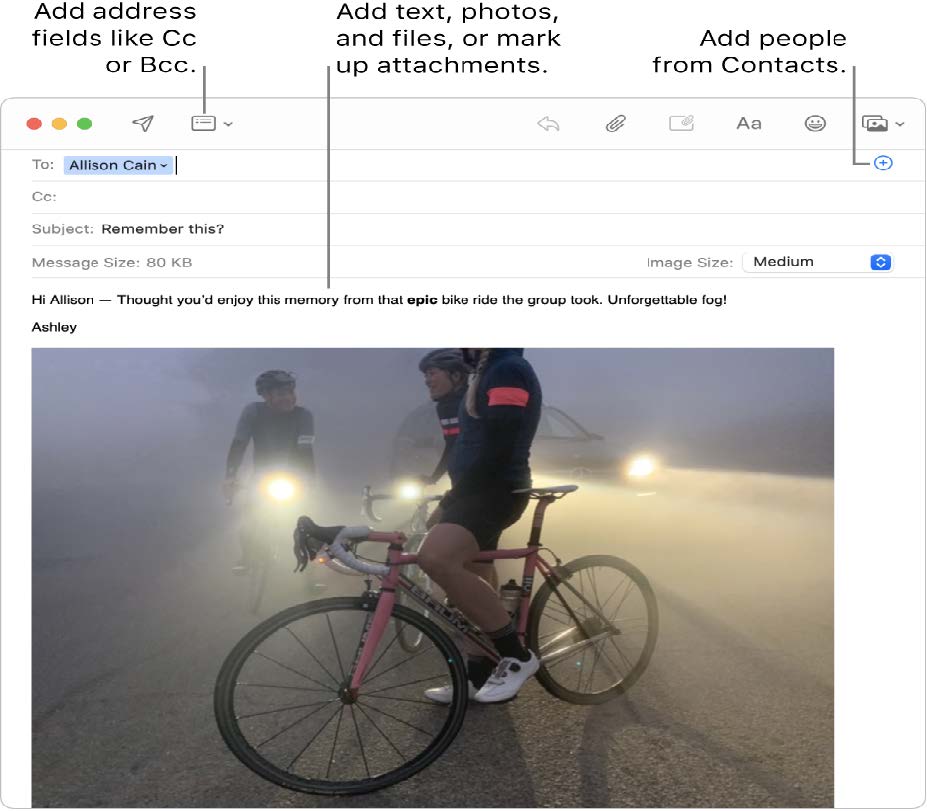
When you write a message, you can add recipients, text, photos, and more, before sending your message.
Step 1
After opening the Mail app on your Mac, click the New Message
Step 2
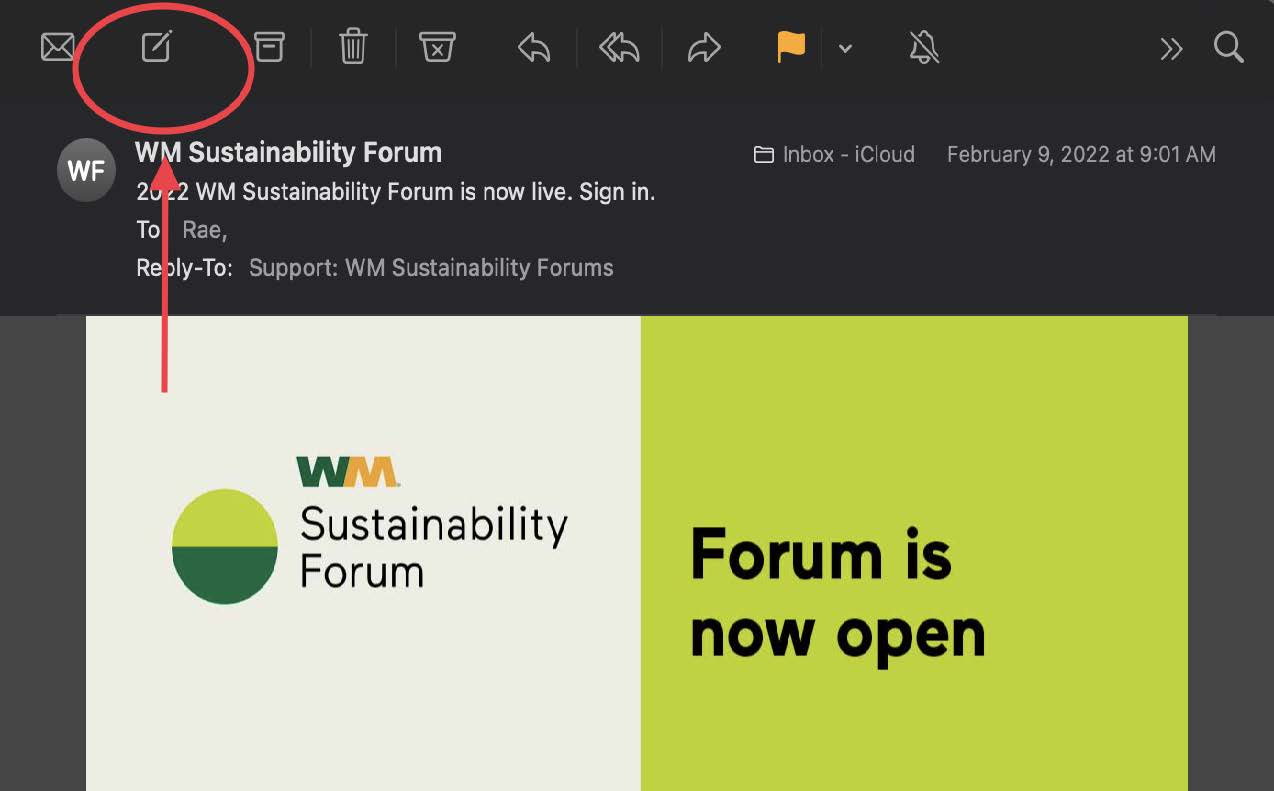
In the ‘To:’ subject line is where you’ll add as many email addresses you’re looking to send the message to. If your contacts are synced, you can also type in the name of the recipient. Enter the subject of your message in the ‘Subject’ line. Add your text anywhere below the ‘From’ line.
Step 3
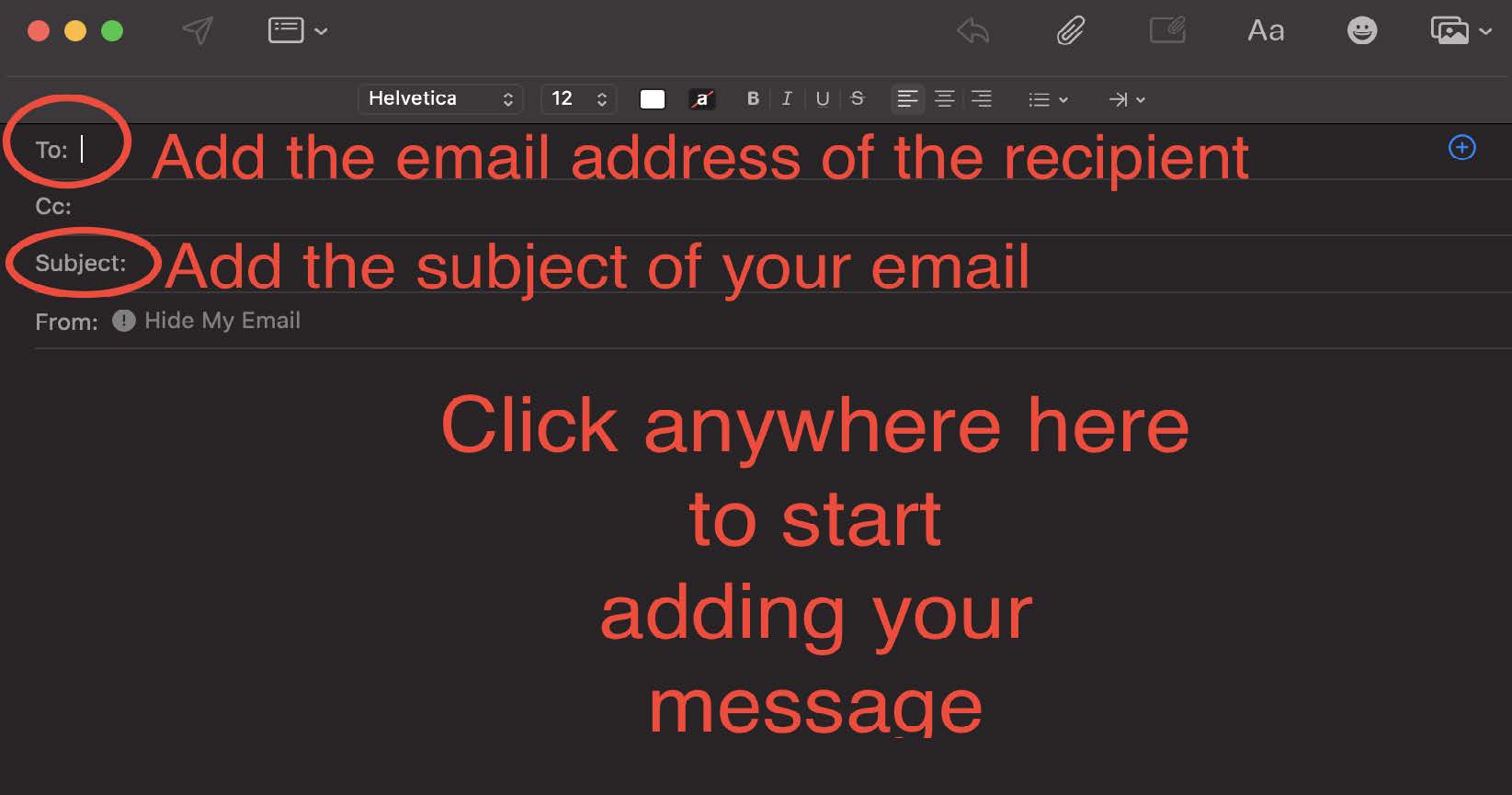
When you’re ready to send your message, click the Send button located at the top right corner.

How to compose an email on an iPhone or iPad
Step 1
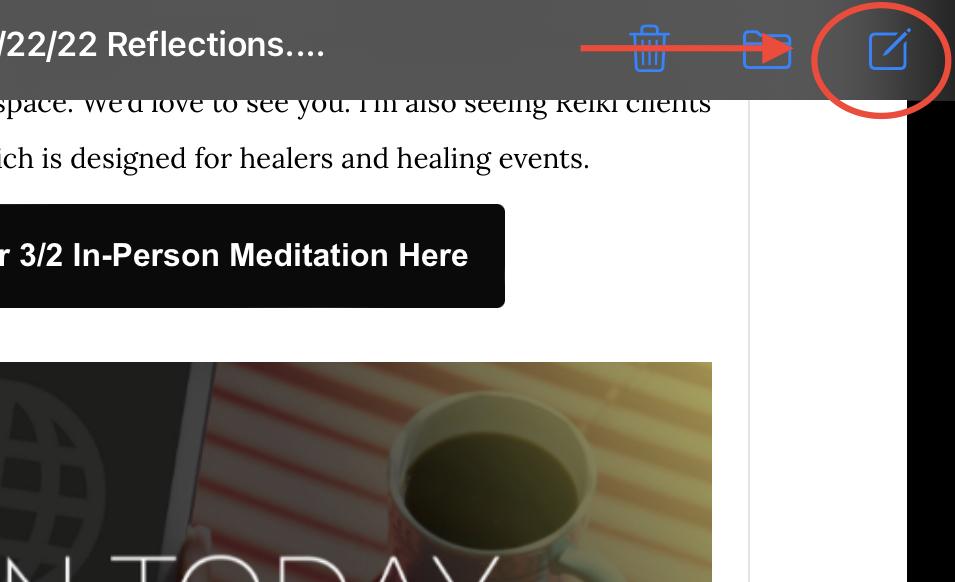
Open the Mail app on your iPhone or iPad and click on the compose button.
Step 2
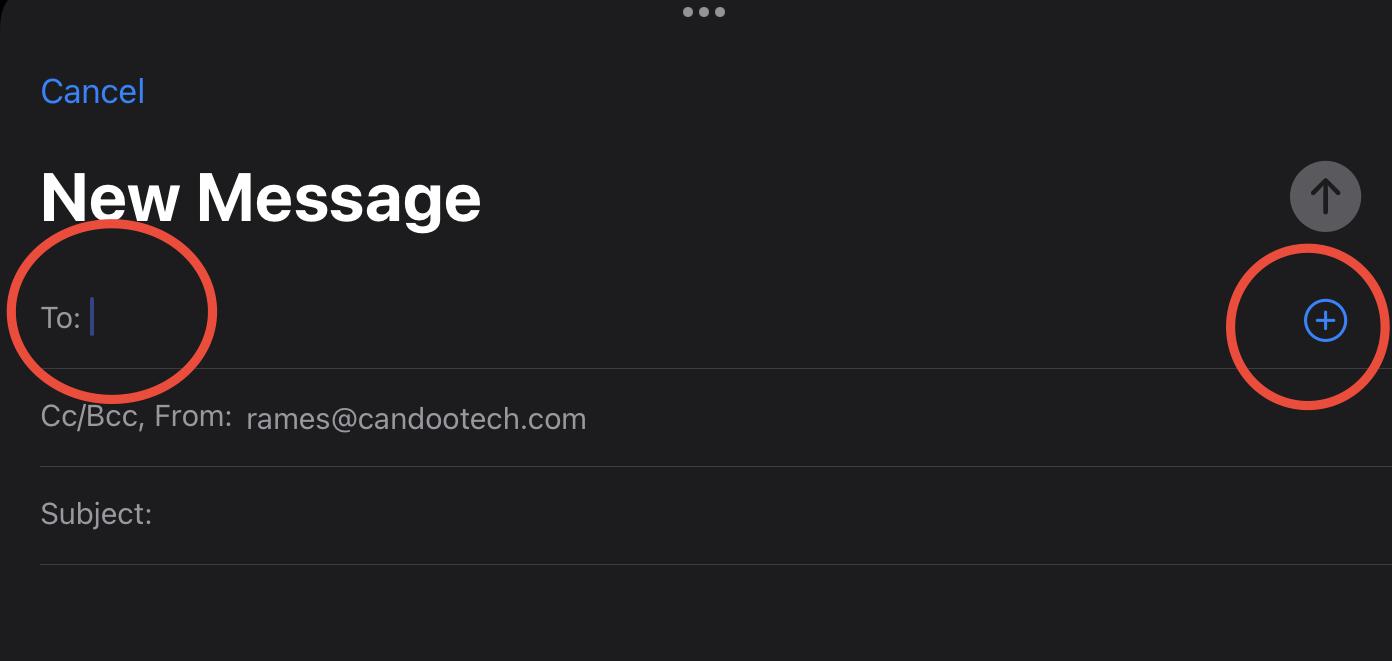
Add your recipient by writing their email in the ‘To’ subject line or clicking the plus sign to add from your contacts. Then, add the Subject
Step 3
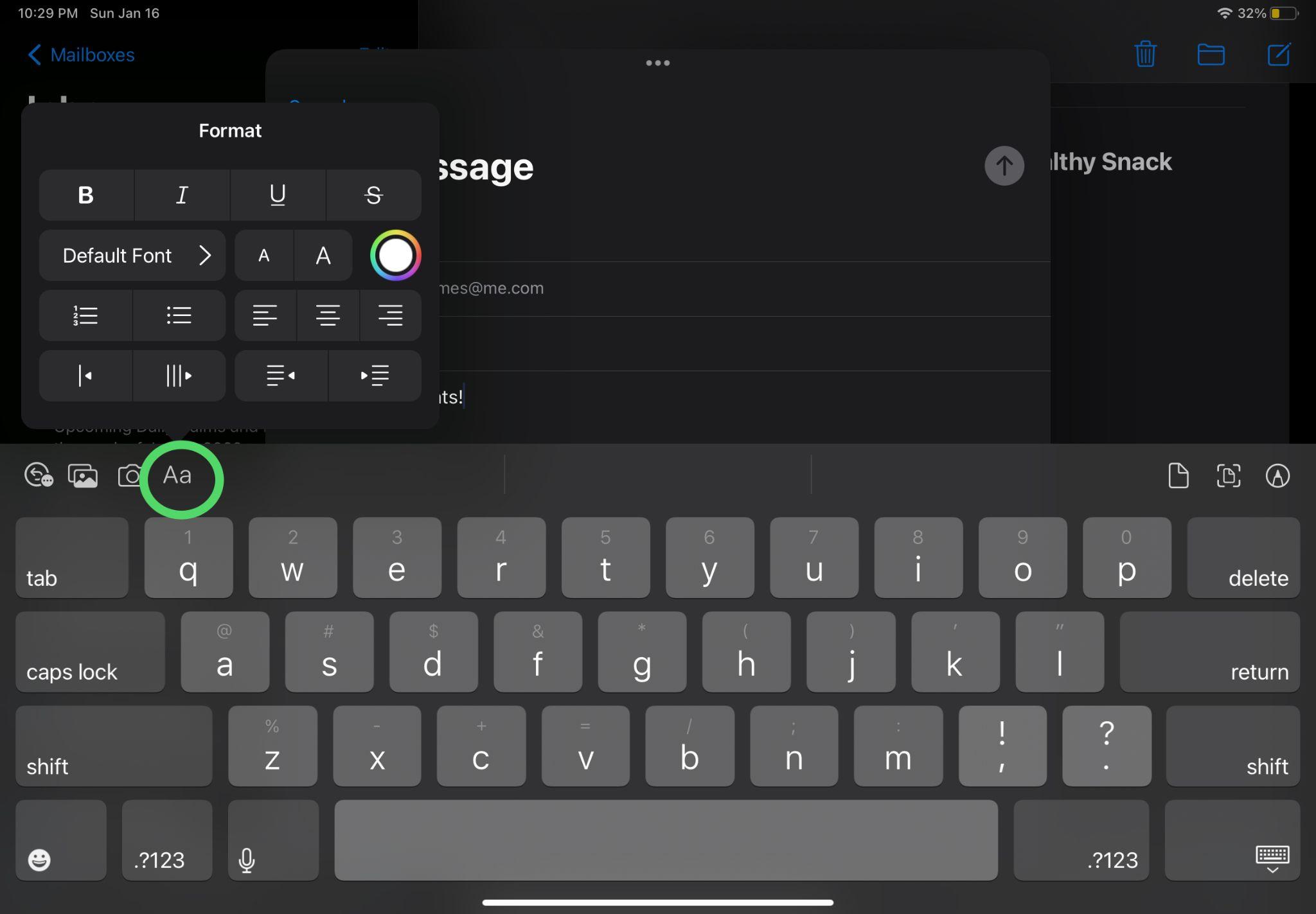
Tap anywhere in the email, then type your message. You can change the font style and color of text, use a bold or italic style, add a bulleted or numbered list, and more.
Step 4
When ready hit the UP arrow to send the email

How to format text
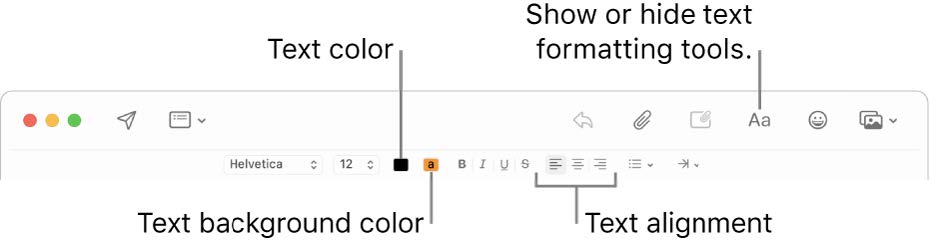
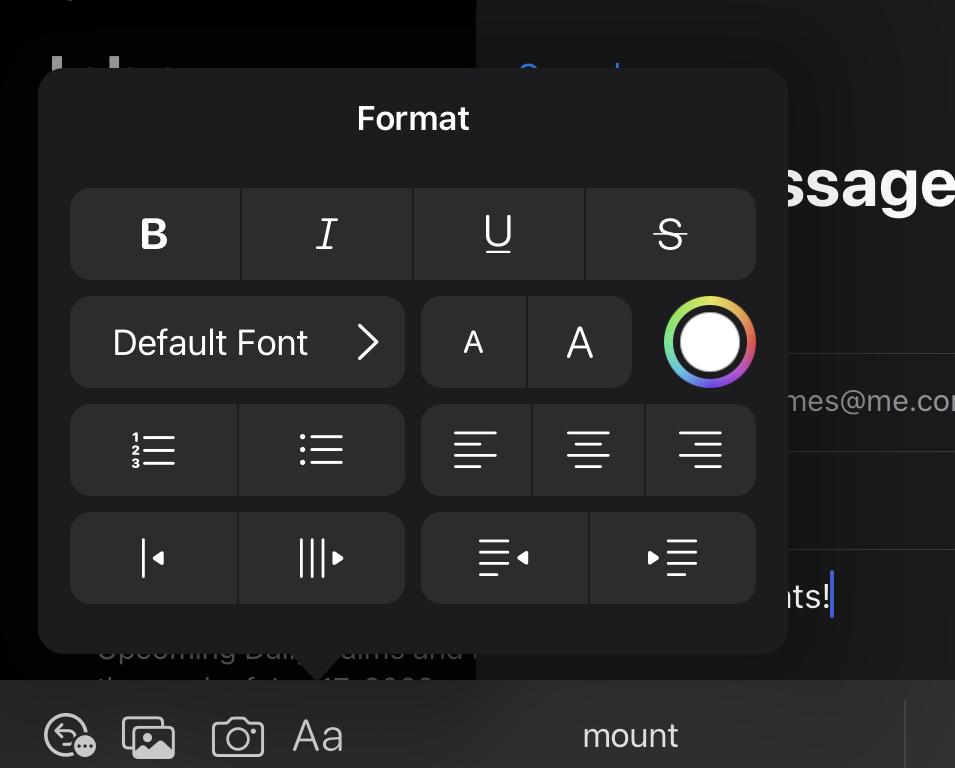
Start a new message window, click the Format button Aa in the toolbar

Step 1
Click the button for an option you want to use such as Text Color, Font Type, or Font Size
B represents Bold Text
represents Italics
U represents underline represents strikethrough text
How to view and save attachments
Step 1
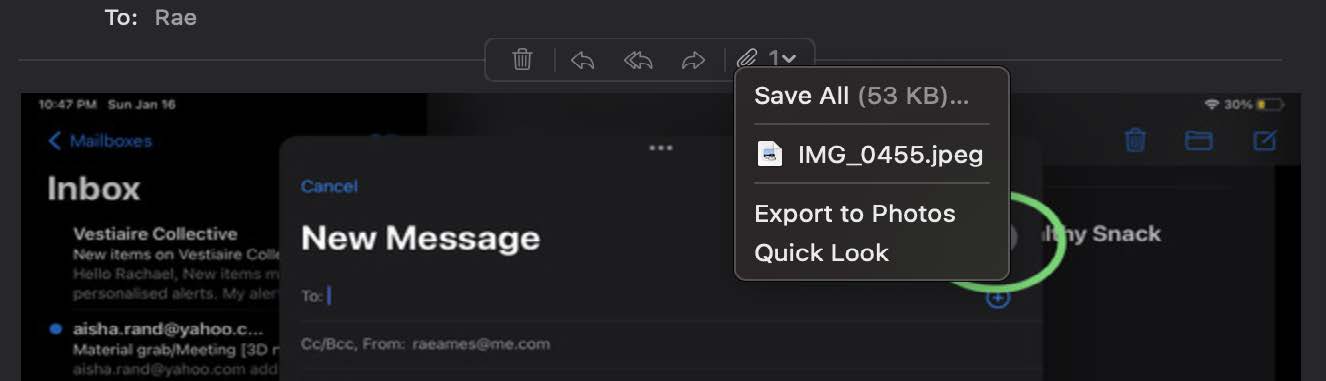
In the Mail app on your Mac click the Attachment button that appears, click the name of an attachment or choose ‘Save All’, then choose a location. Click Save.
How to delete an email
Step 1
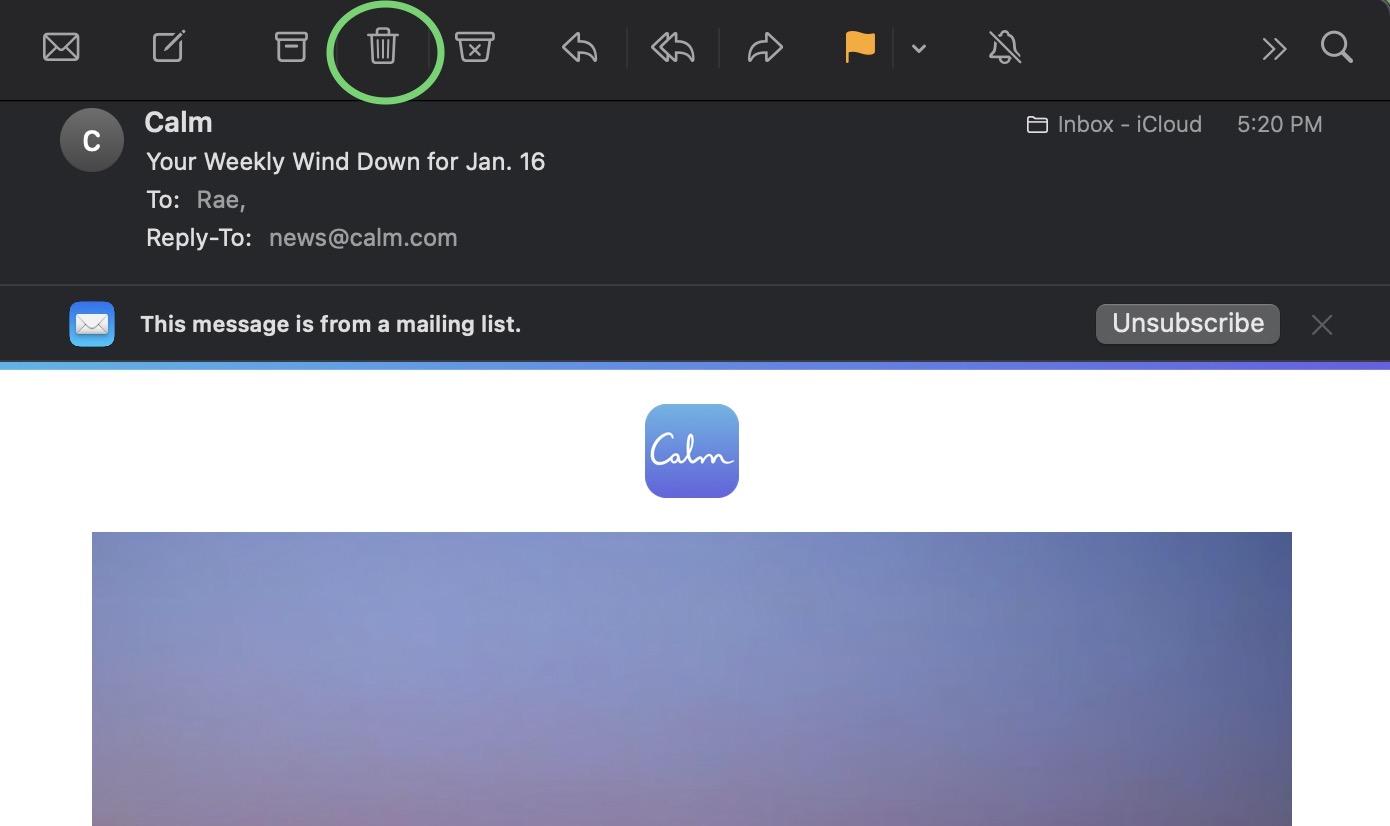
Open the message in the Mail app you wish to delete.
Step 2
Click the Delete button in the Mail toolbar or move the pointer over the message’s header, then click the Delete button that appears.
How to delete multiple emails
Step 1
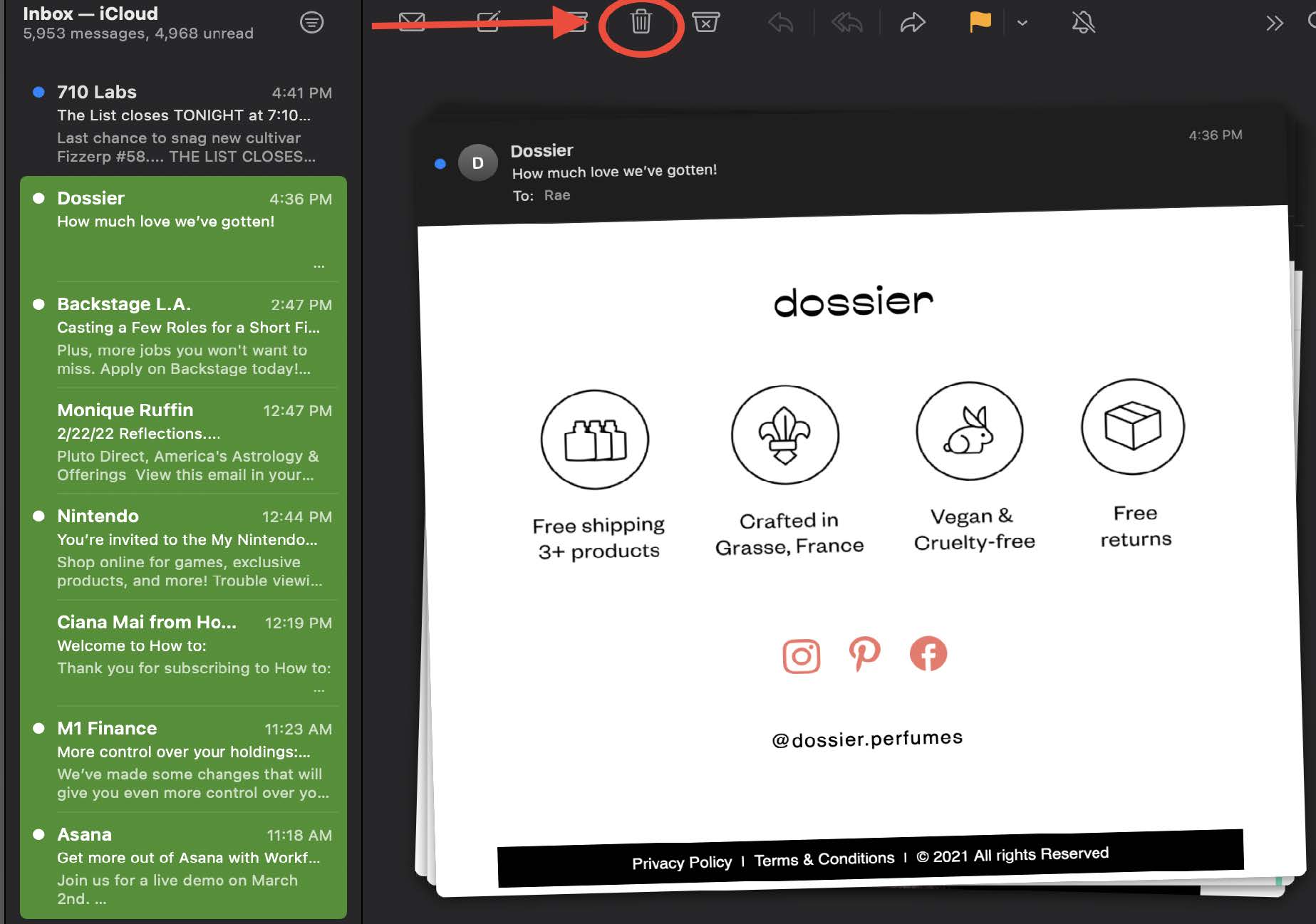
Start by holding the Command button on your keyboard
Step 2
Start by holding the Command button on your keyboard
Step 3
Click the Trash Icon or Delete key on the key
If you need help or have any questions, call us at
646-758-6606 or email support@candootech.com
To download a copy of this guide click below:
Comments
0 comments
Please sign in to leave a comment.