
Candoo How to Use Gmail on a Computer
Step 1
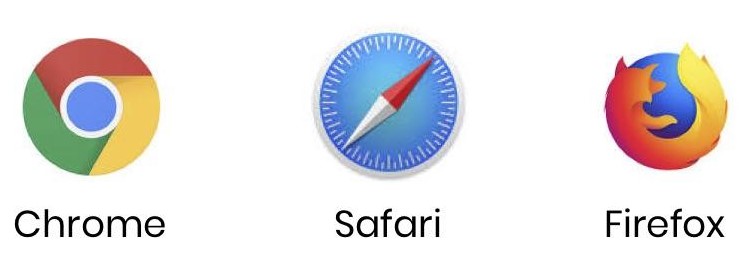
Click on the program that you use to access the internet. Common programs used to navigate the internet are: Chrome, Safari, and Firefox. Here are what the icons look like:
Step 2
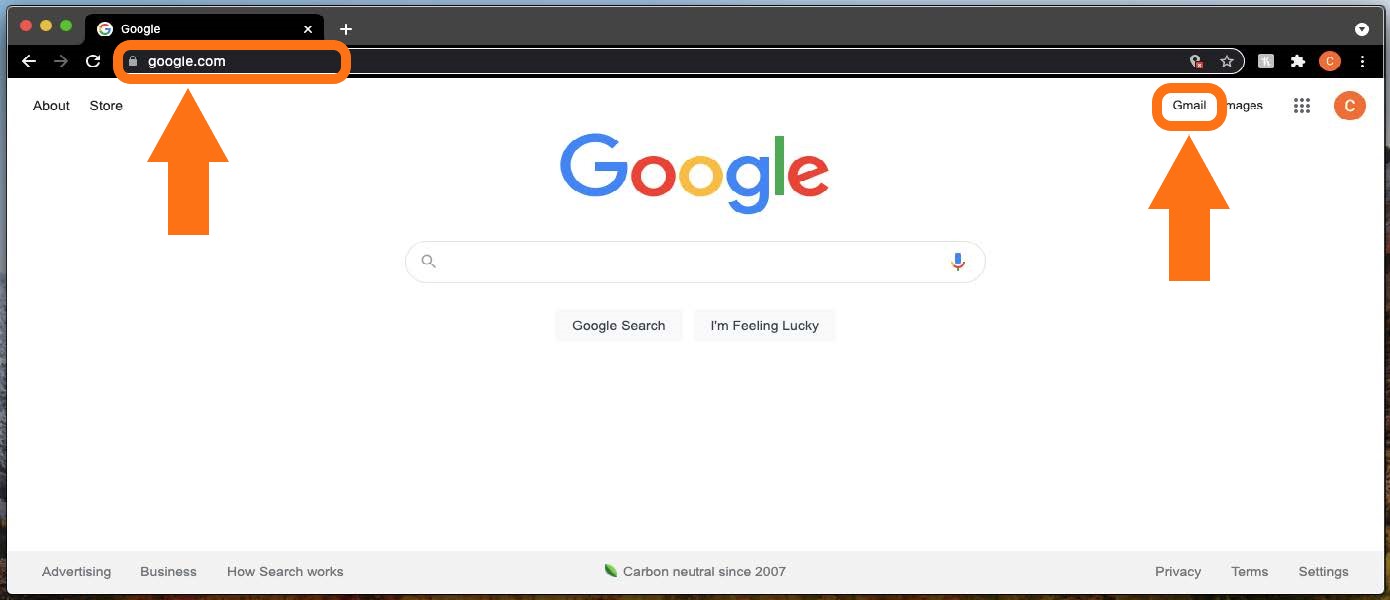
Once the window has appeared on your screen, type in google.com in the top address bar and hit the enter key on your keyboard. The Google homepage should appear. To access Gmail, click on Gmail that appears on the top right corner of the screen.
Step 3
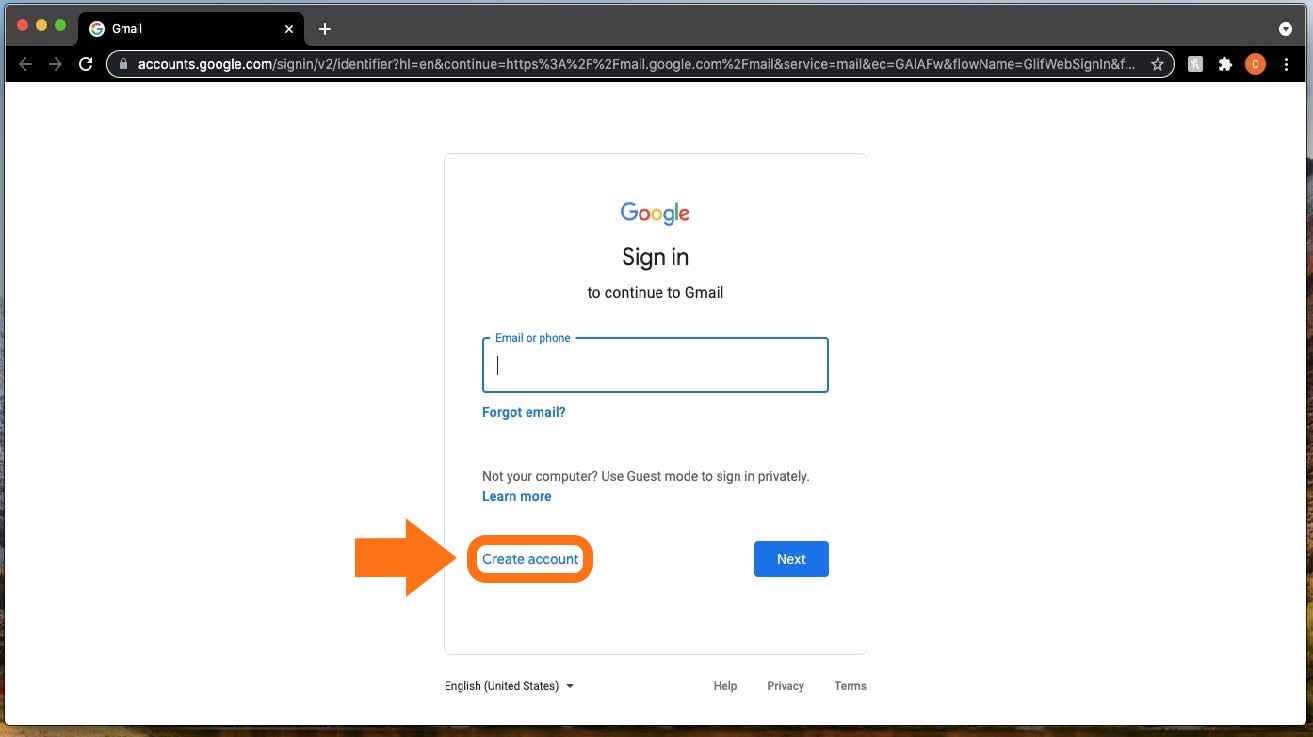
You will then see the Gmail Welcome Screen. Click on Create Account near the bottom of the screen.
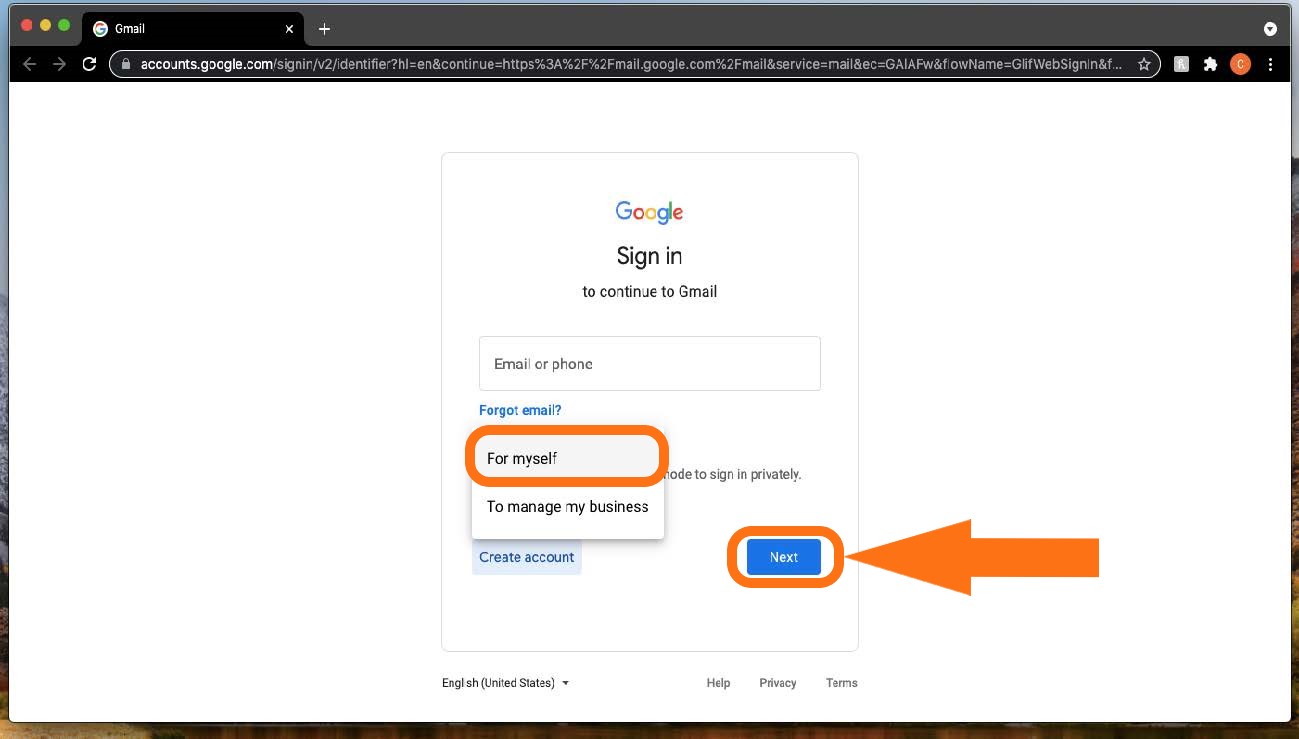
An option for either: For Myself or To Manage my business will appear. For this example, we will select: For Myself.
Step 4
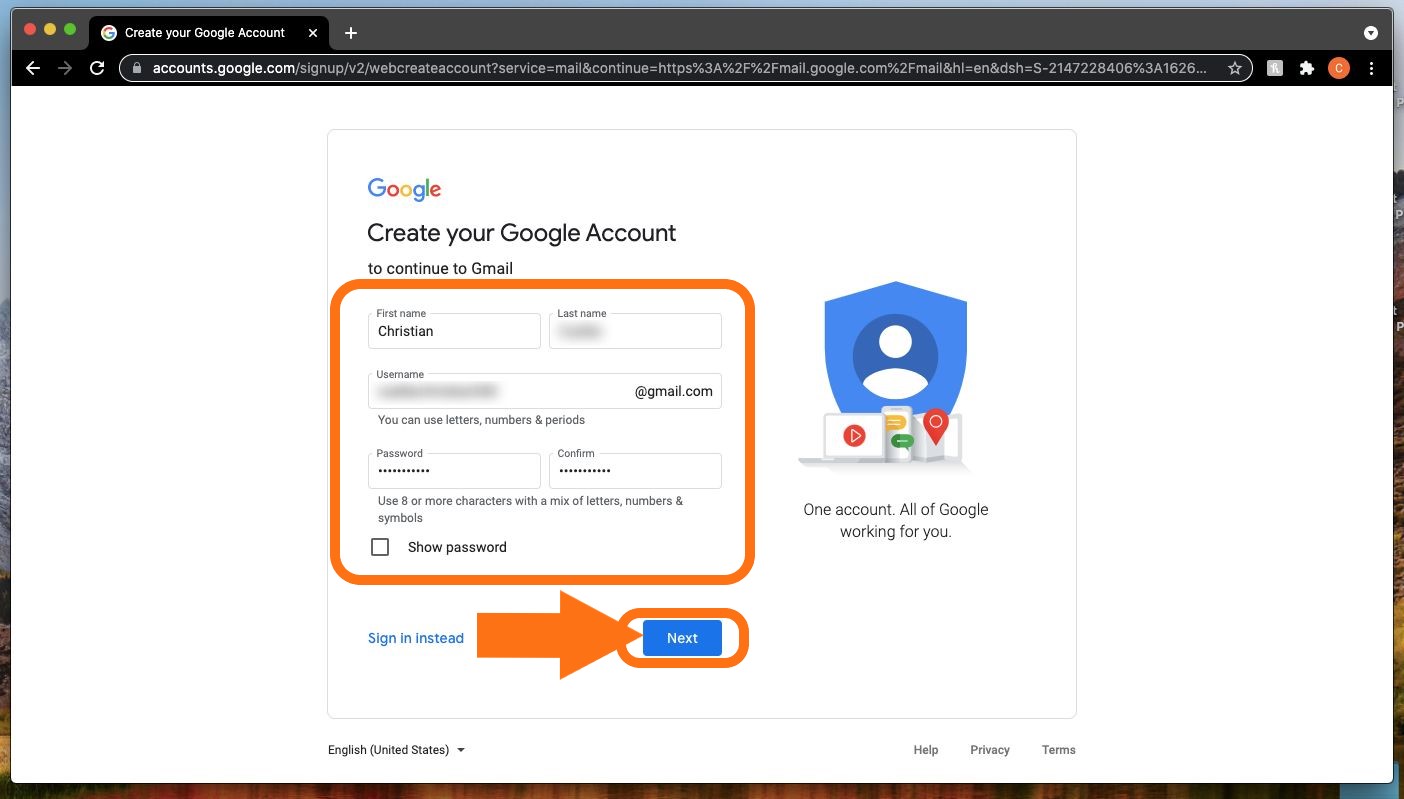
A screen will appear requesting to enter your First name, Last name, a username, and a password.
Please note: the username and password that are entered here will be used to log into your Gmail in the future.
Step 5
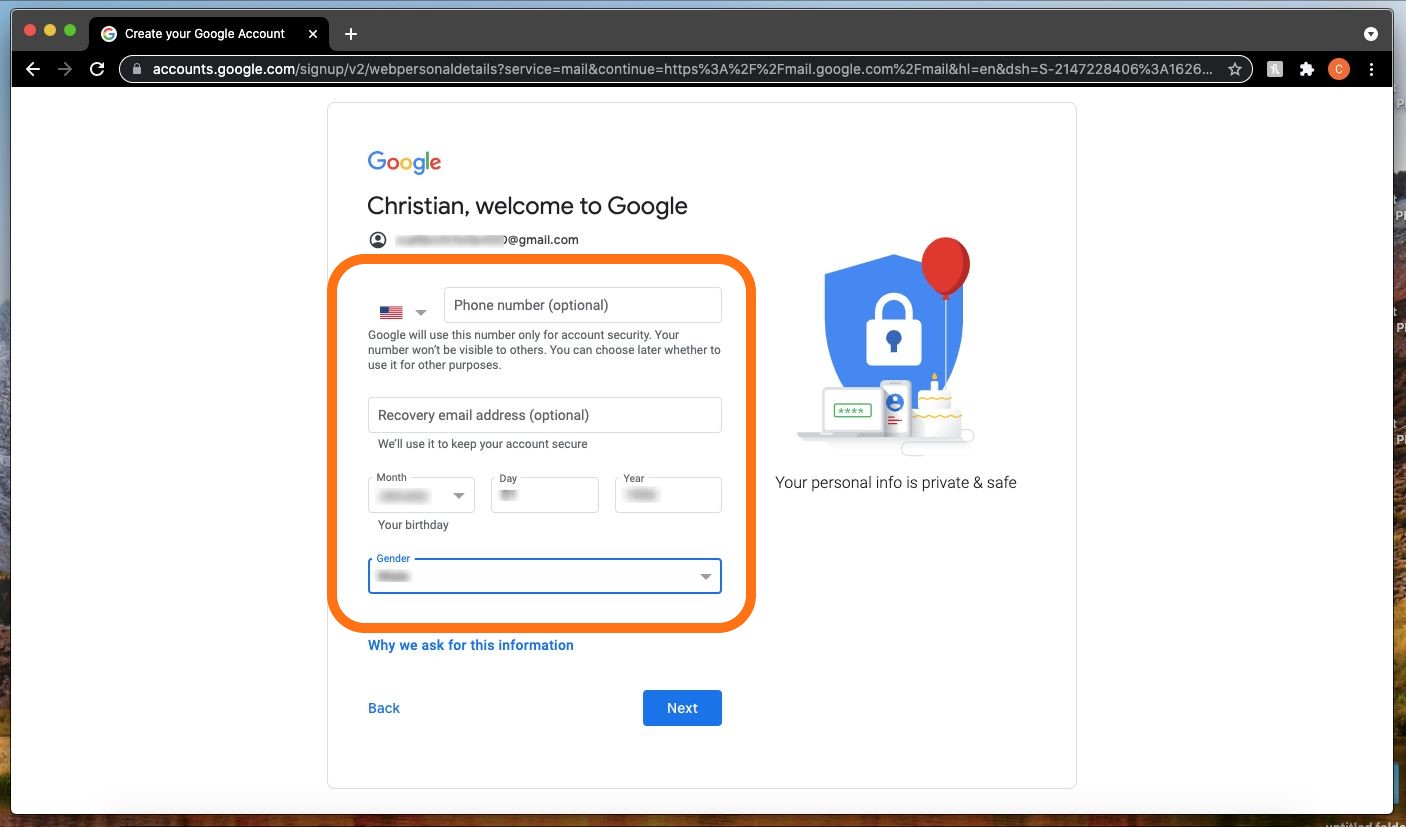
On the next screen, you will be asked to enter a phone number and a recovery email address. These are both optional but provide additional account security. Then enter your Date of Birth and Gender information. Click the ‘Next’ button to proceed.
Step 6
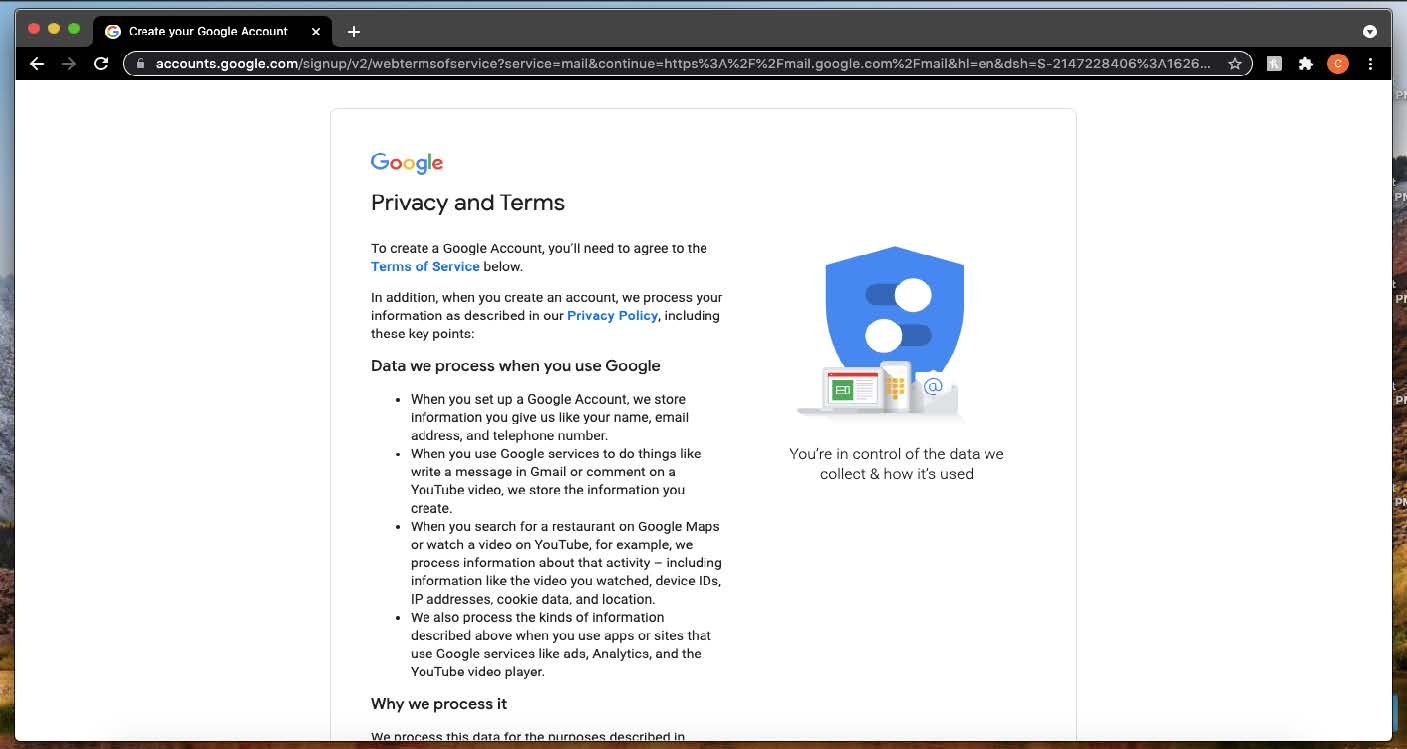
Next you will see a “Privacy and Terms” screen.
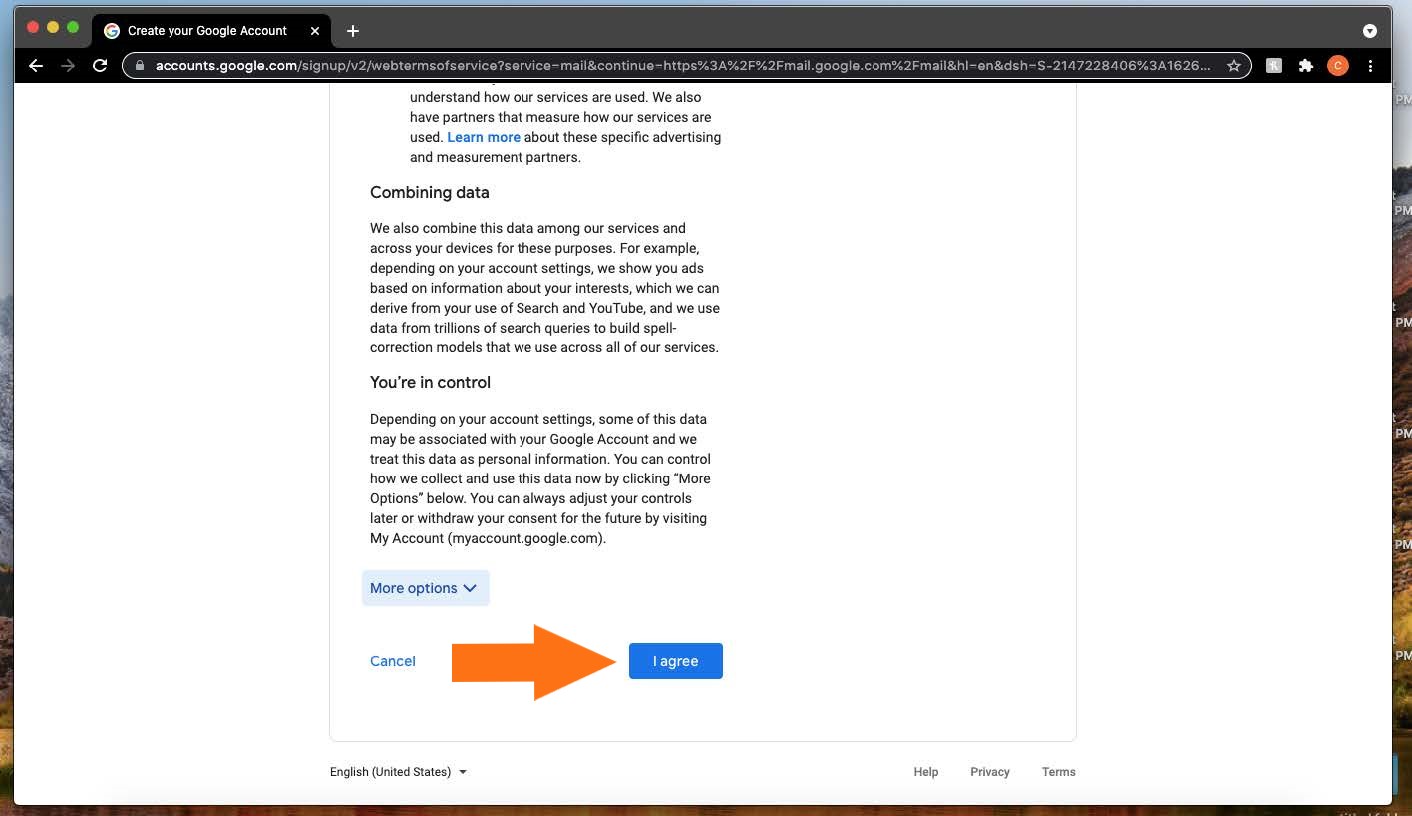
Scroll down to the bottom of the screen and click on the “I agree” button to proceed
Step 7
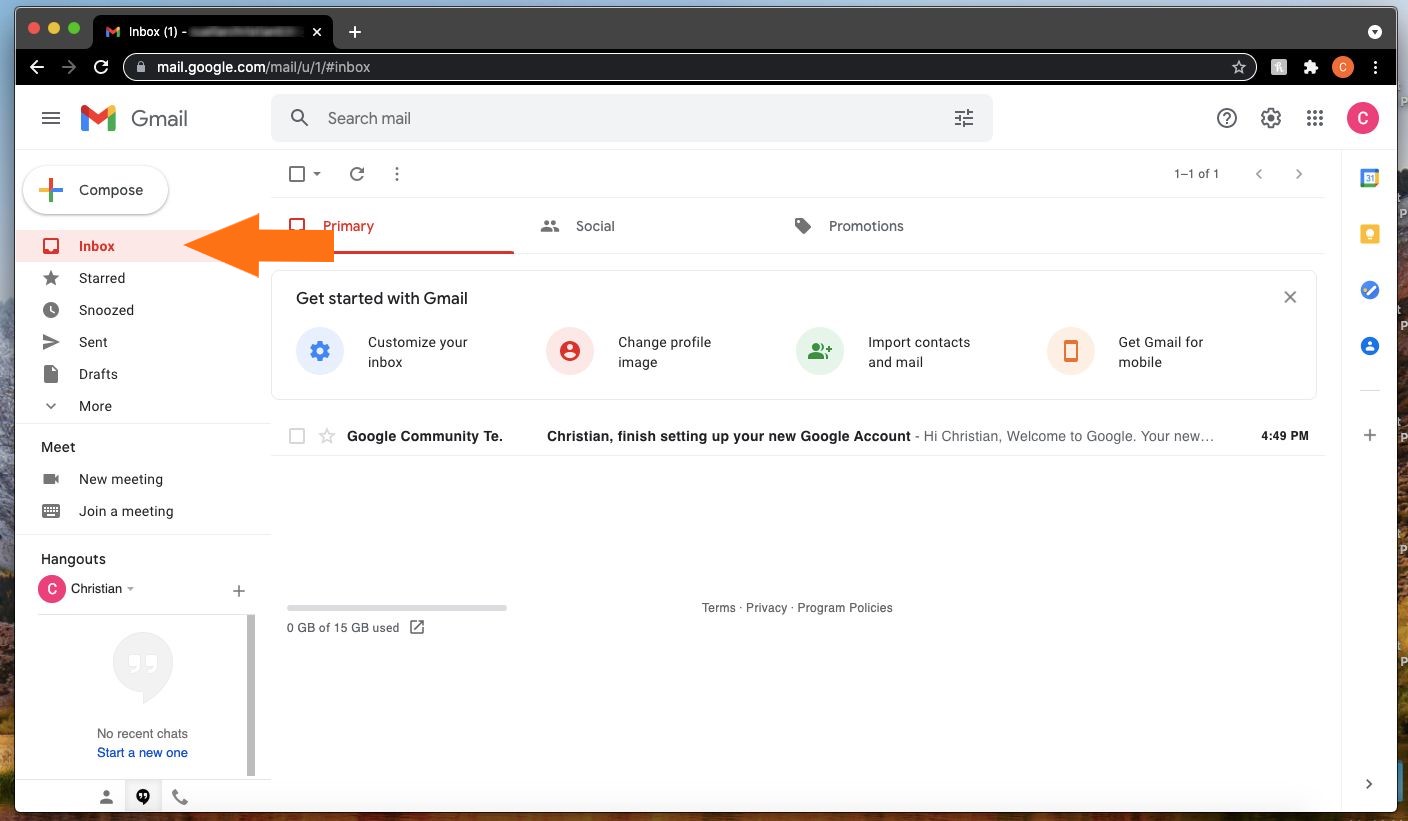
You will now see that we have successfully created a new Gmail account. This is how the main screen will look like.
As indicated by the orange arrow, we see that we are in the Inbox.
Step 8
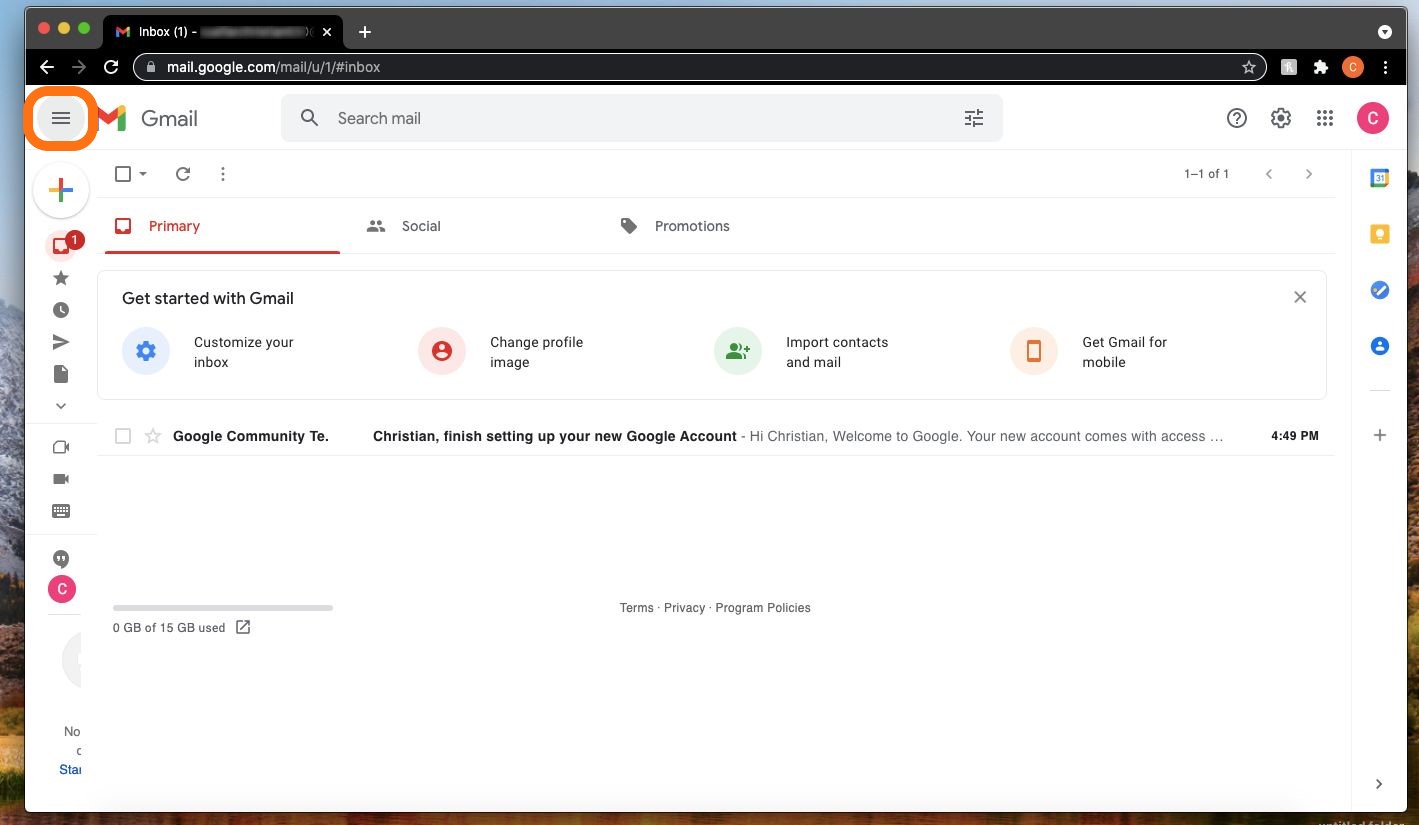
To view or hide the other mail folders that are available you would click on the symbol with 3 horizontal lines as highlighted below.
Step 9
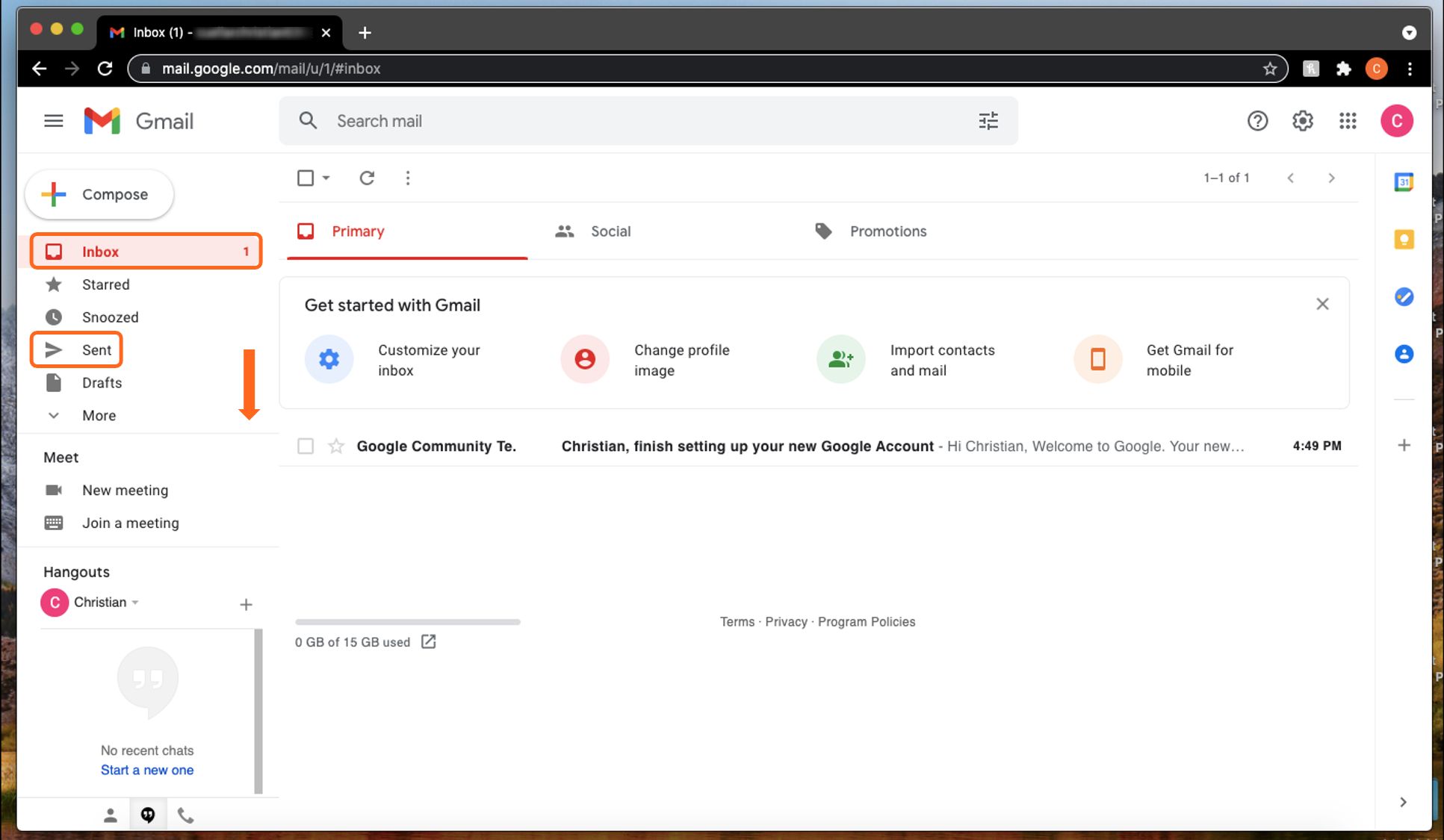
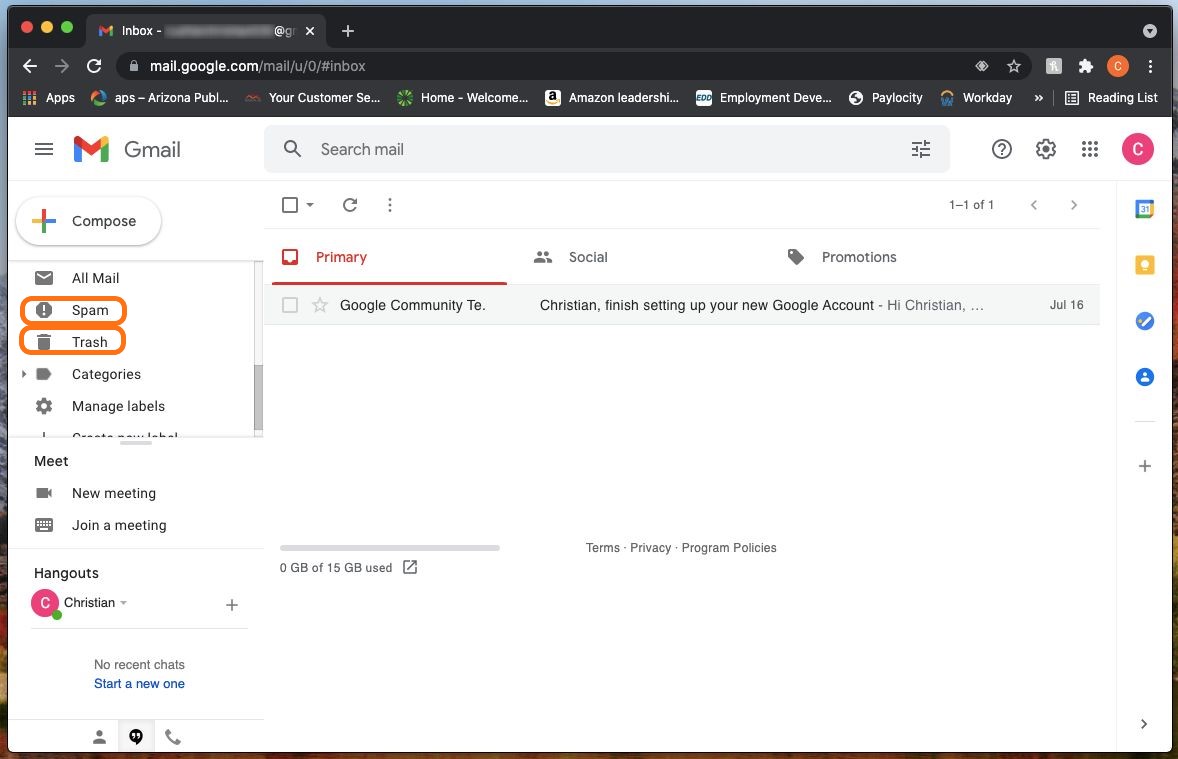
Now we see all the mailboxes listed. You can scroll down in the side menu on the left. The highlighted mailboxes indicate the ones that you are most likely to need. To view what is in these individual mailboxes, click on its name. Click “Inbox” to go back to the “Inbox” view.
Step 10
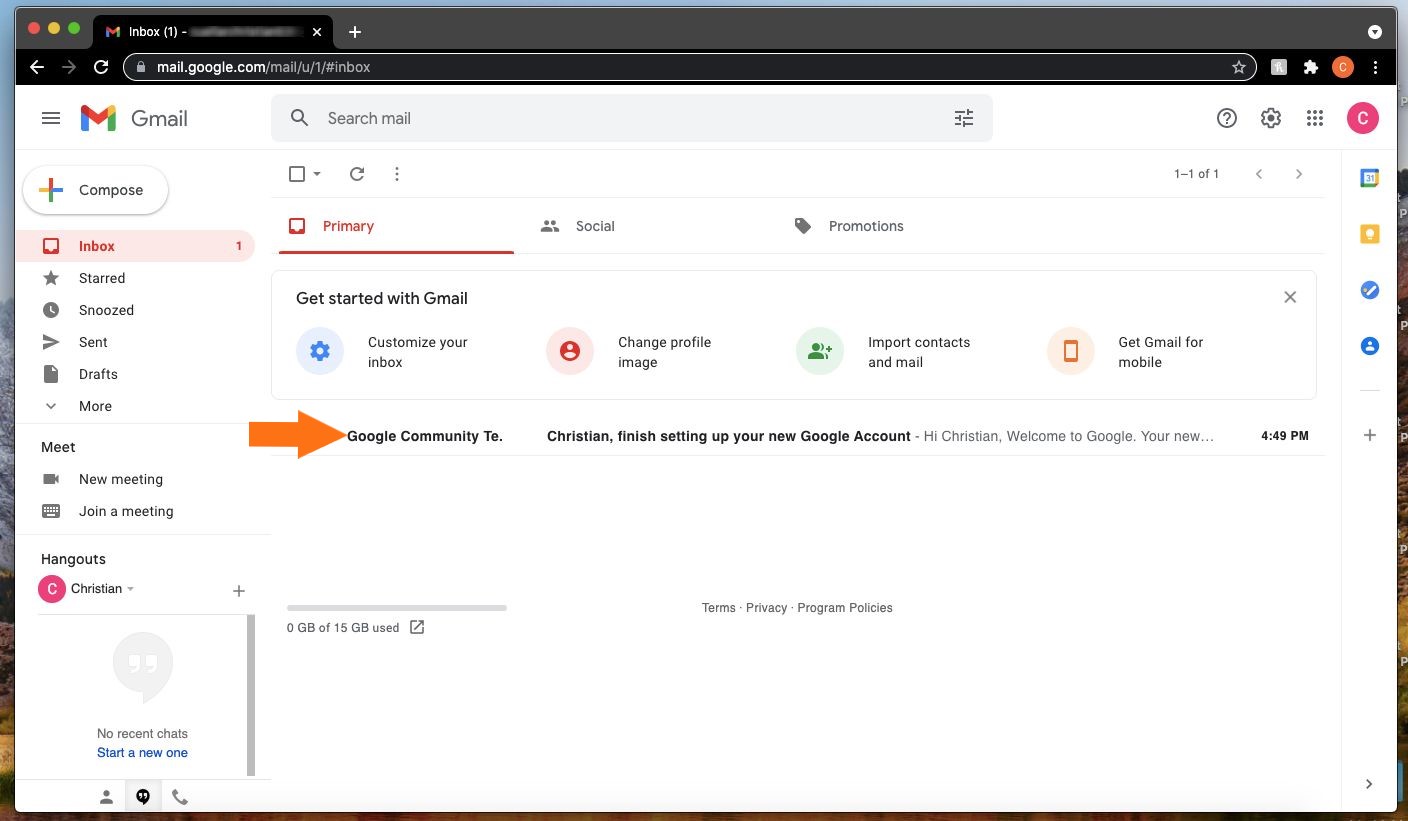
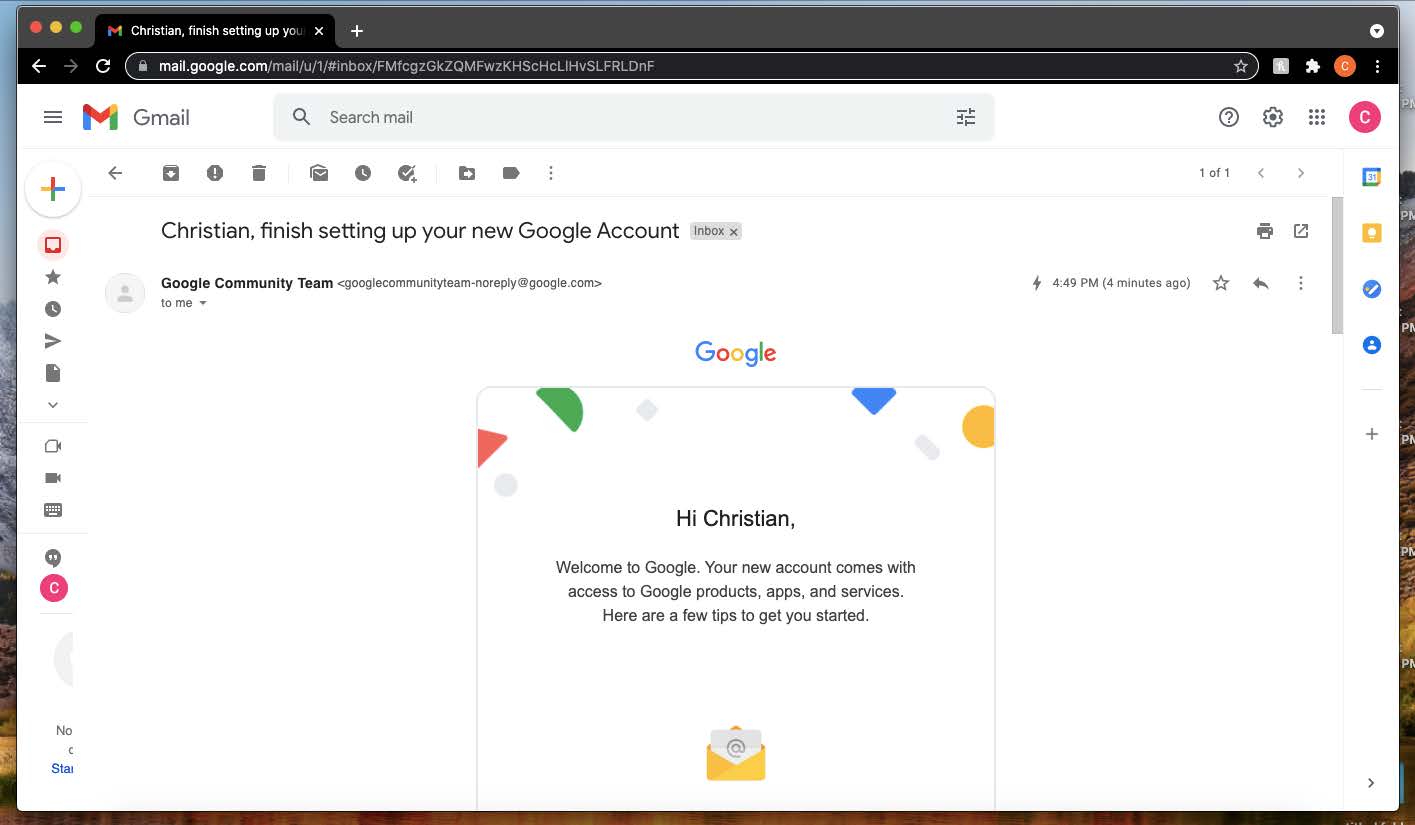
To view an email, you just need to click on it, and it will open.
Step 11
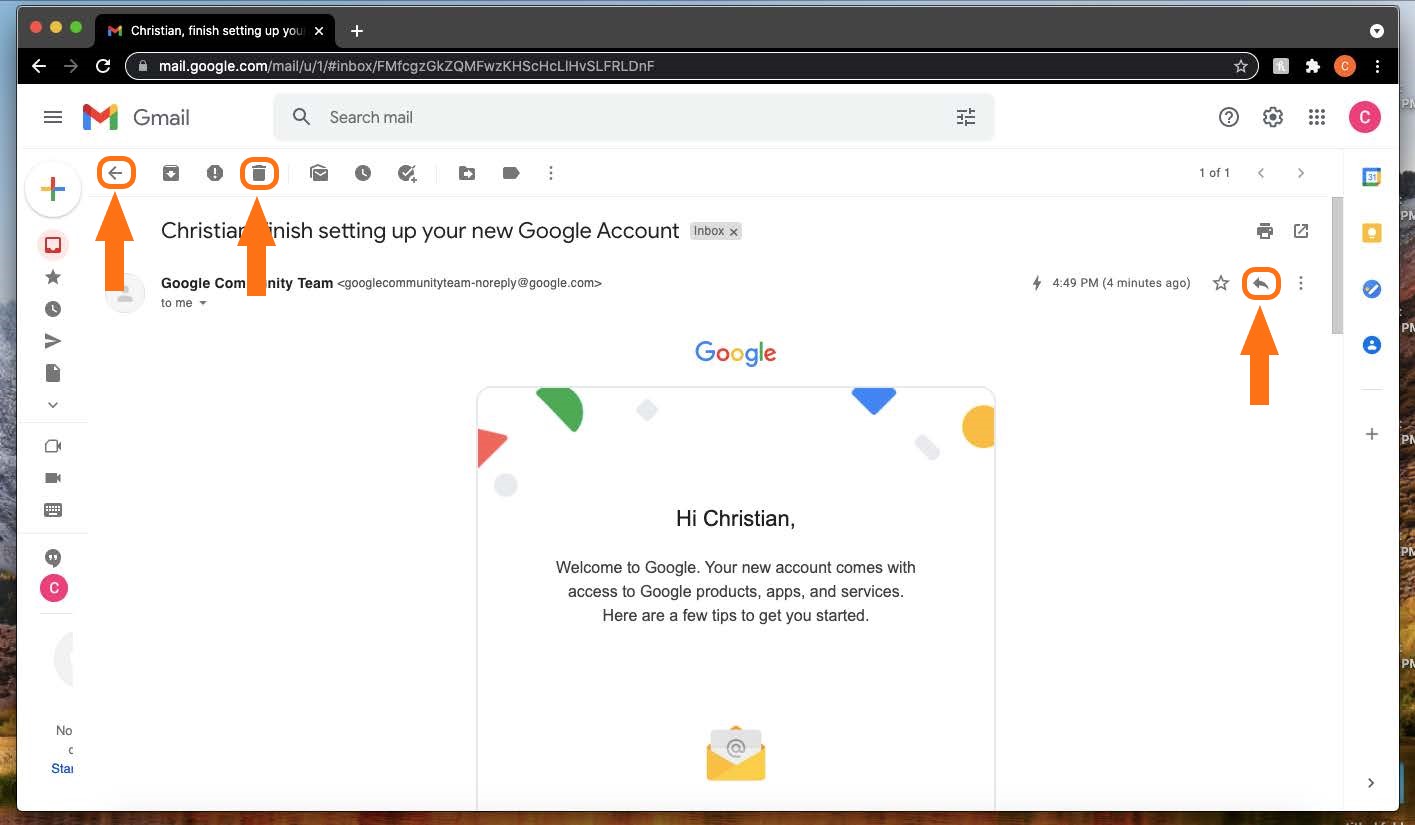
There are a few items to notice in our opened email. The first is the Left Arrow in the upper right corner. Tapping this will take us back to the Inbox. Next is the “Trash” icon to the right. Clicking this will delete this email. On the far-right side is the Curved Arrow icon. Clicking this will allow us to reply to the sender of this email.
Step 12
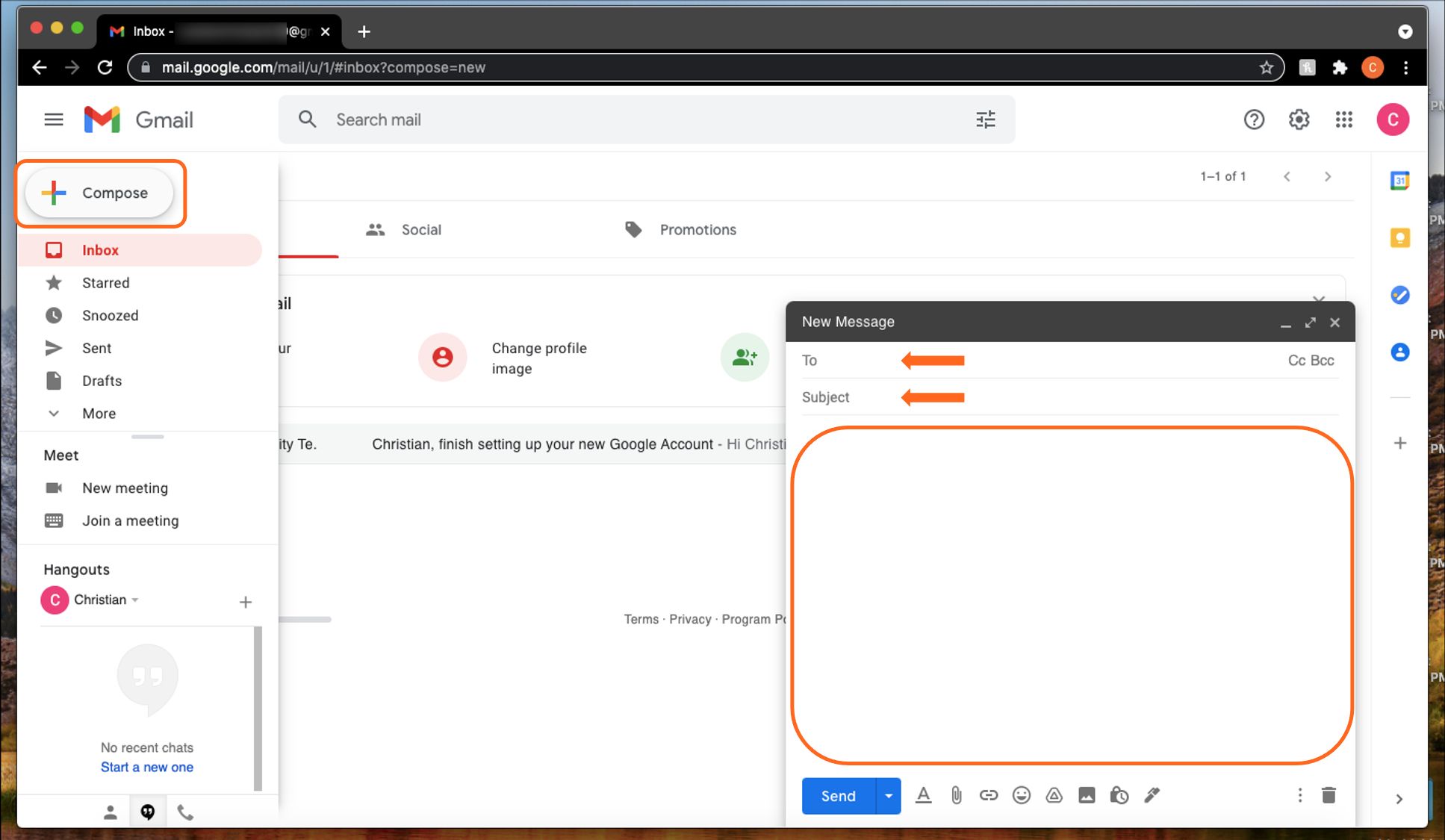
To compose a new email, click the “Compose” button highlighted on the left in the picture below. This brings up a “New Message” screen to appear on the right. Type the email address of the person you are sending the email in the “To” field.
You can then enter a subject in the “Subject” field and in the area below you can type your message.
Step 12
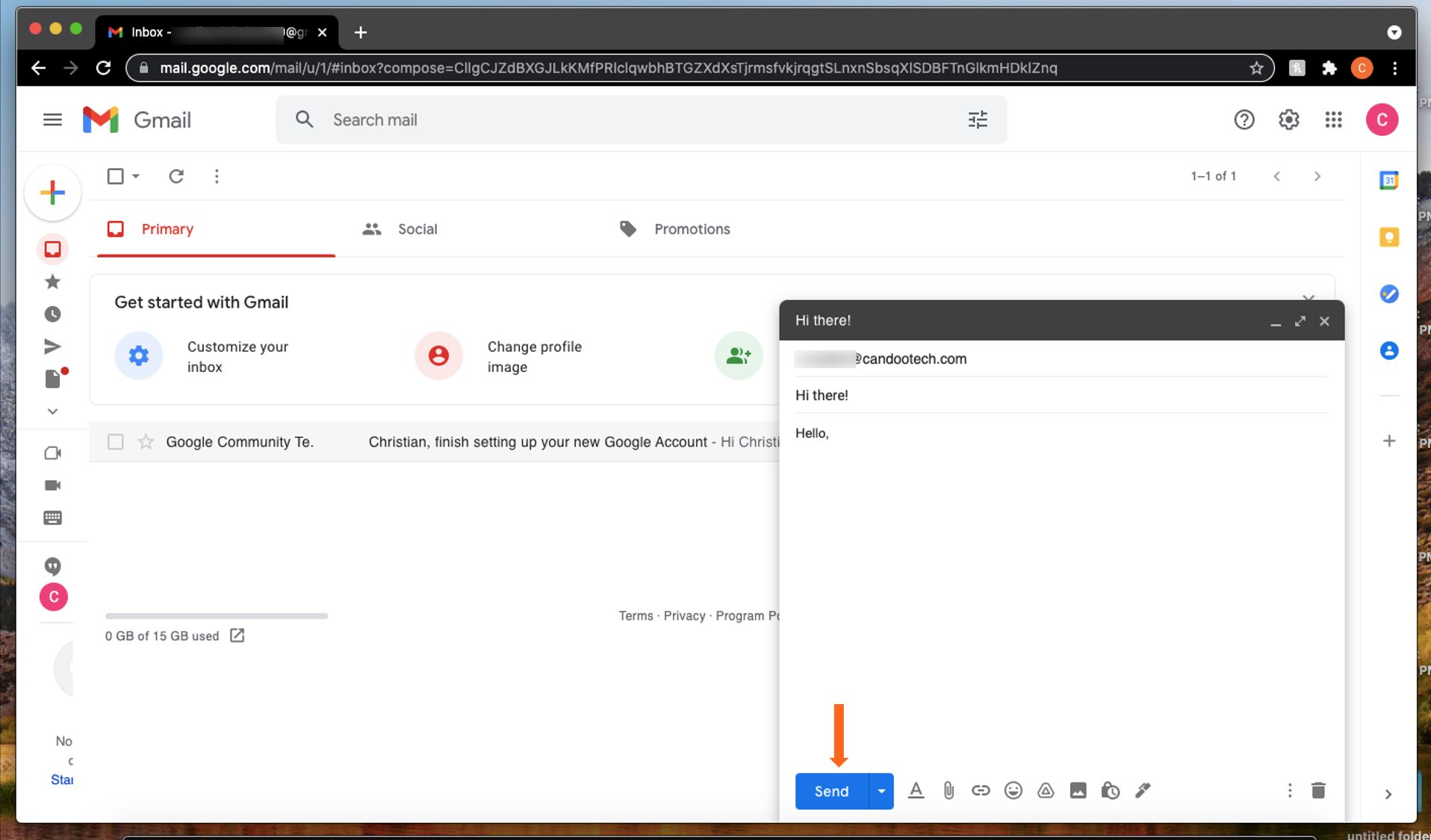
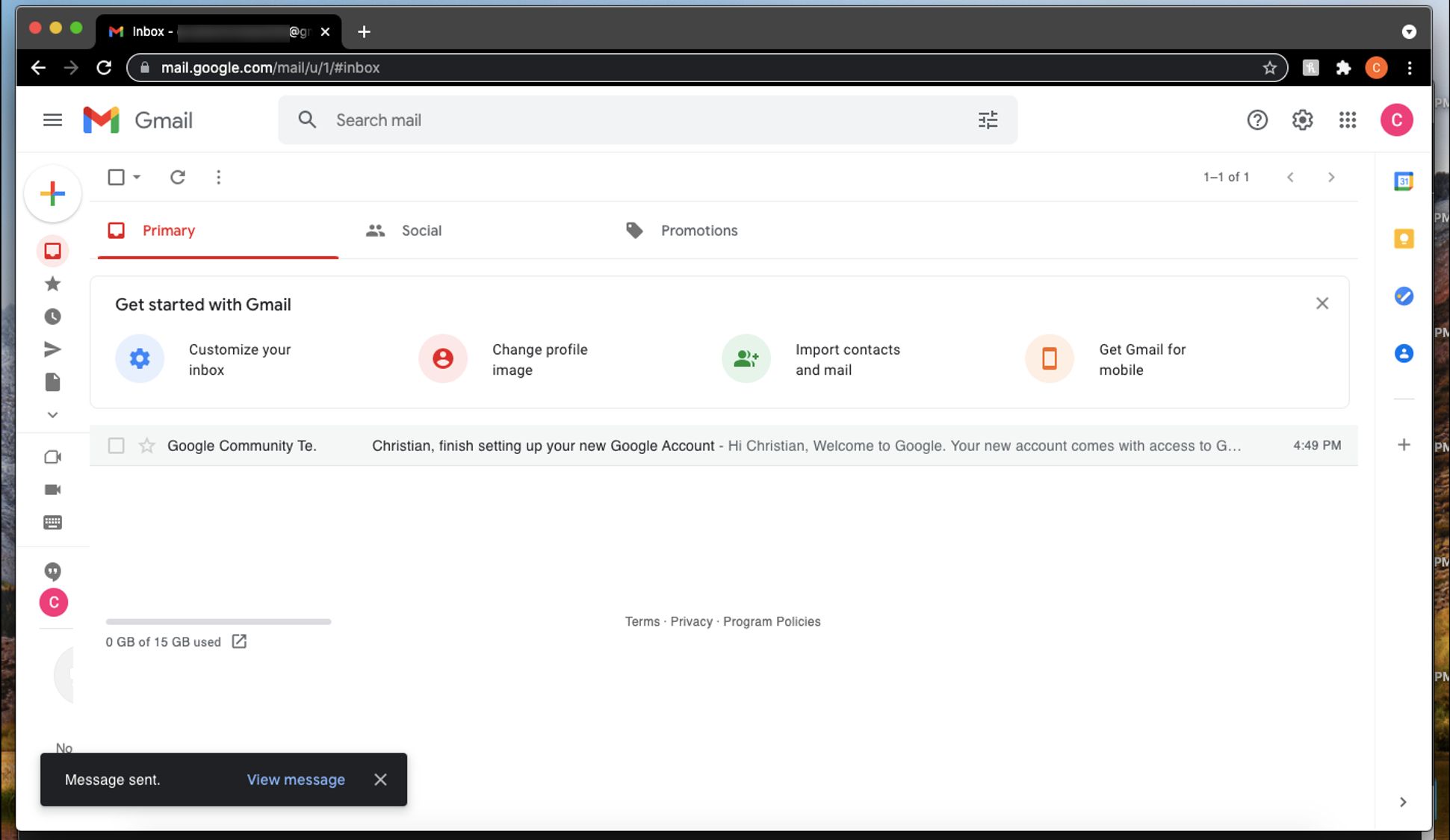
To send your email, click on the blue “Send” button at the bottom of the New Message window. You will then see a “Message Sent” message appear at the bottom of the screen confirming that your email has been sent.
If you need help or have any questions, call us at
646-758-6606 or email support@candootech.com
To download a copy of this guide click below:
Comments
0 comments
Please sign in to leave a comment.