
Candoo How to Use Siri
Table of Contents
- What is Siri?
- How to set up Siri on the iPhone and iPad
- How to set up Siri on a Mac
- How to talk to Siri on the iPhone or iPad
- What to ask Siri
What is Siri?
Siri is a built-in, voice-controlled personal assistant available for Apple users. Siri is designed to offer you a seamless way of interacting with your iPhone, iPad, or Mac by you speaking to her and her speaking back to you- to find or do what you need.
You can ask her questions, tell her to show you something, or issue her with commands for her to execute on your behalf, hands-free.

How to set up Siri on the iPhone and iPad
Step 1
Navigate to the Settings app
Step 2
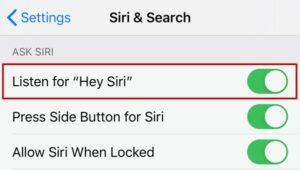
Tap to "Siri & Search"
Step 3
Switch on Listen for "Hey Siri" if you wish to activate Siri using your voice, without pressing the side/home button.
How to set up Siri on a Mac
Step 1
Open System Preferences by clicking on the Apple logo on the top left corner of your home screen
Step 2
Then click "System Preferences"
Step 3
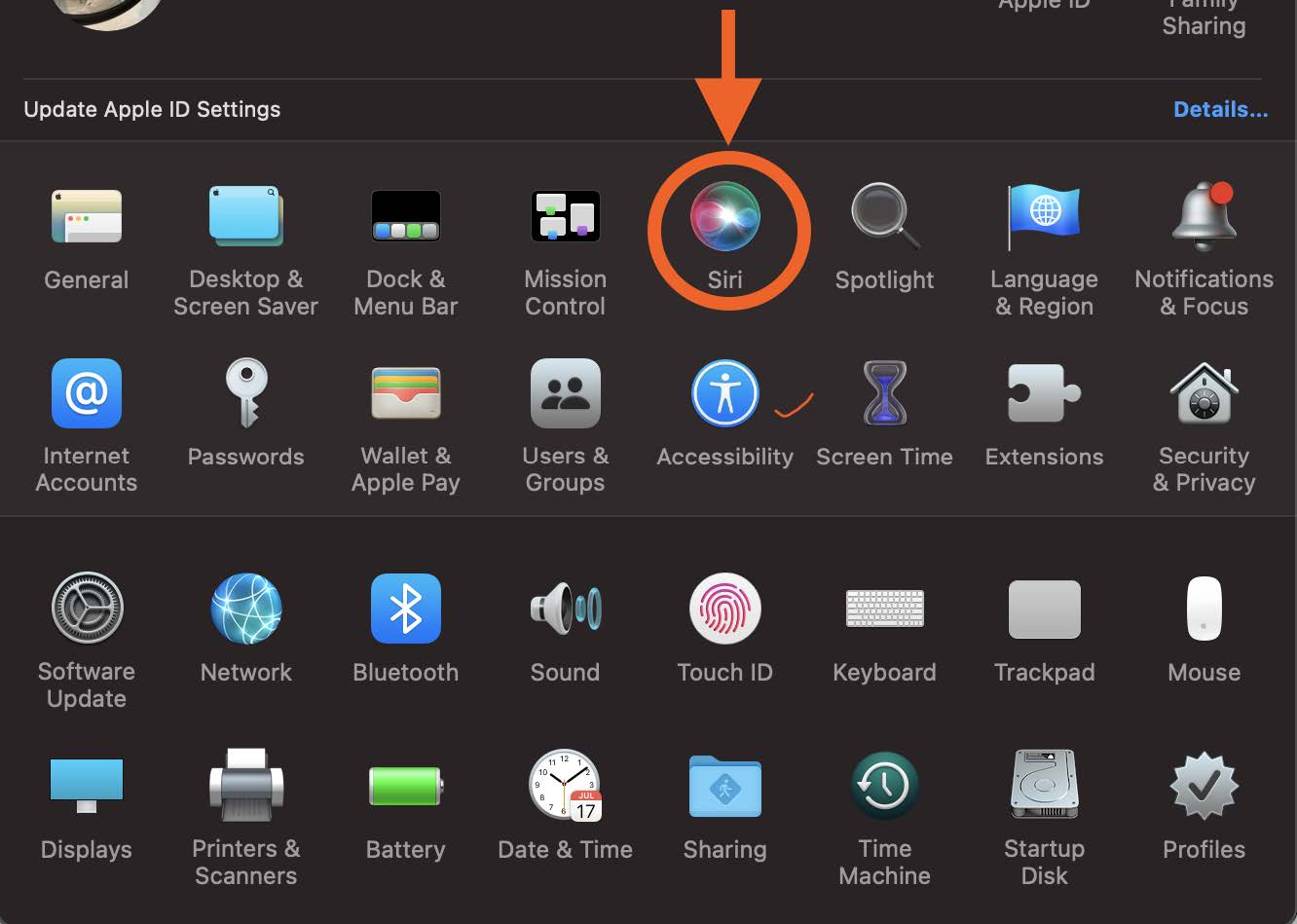
Click "Siri"
Step 4
Make sure Enable Ask Siri on the left-hand side is checked on.

How to talk to Siri on the iPhone or iPad
There are three ways you can trigger Siri:
- Press and hold the Side button (or Home button on older devices).
- Say "Hey Siri" (if set up)
- Use a Bluetooth headset, such as AirPods, AirPods Pro, and AirPods Max (requires additional accessories)
Pressing the Side button on the iPhone
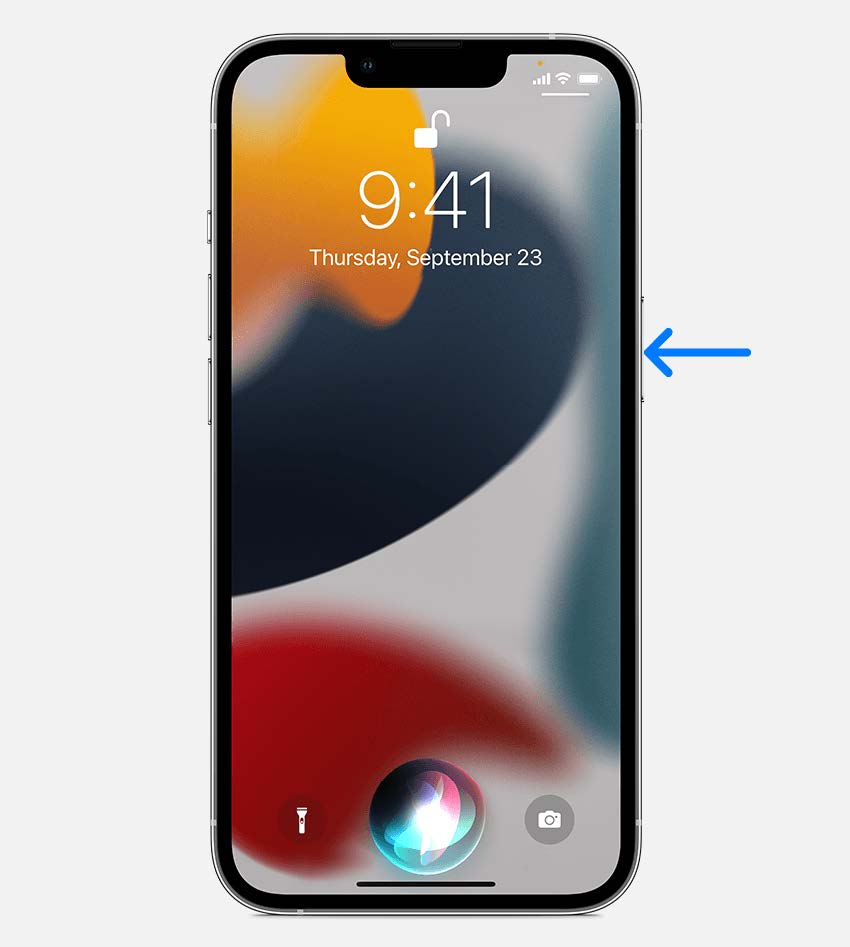
- The Side button is located along the right-hand edge of your iPhone.
- Press and hold the Side button on your iPhone to open Siri.
- You may hear two quick beeps/vibrations and the Siri icon on the screen to tell you that Siri has woken up and is waiting for you to say something.
Activate Siri with a button on the iPad
- Press and hold the Home button
For iPads without the home button, press and hold the Sleep/Wake button. - When Siri appears, ask Siri a question or do a task for you.

Activate Siri with your voice
- Say “Hey Siri” to your device to activate Siri
- Immediately ask a question or speak a command
- The Siri Icon shows Siri is on and listening to your voice
Activate Siri on a Mac
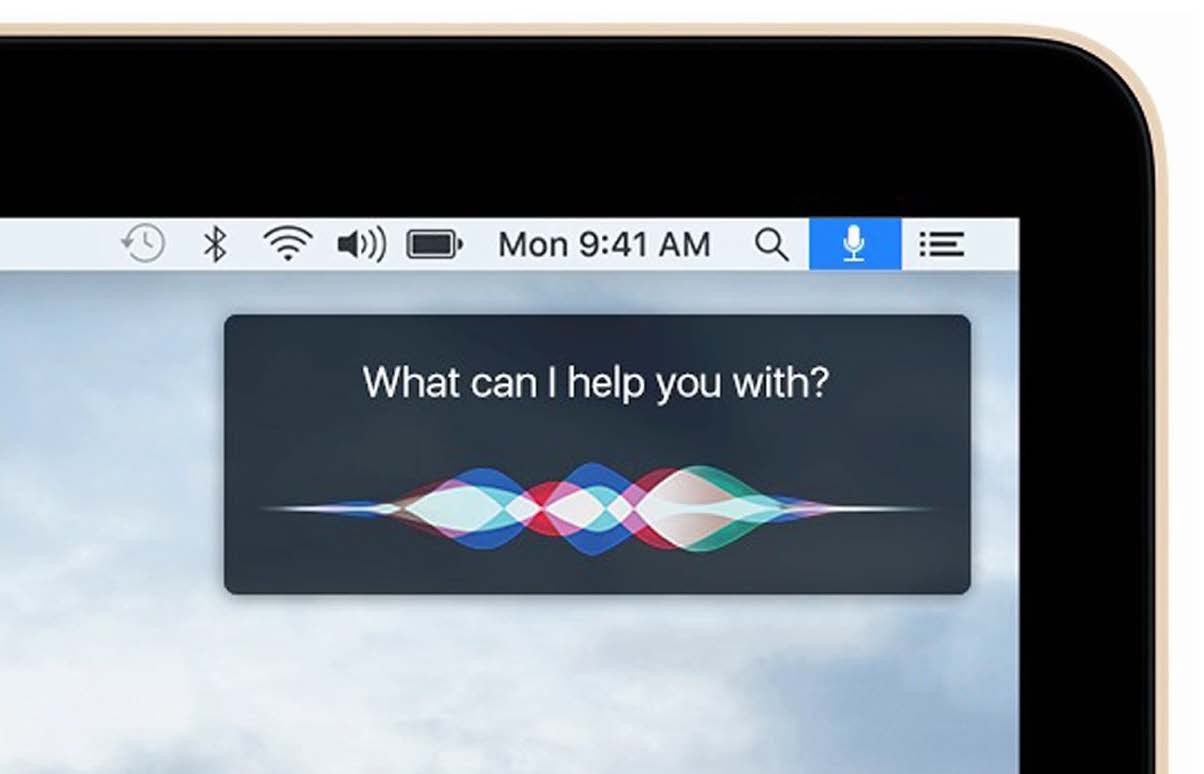
- To ask Siri, take any of these actions, then just say what you need.
- Click the Siri button in the menu bar, Dock, or microphone.
What to ask Siri
Find out what Siri can do
- Use Siri to quickly check facts, do calculations, or translate a phrase into another language. Say something like:
- “Hey Siri, what causes a rainbow?”
- “Hey Siri, what does a cat sound like?”
- “Hey Siri, what’s 5+13?”
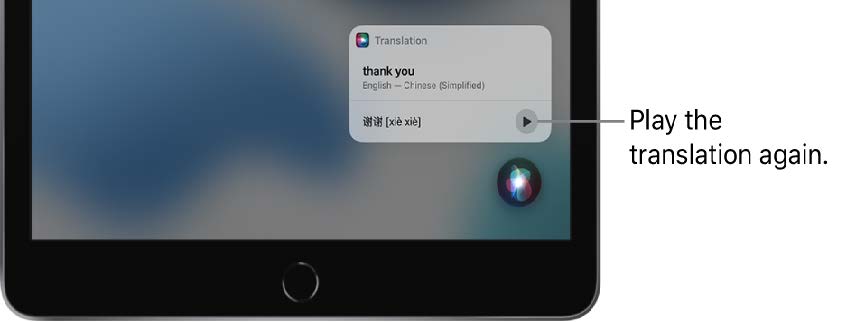
- “Hey Siri, how do you say Thank You in Mandarin?”
Use Siri with apps
-
You can use Siri to control apps with your voice. Say something like:
-
“Hey Siri, set up a meeting with Gordon at 9” to create an event in Calendar.
-
“Hey Siri, add artichokes to my groceries list” to add items to Reminders.
-
“Hey Siri, what’s my update?” (gives an update about local weather, news, your reminders, calendar events, and more)
-
“Hey Siri, play the top 40 jazz songs.”
Use Siri to share information with contacts
-
You can share on-screen things like a photo you’re looking at, a website you are on, content from Apple Music or Apple Podcasts, Maps locations, and more with people in your contacts.
-
For example, when looking at a photo in your Photo library, say something like “Hey Siri, send this to mom” to create a new message with the photo.

If you need help or have any questions, call us at
646-758-6606 or email support@candootech.com
To download a copy of this guide click below:
Comments
0 comments
Please sign in to leave a comment.