
Candoo How to iPad Guide, Part 1
Table of Contents
- How to iPad Basics
- How to Unlock your iPad
- How to Use your Home Screen
- How to Connect to Wi-Fi
- How to Adjust Brightness
- How to Use Navigation Buttons
- How to Send a Text
- How to Add a Contact
How to iPad Basics
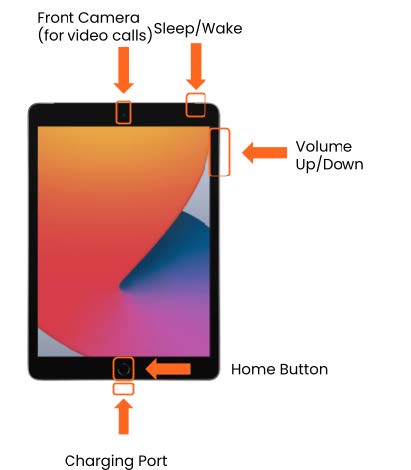
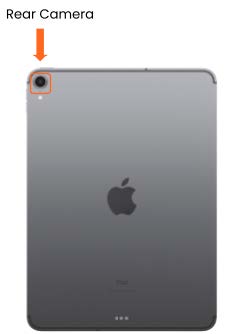
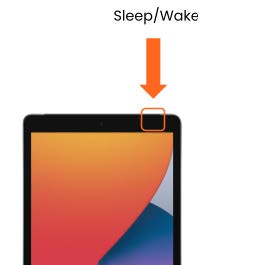
To Power On, press and hold the “sleep/wake” button until the screen lights up. It can take a few minutes for the device to finish starting up.
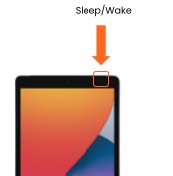
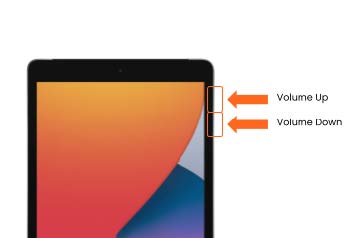
To Power Off, press and hold the “sleep/wake” button and the “Volume Down” button at the same time.
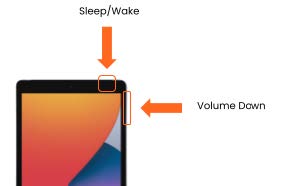
Once you see “slide to power off”, touch and hold the red power button and slide it from left to right.

To Adjust your Volume, press the upper part of the “volume button” to raise your volume and the lower part of it to lower your volume.
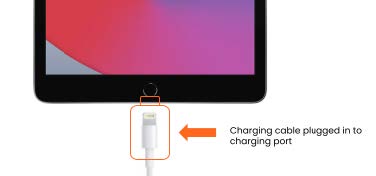
To Charge your iPad, plug your charging cable into the bottom of the device.
How to Unlock your iPad
Step 1
Make sure that your tablet is powered on. If your tablet is off, please make sure to power it on.
Step 2
Once you are sure your tablet is on, turn on your screen by pressing the “wake/sleep” button.
Step 3
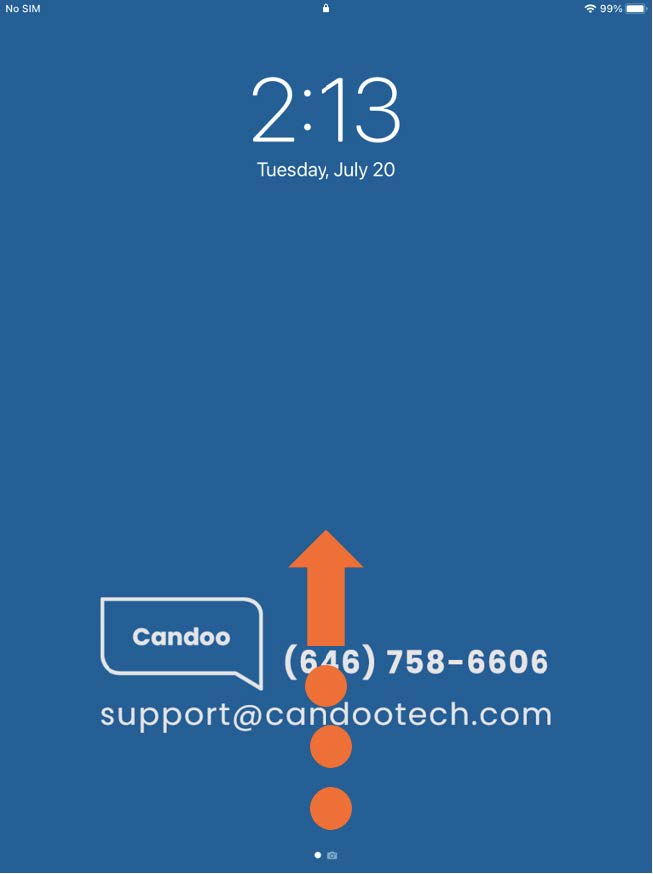
To unlock your tablet, use one finger to swipe up from the bottom of your screen to the top of your screen. *If your iPad has a home button press it instead of swiping up*
If prompted for a PIN number enter it to unlock your iPad.
Step 4
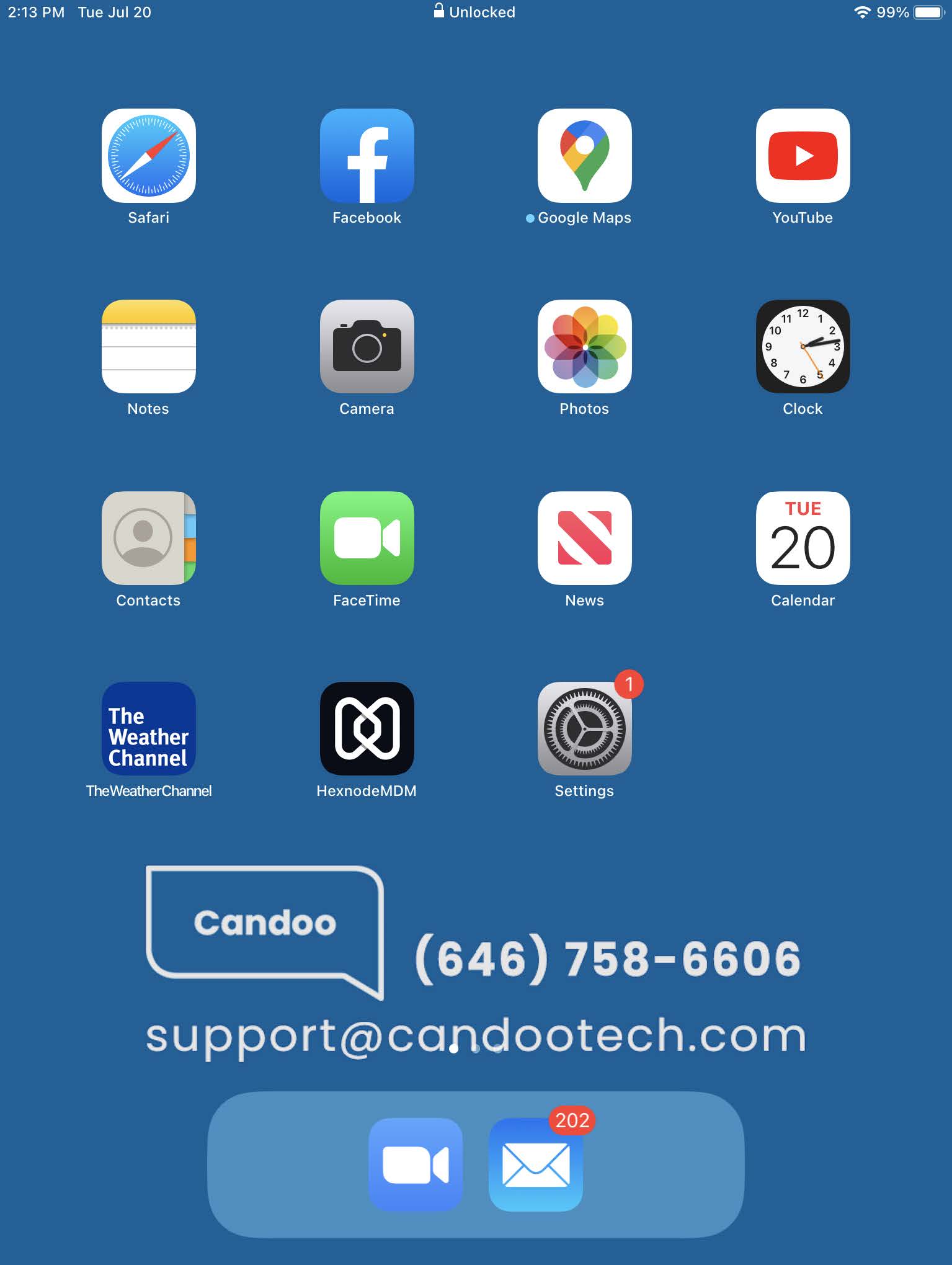
You will know your tablet is unlocked when you see your “Home” screen. Please note that your “Home” screen may look different.
Step 5
To turn off or lock your screen and prevent accidental key presses, press the “wake/sleep” button.
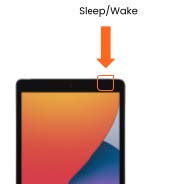
**Please note, when the screen is locked, the tablet remains powered on, but enters a battery-saving “sleep” mode that allows it to continue to receive new emails, etc. Your tablet can be immediately woken from sleep mode by pressing the “Power/Lock button” again. If you power your tablet off completely, your family and friends will NOT be able to reach you.
How to Use your Home Screen
The home screen shows information about your tablet and contains shortcuts to the most commonly used apps.
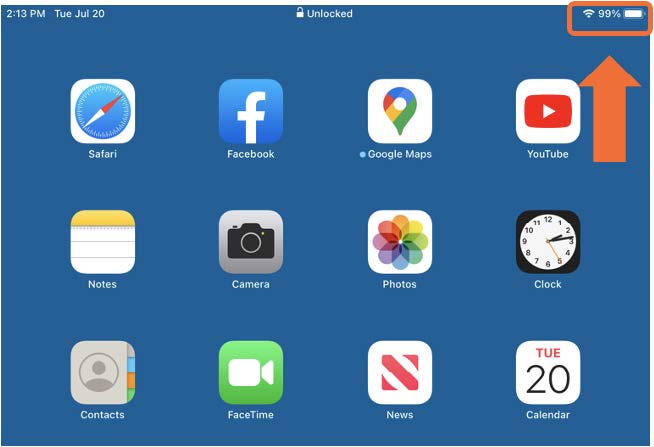
To view your Battery Level, look at the icon on the top right corner of your screen. The amount of power is indicated by how much of the battery icon is shaded in white.
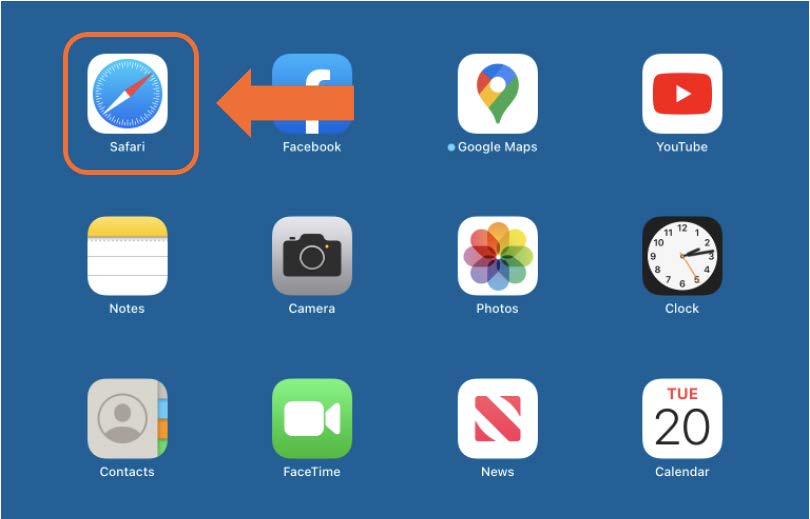
To Access the Internet, tap on “Safari”.
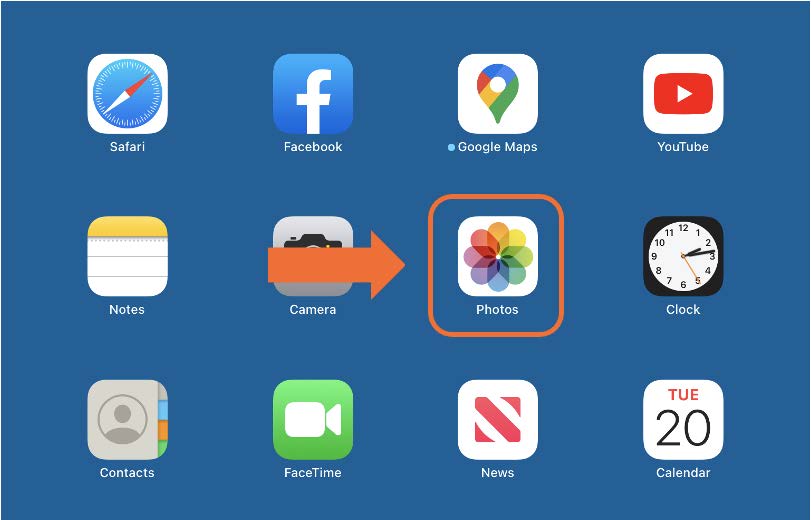
To view Photos, tap the button labeled “Photos”.
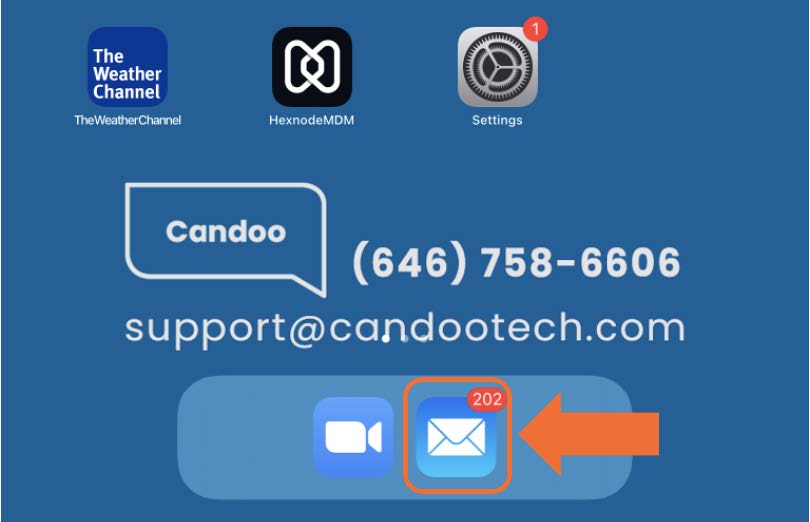
To access Email, tap the “Email” button.
How to Connect to Wi-Fi
Step 1
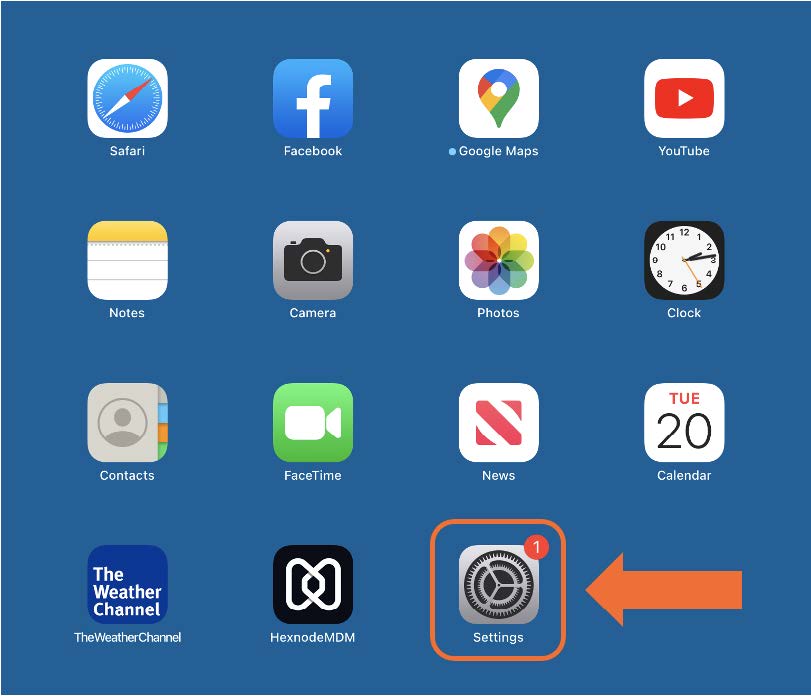
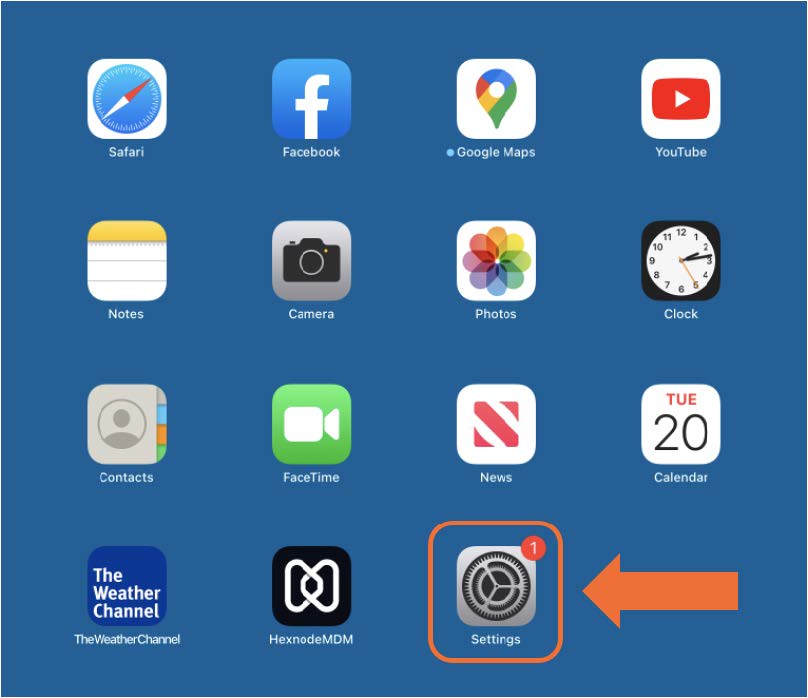
On your home screen, tap “Settings” (gear icon). If you do not see the Settings app on your home screen, swipe from right to left to view all apps.
Step 2
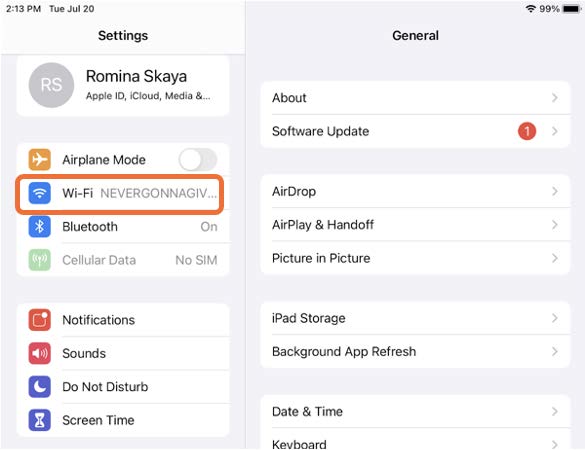
Once in “Settings”, tap “Wi-Fi”.
Step 3
Turn your Wi-Fi on by tapping the white circle. If you see green to the left of the white circle this signifies that your Wi-Fi is turned on.
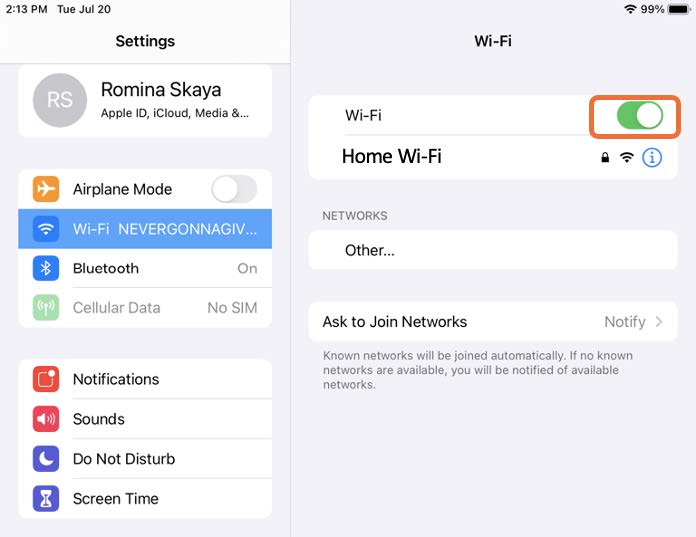
Step 4
Once your Wi-Fi is turned on, a list of your “available networks” will be displayed. Tap on the proper network. If you don’t know which network is yours, ask a friend or family member to help you.
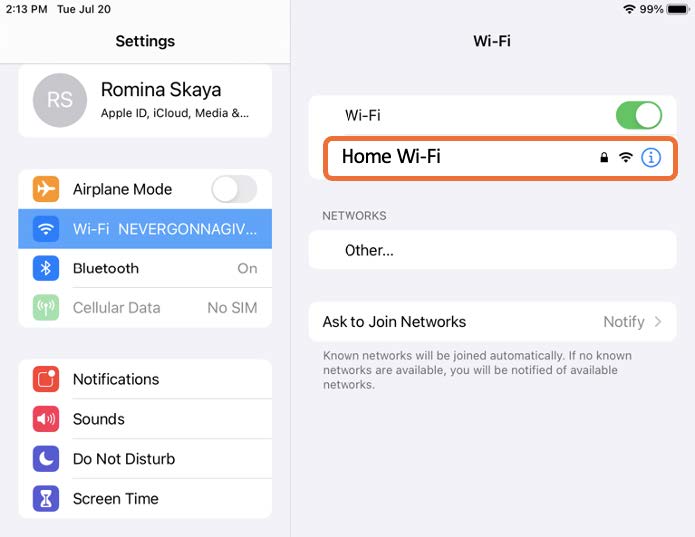
Step 5
Type in your Wi-Fi password. If you don’t know what your password is, ask your family member, friend or caregiver for assistance.
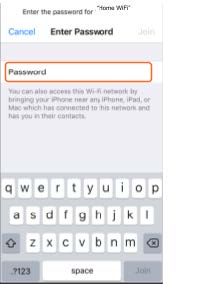
Step 6
Once you type in your password, tap “Join” to connect to your Internet/Wifi.
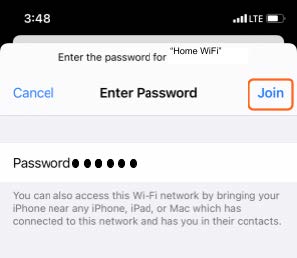
How to Adjust Brightness
Step 1
On your home screen, tap “Settings” (gear icon). If you do not see the Settings app on your home screen, swipe from right to left to view all apps.
Step 2
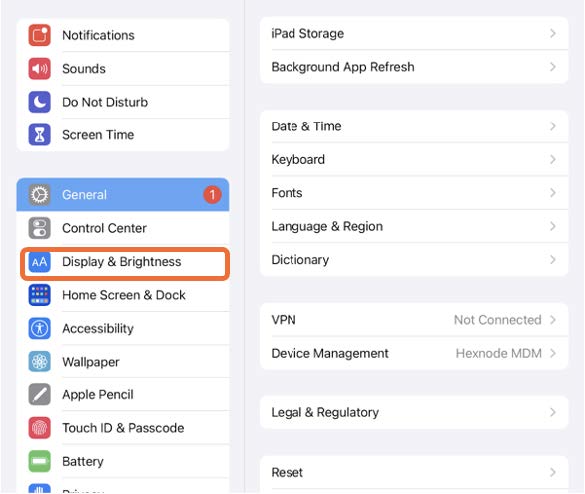
Once in “Settings”, tap “Display and Brightness”.
Step 3
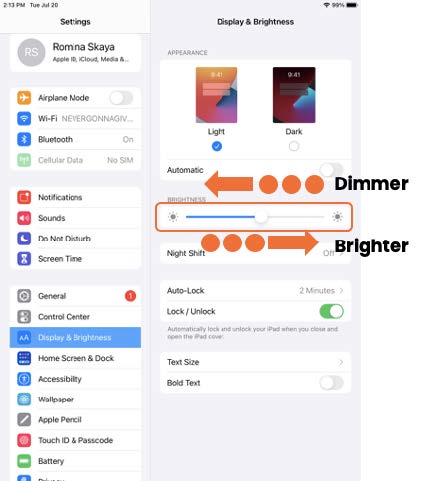
Once in “Display & Brightness”, look for “Brightness”. To make the screen darker, press your finger on the white dot and slide to the left. To make the screen brighter, press your finger on the white dot and slide to the right.
How to Use Navigation Buttons
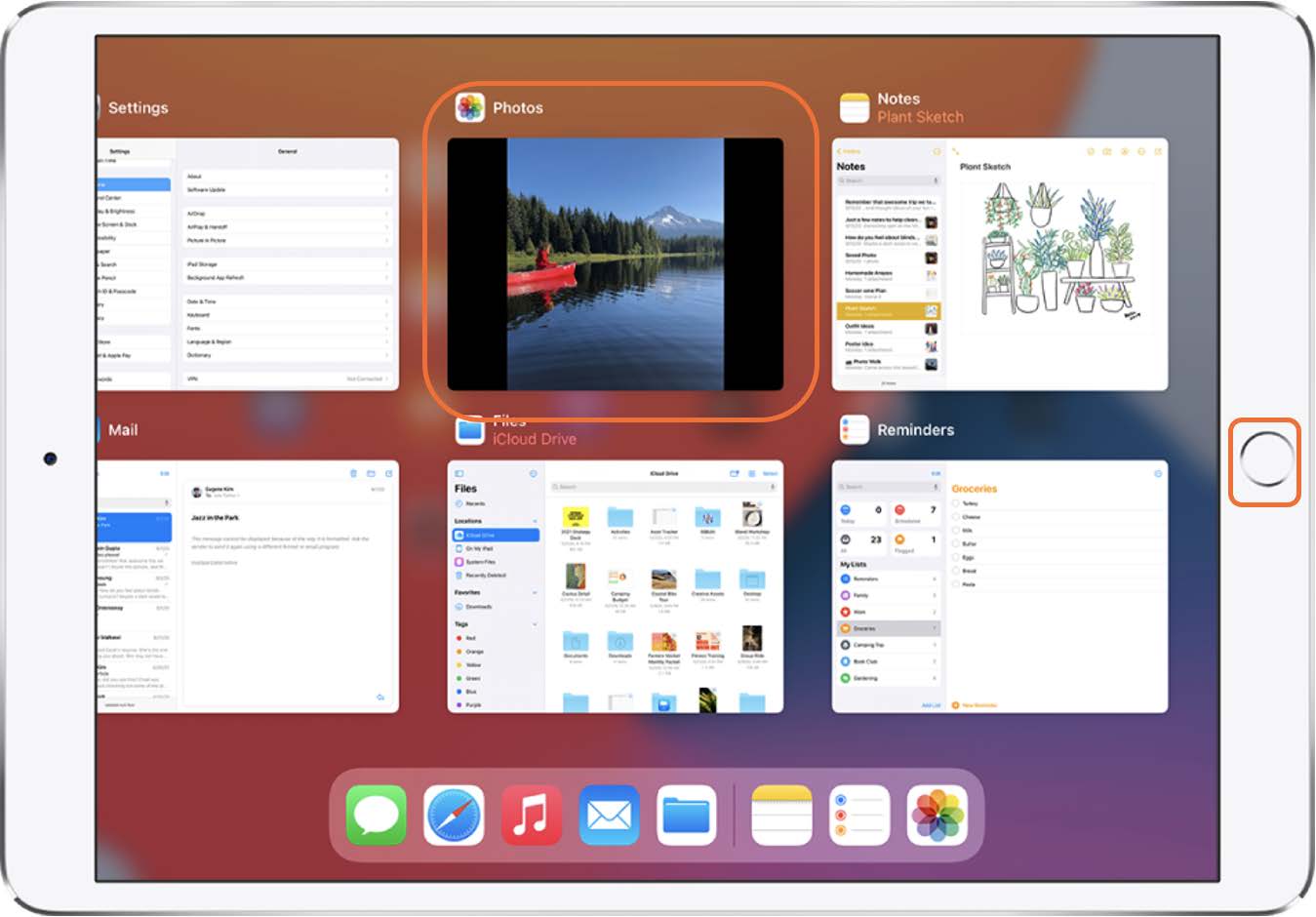
To Return to the Home Screen, tap on the home button near the bottom of your tablet.
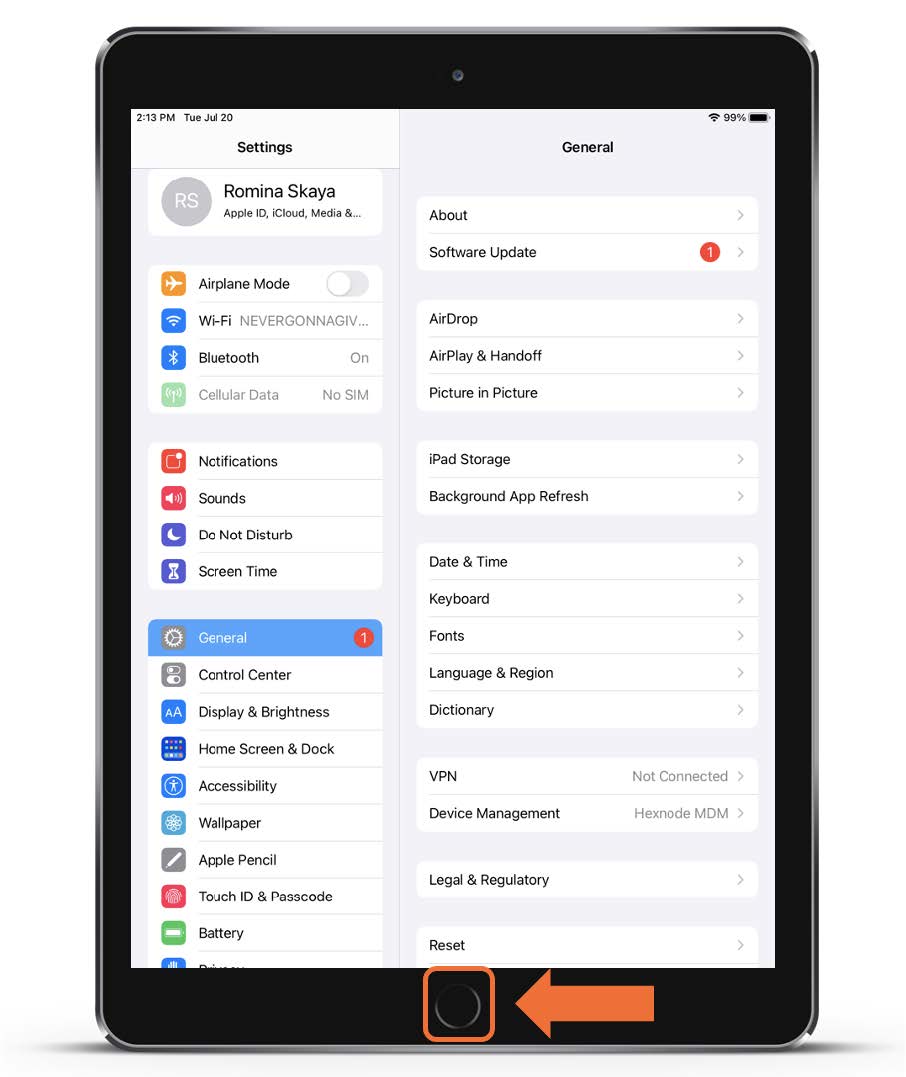
To go Back to the Previous Screen, double tap on the home button. You will see all open apps. Tap on the screen you’d like to return to.
How to Send a Text
Step 1
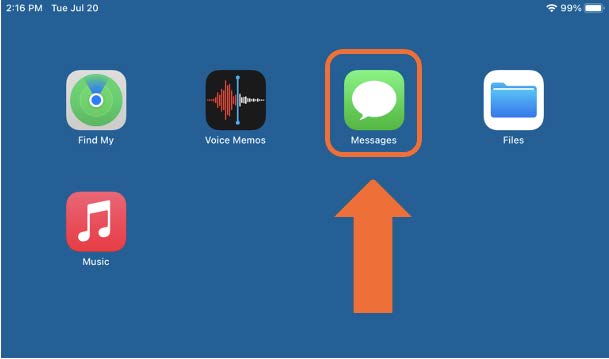
On your home screen, tap on the “Messages” app. It’s green with a white speech bubble.
Step 2
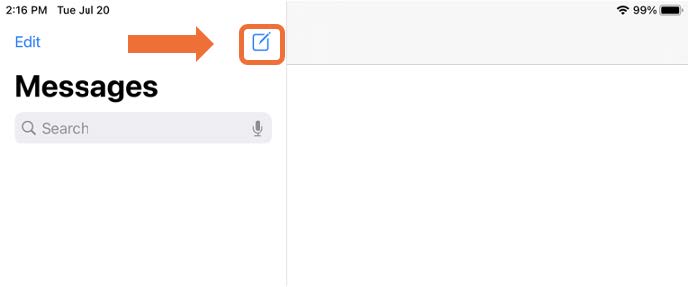
Tap the image that looks like a pen and paper in the top right hand corner to begin a new text message.
Step 3
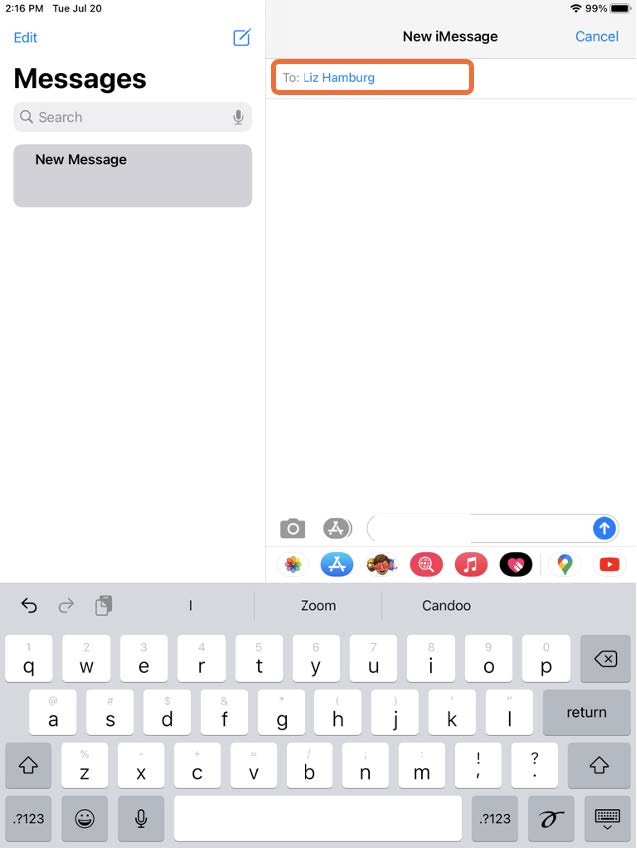
Type in the phone number of the person you want to text next to “to”. If the person has already been added to your contacts list, you can type in their name instead.
Step 4
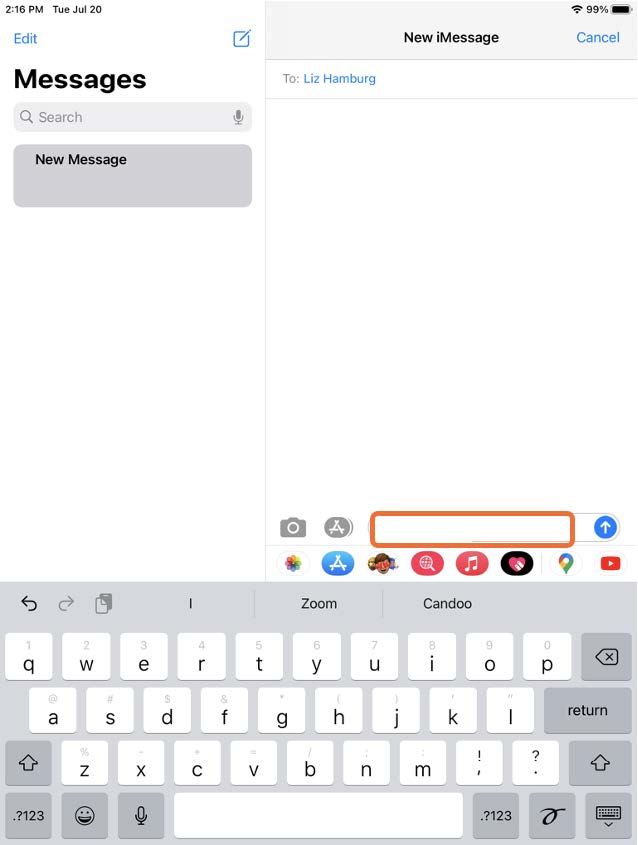
Once you add the person you’d like to text, tap in the area where the arrow is pointing up and type your message into the box.
Step 5
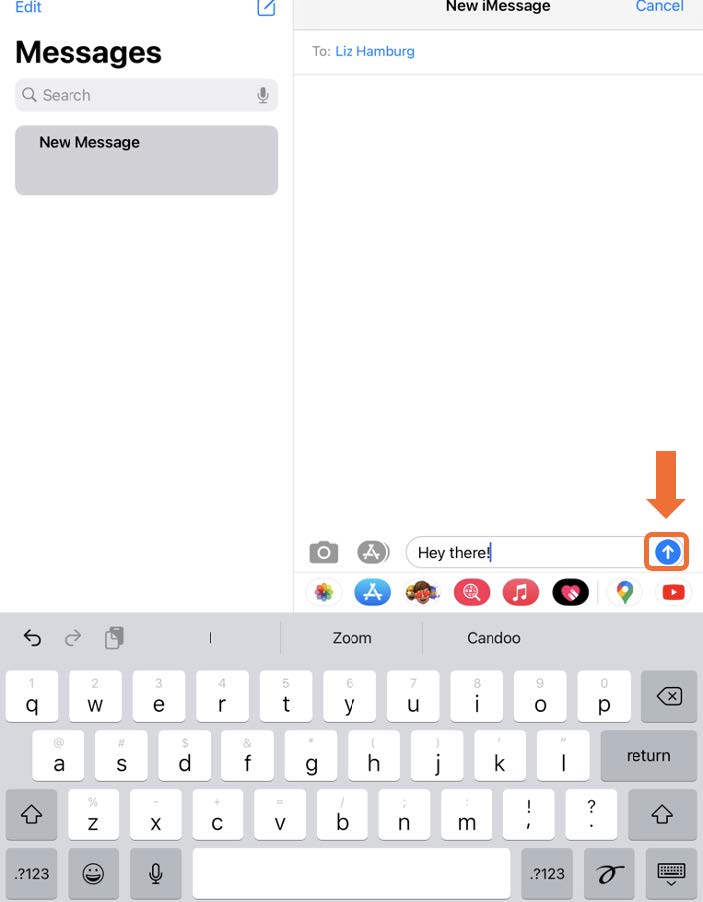
Press the send button (it looks like a circle with an up arrow) to send your message.
How to Add a Contact
Step 1
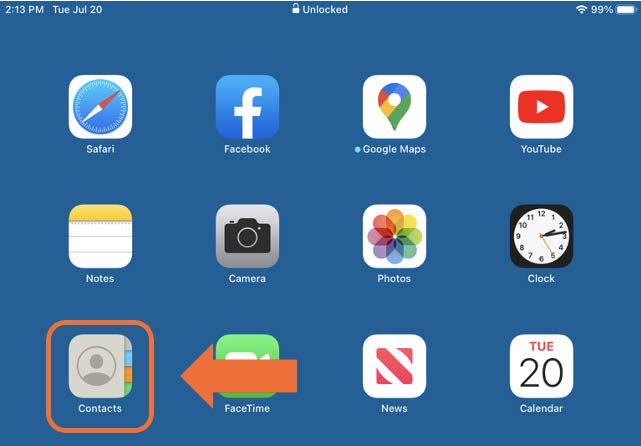
On your home screen, tap on the “Contacts” app. It looks like a phone book.
Step 2
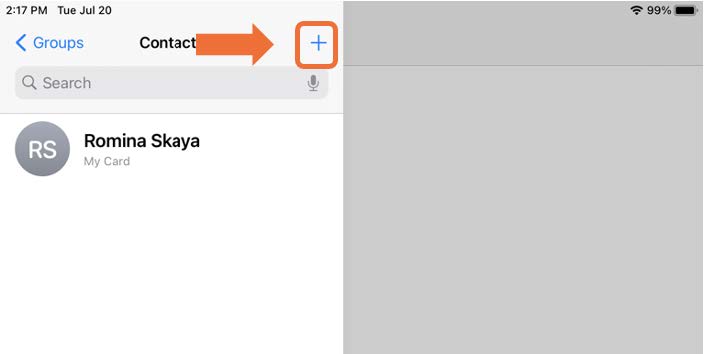
Tap the blue plus sign (+) in the tap right hand corner to add a contact.
Step 3
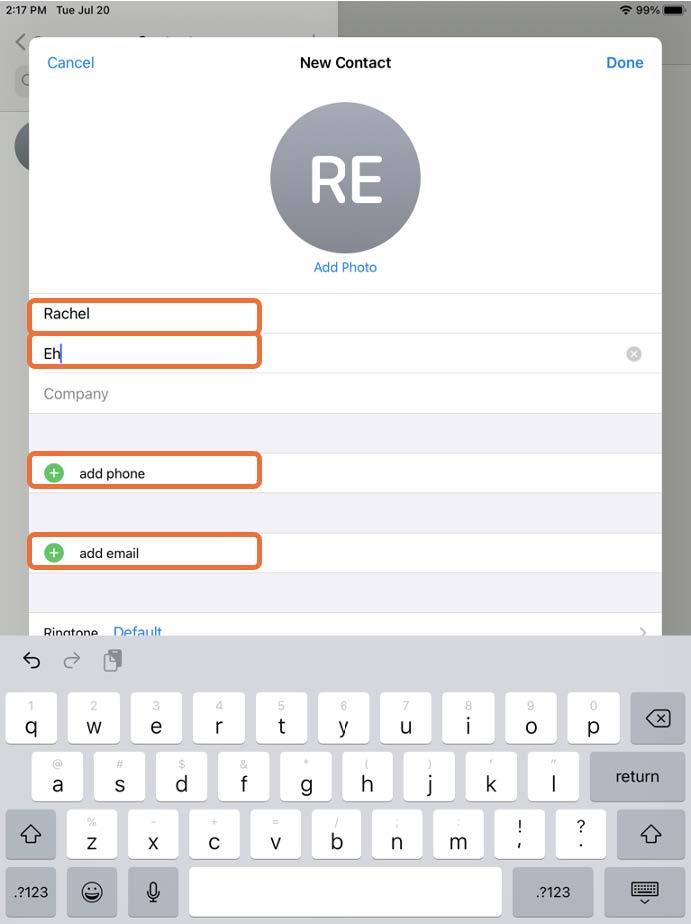
Type in the person’s name and phone number. You may need to swipe the screen with your finger to see the phone number field.
Step 4
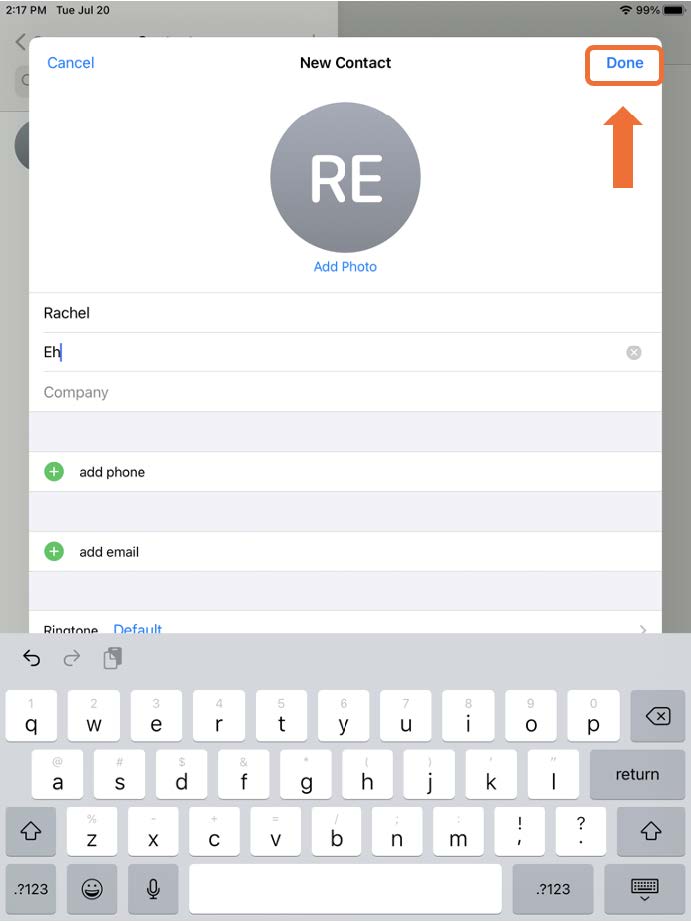
Once you finish typing in the person’s information, tap “Done” in the top right corner to save the contact.
If you need help or have any questions, call us at
646-758-6606 or email support@candootech.com
To download a copy of this guide click below:
Comments
0 comments
Please sign in to leave a comment.