
Candoo How to Use Uber - iPhone
*If you already have the Uber app on your phone, skip to step 7.
Step 1
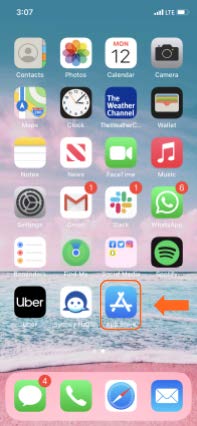
Tap on the “App Store” app on your iPhone.
Step 2
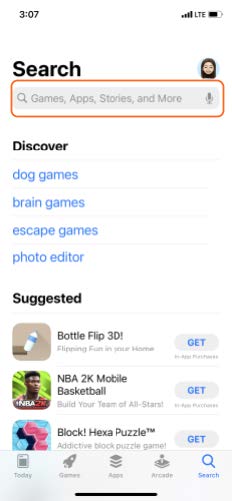
Tap the “Search” bar to begin typing.
Step 3
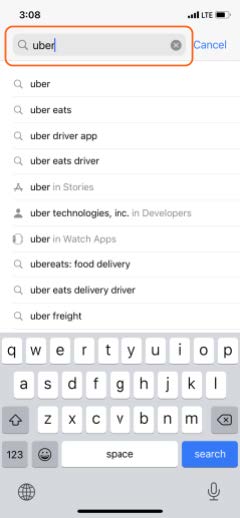
Once in the search bar, type in “Uber”.
Step 4
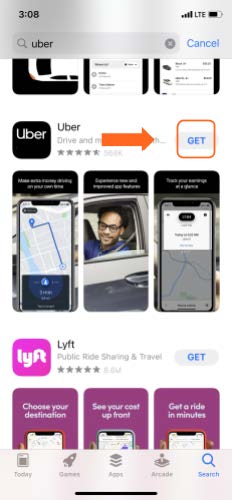
Tap “GET” to purchase the app.
Step 5
To complete the download of the app, you will need to confirm your Apple ID.
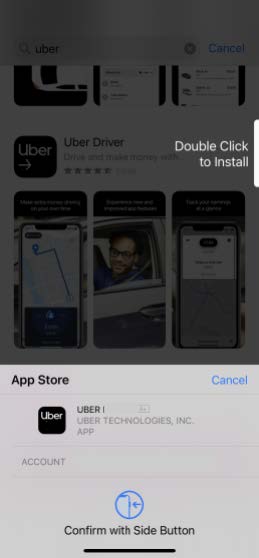
Step 6
Tap “Open”, to open the “Uber” app.
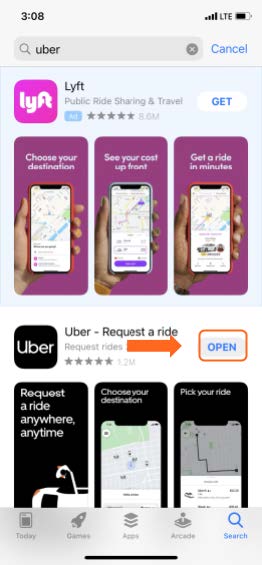
Step 7
If you have already downloaded Uber, tap the “Uber” app on your iPhone.
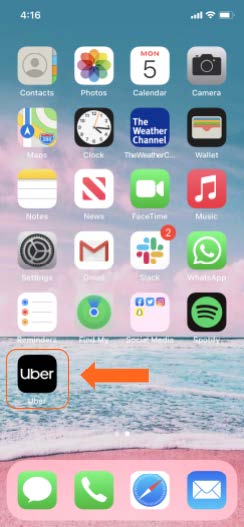
Step 8
Tap “Get Started”.
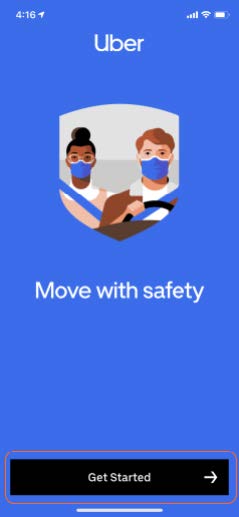
Step 9
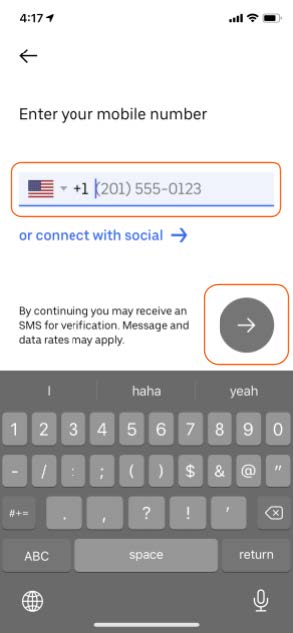
Type in your cell phone number. When complete, tap the arrow.
Step 10
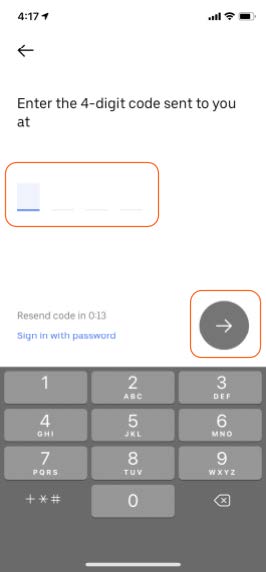
Uber will text you a 4-digit security code. When you receive the code, type it in and click the arrow to continue.
Step 11
**If you have already added a payment method to your Uber account, please skip to Step 17.
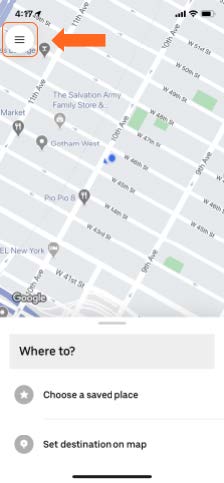
Before you start riding with Uber, make sure to add your payment information. In the top left corner, tap on the menu icon.
Step 12
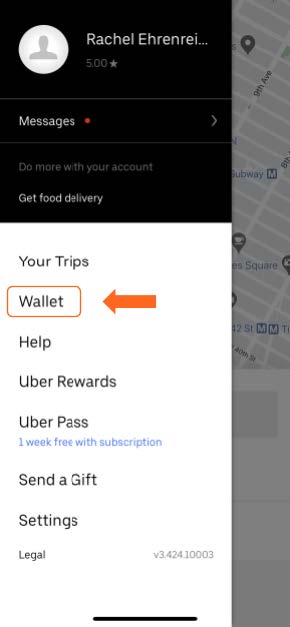
Once in the menu, tap on “Wallet”.
Step 13
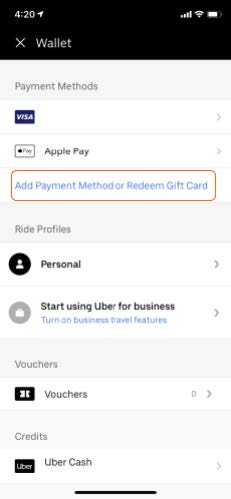
To add a payment method, tap on “Add Payment Method or Redeem Gift Card”.
Step 14
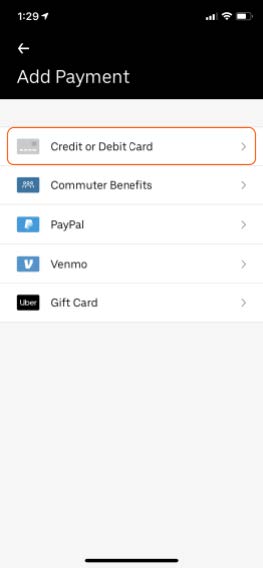
Tap on the payment method that you want to add. For this example, we will choose “Credit or Debit Card”.
Step 15
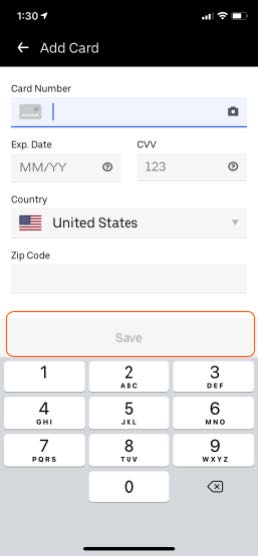
Type in your credit card information and tap “Save”.
Step 16
Tap the “X” to return to Uber’s main screen.
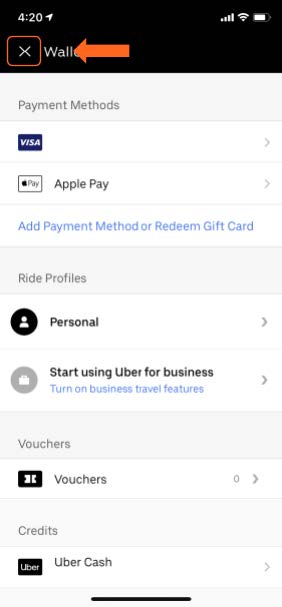
Now that your payment has been added, you can now begin riding with Uber.
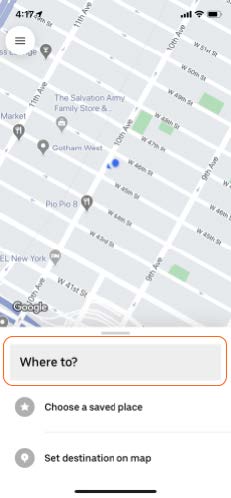
Step 17
Tap the “Where to?” box.
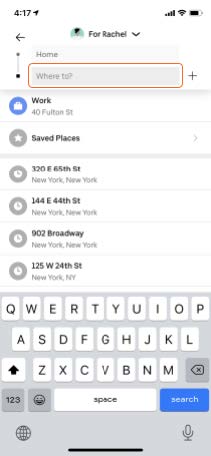
Step 18
Tap “Where to?” to type in the location or the address of your destination.
Step 19
Choose the type of “Uber” ride you’d like to take. Each ride type will show the cost of your ride. Once you select your ride type, tap “Confirm”.
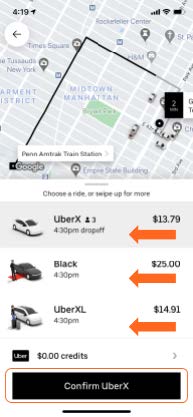
- UberX seats 4 passengers. UberX cars are typically regular sedans like the Toyota Prius, Honda Accord.
- UberBLACK is Uber’s luxury service. Commercially registered and insured livery vehicles, typically a black SUV or luxury sedan. Black is the most expensive Uber service.
- UberXL seats 6 passengers. UberXL cars are usually SUVs or Minivans.
Uber will send an alert to your phone, when your driver is 2 minutes away and is arriving.
If you need help or have any questions, call us at
646-758-6606 or email support@candootech.com
To download a copy of this guide click below:
Comments
0 comments
Please sign in to leave a comment.