
Candoo How To Facebook Privacy
Understanding your privacy settings on Facebook
Table of Contents
- How to Use the Audience Selector
- How to Find Facebook’s Privacy Checkup
- How to Adjust Who Can See What You Share
- How to Keep Your Account Secure
- How to Adjust How People Can Find You on Facebook
- How to Adjust Your Data Settings on Facebook
- How to Adjust Your Ad Preferences
How to Use the Audience Selector
The Audience Selector is a good tool to use when posting.
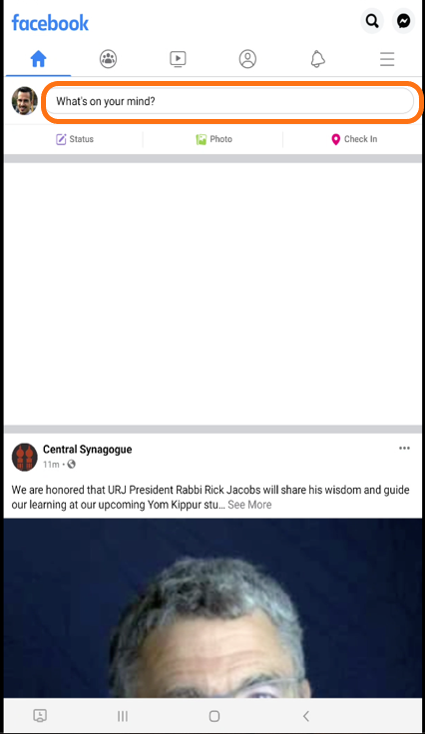
When tapping in the bar next your profile picture to create a post, there will be a box located directly below your name- highlighted in the below screen on the right.
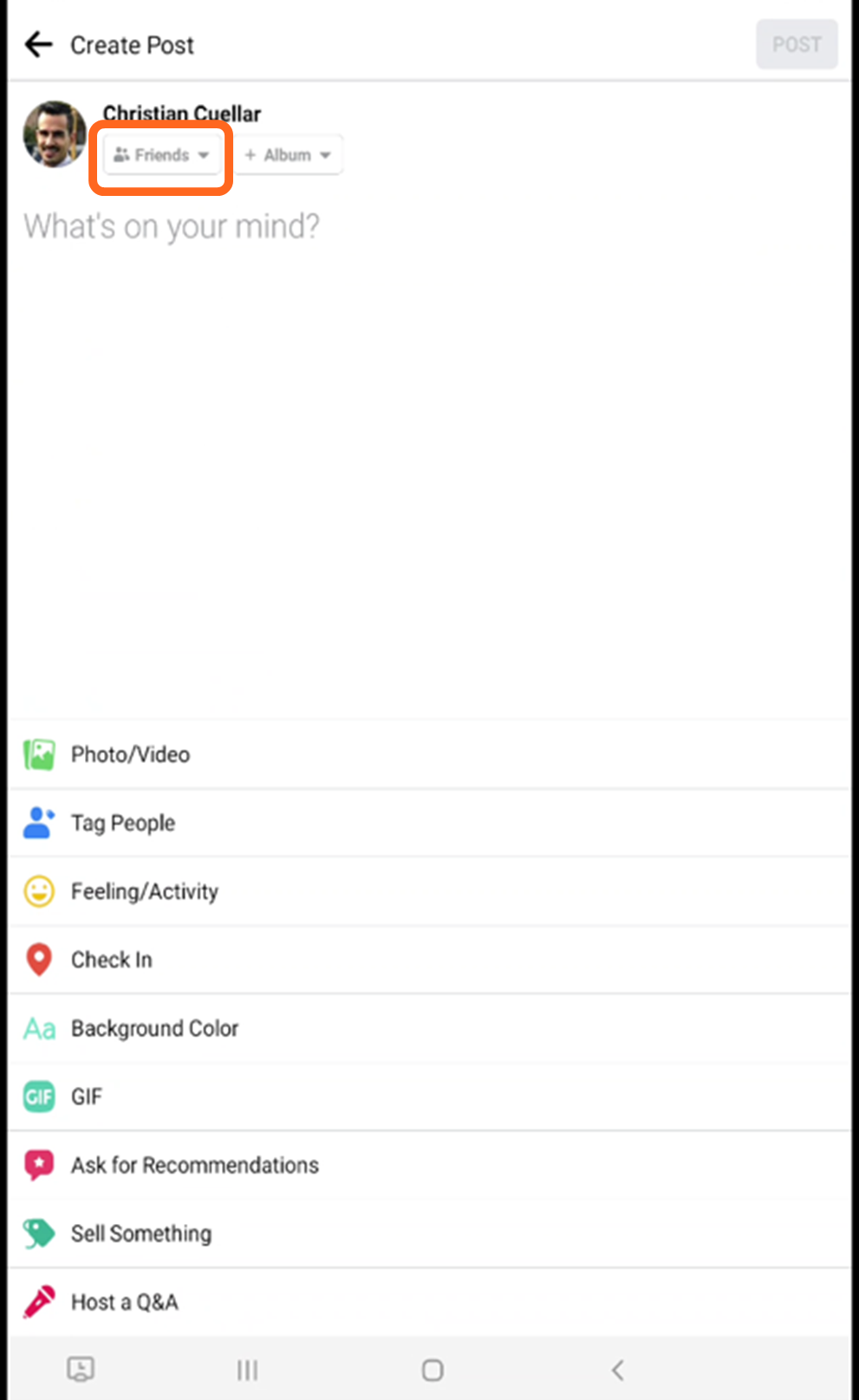
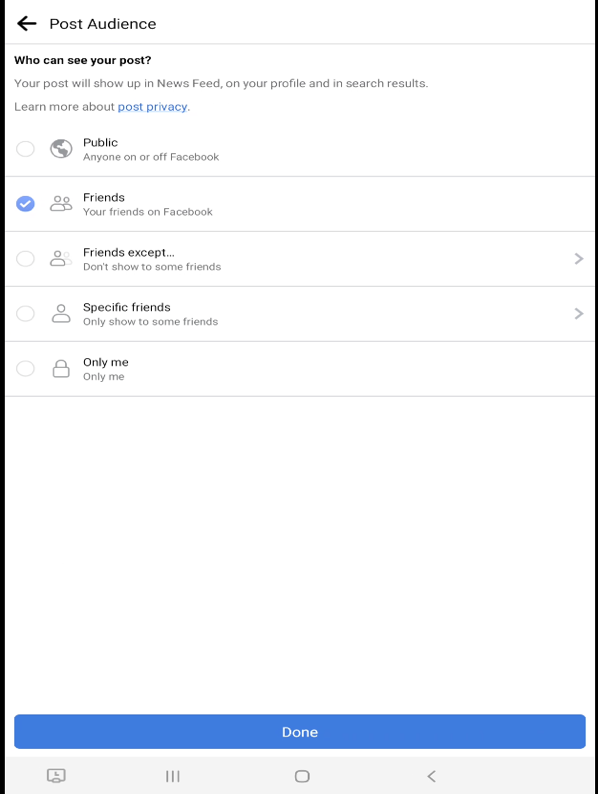
When you tap on the box, you see several options for your desired audience. Choose the one that you would like to select and tap “Done” at the bottom of the screen to continue with your post.
How to Find Facebook’s Privacy Checkup
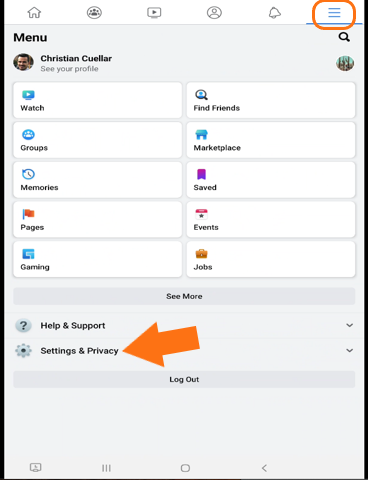
Facebook’s Privacy Checkup is also a great tool to use for guided steps to review, adjust, and understand your privacy settings. This can be found by selecting the menu button.
Then select “Settings & Privacy”.
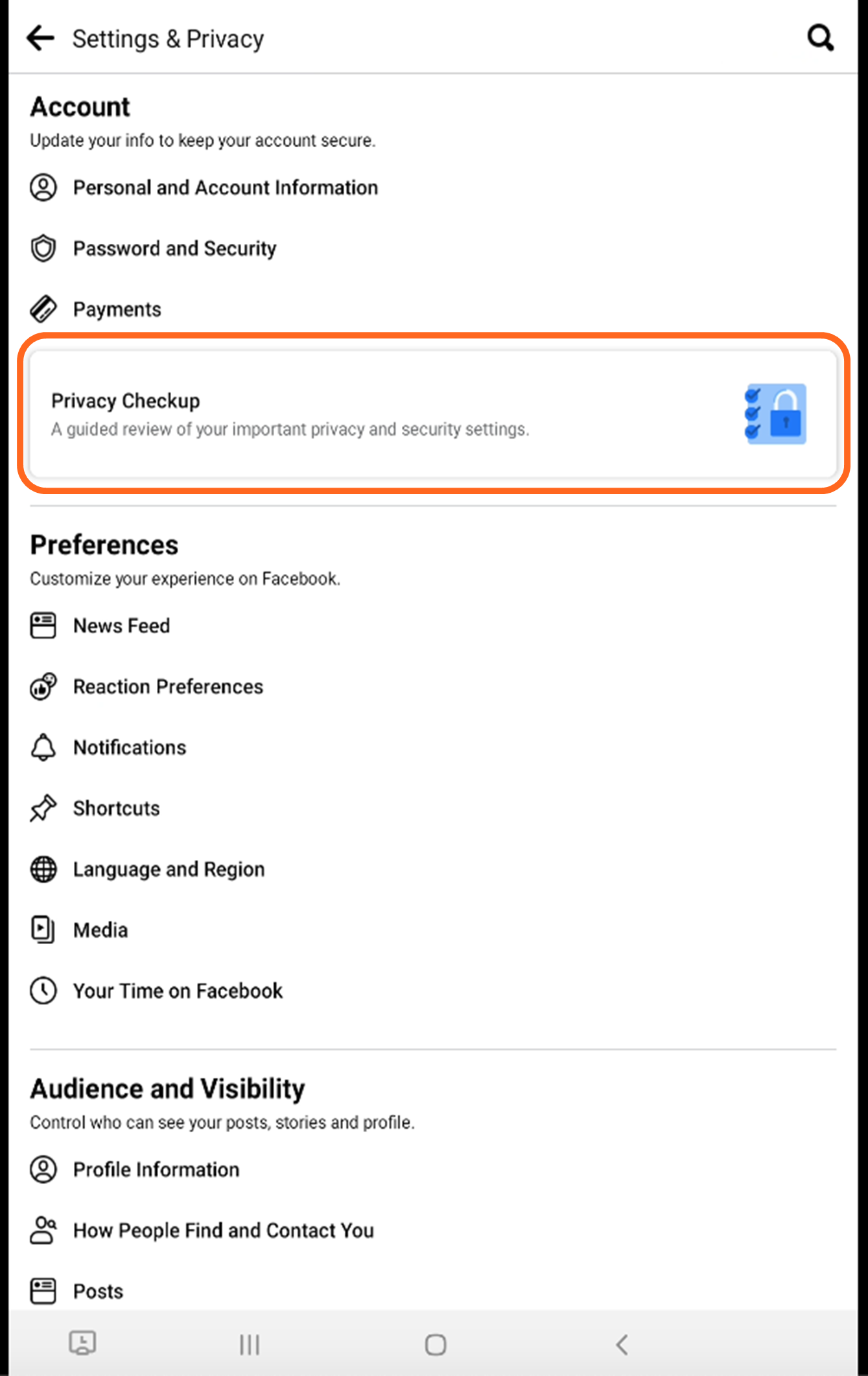
Next select “Settings”.
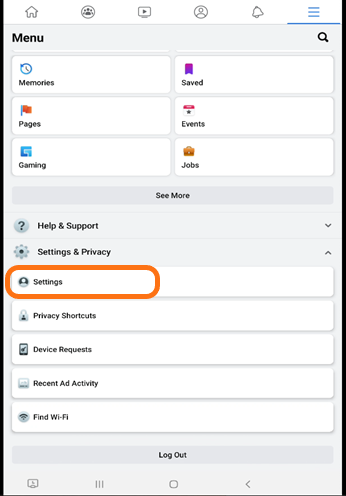
Finally, select the button that says “Privacy Checkup”.
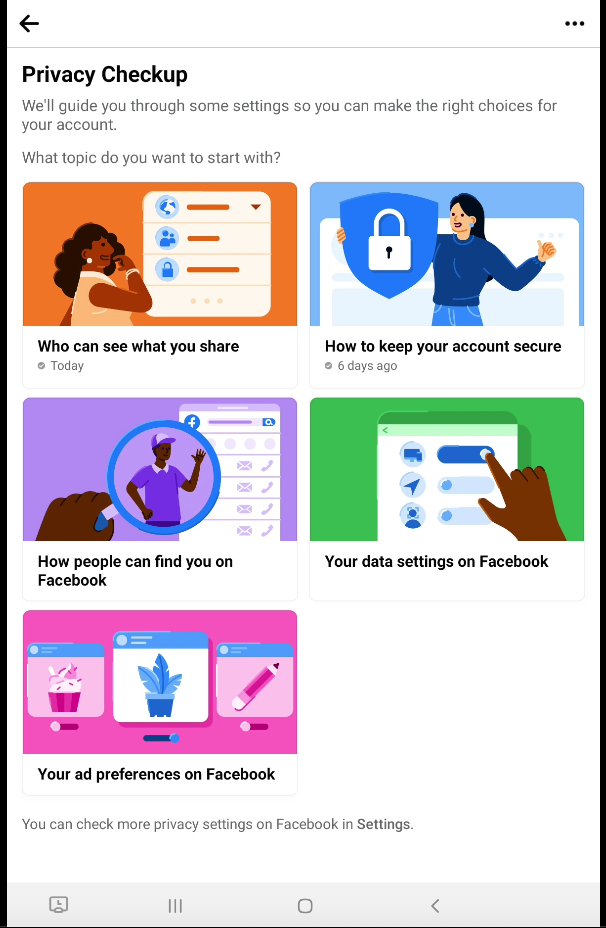
This is the main page for the Privacy Checkup. There are several categories that guide you step by step through the process.
How to Adjust Who Can See What You Share
The first category covers privacy settings regarding who can view what you share.
Tap “Continue” to start the process.
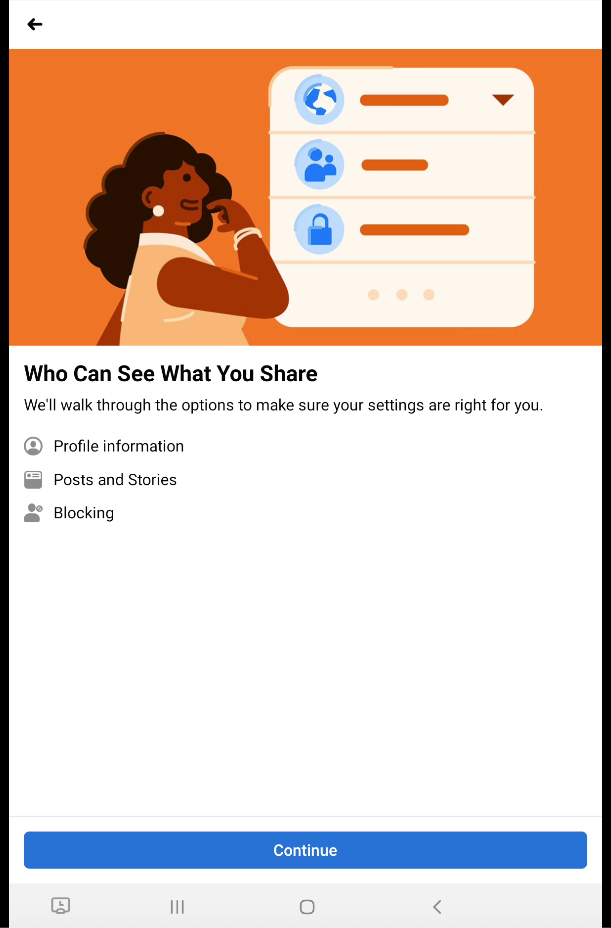
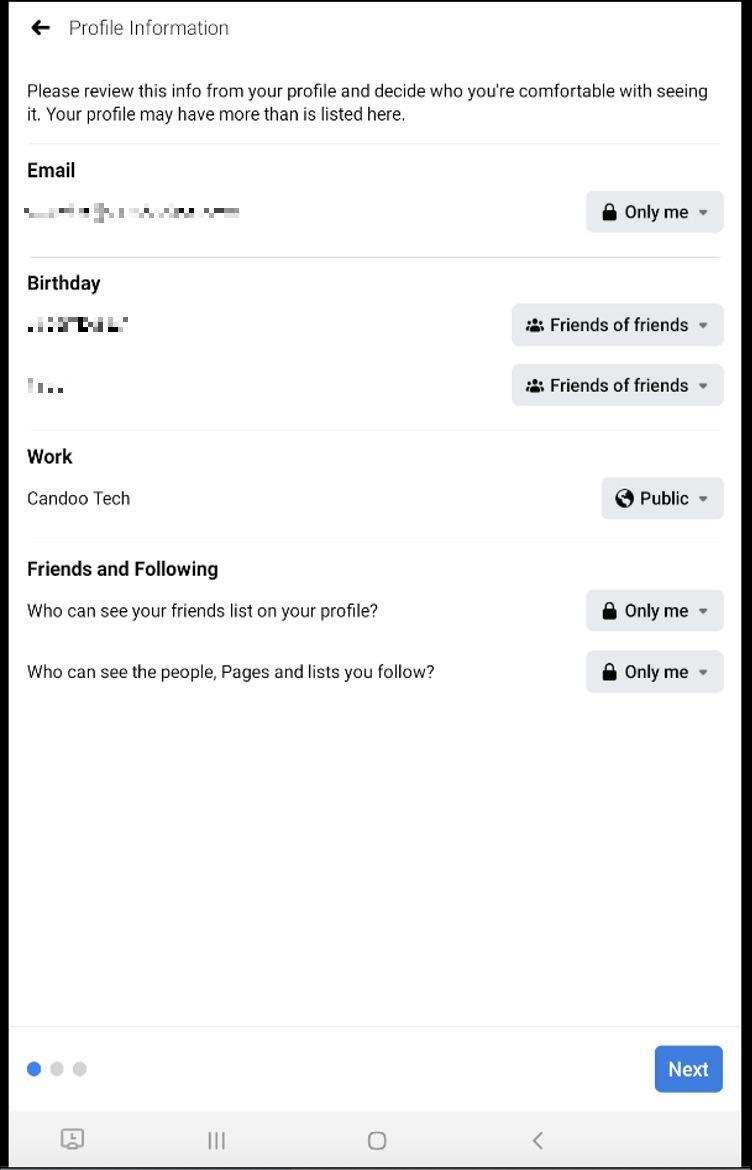
The first step of the process will allow you to adjust who can see personal details from your Facebook profile. This includes: your Email, Birthday, place of work, and details about who/what you follow. Simply tap on the boxes on the right side of the screen to make your selections.
Tap “Next” to continue on to the next step.
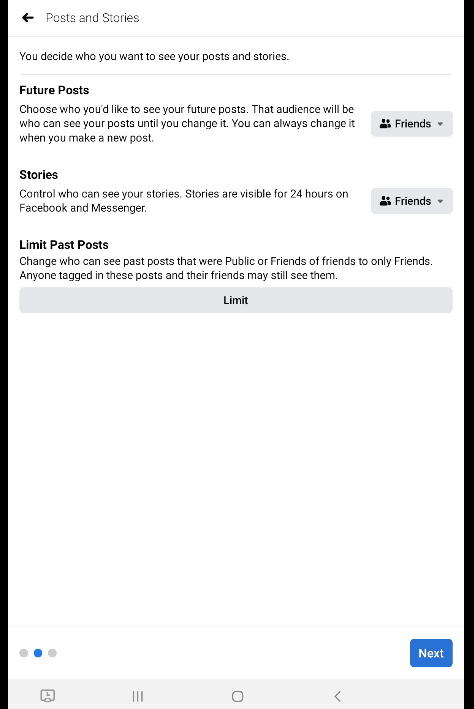
The next step covers who can see your future posts, Stories, and an option to limit who can see past posts that you have shared on your profile.
Tap “Next” to continue on to the next step.
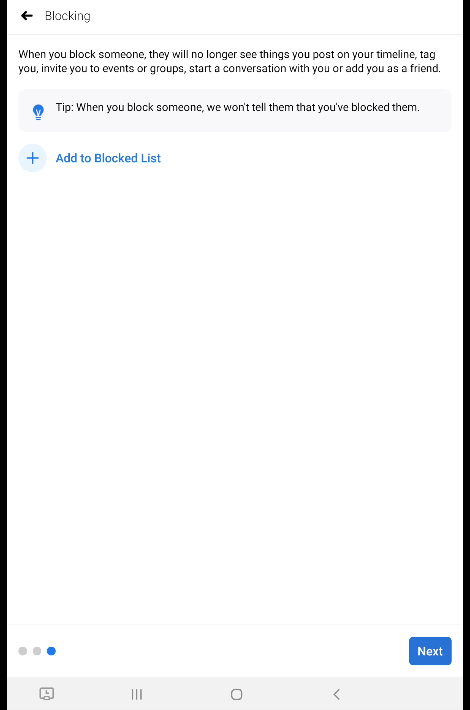
The final step for this category, covers blocking other users. When you block another user, they are not able to find you or interact with you on Facebook. Blocked users are not notified that they are on your Blocked List.
Tap “Next” to complete this section.
How to Keep Your Account Secure
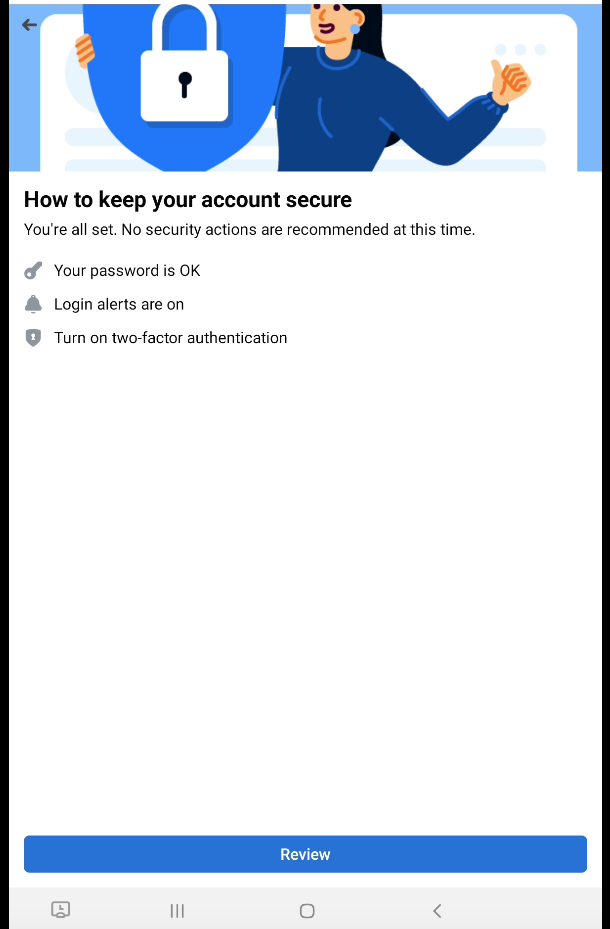
The next category in the Privacy Checkup focuses on keeping your Facebook account secure.
Tap “Review” to start this section.
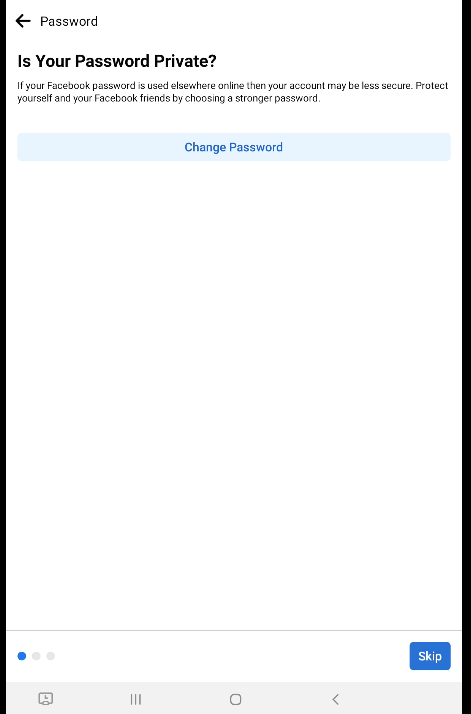
The first step will focus on the strength of your password. Depending on how complex and strong your password is, you will be recommended to change it.
Tap on “Change Password” to do so or select “Skip” at the bottom of the screen to move to the next step.
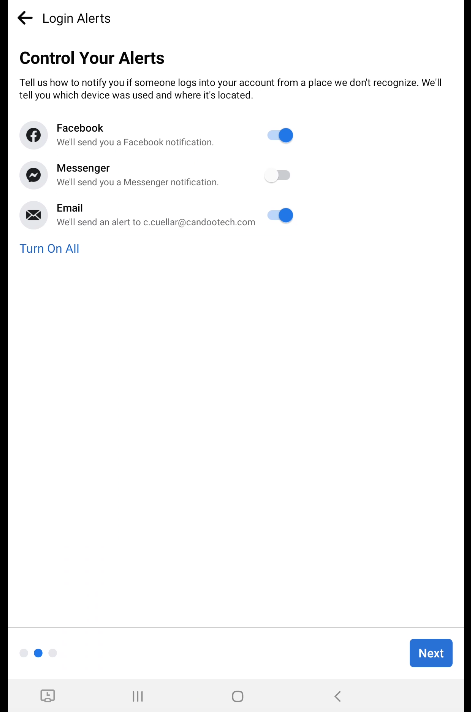
The next step allows you to control the alerts/ notifications that you receive. Tapping the buttons to blue means they are active. White and grey indicate that the alert is inactive.
Tap “Next” to continue on to the next step.
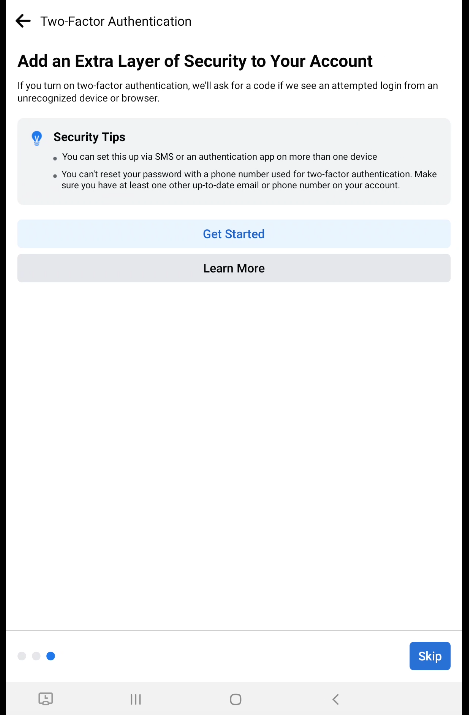
The final step in this category is regarding Two-Factor Authentication. Having this enabled will offer additional account security. This means Facebook will require a code (sent to via text or email) when there is a log-in attempt from a new device.
Select “Get Started” to activate or “Skip” at the bottom.
How to Adjust How People Can Find You on Facebook
The next category focuses on privacy settings regarding how other people can find your Facebook profile.
Tap “Continue” to start this section.
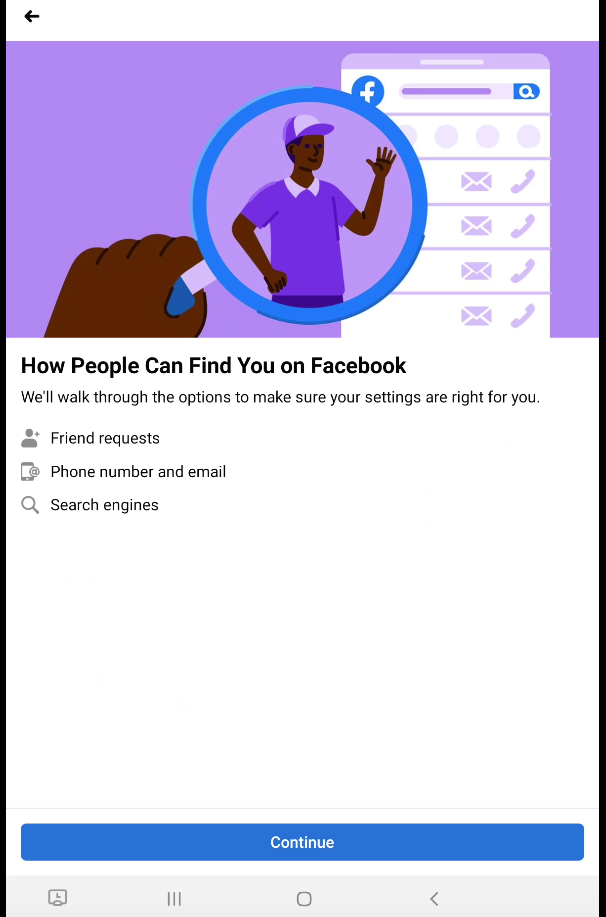
The first step is to select what types of users can send you a request to be Facebook friends. In other words, request to connect with you and possibly see more information about you.
Tap “Next” to continue on to the next step.
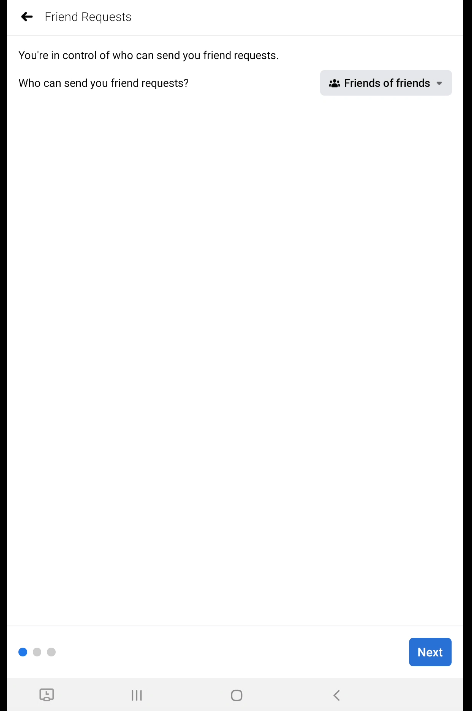
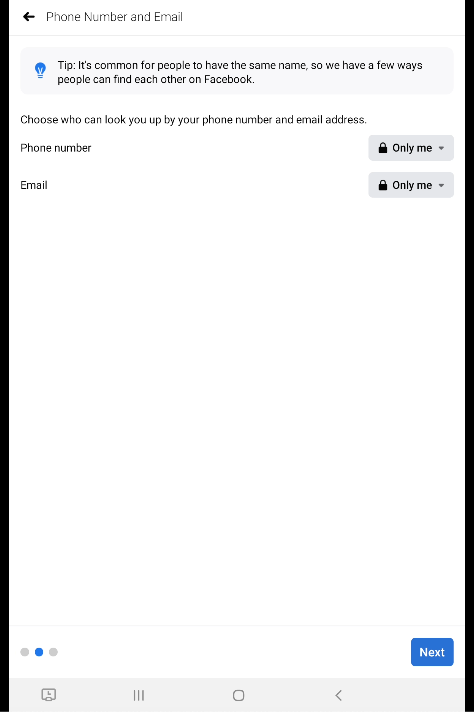
The next step allows you to choose who can look up your profile with your phone number or email. Since other people may have your same first and last name, Facebook allows for searching for users with this information. Here you can control who can do so.
Tap “Next” to continue on to the next step.
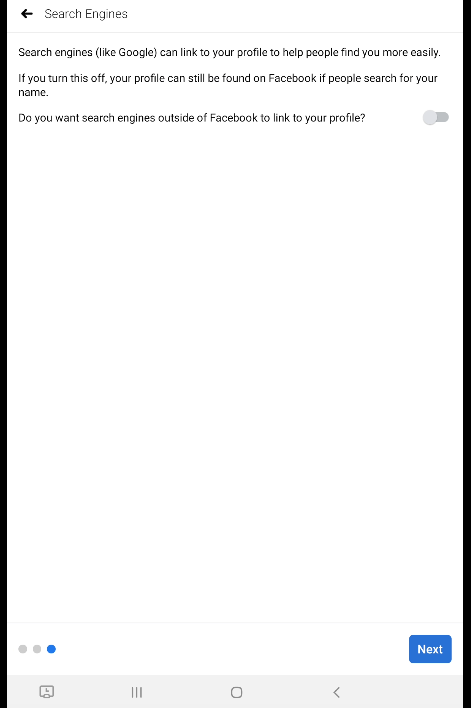
The final step in this category deals with whether you want to allow or not allow search engines (i.e. Google, Yahoo, etc.) to have your Facebook profile appear in search results if someone searches for your name.
Tap “Next” to complete this section.
How to Adjust Your Data Settings on Facebook
The fourth category covers your data settings on Facebook.
Tap “Continue” to start this section.
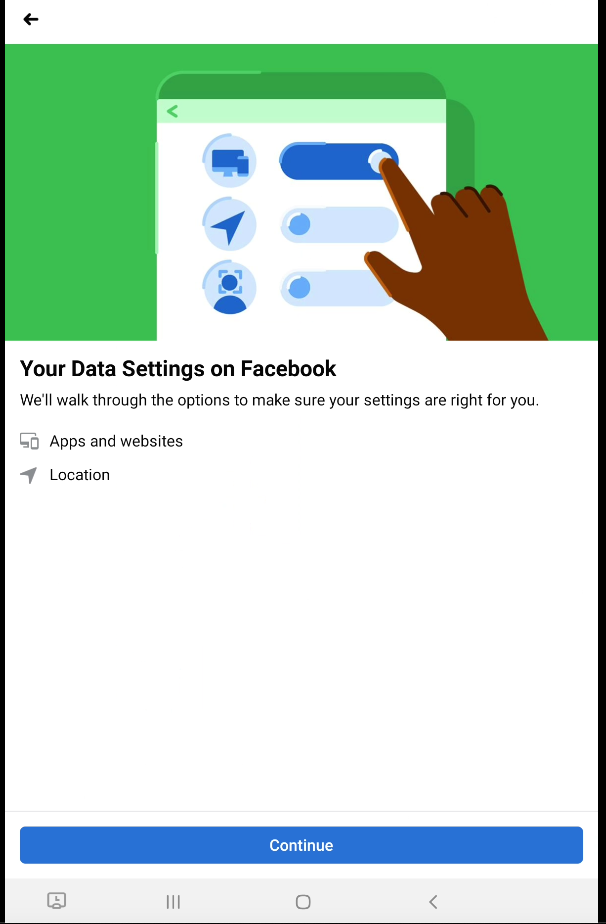
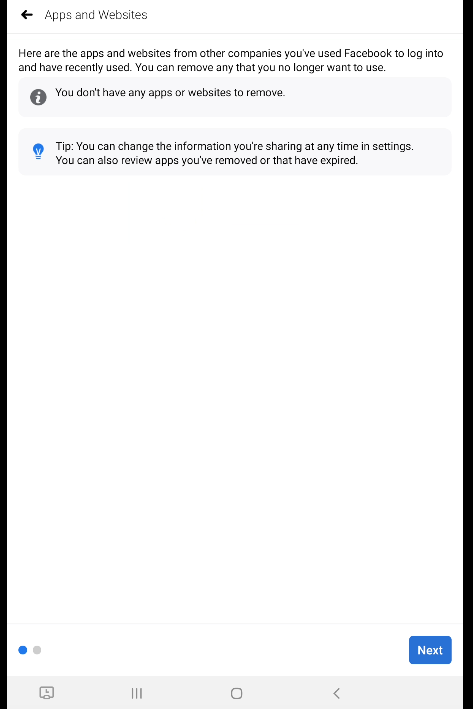
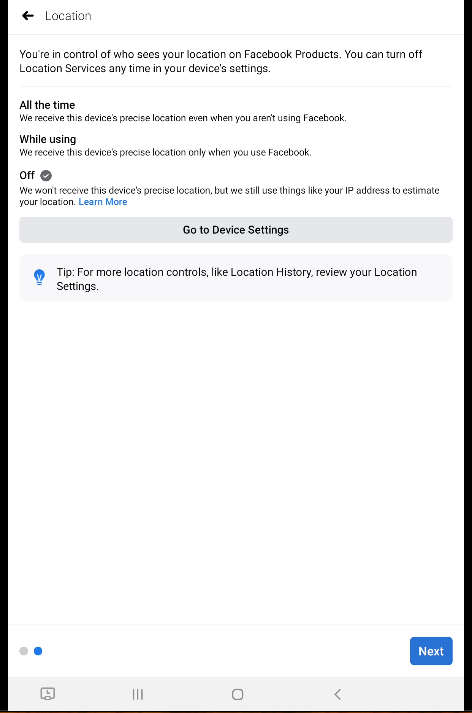
If you have any websites or apps to log into your Facebook account, you can review them in the first step (left screen below). The second step will allow you to control how you share your location with Facebook. If activated, location information is used to provide local advertisements and recommend local options near you.
Tap “Next” on each screen to complete this section.
How to Adjust Your Ad Preferences
The final category in the Privacy Checkup, deals with your ad preferences. Since Facebook is free to use, it uses advertisements to help it stay free.
Tap “Continue” to start this section.
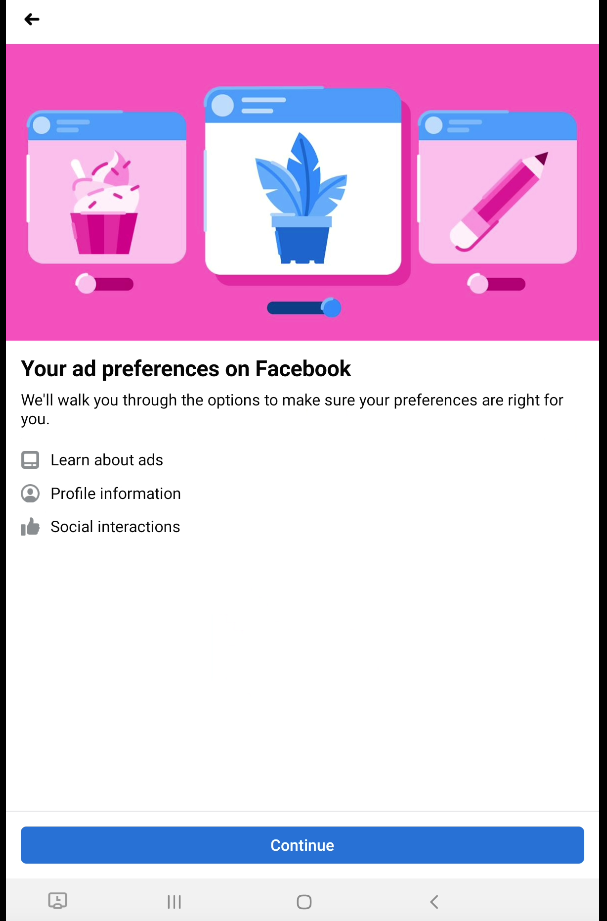
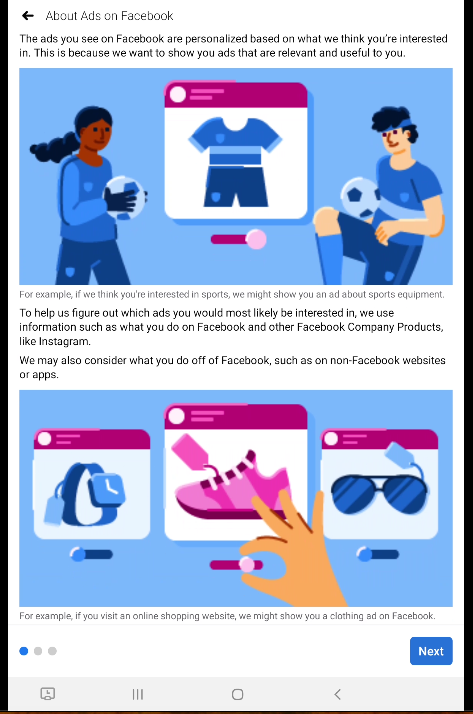
The first screen provides insights regarding the types of ads that you see while on Facebook.
Tap “Next” to continue on to the next step.
The following step allows you to decide what personal information from your profile you would like to influence the type of ads you see.
Tap “Next” to continue on to the next step.
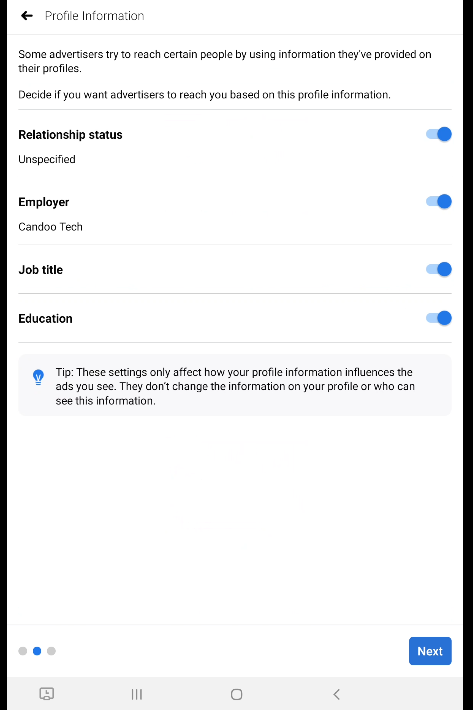
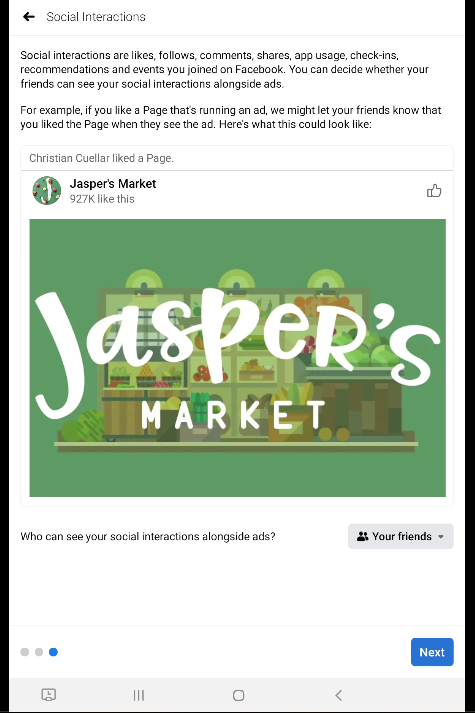
The final step will ask if you want to allow other users to see if you have liked, commented, or shared an ad on Facebook.
Tap “Next” to complete this final section.
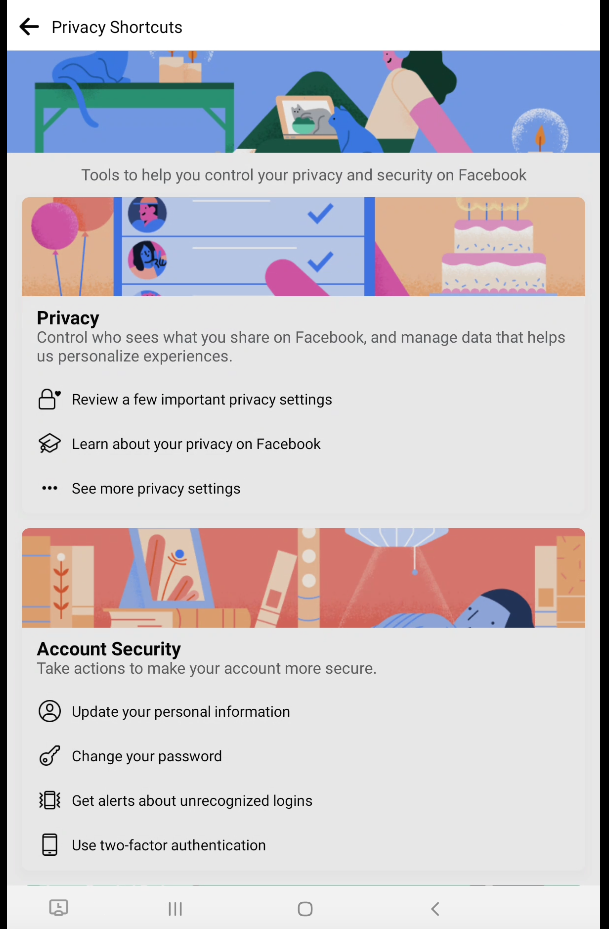
If interested in additional resources, information, and articles regarding privacy- visit the Privacy Shortcuts menu. It is located under “Settings & Privacy” as highlighted in the screens below.
If you need help or have any questions, call us at
646-758-6606 or email support@candootech.com
To download a copy of this guide click below:
Comments
0 comments
Please sign in to leave a comment.