
Candoo How to iPad Guide, Part 2
Table of Contents
- How to Add Apps to your Home Screen
- How to Move Apps on your Home Screen
- How to Delete Apps from your Home Screen
- How to Install Apps from the App Store
- How to Search the Internet with Safari
- How to Use the Camera
How to Add Apps to your Home Screen
Step 1
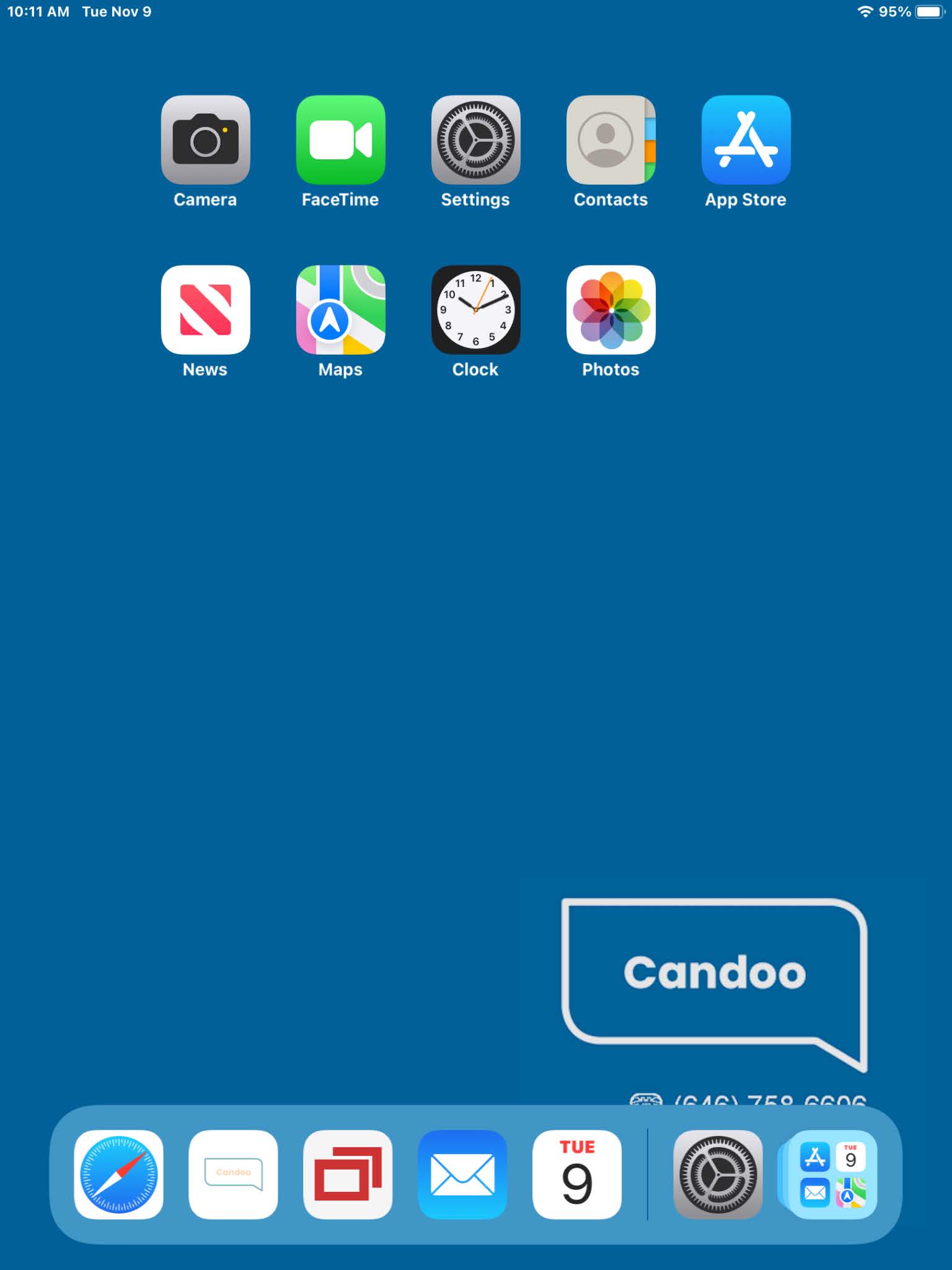
Make sure that the iPad is powered on and you see the home screen. If the iPad is off, turn it on. If you need assistance powering on your iPad, refer to page 3 on the “iPad Guide, Part 1” for instructions for how to turn on your device.
Step 2
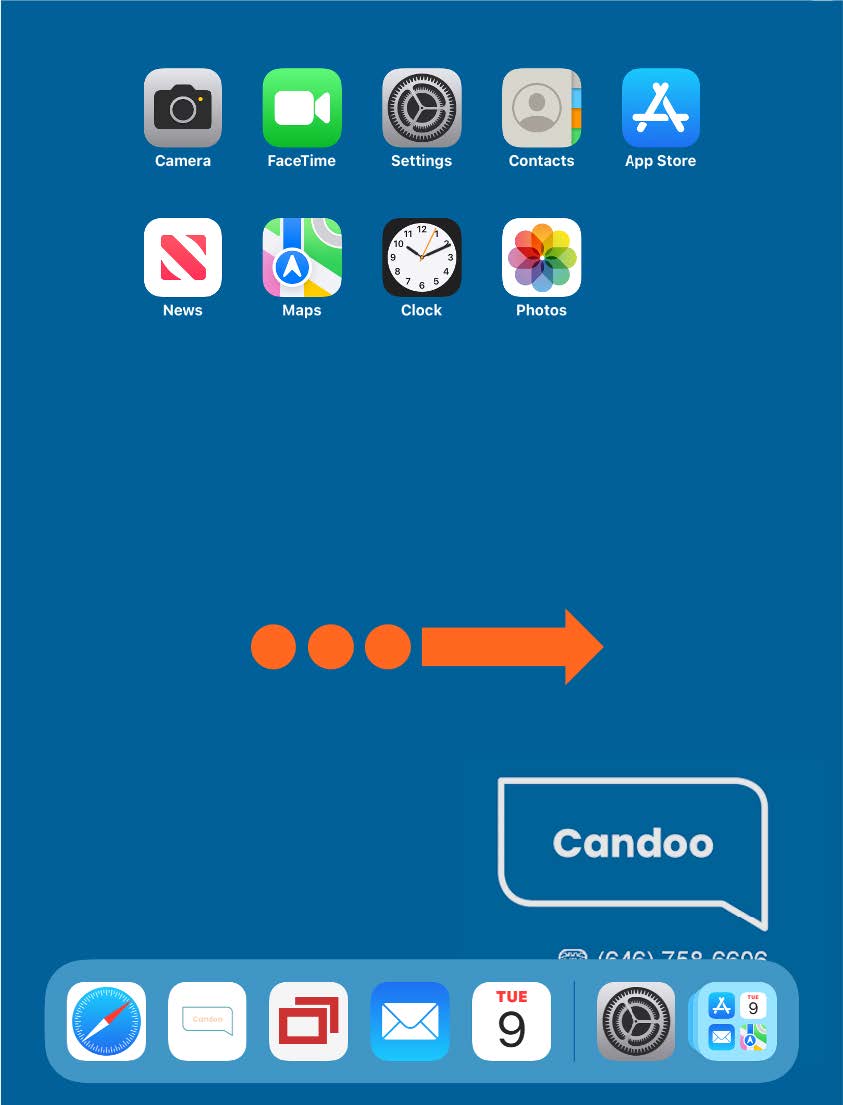
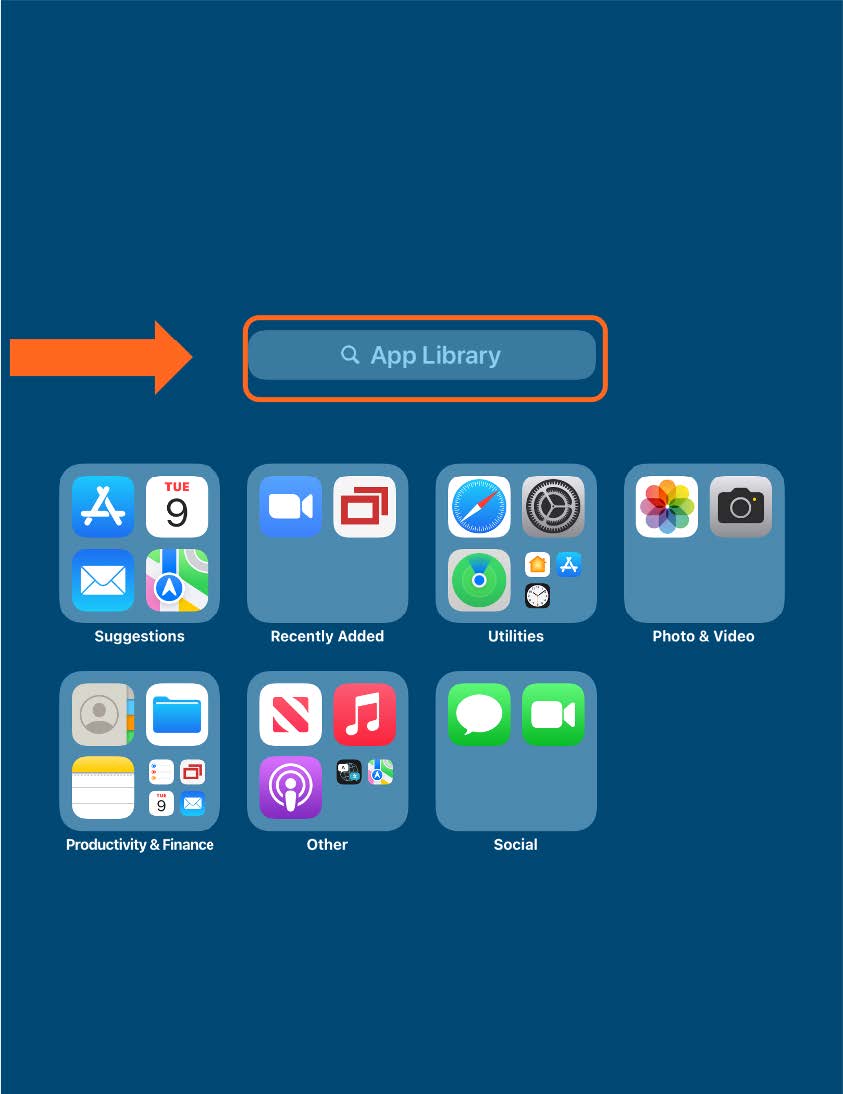
Swipe over to the left on the home screen until you find the App Library. Please note: You may need to swipe a few times before arriving at the App Library if there are multiple screens.
Step 3
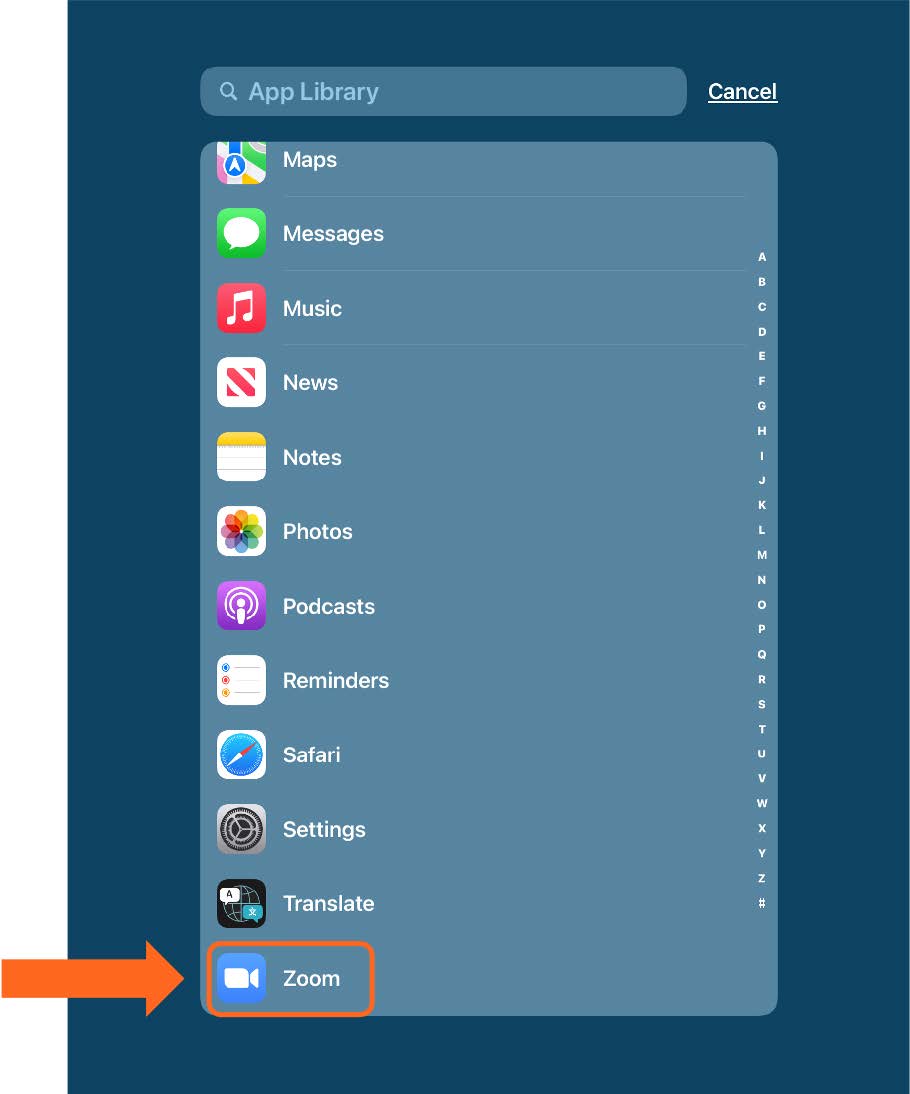
Tap and hold on to the app that you want to place on your Home Screen. Continue holding the app until your Home Screen appears — without lifting your finger, drag the app wherever you’d like it go on your Home Screen, then lift your finger and the app will stay.
Please Note: if you do not see the app you would like to add to the home screen, tap on the search bar at the top to view a list of all the apps installed on the iPad and complete the instructions provided for Step 3.
How to Move Apps on your Home Screen
Step 1
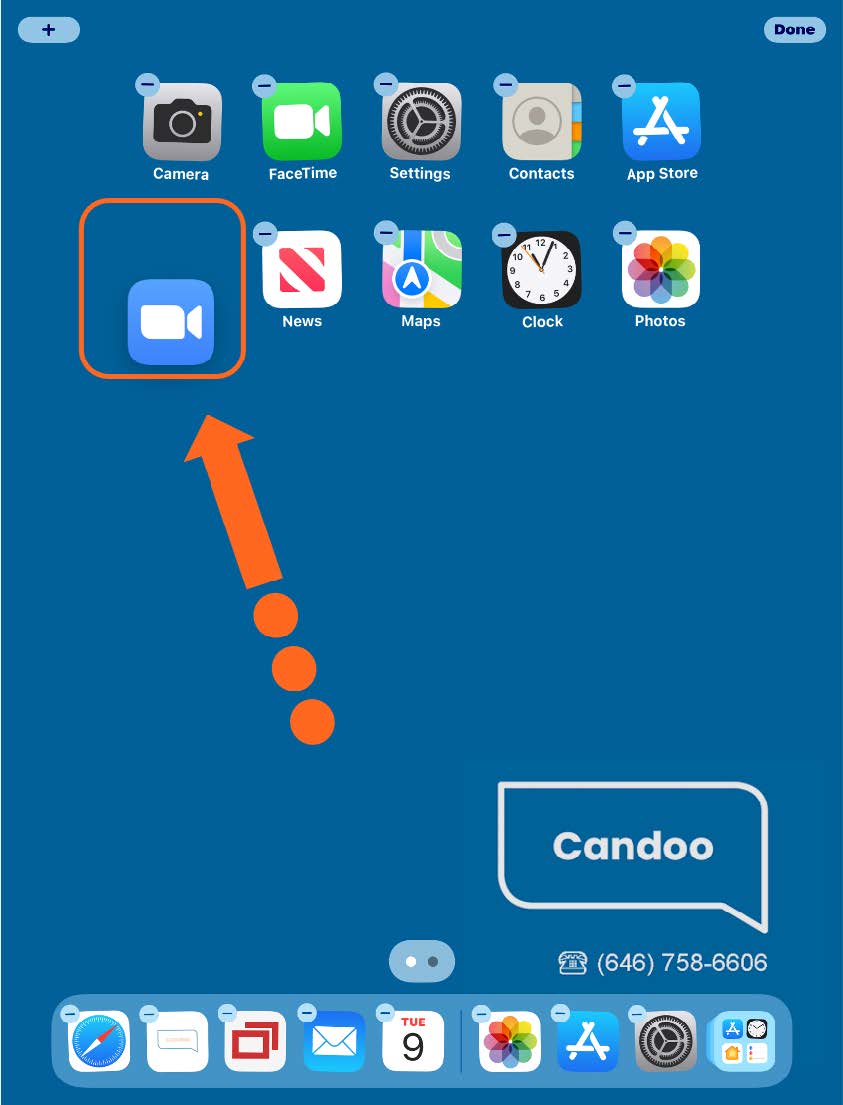
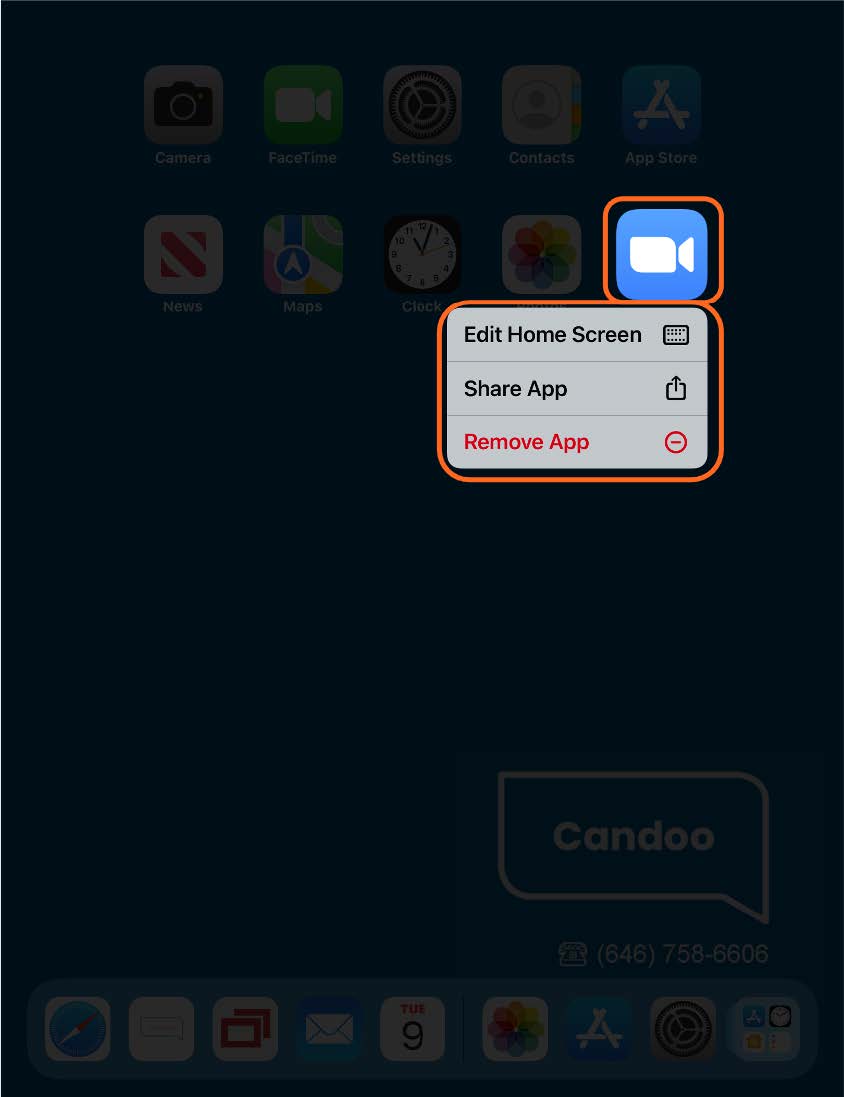
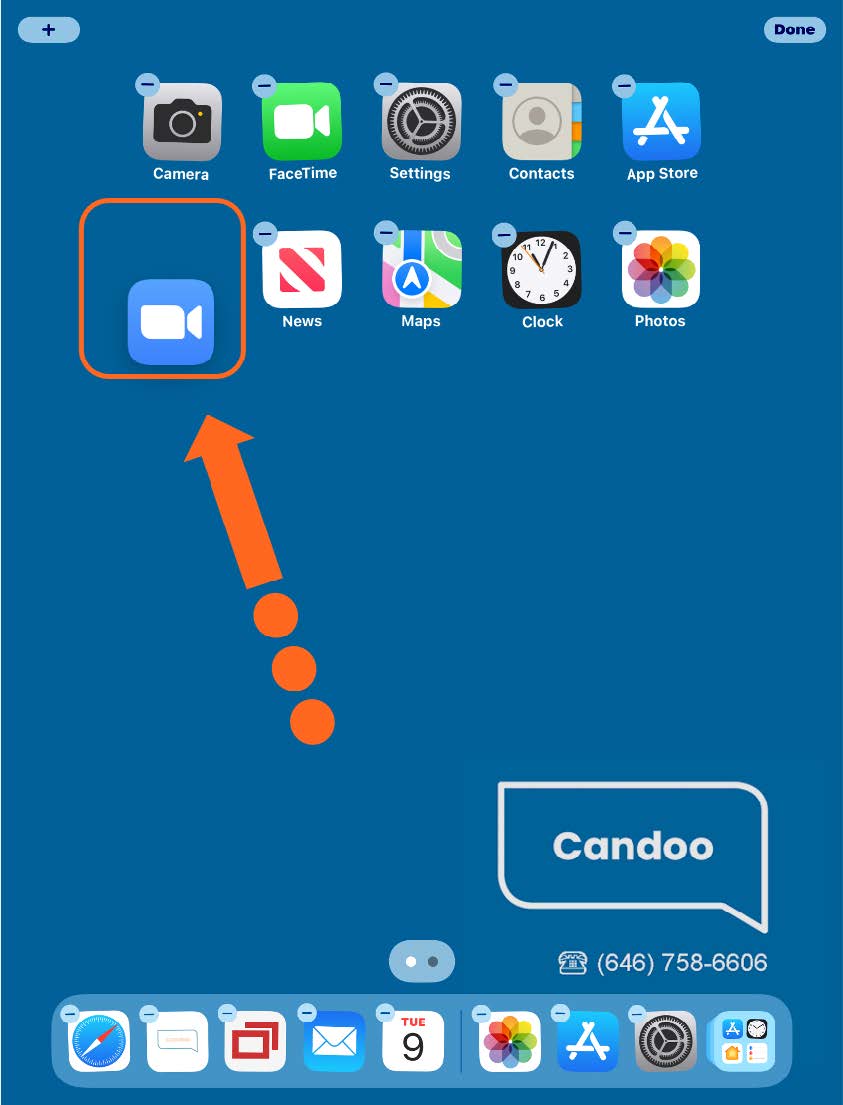
Tap and hold on the app icon you’d like to move until you see a light grey rectangle appear near the app icon. You can then lift your finger and tap on the ‘Edit Home Screen’ option. Then tap and hold on the app icon- Without lifting your finger, drag the app to the new location, then lift your finger.
Step 2
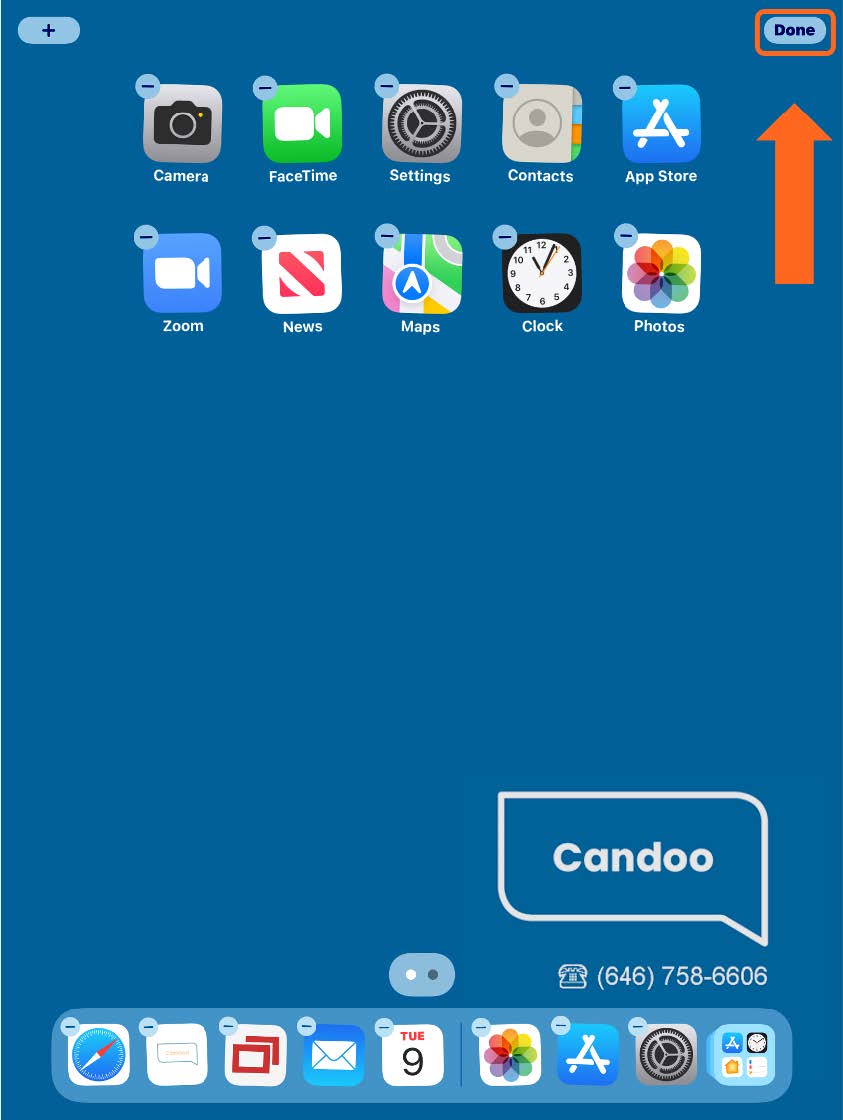
The app icons will wiggle when in ‘Edit Home Screen’ mode. They will stop after you tap on ‘Done’ in the upper right hand corner of the screen.
How to Delete Apps from your Home Screen
Step 1
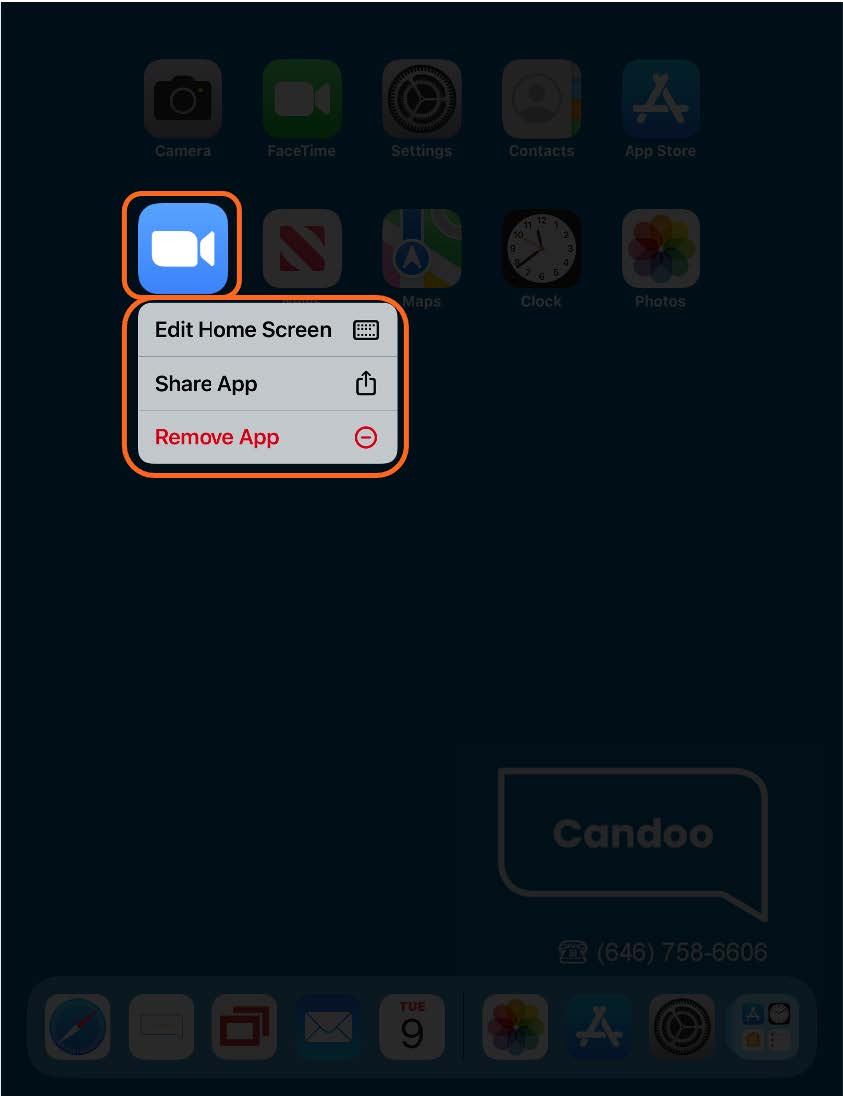
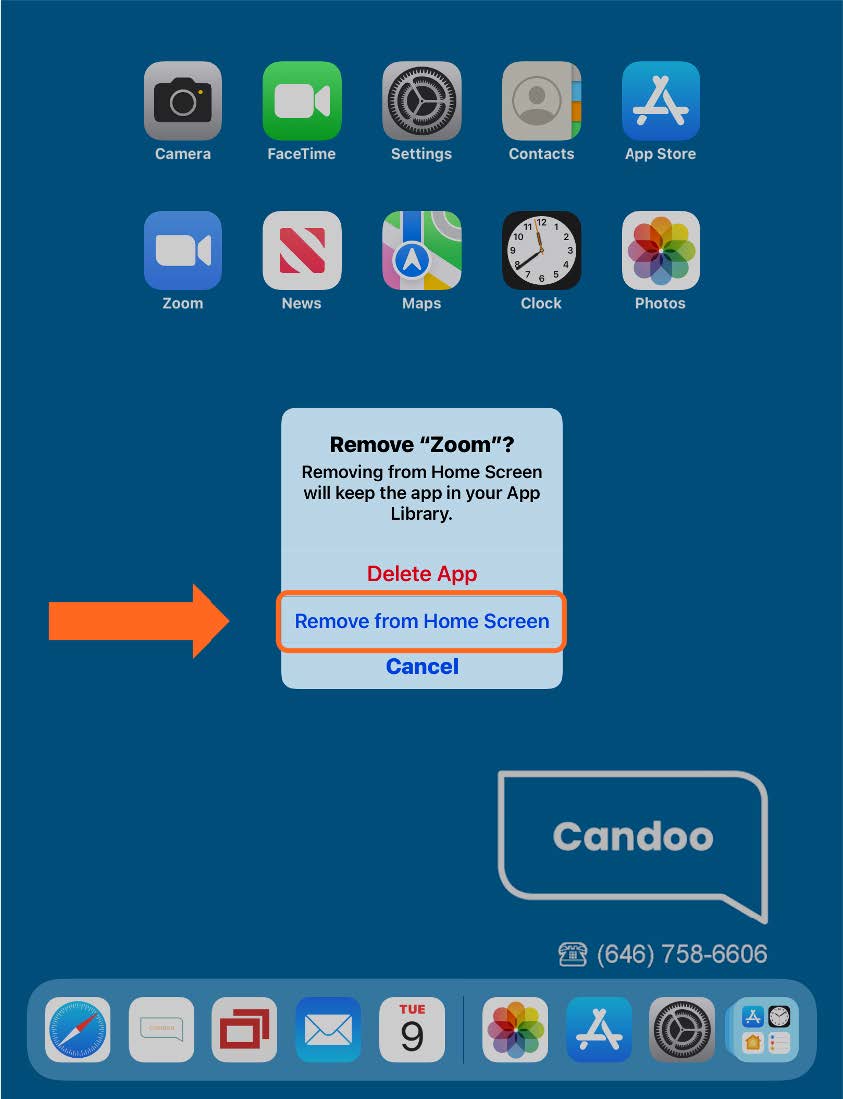
Tap and hold on the app icon you’d like to remove until you see a light grey rectangle appear near the app. Tap “Remove from Home” to remove the app from your home screen.
How to Install Apps from the App Store
Step 1
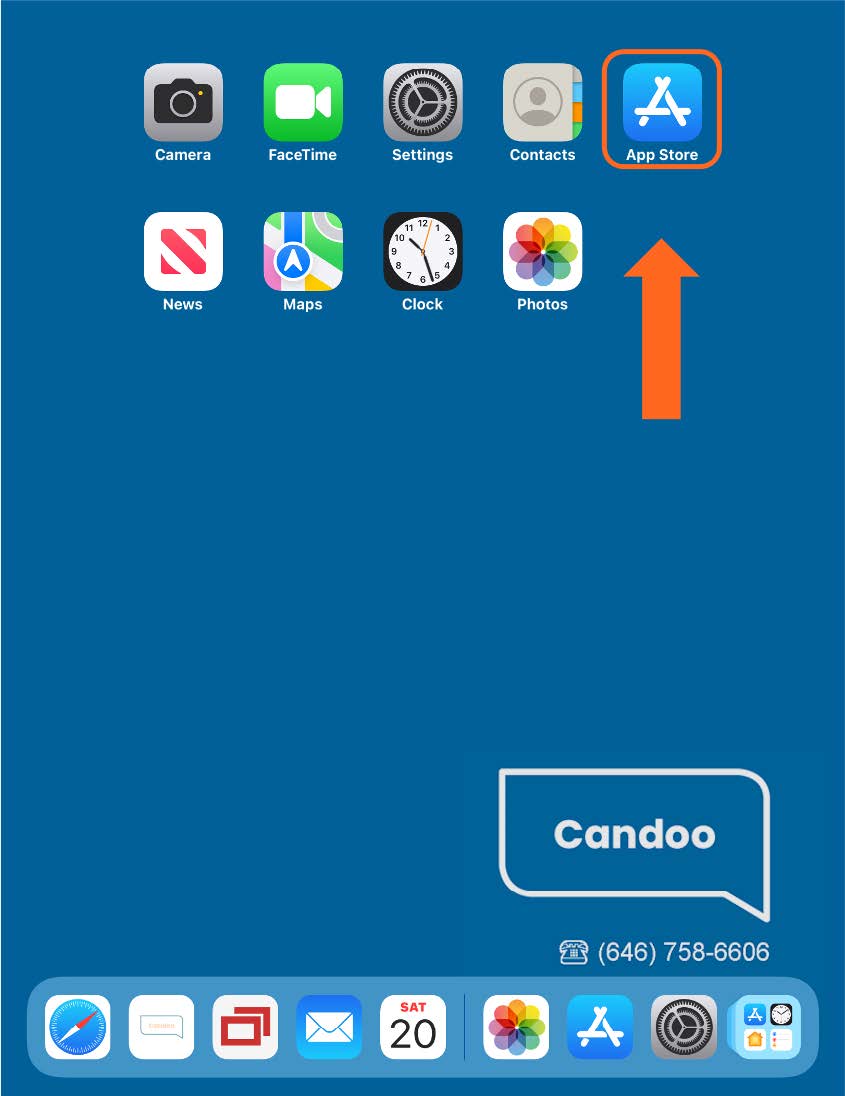
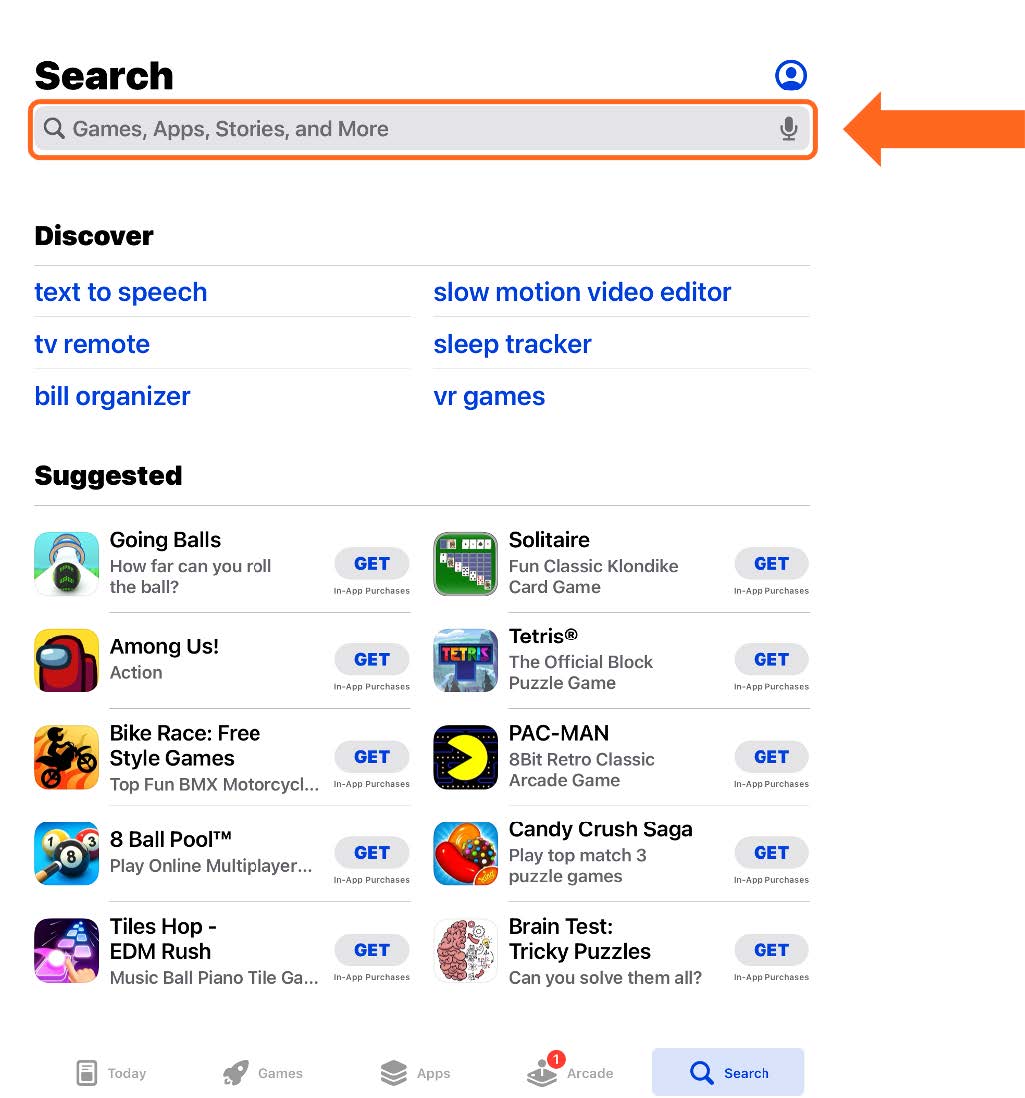
Open the “App Store” by tapping on the app icon highlighted below on the left screen. If the App Store is not present on your home screen, refer to pages 3 and 4 to view all apps from the App Library.
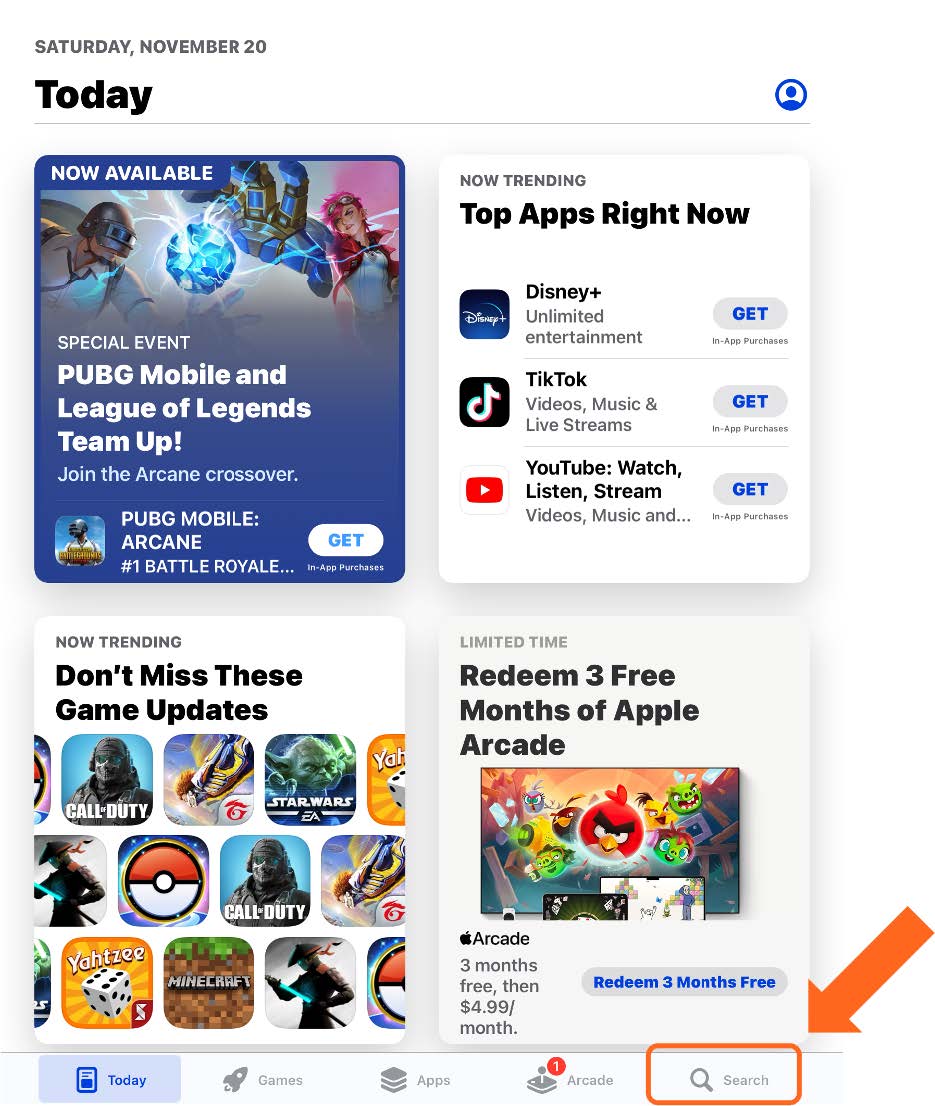
Once the main screen for the App Store appears, tap on the search button at the bottom right of the screen.
Step 2
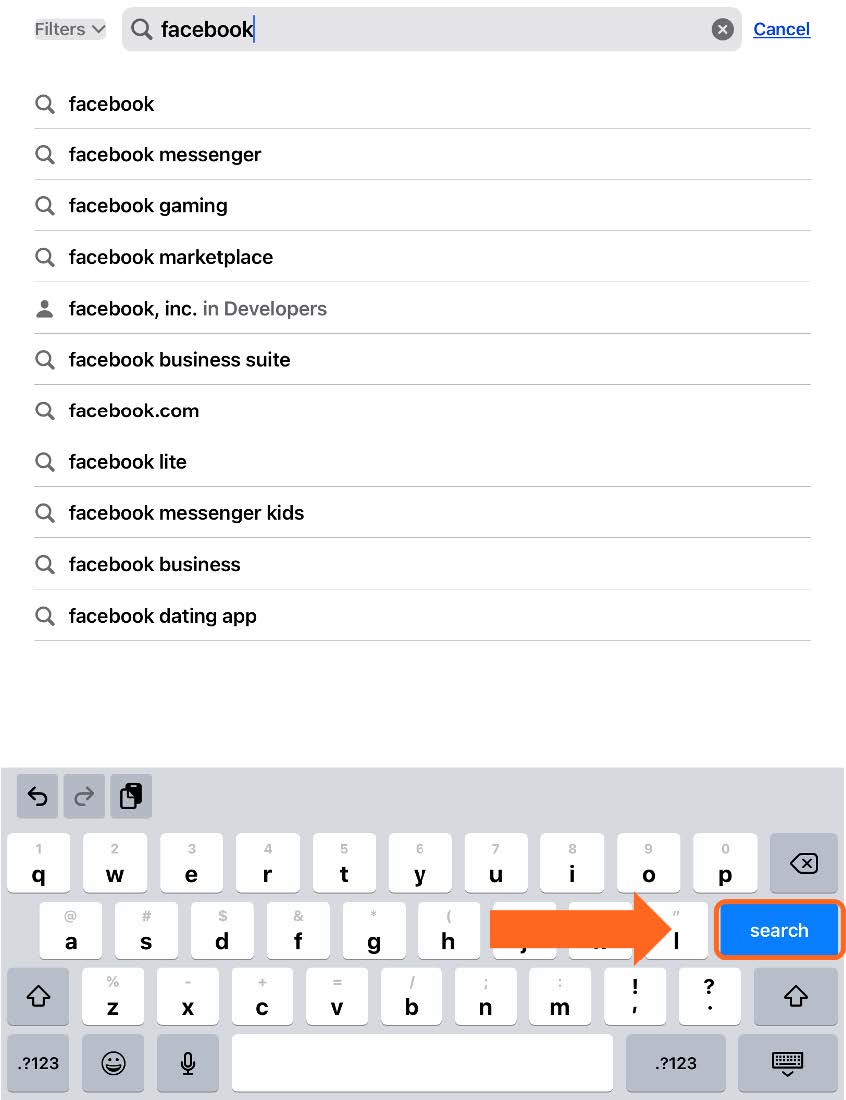
Type in the name of an app you’d like to download, or enter a keyword such as “food delivery”. In the example below, we will search for “Facebook”. Tap on the blue “search” button on the keyboard to submit your search.
Step 3
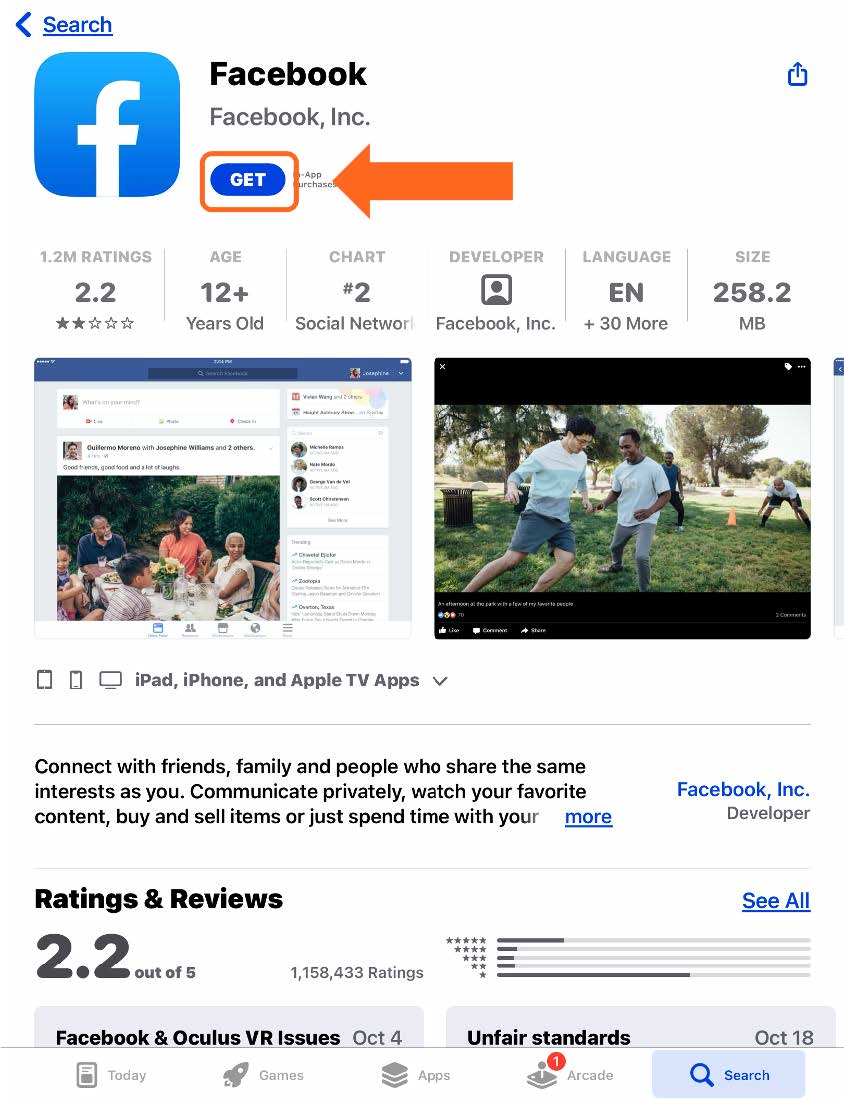
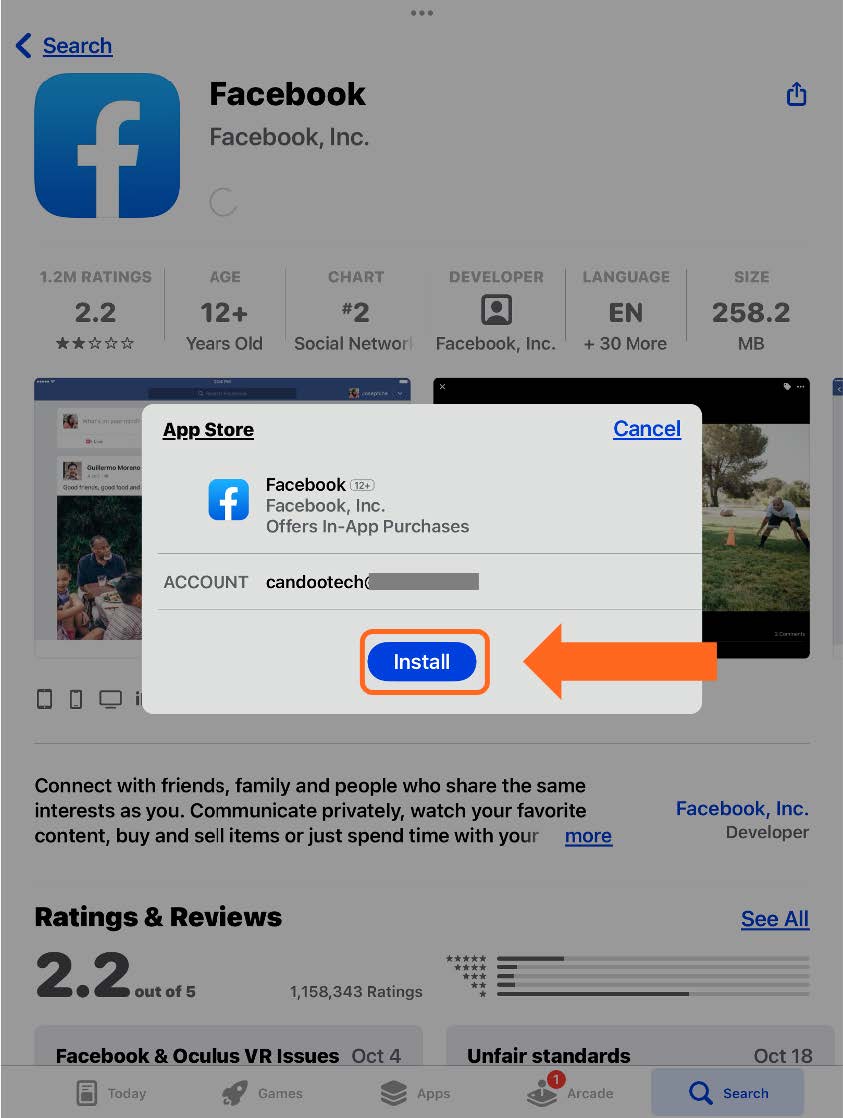
Tap on the blue “GET” button next to the app you’d like to install. Next, a smaller window will appear to confirm the installation, tap on the blue “Install” button.
Please note: depending on your settings, you may need to also enter your Apple ID password to initiate the installation.
Step 4
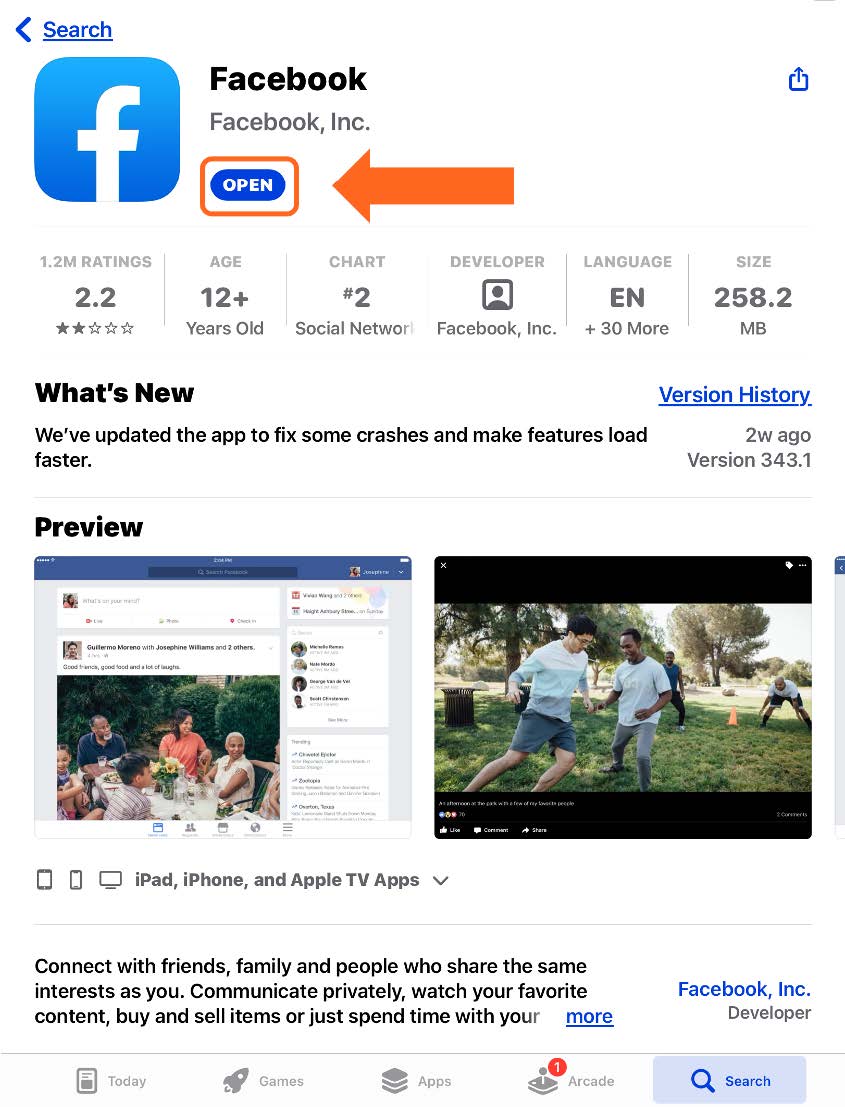
When the App has been installed, simply tap on the blue “OPEN” button next to the app name.
Please note: If the new app does not appear on the automatically, appear on the home screen, refer to pages 2 through 4 to review adding an app to your Home Screen.
How to Search the Internet with Safari
Step 1
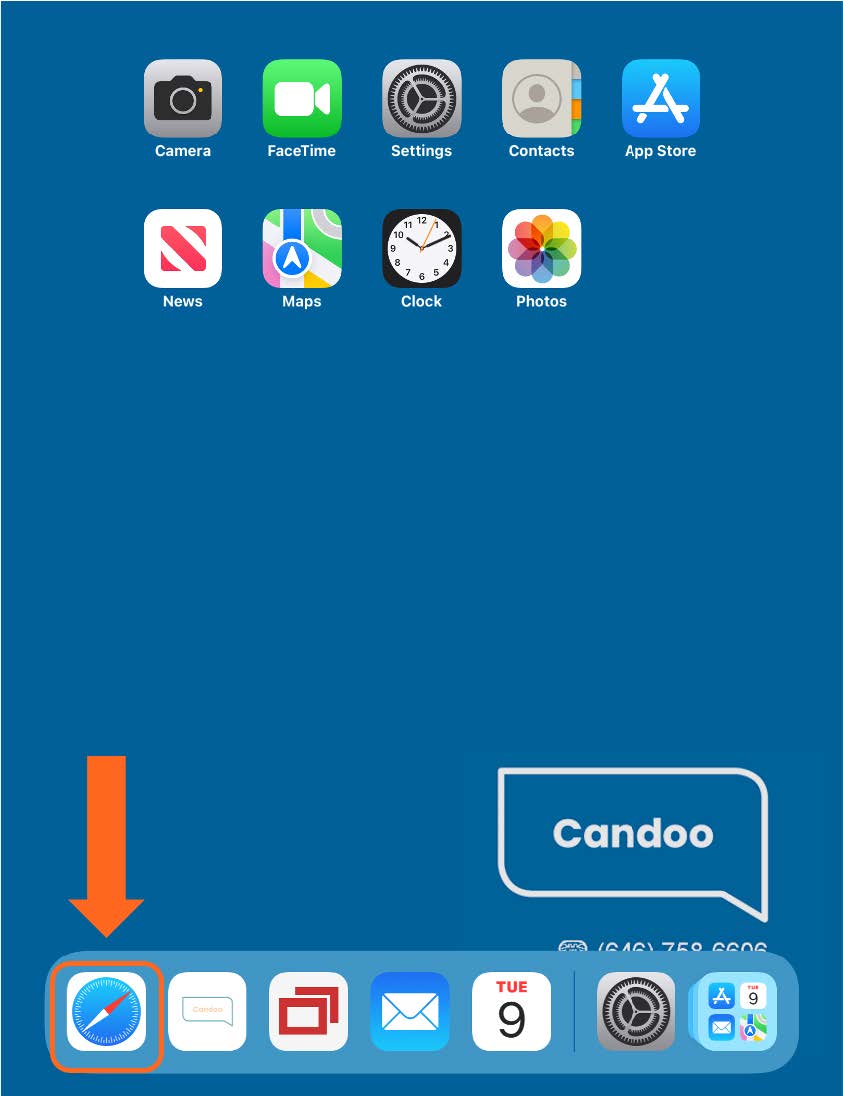
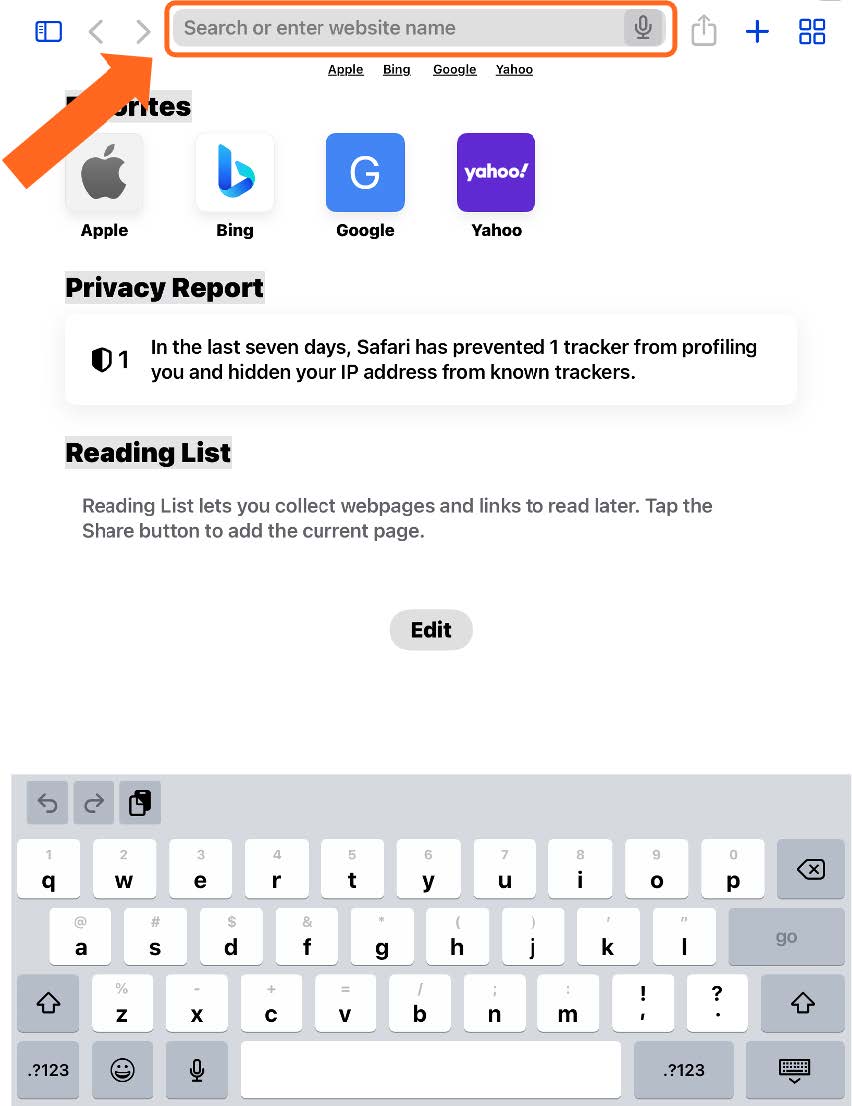
Open “Safari” by tapping on the app icon highlighted below on the left screen. Tap on the search/ address bar at the top of the screen that appears.
Step 2
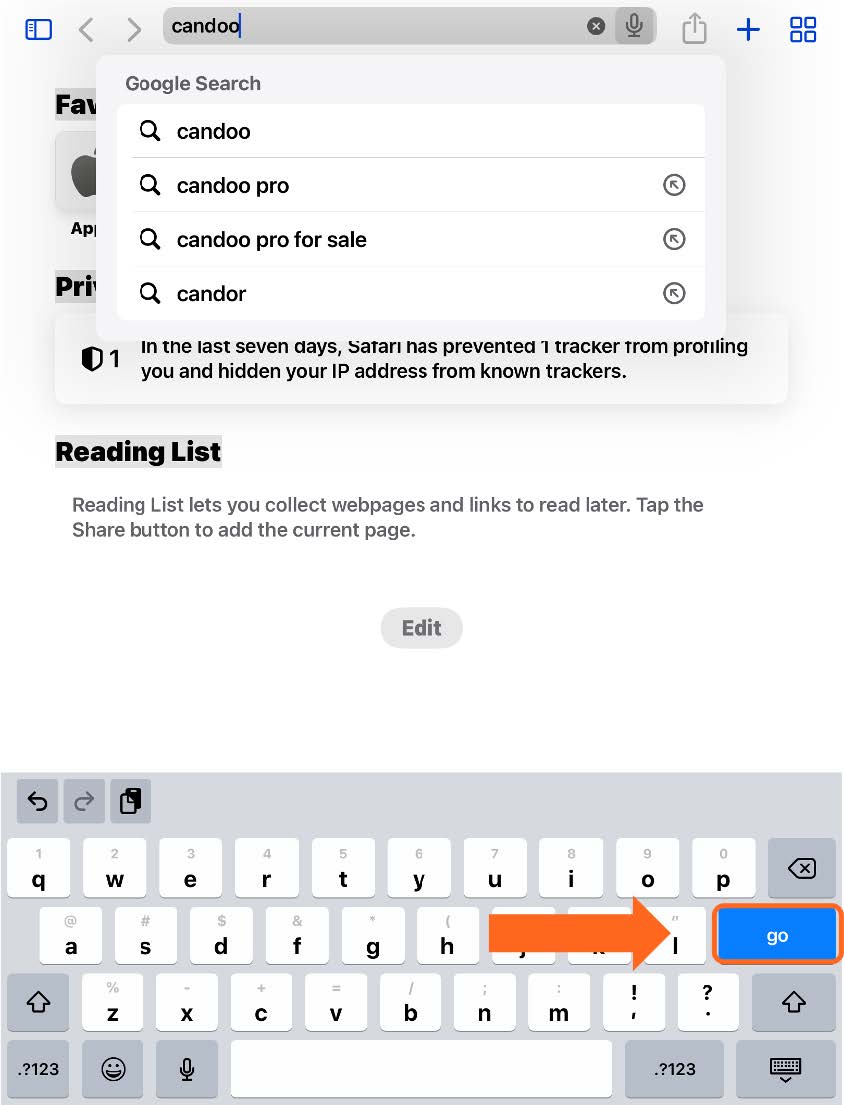
The keyboard will appear. Type in something that you want to search for on the internet, such as ‘local news’, then tap “go” on the keyboard.
Step 3
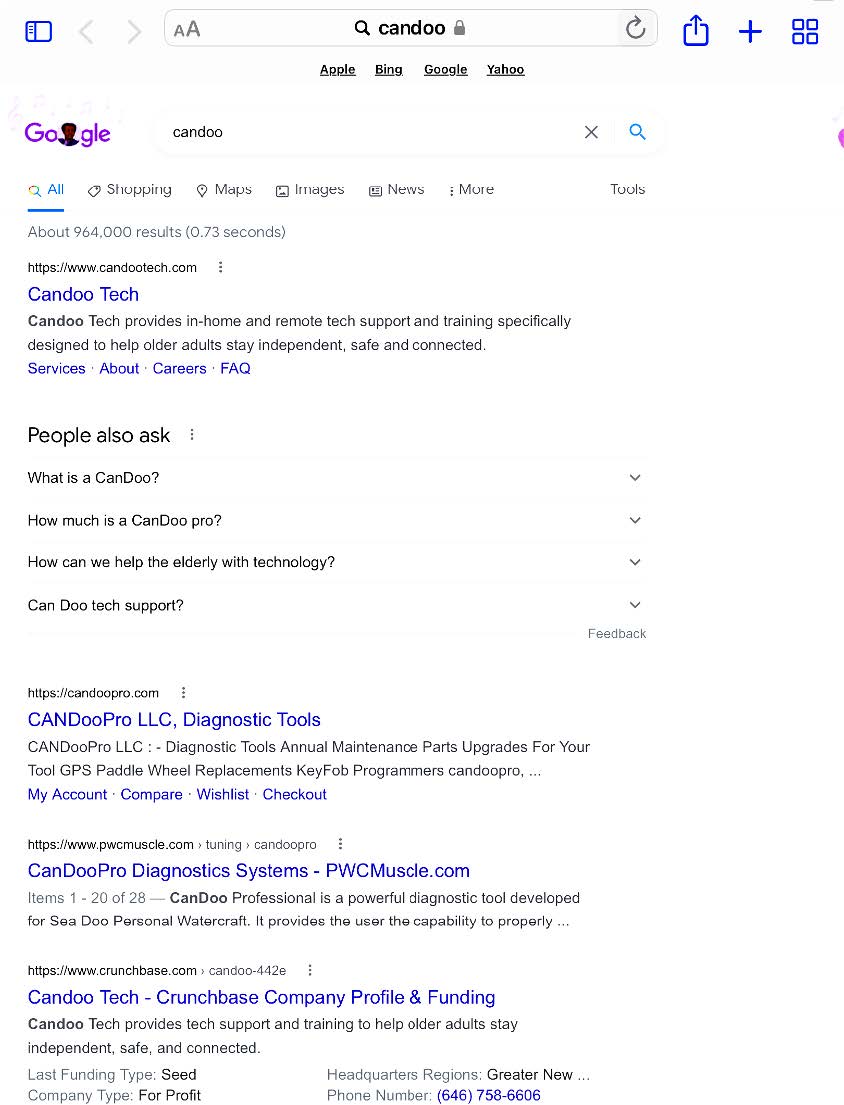
Your search results will appear on the screen. Tap on the search result that interests you to visit the corresponding webpage. In the screen below, we see the results when searching for “Candoo”.
How to Use the Camera
Step 1
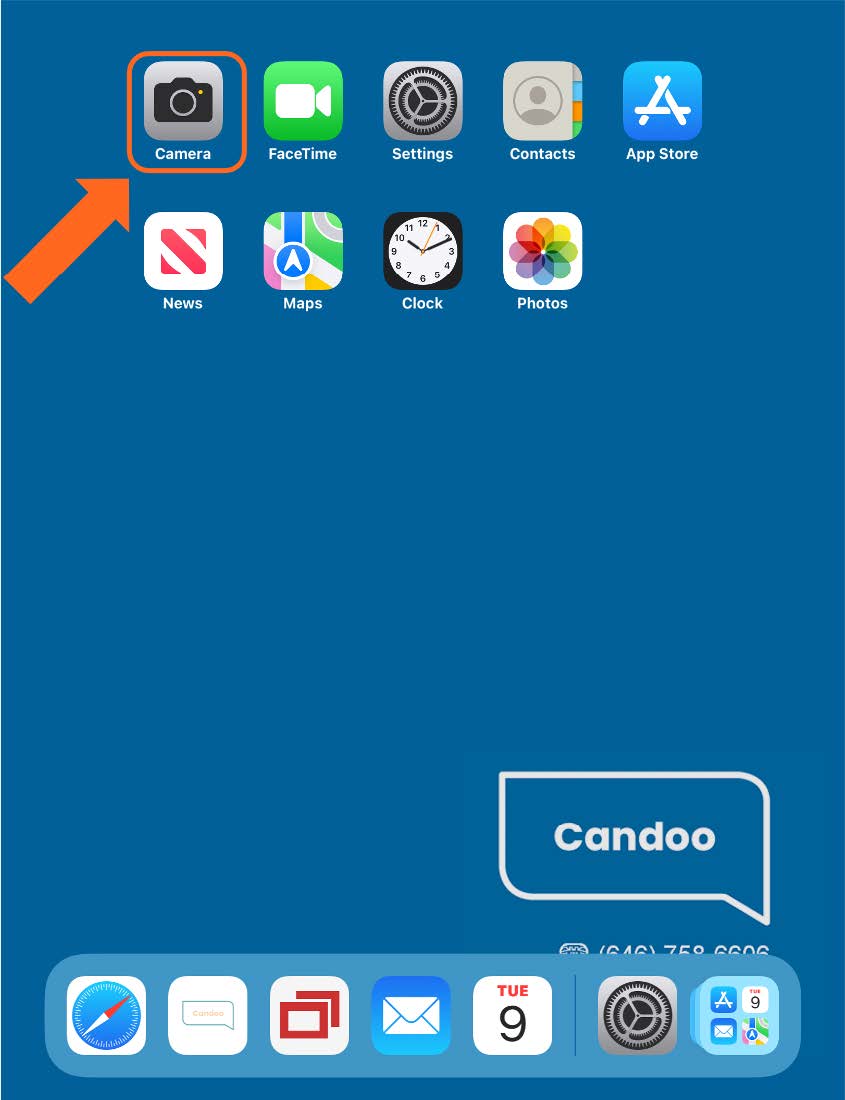
To Turn on your Camera, tap on the app icon highlighted on the screen below.
Step 2
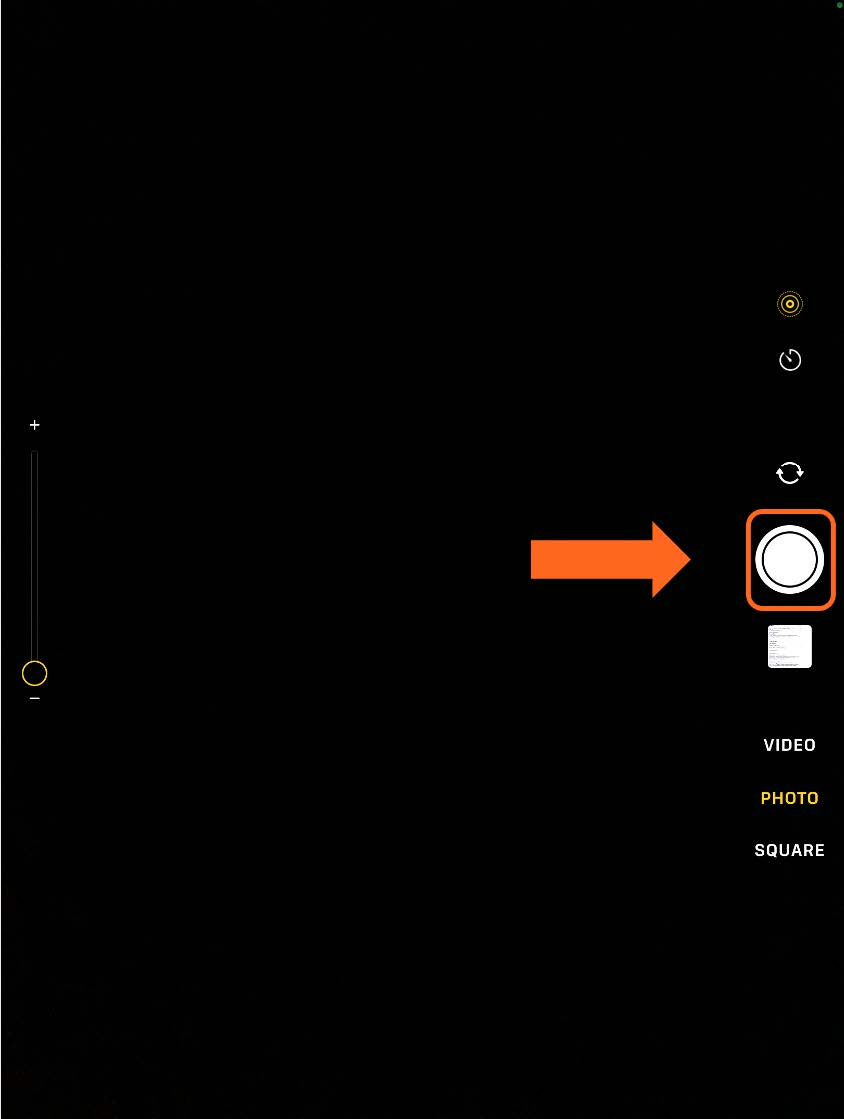
To Take a Photo, point the camera at your subject. Then press the shutter button (highlighted below on the left screen) to take the photo.
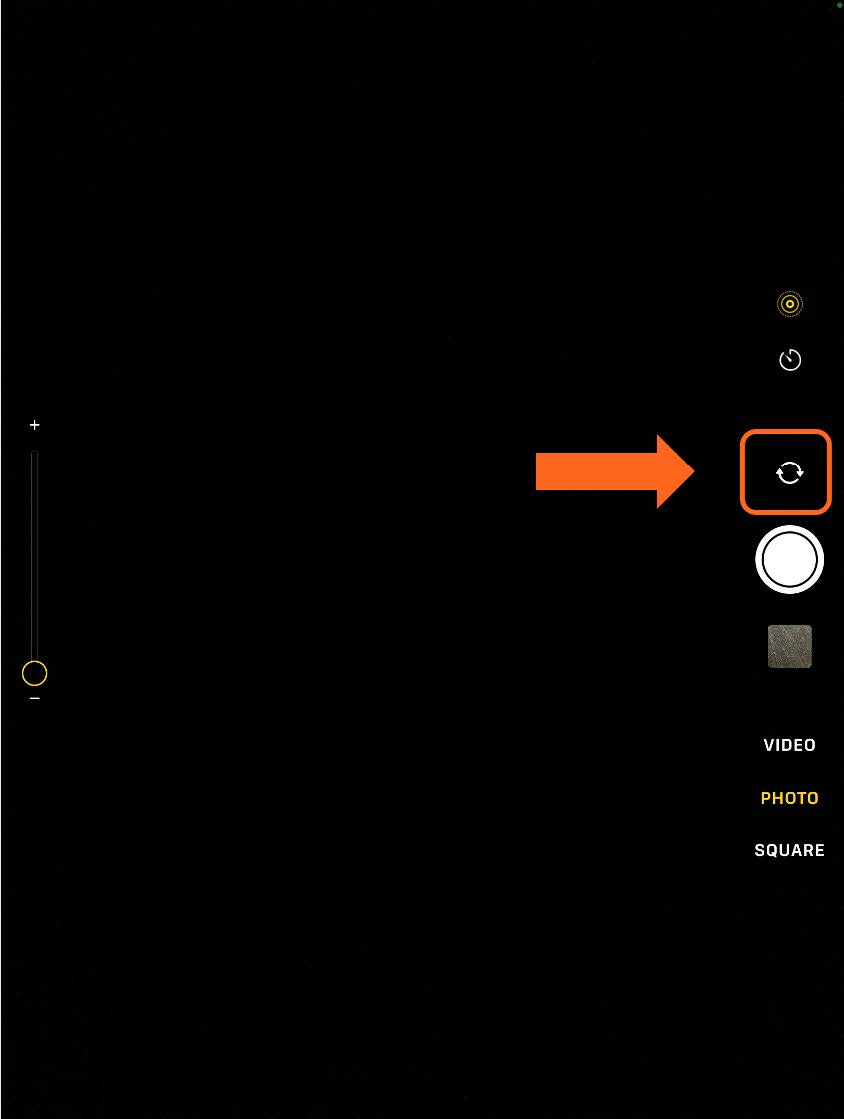
To Switch between the Front and Rear Camera, press the button above the shutter (highlighted below on the right screen). This will switch the direction of your camera. It will either face you or away from you.
Step 3
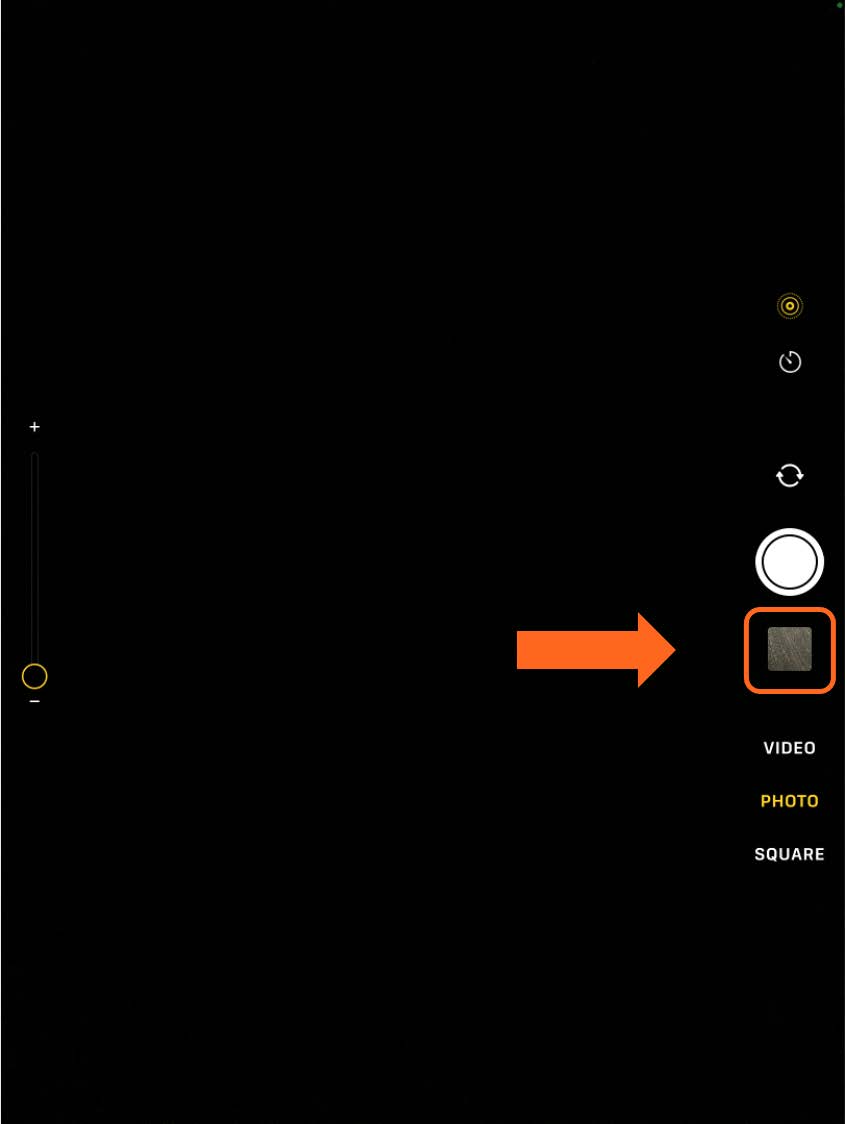
To View Photos you’ve Taken, press the button indicated below to view all your photos.
If you need help or have any questions, call us at
646-758-6606 or email support@candootech.com
To download a copy of this guide click below:
Comments
0 comments
Please sign in to leave a comment.