
Candoo How to Use the Walgreens App
Table of Contents
- How to Create a Walgreens account
- How to Refill/manage prescriptions
- How to Find Care
- How to Shop and find coupons
- How to Order Photos
How to Create a Walgreens account
Step 1
Tap to open the Walgreens app.

Step 2
There will be an option to receive notifications from the app.
Choose “Send me notifications” or “Skip”

Next, the app will search for your nearest Walgreens store based on your device location. Choose either “Continue” or to manually search tap on “Enter ZIP code, or city & state”.

Step 3
The Home Screen for the Walgreens app will appear next. To sign in or register for a new account, tap the icon in the top right corner of the screen. On the side menu that appears on the right, you can tap on either ‘Sign in’ or ‘Register’ on the top. In this example, we will choose to register for a new account.

Step 4
To create an account, simply enter your First & Last Name, email, and create a password. After tapping ‘Continue’, you will then be asked if you would like to join as my Walgreens member or link an existing account. You can also choose to do this later.

Step 5
If you already have a myWalgreens membership, you will then enter the phone number and ZIP code that are associated with it. Please note: a verification code may be sent to the phone number to confirm the adding membership. There will be a confirmation message that will appear once the registration is complete!

How to Refill/manage prescriptions
Step 1
Once logged in, you can refill and manage your prescriptions. Start by tapping on “Prescriptions” at the bottom of the main screen. On the prescription screen, you can tap on “Refill by scan” to use the camera on your device to take a picture of the barcode from your prescription bottle. You can also type your prescription number to refill.

Step 2
You can also swipe down on the Prescriptions screen to view additional pharmacy tools and options- such as: Submit your prescription insurance card, Talk to an expert, and Manage family prescriptions.

How to Find Care
Step 1
To explore options for care, tap on “Find Care” at the bottom of the main screen. On the Find Care main screen, you can browse care options by category, view local services, and continue to view other options by scrolling down the page.

Step 2
At the bottom of the screen, there is an option to receive are commendation on the type of care needed by sharing the symptoms that you may be experiencing. Start the conversation by tapping on “Get Started” and then answering the prompts to
begin the assessment.

How to Shop and find coupons
Step 1
Shopping for items and discovering coupons are another feature of the Walgreens app. Tap “Shop & Savings” at the bottom of the main screen. You can shop for items by browsing and scrolling through the shopping screen.
I
Step 2
To search for an item, such as vitamins, tap on the search bar at the top of the screen, type in what you are looking for, and tap on Go on the keyboard to start the search.
Tap on a search result and select if you would like pickup at your nearby store, delivered the same day, or shipped

Step 3
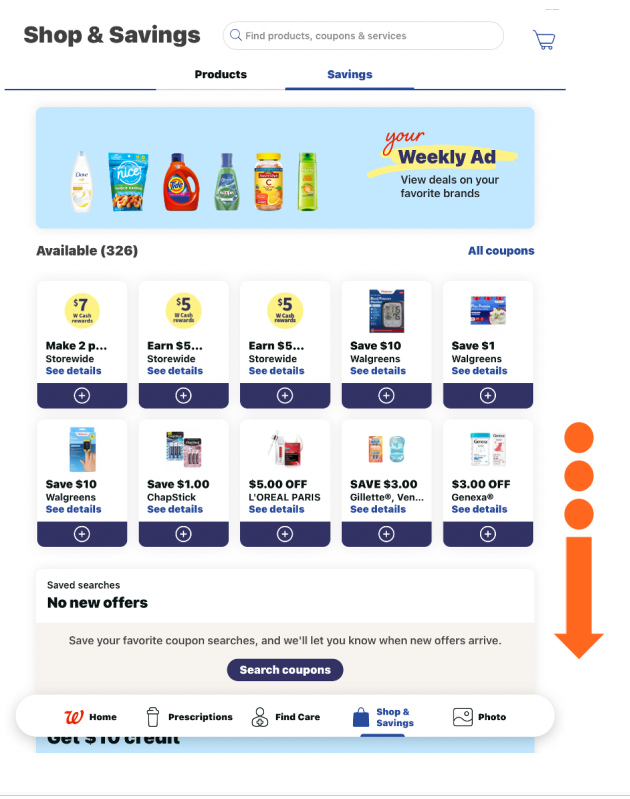
To browse and search available coupons or view the Weekly Ad, tap on the “Savings” tab (right below the search bar) at the main Shop & Savings screen.
How to Order photos
Step 1
To order prints or other custom photo-related items, tap on “Photo” at the bottom of the main screen. Once you have selected the type of photo order you want, tap on the corresponding option.
 Step 2
Next, you will need to import the photos you want to include in the order from either your device or another saved location as seen in the screen below.

Once you have imported your photos for the order, proceed with the selection details and check out!
If you need help or have any questions, call us at
646-758-6606 or email support@candootech.com
To download a copy of this guide click below:
Comments
0 comments
Please sign in to leave a comment.